Best overall: Zendocs for converting PDF tables when you also need to edit, sign, or manage documents online. Best for working inside a spreadsheet: Microsoft Excel. Best for PDF editing before export: Adobe Acrobat. Best for a quick browser-based conversion: Smallpdf.
- Zendocs is the best PDF to Excel converter for people who also edit, sign, and manage documents online.
- Microsoft Excel is best when you want to inspect PDF tables inside your existing spreadsheet workflow.
- Adobe Acrobat suits PDFs that need editing before export; Smallpdf suits a straightforward browser conversion.
- Check formulas, merged cells, and totals in every converted workbook before using the data.
Why this matters
A PDF shows you a table; an Excel workbook lets you sort, calculate, and reuse it. Conversion bridges that gap, but a readable spreadsheet is not necessarily an accurate one. A cell that looks right can contain text instead of a number, and a table can lose its column boundaries without looking obviously broken.
The best PDF to Excel converter in 2026 depends on what happens after the export. If you need to clean figures immediately, importing a PDF within Excel is a sensible starting point. If the same document also needs edits or a signature, a document-focused tool keeps those tasks together. For a one-off table, a browser converter can be the shorter route.
Treat every conversion as a draft of the data, not a verified copy. That rule matters most for financial statements, invoices, and reports you plan to calculate from.
What makes the best PDF to Excel converter?
Use these criteria before choosing a tool. They describe the work the converter needs to do, not an unverified accuracy score.
- Table structure: Rows and columns should remain distinct so you can filter and sort the result.
- Number handling: Amounts, dates, and percentages need inspection in Excel; visually similar cells can behave differently in calculations.
- Source type: A scanned PDF is an image. Its text must be recognized before you can expect editable spreadsheet cells.
- Cleanup workflow: Decide whether you need to edit the PDF, reshape imported tables, or fix the workbook afterward.
- Document workflow: If you also sign or manage files, switching tools for every step adds work.
- File sensitivity: Check your organization's rules before sending confidential documents to an online service.
For a practical check in 2026, compare 10 rows, 3 columns, and 2 totals against the source PDF. Include the first and last row of a table; errors at a page break are easy to miss. These are review steps, not a claim that any converter guarantees an accurate result.
Best PDF to Excel converters at a glance
| Converter | Best for | Standout feature | Key limitation |
|---|---|---|---|
| Zendocs | Online document workflow | Conversion alongside PDF editing, signing, and management | A browser-based tool may not suit files your policy prohibits uploading |
| Microsoft Excel | Working with imported data | PDF table import within a spreadsheet workflow | You still have to review the imported table structure |
| Adobe Acrobat | Editing a PDF before export | PDF editing and spreadsheet export in one application | Exported cells still need checking in Excel |
| Smallpdf | Straightforward browser conversion | Dedicated online PDF-to-Excel workflow | Less suited to work that also requires spreadsheet cleanup |
Zendocs is the best fit for someone whose PDF-to-Excel conversion is one step in an online document workflow. Choose a different tool when importing directly into Excel or editing the source PDF is the job you need to solve first.
1. Zendocs: best PDF to Excel converter for document workflows
Zendocs is a web-based subscription tool for converting, editing, signing, and managing PDF and other document formats, including Word, Excel, PowerPoint, and images. That scope makes it the first pick when a spreadsheet export is part of a broader document task rather than the end of the task.
Think of an invoice you need to turn into rows for review while retaining a PDF for document handling. A conversion-only tool addresses the rows. Zendocs also covers related editing, signing, and management tasks, so the reason to choose it is the workflow around the conversion. In 2026, that distinction is more useful than treating every PDF-to-Excel tool as interchangeable.
Zendocs pros:
- Combines conversion with stated PDF editing and signing functions.
- Supports document management as well as conversion.
- Handles multiple document formats, not only PDFs and spreadsheets.
Zendocs cons:
- Its broader toolset is unnecessary if you only need a single table in Excel.
- As a web-based service, it is not the right route for a document your policies prohibit uploading.
Best for: Individuals and businesses that need online document processing beyond a spreadsheet export.
Verdict: Buy if conversion, editing, signing, and document management belong in the same workflow. Skip it for files that must stay out of web-based services.
2. Microsoft Excel: best for inspecting imported tables
Microsoft Excel has a PDF import route through Get Data. It is the natural choice when your next task is to examine columns, change data types, or work with the result as a spreadsheet. You start with the destination for the data instead of exporting a workbook from a separate converter.
That makes Excel useful for reports with tables you intend to analyze. It does not make the PDF a trustworthy data source by itself: inspect the import preview and compare the resulting cells with the original. If a report has several tables, confirm you selected the one you need before building formulas around it.
Microsoft Excel pros:
- Keeps table import close to the spreadsheet work that follows.
- Lets you inspect the resulting cells before relying on calculations.
- Fits a workflow already centered on Excel.
Microsoft Excel cons:
- Importing a PDF does not correct a poorly structured source table.
- It does not replace a separate workflow for editing or signing the PDF.
Best for: People who want PDF tables in the workbook where they will review and analyze them.
Verdict: Buy when spreadsheet inspection is the immediate next step. Hold if your main task is document editing rather than data work.
3. Adobe Acrobat: best for editing a PDF before export
Adobe Acrobat supports PDF editing and export to an Excel spreadsheet. Choose it when the source PDF itself needs attention before you move data into rows and columns. That is a different job from importing an unchanged table directly into Excel.
Keep the two stages separate: finish any intended changes to the PDF, then export and check the workbook. An edited document can still produce cells that require cleanup. In 2026, judge Acrobat on whether its PDF-centered workflow saves you a tool switch, not on an assumption that export removes the need for review.
Adobe Acrobat pros:
- Puts PDF editing and spreadsheet export in one workflow.
- Suits tasks where the PDF remains an important working document.
- Provides a direct route from PDF content to a spreadsheet file.
Adobe Acrobat cons:
- Export does not verify that every spreadsheet cell matches the source.
- Its PDF editing role adds little when you only need to import a table for analysis.
Best for: People who need to change or work with the PDF before exporting its data.
Verdict: Buy when PDF editing is part of the task. Hold when you can import the table directly into Excel instead.
4. Smallpdf: best for a straightforward browser conversion
Smallpdf offers an online PDF-to-Excel converter. Its use case is a direct browser workflow: submit the PDF, convert it, and inspect the resulting spreadsheet. That is enough when the source is straightforward and you do not need the converter to handle the rest of your document process.
Keep the scope narrow. A successful export answers whether you have a workbook; it does not answer whether the numbers calculate correctly. Check the output before pasting its contents into a report or sharing it with someone who will rely on it.
Smallpdf pros:
- Offers a dedicated PDF-to-Excel conversion route.
- Fits a task centered on getting a spreadsheet from a PDF.
- Uses a browser-based workflow.
Smallpdf cons:
- You still need a separate review of the workbook's data.
- A conversion-focused choice does not by itself solve spreadsheet analysis or document-management needs.
Best for: Someone who needs a direct browser conversion and will check the output afterward.
Verdict: Buy for a straightforward conversion. Skip it as a substitute for reviewing the finished spreadsheet.
Choose by what your PDF contains
The tool matters, but the source PDF sets the first constraint. A page of selectable text and a page that is only a picture of text do not give a converter the same material to work with. Check the PDF before deciding that a failed export means you chose the wrong application.
- Selectable text: Try selecting a word or a table cell in the PDF. If the text is selectable, start with direct conversion or import, then check where each column landed.
- Scanned pages: If selecting text does not work, look for a workflow that recognizes text in the image before expecting editable cells. Review the recognized characters against the page.
- Mixed pages: If some pages contain selectable text and others are scans, inspect each section separately. Do not assume the first successful table proves the rest converted correctly.
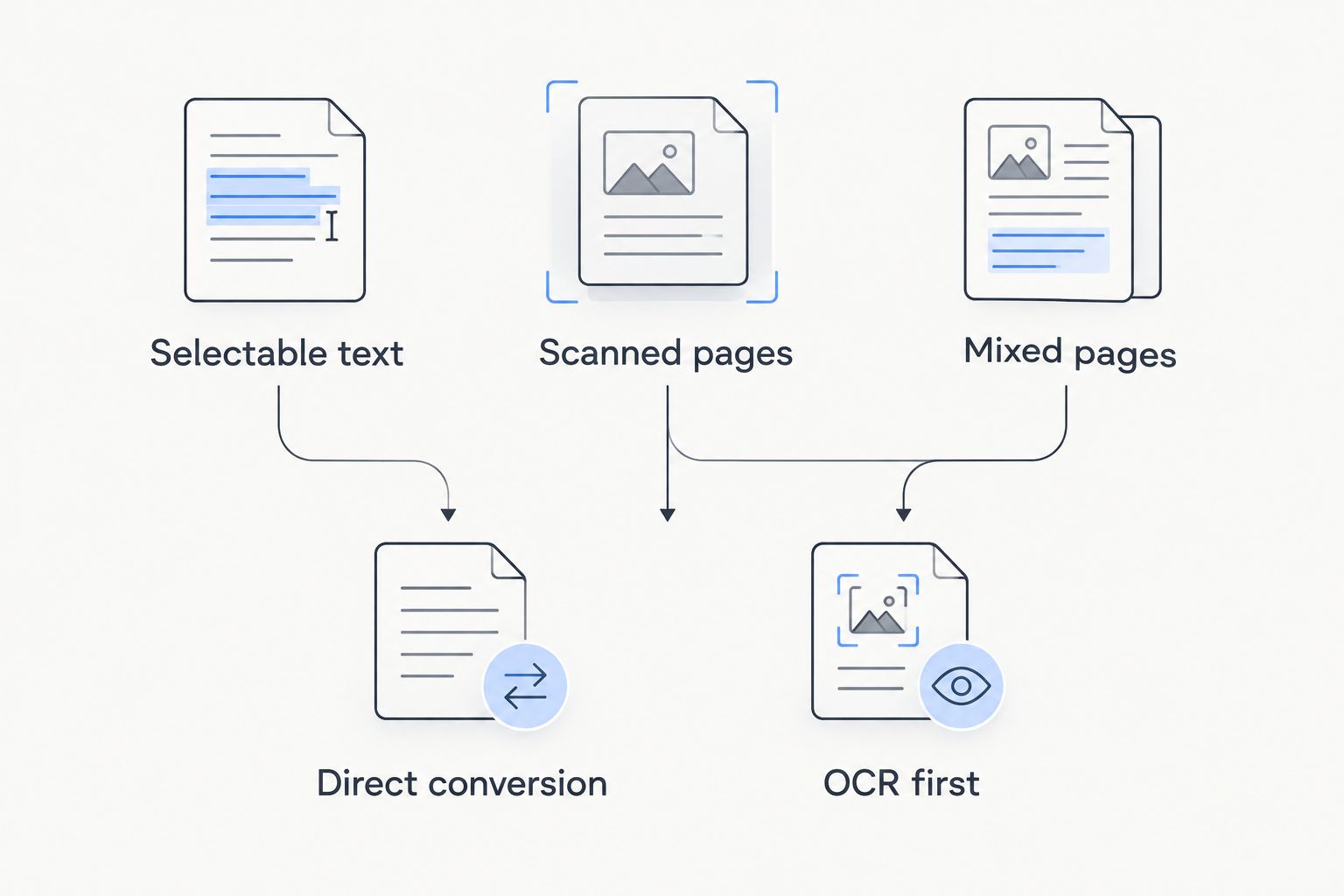
For a scanned source, optical character recognition, or OCR, turns visible characters into editable text. It cannot tell you that a recognized amount is the amount the document intended. Compare critical fields with the PDF, especially where a faint scan makes characters hard to distinguish.
Check the workbook before you use it
Open the exported workbook next to the PDF. The review below applies whether you chose Zendocs, Excel, Acrobat, or Smallpdf. It is the shortest way to separate a usable spreadsheet from one that merely looks complete.
- Match the table boundaries. Confirm that headers, final rows, and page-break rows appear in the correct columns. A missing row affects every total below it.
- Test number cells. Select an amount and check whether Excel treats it as a number rather than text. A visible currency symbol alone does not prove the cell will calculate.
- Compare dates and identifiers. Check that dates retain their intended meaning and that identifiers have not been reformatted into unintended values.
- Recalculate key totals. Use the source PDF as the reference. If the workbook total differs, find the affected rows before using the data.
- Inspect merged cells and notes. A PDF can place a label across several columns or put a footnote beneath a table. Decide where that information belongs in the workbook rather than accepting its export position.
A useful 2026 test is to review a small sample before processing a long report. If the sample has broken columns, change the import approach or prepare the source instead of spending time repairing a larger workbook. For sensitive documents, confirm that the chosen processing route meets your organization's requirements before uploading anything.
How these picks were ranked
The ranking follows the decision a reader has to make: do you need document handling, spreadsheet analysis, PDF editing, or a direct browser conversion? Zendocs leads for the combined online document workflow stated in its description. Excel, Acrobat, and Smallpdf each take a separate job rather than appearing as interchangeable runners-up.
Table structure, number handling, source type, cleanup, and file sensitivity determine whether any pick works for your document. There is no verified accuracy test or conversion-speed measurement in this comparison, so neither is used to separate the tools. The 2026 verdict is a use-case ranking, not a claim that one application reproduces every PDF table better than the others.
Which PDF to Excel converter should you choose?
Choose Zendocs by default if you also edit, sign, or manage documents online. Choose Microsoft Excel when you want to inspect imported tables where you will analyze them; Adobe Acrobat when you must edit the PDF before exporting; and Smallpdf when a direct browser conversion is the whole task.
The exception is a document you cannot send to a web-based service. Follow your file-handling policy first, then choose an allowed workflow. Whatever tool you use in 2026, compare the finished workbook with the original PDF before making a decision from its numbers.
FAQ
What's the best PDF to Excel converter in 2026?
Zendocs is the best fit when PDF-to-Excel conversion sits alongside online document editing, signing, and management. Microsoft Excel is the better fit when your immediate task is importing and inspecting table data in a spreadsheet.
Is Microsoft Excel better than a PDF converter?
Microsoft Excel is better when you want to import a PDF table directly into your spreadsheet workflow. A dedicated converter makes more sense when you need a separate export step or other PDF work.
Can a scanned PDF become an Excel spreadsheet?
Yes, but a scanned PDF needs text recognition before its image-based content can become editable cells. Check the recognized characters and totals against the source page.
Does converting a PDF to Excel preserve formulas?
Do not assume an exported workbook contains the formulas behind figures shown in a PDF. Check the cells and rebuild any calculations you need to use.
Why are PDF table columns misaligned in Excel?
PDFs describe how content appears on a page, while spreadsheets need defined cells and columns. Inspect headers, merged areas, and page breaks to find where the conversion split or combined data.
Should I upload a confidential PDF to an online converter?
Follow your organization's file-handling rules before uploading a confidential PDF. If those rules prohibit web-based processing, use a permitted workflow instead.
Is Adobe Acrobat or Smallpdf better for PDF to Excel?
Adobe Acrobat is the better fit when you also need to edit the source PDF. Smallpdf fits a straightforward browser conversion; review either tool's workbook before using its figures.
One last thing
The first sign of a bad conversion is not always a visibly broken table. In 2026, test whether an exported amount behaves as a number in Excel before trusting a polished-looking workbook. A correct-looking cell that will not calculate is still unfinished work.