Instead of replaying a meeting and typing notes by hand, use a Zoom recording to transcript workflow that captures speech, checks the text, and produces a searchable document. Start with Zoom’s cloud-recording transcript when your account supports it; otherwise, transcribe the recording separately before preparing the document for sharing.
- Use Zoom cloud transcription for a zoom recording to transcript workflow when your account supports audio transcripts.
- Check speaker names, decisions, and technical terms against the recording before sharing searchable meeting notes.
- Use Zendocs for document editing and conversion after transcription; keep audio processing as a separate stage.
- Keep a timestamped transcript as the source and a reviewed document as the reading copy.
Why this matters
A searchable transcript lets you find a statement; a reviewed transcript helps you trust it. Automatic speech recognition still needs checks for names, specialist terminology, overlapping speech, and decisions that depend on context.
Treat transcription and document preparation as separate jobs. Zoom or a transcription service turns speech into text; Zendocs provides browser-based document editing, conversion, and management for the document stage.
Zendocs is best for individuals and businesses that need browser-based document processing after transcription. Keep the original recording and timestamped transcript alongside the edited reading copy so readers can check disputed wording.
For your 2026 meeting-document process, define the final destination before recording. A transcript saved on one person’s computer is not a shared, searchable meeting record.
Before you start
- Recording access: You need permission to record the meeting and access its recording afterward. For Zoom’s native transcript route, confirm that your account supports cloud recording and audio transcription, and that the relevant settings are enabled.
- A document destination: Prepare an approved folder, an editor for reviewing text, and the names of people allowed to receive the result. Use Zendocs at the document stage only for the editing or conversion task you need; this workflow does not depend on a direct Zoom connection.
- The gotcha: Live captions are not the same deliverable as a cloud-recording transcript. Enable recording transcription before the meeting rather than assuming that displaying captions will create the downloadable transcript you need.
Check permission to record and process participants’ speech under your organization’s rules and applicable law. Do not upload confidential recordings to another service until that service is approved for the material.
Cloud recording configuration
Enable the transcript before recording
- Sign in to the Zoom web portal with the account that will host the meeting. Open Settings and locate the cloud-recording settings.
- Locate Create audio transcript in the cloud-recording options. Enable it and select Save where the settings panel requires confirmation.
- If the control is unavailable or locked, ask the account administrator to check the account’s recording eligibility and administrator-controlled settings. Resolve this before the meeting.
- Record the meeting to the cloud using the host’s recording controls. A recording saved only to your computer follows the separate-file route described below.
- End the meeting and allow the cloud recording and transcript to finish processing. Open the completed recording in the web portal and look for its Audio transcript file.
Expected result: The completed cloud recording includes a transcript you can open and review. If the recording exists but the transcript does not, stop here and check the recording’s settings and processing state before preparing a document.
Zoom interface organization changes, so use the named transcription setting rather than relying on a screenshot’s menu position. The essential 2026 check is unchanged: the meeting must produce a transcript file, not just a playable video.
Choose the appropriate transcription route
These are two routes to the same document workflow, not interchangeable recording settings.
| Route | Best for | Advantage | Limitation |
|---|---|---|---|
| Zoom cloud transcript | Meetings recorded to an eligible Zoom cloud-recording account | Keeps recording and transcript together during initial review | Depends on account eligibility, settings, and transcript processing |
| Separate-file transcription | Existing recordings or recordings saved to your computer | Lets you process a recording that lacks a cloud transcript | Adds an upload or processing stage and requires a separate privacy review |
Use the native cloud transcript when it is already part of your approved recording process. Use separate-file transcription when you have a recording but no usable transcript; do not repeat a meeting just to change its recording route.
Transcript review configuration
Download and preserve the source
- Open the completed cloud recording and locate Audio transcript. Use Download to save the transcript file.
- Preserve the downloaded source unchanged. Zoom cloud-recording transcripts use VTT, a timed-text format that contains speech alongside timestamp information.
- Make a separate working copy for corrections and document preparation. Keep its connection to the recording clear in the filename and document header.
- Add the meeting title, meeting date, source recording reference, and review status to the working document. For example, use
2026-06-18-client-review-reviewedas a naming pattern, substituting the real date and meeting title.
Expected result: You have an untouched timestamped source and a working copy that you can edit without losing the original transcript.
Do not rename a .vtt file to .docx or .pdf and expect conversion. Changing an extension changes the filename, not the underlying format; move the transcript text into an editor or use a tool that explicitly accepts the source format.
Check the words that change the meaning
- Compare a 30-second passage with the recording to check that speech, timestamps, and speaker changes align. This is an initial check, not a substitute for reviewing consequential passages.
- Verify participant names, company names, technical terms, dates, quantities, and assigned responsibilities. Search repeated names throughout the working copy after correcting the first occurrence.
- Replay every passage containing a commitment, approval, rejection, or deadline. A missing negative can reverse the meaning of a decision.
- Replace uncertain wording with a clear marker such as
[unclear]and retain the relevant timestamp. Do not fill gaps from memory and present the result as spoken fact. - Mark the working copy as reviewed only after the designated reviewer has checked it. Keep editorial notes visibly separate from the transcript.
Expected result: The working transcript accurately represents the passages your team will use, and unresolved wording remains visible rather than disguised as certainty.
For a repeatable 2026 review process, assign responsibility for checking the transcript before assigning responsibility for distributing it. Distribution is not quality control.
Searchable document configuration
Prepare the reading copy
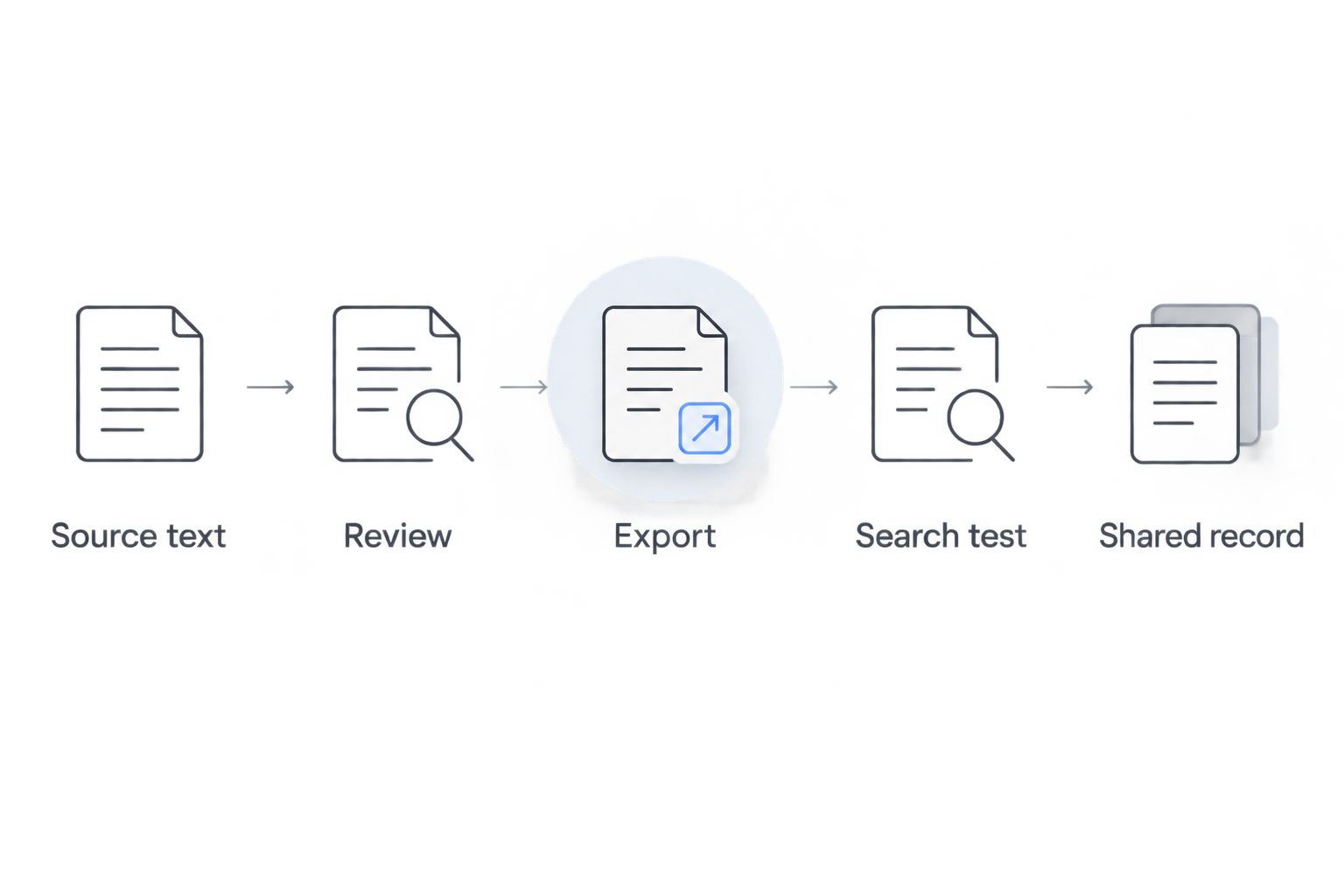
- Source text: Place the reviewed transcript in a document editor. Remove VTT control lines from the reading copy while preserving useful timestamps and speaker labels.
- Review: Separate the transcript from any meeting summary. Label summaries and action lists as editorial material so readers do not mistake them for verbatim speech.
- Export: Create the document format your recipients need. Zendocs supports document editing and conversion; use an accepted document format rather than assuming the tool accepts raw audio or VTT files.
- Search test: Open the exported file and search for 2 distinctive phrases from different parts of the meeting. Confirm that selecting and copying a sentence produces actual text.
- Shared record: Save 1 master file in the approved shared destination and give recipients access to that version. Preserve the recording and source transcript according to your retention rules.
Expected result: A recipient can open the final document, find a phrase, and trace the relevant passage back to the recording.
A PDF that looks correct is not automatically searchable. Export from actual text rather than taking screenshots of transcript pages, and repeat the search test on the exported file rather than only in the editor.
Keep the header useful but short. Include the meeting date, review status, and a source reference that authorized recipients can actually access; do not publish a private recording link to a broader audience.
In your 2026 document template, distinguish the meeting date from the document’s revision date. Both matter when someone corrects the transcript after circulation.
Variant: turn an existing recording into a transcript
Use this route when a meeting was recorded to your computer or when the completed recording has no usable cloud transcript. The downstream review and export steps stay the same.
- Locate the original audio or video file and confirm that it plays correctly. Listen for missing channels, silence, or a recording that starts after the relevant discussion.
- Choose an approved transcription service that accepts the file’s actual format and supports the meeting’s spoken language. Check its data-handling terms before uploading sensitive material.
- Set the language and speaker-identification options that the service actually provides. Do not assume that automatic speaker separation identifies participants by their real names.
- Export a timestamped transcript where supported. Then follow the source-preservation, review, and searchable-document checks above.
Expected result: The existing recording produces a reviewable text source without being misrepresented as a Zoom-native transcript.
The audio and video transcription tools guide covers the separate transcription stage. Choose that stage for its file support and review controls, not for document-format features you will handle afterward.
Handle transcript corrections without creating competing copies
When a reviewer corrects the transcript, update the working source and regenerate the reading copy. Do not fix only the PDF while leaving the editable source wrong.
Record what changed when a correction affects a decision, responsibility, or deadline. Notify recipients who received the earlier document, and make the current version unmistakable in the shared destination.
This is a controlled revision workflow, not an assumed automatic synchronization between Zoom and a document editor. Keep the handoff explicit unless your organization has separately configured and tested an integration.
Troubleshooting
The recording exists, but the transcript is missing
Check whether the meeting was recorded to the cloud and whether audio transcription was enabled. Also check whether transcript processing has completed; the video appearing first does not establish that every recording asset is ready.
If no transcript is produced, use the existing-recording route with an approved transcription service. Enabling a setting afterward is not proof that the earlier recording now has a transcript.
Speaker labels are wrong
Replay the relevant passages and correct labels in the working copy. Use neutral labels for speakers you cannot identify confidently rather than assigning a name from context alone.
Overlapping speech needs special attention. Keep the uncertainty visible when the recording does not support a reliable attribution.
The PDF opens, but search finds nothing
Try selecting and copying a sentence. If the page is an image rather than text, return to the reviewed transcript and export a text-based document instead of capturing screenshots.
OCR addresses text inside images; speech recognition addresses words inside audio. Applying OCR to a recording does not replace transcription.
Teammates can open the document but not verify a passage
Check access to the source recording separately from access to the document. A shared PDF does not grant access to a private recording.
Provide an approved source reference and retain useful timestamps. If recipients must not receive recording access, state who can verify disputed passages for them.
Search works locally but not in the shared system
Test search inside the opened document separately from search across the shared repository. Those are different checks: a file can contain searchable text while the repository has not indexed it or does not expose its contents in search results.
Check the repository’s supported file types, indexing settings, and recipient permissions. Do not keep converting the same valid document without identifying which search layer failed.
Customize your workflow
Build a reusable meeting-document template with fields for the source recording, reviewer, review status, and revision date. Add a separate action list only when someone checks each action against the discussion.
For your 2026 workflow, decide who owns each handoff: recording, transcription review, document preparation, and distribution. Then test the complete route with a non-sensitive meeting before using it for confidential material.
Expand the process through document workflows for enterprise teams when several people prepare or approve the record. Standardize ownership before adding more processing stages.
FAQ
What is the best Zoom recording to transcript workflow?
Use Zoom’s cloud transcript when your account supports it, review the text against the recording, and export a searchable document. For an existing recording without a transcript, use an approved transcription service before the same review and export stages.
Can I get a transcript from a Zoom recording saved to my computer?
Yes, you can transcribe the saved recording with a transcription service that accepts its format. Confirm permission to process the recording and review the generated text before sharing it.
Does turning on Zoom captions create a downloadable recording transcript?
Do not treat live captions as confirmation that a cloud-recording transcript will be created. Check the cloud audio-transcription settings before recording and confirm that the completed recording includes an Audio transcript file.
Can Zendocs turn a Zoom recording directly into text?
This workflow uses Zendocs for document editing and conversion after transcription. Generate and review the transcript through Zoom or an approved transcription service before preparing the document.
How do I make a meeting transcript searchable as a PDF?
Export the reviewed transcript from actual text rather than screenshots. Open the resulting PDF, search for distinctive phrases, and confirm that you can select and copy a sentence.
Do I need OCR for a Zoom transcript?
You do not need OCR for a transcript that already contains actual text. OCR recognizes text in images, while speech recognition converts recorded speech into text.
Can I delete the recording after making a transcript?
Follow your organization’s retention rules rather than deleting the recording automatically. A transcript does not preserve tone, overlapping speech, or every detail needed to resolve a disputed passage.
One last thing
Test the final document as a recipient, not as its owner. Open it using the intended access permissions, search for a decision, and check whether its timestamp leads to a verifiable source.
A clean export is only part of a usable meeting record. Keep Zendocs in the document-processing stage, preserve the transcript’s connection to the recording, and make review status visible before distribution.