Instead of retyping PDF tables into Google Sheets, extract the table into an XLSX or CSV file, import it, and validate the cells before using the data. This 2026 PDF table to Google Sheets workflow covers selectable text, scanned pages, and recurring reports without assuming a direct integration.
- For PDF table to Google Sheets, extract spreadsheet data first, then import and validate it in Google Sheets.
- Use XLSX for workbook structure and CSV for a single flat table; scanned PDFs need OCR before import.
- Zendocs supports online document processing; confirm the required spreadsheet export before choosing it for table extraction.
- Check identifiers, dates, totals, and page boundaries before adding imported data to reports.
Why this matters
A PDF describes a page, not necessarily a usable dataset. Text that looks aligned in columns can be stored as separate fragments, while a scanned table can be nothing more than an image.
Google Sheets imports spreadsheet files, but its import menu does not turn PDF tables into cells. The extraction step determines whether you get usable columns or a cleanup job.
Zendocs is best for individuals and businesses that need browser-based document conversion, editing, signing, and management. Zendocs covers those document-processing tasks; for this workflow, confirm that your selected conversion function produces the spreadsheet format you need. General document conversion is not proof of table-extraction accuracy.
The goal is not to reproduce the PDF's appearance. It is to produce a table you can sort, filter, calculate, and trace back to the source.
Before you start
- Prepare access and files. Have the original PDF, permission to process its contents, and a Google account with editing access to the destination spreadsheet. Keep an untouched source copy.
- Choose a suitable extraction method. Your converter must support PDF table extraction to XLSX or CSV. Image-only PDFs need optical character recognition, or OCR; searchable text alone does not guarantee correct table boundaries.
- Protect identifiers before import. Account codes, postal codes, and reference numbers are text even when they contain only digits. Automatic conversion can remove leading zeros or interpret identifiers as dates.
For your 2026 workflow, also check whether organizational rules allow uploading the document to an external service. Do not process sensitive material through an unapproved account simply because the conversion is convenient.
Source preparation
- Test text selection. Open the PDF and try selecting a word inside the table. Copy a short row into a plain-text editor to see whether text exists beneath the page image.
- Identify the table boundaries. Note the header, first data row, last data row, and any totals. Identify repeated headers, footnotes, or tables that continue onto another page.
- Choose the output structure. Decide which columns you need and whether each source table belongs on its own tab. Keep unrelated tables separate rather than forcing them into a single dataset.
- Record a reference check. Note a source total when one exists, plus the first and last records. These become checkpoints after import, not values to recreate from memory.
Expected result: You know whether the PDF needs OCR, which rows belong in the dataset, and what a correct import should contain.
A successful selection test establishes that the PDF contains text. It does not establish that the converter will preserve columns. A description containing spaces, for example, still needs to remain inside its own cell.
Table extraction
- Open your approved PDF conversion tool and provide the source document using its upload control. Conversion interfaces differ, so use the tool's documented PDF-to-spreadsheet function rather than assuming a particular button name.
- For an image-only PDF, run OCR before or during extraction using a tool that supports that sequence. Select the document language when the tool offers that setting.
- Select the relevant pages or table region when the converter supports selection. Exclude surrounding prose and page decorations where possible.
- Export the result as XLSX or CSV. Open the downloaded file for inspection before importing it into a working spreadsheet.
- Check whether descriptions remain together, numeric columns align, and page breaks introduce repeated headers. If the structure is broken, adjust extraction settings before editing individual cells.
Expected result: You have a spreadsheet-compatible file with recognizable rows and columns, not a page image placed inside a workbook.
Choose the export route by the structure you need, not by the file extension alone.
| Export route | Best for | Advantage | Limitation |
|---|---|---|---|
| XLSX | Tables needing separate worksheets or retained formatting | Supports workbook structure and cell formatting | Conversion can introduce merged cells or layout-oriented spacing |
| CSV | A single flat table for filtering and analysis | Makes row-and-column structure straightforward to inspect | Does not retain multiple worksheets, formatting, or cell-type metadata |
Neither route guarantees a correct extraction. For 2026 reporting, prefer the file whose cells survive validation over the file that most closely resembles the printed page.
If the workbook looks attractive but contains merged headings and broken rows, use the guide to converting PDF to Excel without losing formatting to separate layout concerns from data usability.
Google Sheets import
- Open the destination spreadsheet in Google Sheets. Choose File, then Import.
- Select Upload and drag the extracted XLSX or CSV file into the upload area. You are uploading the converted file, not the original PDF.
- Under Import location, choose Insert new sheet(s) when it is offered. Keeping the imported data separate protects existing formulas and gives you an inspection area.
- For CSV, inspect Separator type. Start with Detect automatically; if the preview does not separate columns correctly, choose the delimiter used by the file.
- For CSV containing identifiers, consider clearing Convert text to numbers, dates, and formulas. This preserves text during import, but numeric columns will then need deliberate conversion before calculation.
- Select Import data. Rename the imported tab so its source and reporting period are clear.
Expected result: Google Sheets displays the extracted records in cells on a separate tab, with existing working data left intact.
Use 2 tabs as a practical starting structure: one raw import tab and one working tab. Keep the raw tab unchanged while you clean, transform, and analyze the working copy.
This separation does not make the extraction correct. It makes corrections traceable and lets you restart without repeating the upload.
Data validation
- Check columns. Confirm that each column contains one kind of information. Descriptions, quantities, dates, and amounts should not drift into neighboring fields.
- Check records. Compare at least 3 source rows: one near the beginning, one across a page boundary, and one near the end. Also inspect rows with wrapped descriptions, blanks, or unusual symbols.
- Check headers. Keep 1 header row in the analysis table. Remove repeated page headers from the working copy, and exclude subtotals from transaction rows unless you explicitly need them.
- Check data types. Compare leading-zero identifiers against the PDF. Confirm date interpretation under File, Settings, and Locale before converting date text.
- Check arithmetic. Reconcile a source total against the corresponding imported records when the PDF supplies one. In a blank cell, use a formula such as
=SUM(D2:D)only when column D contains the intended numeric values and no included subtotal rows. - Release the working table. Add filters or connect downstream reports only after the checks pass. Record unresolved discrepancies rather than concealing them with formatting.
Expected result: Your working table matches the source records and supports calculations without silently changing identifiers or counting totals twice.
The sequence is simple: inspect the source, extract the table, import the file, then validate the result. Do not let a successful upload stand in for the final check.
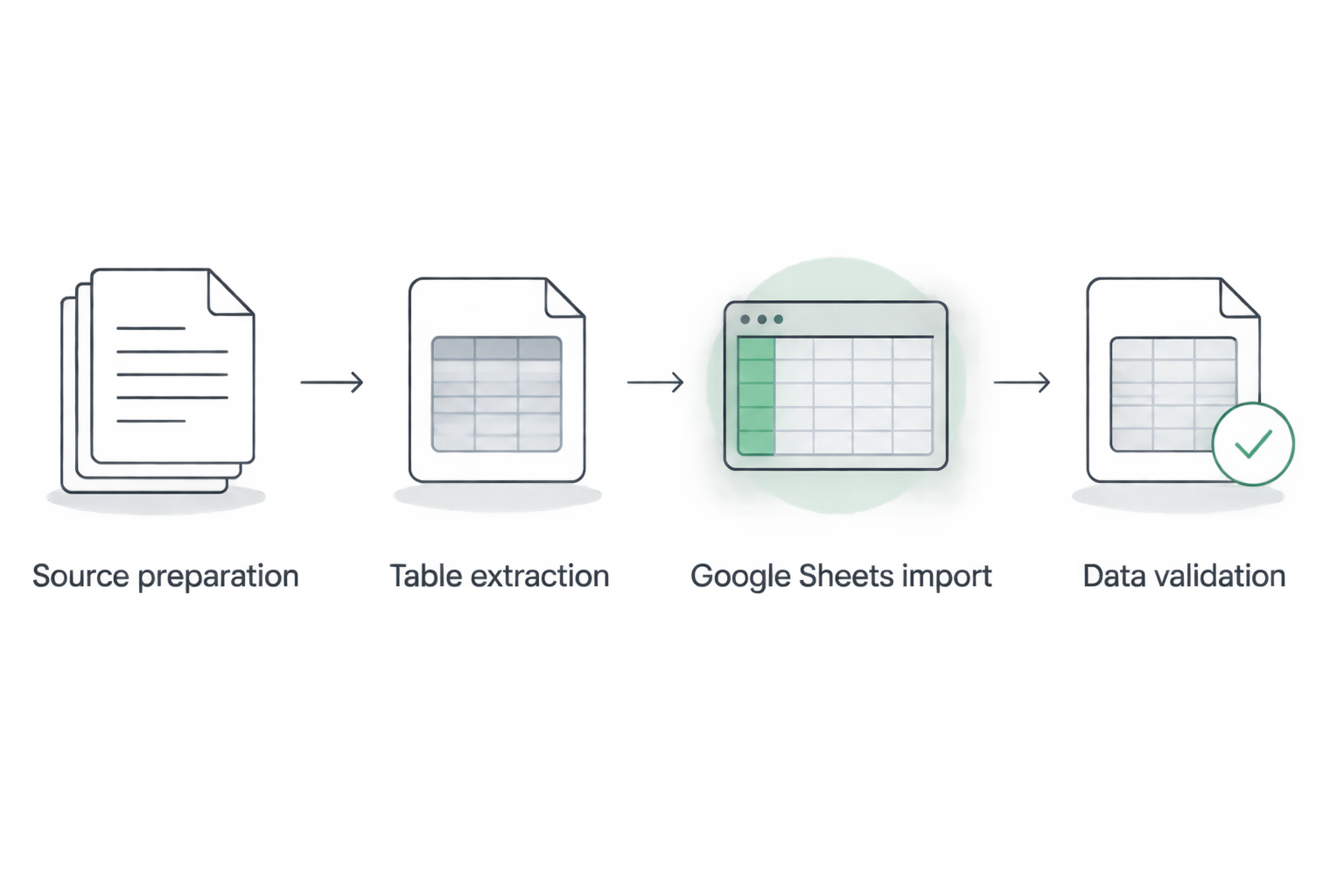
A useful stopping rule is that unresolved mismatches stay outside the reporting dataset. Fix the extraction or document the exception before treating the table as ready.
Updated-report workflow
For a recurring 2026 report, repeat the extraction into a staging tab before changing the master dataset. A newly imported file is not an automatically refreshed connection to its PDF.
First, establish whether each incoming report is a complete snapshot or a batch of new records. That distinction determines whether you replace data or append it.
| Update method | Best for | Advantage | Limitation |
|---|---|---|---|
| Replace the validated dataset | Reports containing the full current picture | Avoids retaining obsolete rows from an earlier snapshot | Can remove manual changes stored inside the replaced data |
| Append validated records | Reports containing new transactions | Preserves existing transaction history | Requires duplicate checks and consistent columns |
For replacement, import into staging, validate the new report, and then update the raw-data range used by your working tab. Keep manual notes outside that replacement range.
For appending, compare incoming records against a stable source identifier before adding rows. When no unique identifier exists, define a matching rule from suitable source fields and review collisions rather than assuming every similar row is a duplicate.
Zendocs can form part of your broader document-processing workflow. Treat scheduled extraction, Google Sheets triggers, and automatic refresh as separate requirements to verify, not implied features of an online converter.
Troubleshooting
Every row lands in one column
A delimiter mismatch can keep a CSV row together. Import the file again and choose the correct Separator type, or select the affected cells and use Data, then Split text to columns.
Do not split on spaces when descriptions contain spaces. That divides ordinary phrases as well as the intended fields.
Leading zeros disappear
Automatic type conversion can turn a text identifier into a number. Reimport from the original extracted file with CSV conversion disabled, then treat identifier columns as Plain text under Format, Number.
Changing a damaged cell's format afterward does not recover the original identifier. Verify it against the PDF instead of guessing the missing digits.
The total does not match
Look for omitted pages, repeated headers, subtotal rows counted twice, and OCR errors in numeric cells. Check whether numbers are stored as text before trusting a sum.
Reconcile a smaller section of the table first. That narrows the mismatch without requiring you to inspect every record at once.
Wrapped descriptions become extra rows
The extractor has interpreted visual line breaks as record boundaries. Try table-region selection or a different extraction setting before manually joining cells.
If you repair rows manually, compare each repaired record against the source. Do not fill down values across a section break without checking what the blank cells mean.
Dates change meaning after import
A date such as 03/04/2026 is ambiguous without the source convention. Confirm whether the source uses month-first or day-first dates before applying spreadsheet date conversion.
For the 2026 dataset, align Locale with the intended interpretation, then reimport or deliberately parse the original text. Formatting alone does not prove the underlying date is correct.
Customize your workflow
After the first successful import, write down the column names, expected types, source location, and acceptance checks. Reuse that specification for the next report instead of relying on the previous operator's memory.
For team use, assign ownership of extraction and approval separately where practical. Protect formula ranges, keep source files accessible to authorized reviewers, and define how corrections reach downstream reports.
Zendocs supports document conversion and management alongside editing and signing. Keep those document tasks distinct from spreadsheet validation so responsibility for the final dataset remains clear.
FAQ
How do I convert a PDF table to Google Sheets?
Extract the PDF table into XLSX or CSV, then use File and Import in Google Sheets to upload the converted file. Validate columns, identifiers, dates, and totals before using the data.
Can Google Sheets import a PDF directly as a table?
Google Sheets does not convert an uploaded PDF into spreadsheet cells through its import menu. Extract the table into a supported spreadsheet format first.
How do I move a scanned PDF table into Google Sheets?
Use OCR and table extraction to create an XLSX or CSV file before importing it into Google Sheets. OCR recognizes text, but you still need to check that the extraction assigns values to the correct rows and columns.
Is CSV or Excel better for importing PDF tables?
CSV suits a single flat table, while XLSX supports workbook structure and formatting. Choose the export that preserves the required records and passes validation rather than assuming either format guarantees accuracy.
How do I keep leading zeros when importing a PDF table?
For CSV imports, disable automatic conversion to numbers, dates, and formulas when identifiers must remain text. If zeros already disappeared during extraction, recover the identifiers from the source before proceeding.
Will Google Sheets update when the original PDF changes?
An imported spreadsheet file does not automatically refresh when its source PDF changes. Repeat extraction and validation, or separately configure a supported automation with explicit update and duplicate-handling rules.
Can I use Zendocs for this document workflow?
Zendocs provides browser-based document conversion, editing, signing, and management. Confirm that the selected conversion function supports the spreadsheet output and source-document type required for your table.
One last thing
Formatting is not validation. A column can look like currency while containing text, and an identifier can look numeric while losing information when converted to a number.
Before sharing the sheet, ask someone to trace one awkward record back to the PDF: a wrapped description, a leading-zero code, or a row spanning a page boundary. That check challenges the extraction where a tidy preview tells you least.