Instead of rebuilding the download, conversion, and signing process for every Box document, use a repeatable Box file to signed PDF workflow: download the approved source, prepare and sign the PDF, then return the completed file to Box. This 2026 guide uses an explicit file handoff rather than assuming a direct connection between Box and Zendocs.
- The Box file to signed PDF workflow follows four stages: source selection, PDF preparation, signing, and filing.
- Zendocs suits individuals and businesses needing browser-based PDF conversion, editing, and signing.
- Convert and review the document before signing; keep the signed PDF separate from editable working files.
- Treat a revised source as a new approval cycle, not permission to overwrite an executed document.
Why this matters
A signature does not tell you whether someone signed the correct source revision. Your workflow must establish that connection before the file leaves Box and preserve it when the signed PDF returns.
The key control is the handoff, not the conversion. Record which source you used, review the resulting PDF, and identify the completed copy clearly. Those actions prevent a working draft from being mistaken for an executed document.
For your 2026 process, define 4 checkpoints: approved source, reviewed PDF, completed signing, and verified filing. Each checkpoint needs a clear pass condition rather than an assumption that the previous action succeeded.
Before you start
- Access and permission: Have a Box account with permission to download the source and upload the result to the intended destination. Open Zendocs in your browser for online document processing. Confirm that your organization permits the document to be processed outside Box.
- Document and signing requirements: Identify the approved source, required attachments, signature locations, and everyone who must sign. Decide whether you are signing yourself or collecting another person's signature; these are different tasks.
- The gotcha: A shared link that lets you preview a Box document does not necessarily let you download it. Test the download and destination access before preparing the PDF, and resolve password protection or editing restrictions with the document owner.
Keep unrelated documents out of the working folder. A clean starting point makes it easier to select the correct file during upload and easier to remove temporary copies after the completed document is safely stored.
Source selection in Box
Establish the approved source
- Open the intended folder in Box. Check the document name, owner, and revision information against the approval you received; do not choose a file solely because it appears first in the list.
- Preview the document and confirm its contents. Read the parties' names, document date, attached schedules, and any terms that changed during review.
- Record the source filename and revision in your work record. For example, use a descriptive working filename such as
service-agreement-approved-2026.docx, without changing the owner's original merely to match this example. - Select the file and use Download. Save it in a dedicated local working folder, then open the downloaded copy to confirm that it is the intended document.
Expected result: You have a readable local copy of the approved source and enough identifying information to trace the eventual signed PDF back to it.
If the download is a shortcut or a reference to another location rather than the document itself, stop. Obtain the actual source from its owner before moving to conversion. A preview is useful for checking content, but it is not a substitute for possessing the file you intend to process.
PDF preparation in the browser
Convert and review the document
- Open the downloaded file in Zendocs using the upload control provided for the task. Choose conversion when the source is not already a PDF; when it is a PDF, proceed to review and any necessary editing.
- Finish permitted changes before signing. Complete names, dates, addresses, and other required entries, and remove drafting notes from the version intended for execution.
- Produce the PDF and inspect every page. Check page breaks, table boundaries, special characters, images, and signature areas against the approved source.
- Save an unsigned review copy locally. Give it a status-bearing filename, such as
service-agreement-ready-to-sign-2026.pdf, so it cannot be confused with the completed result.
Expected result: The unsigned PDF contains the approved content, displays correctly, and is ready for the required signing process.
Conversion needs a visual check, especially when a document includes tables, spreadsheet print areas, or presentation slides. Text that was visible in the source application can fall outside the intended page layout after conversion. Correct the layout before anyone signs.
If the source is already a suitable PDF, skip conversion. Unnecessary format changes add another output to review without helping the signing task. Keep the original PDF intact and work from a separate copy when edits are authorized.
The preparation sequence is deliberately simple: approve the source, prepare the PDF, complete signing, and file the result. Each stage has a different purpose; finishing an upload does not establish that the document is signed.
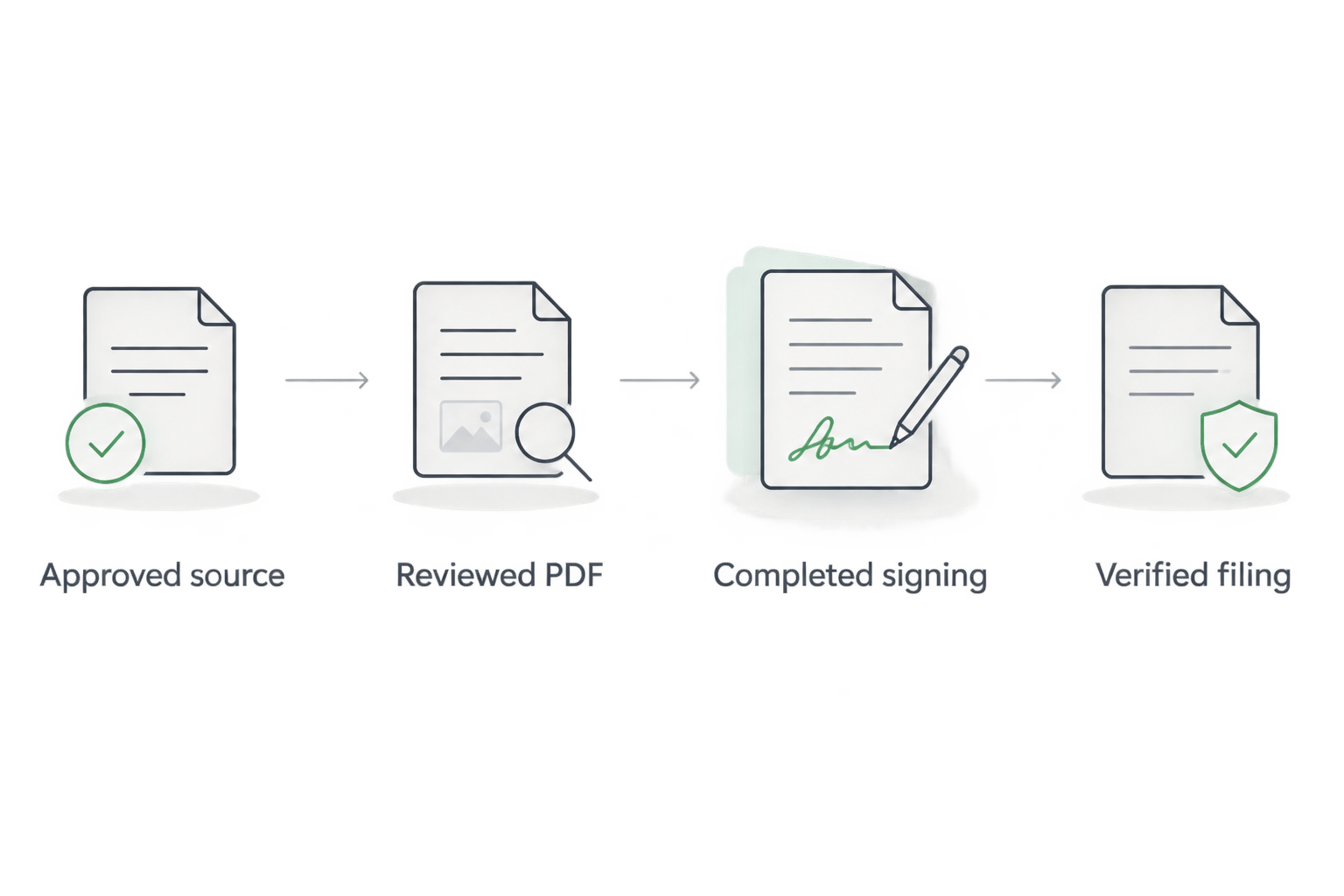
Signing handoff
Complete the required signatures
- Confirm who must sign and where. Distinguish a signature field from a name field, an initials field, and a date field; filling one does not complete the others.
- If you are the signer, use the document's signing controls to place your own signature in the required location. Review the surrounding text before completing the action.
- If someone else must sign, use your organization's approved recipient-signing process. Do not place your own signature in that person's field or assume that inserting their typed name records their consent.
- Obtain the completed PDF after all required signing actions are finished. Where the signing process supplies a completion record or other supporting evidence, retain that material with the document.
- Open the downloaded result. Check that the required signatures and entries are present and that the document is complete, rather than saving an unsigned preview by mistake.
Expected result: You have the completed PDF required by your signing process, plus any supporting record that process supplies.
Zendocs is best for individuals and businesses that need browser-based PDF conversion, editing, and signing. Its role in this workflow is document preparation and signing; Box remains the destination for the filed result. The file-transfer approach requires you to manage the handoff explicitly.
For documents requiring identity checks, witnessed execution, notarization, or a particular signature method, follow those requirements separately. A visible signature alone does not establish that every document-specific requirement has been satisfied.
Completed-file storage in Box
File and verify the signed PDF
- Open the intended destination folder in Box. Confirm that it is the filing location for completed documents, not the folder used to circulate drafts.
- Use Upload, then Files, and select the completed PDF. Use a clear filename such as
service-agreement-signed-2026.pdf; keep the unsigned source distinguishable. - Upload any associated completion record required by your process. Use a related filename so reviewers can identify the supporting record without opening unrelated files.
- Open the uploaded PDF from Box. Check the first page, signature pages, and final page against the completed local copy, then confirm that the intended colleagues can access the destination.
- Mark the work record complete only after verification. Remove temporary local copies according to your organization's retention and device-handling rules.
Expected result: The completed PDF is readable in its intended Box folder, identifiable as signed, and linked through your records to the approved source.
Use 2 separate working locations: one for preparation and one for completed documents. This is a filing recommendation, not a Box requirement. The separation gives reviewers a clear place to find executed files without sorting through intermediate exports.
Do not overwrite a signed PDF merely to make the folder look cleaner. Preserve executed records according to your retention policy, and distinguish later agreements or amendments by their own status and identifying details.
Variant: repeat the workflow when the source changes
A revised source needs another review before signing. In your 2026 procedure, make the release of an approved revision the starting event—not every save to a working document.
| Workflow | Best for | Advantage | Limitation |
|---|---|---|---|
| Individual file handoff | Occasional documents with a clear owner | Makes source selection and review explicit | Requires manual download, processing, and upload |
| Revision-based handoff | Documents that return for approval after changes | Creates a fresh review point for each approved revision | Requires a status record to prevent duplicate signing work |
For the revision-based variant, follow this sequence:
- Record the newly approved source revision and compare it with the revision already processed.
- Confirm that the change requires a new signing cycle. A revised agreement and a corrected internal filename are not the same event.
- Prepare a fresh unsigned PDF from the approved revision. Repeat the layout and content review rather than reusing an earlier export.
- Complete the required signing process and file the new result separately from earlier executed documents.
Do not describe this file handoff as automatic synchronization. An unattended workflow requires a separately verified connection, permissions, supported actions, and error handling. Keep human approval before signing unless your approved process explicitly handles that decision.
A useful status record contains the source identifier, source revision, document owner, signing status, and completed-file location. That record lets the next person distinguish work awaiting a signature from work already filed.
Troubleshooting
Box preview works, but downloading fails
Ask the owner or administrator to check your access and the file's download restrictions. Do not bypass the restriction by copying preview content into a replacement document; obtain an authorized source copy.
The PDF layout differs from the source
Return to the unsigned source and correct the layout before exporting again. For spreadsheets, inspect print areas and page orientation; for text documents, check tables, fonts, and page breaks. Review the replacement PDF before restarting signing.
A signature is missing from the saved file
Confirm that the signing action was completed and that you downloaded the completed output rather than an earlier preview. Reopen that output locally before uploading it to Box. If another person has not signed, keep the document marked as awaiting completion.
Someone changes the document after signing
Do not edit the executed copy to match the new wording. Changes can affect signature validation and make the execution history unclear. Preserve the signed record and route the revised document through the appropriate approval and signing process.
Multiple completed-looking files appear in Box
Compare each file with the signing record and source revision. Identify the authoritative result in your status record, then handle superseded or duplicate copies according to retention rules. A filename ending in final is not proof that signing finished.
Customize your workflow
Build your 2026 handoff around document ownership. Assign responsibility for source approval, PDF review, signing coordination, and filing—even when the same person performs several tasks.
For recurring work, reuse the checklist rather than copying content from an old signed PDF. Recheck the parties, dates, attachments, and signature requirements against the current source. An executed agreement is a record, not a clean template.
Expand the process only after the basic handoff is consistent. Add exception handling for rejected documents, withdrawn requests, and replacement revisions, and specify who decides when each exception is closed.
FAQ
How do I turn a Box file into a signed PDF?
Download the approved file from Box, convert or prepare it as a PDF, complete the required signing process, and upload the completed PDF to Box. Verify the uploaded result before marking the task complete.
Does this Box file to signed PDF workflow run automatically?
No. This guide uses an explicit download-and-upload handoff. Automatic processing requires a separately verified connection and controls for approval, duplicate work, and failures.
Can I use Zendocs to prepare the PDF?
Yes. Zendocs provides browser-based document conversion, editing, and signing. Keep source approval and completed-file verification as separate checkpoints in the workflow.
Do I need to convert a file that is already a PDF?
No, not if the PDF already contains the approved content and is suitable for the signing process. Review it and complete authorized edits before signing.
Can I sign a document for someone else?
Do not substitute your signature for another person's required signature. Route the document to the intended signer through the approved process and follow any applicable authorization requirements.
What happens if the Box source changes after signing?
Preserve the executed PDF and assess whether the revised source requires a new approval and signing cycle. Do not overwrite the signed record with an edited replacement.
Where should I save the signed PDF in Box?
Save the completed PDF in the designated location for executed documents, clearly separated from drafts. Retain related completion records when your process requires them.
One last thing
Test the return trip before using a real agreement. Run a nonsensitive sample through download, PDF preparation, signing, and Box upload, then ask the person responsible for filing to find the completed copy. That test checks the entire handoff—not just whether the signature appears on a page.