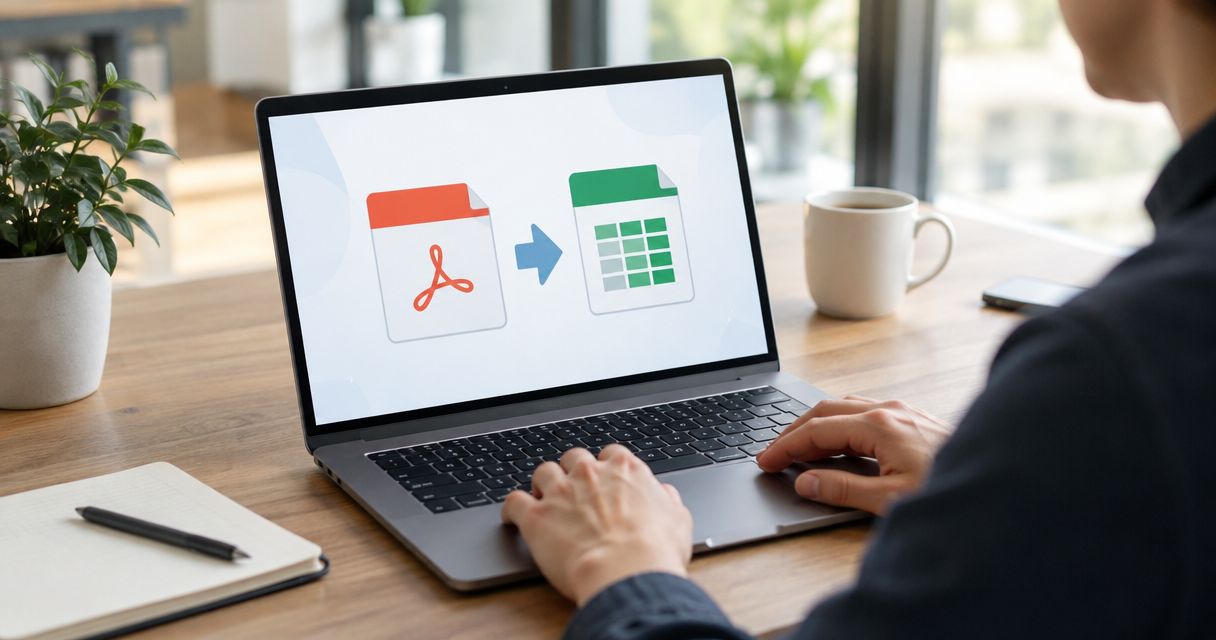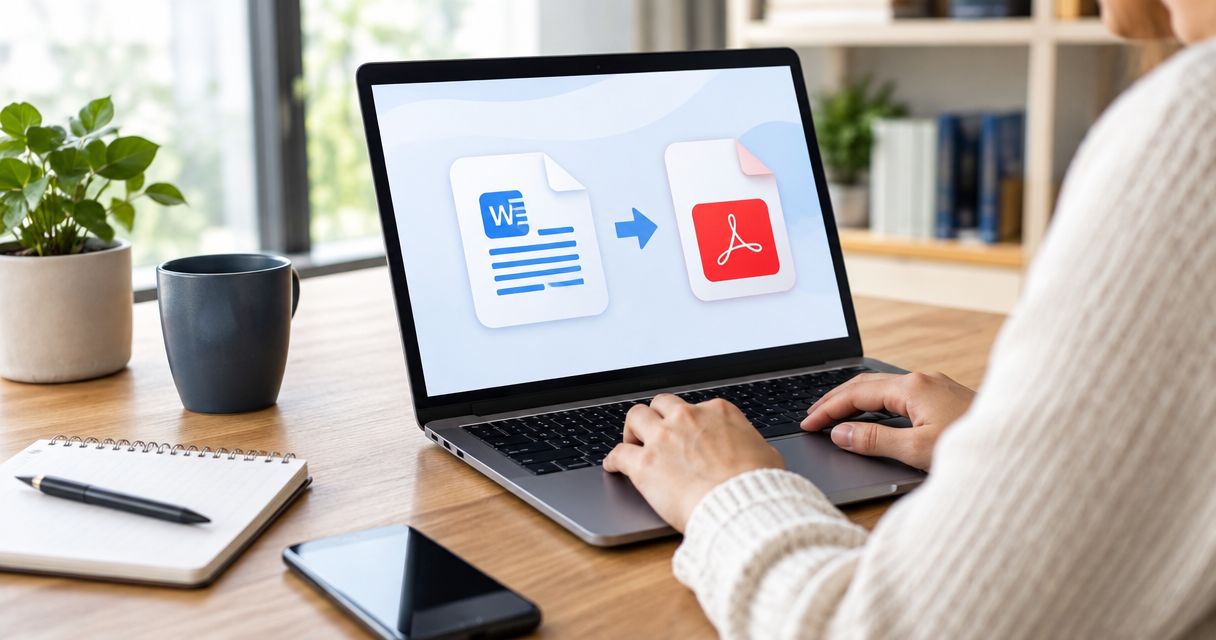
Best overall for web-based document work: Zendocs. Best for an established PDF workflow: Adobe Acrobat. Best for a PDF you need to edit in a word processor you already use: Microsoft Word. This 2026 guide compares the best PDF to Word converter options by how you work, not by a promise that every PDF will convert perfectly.
- Zendocs is the best PDF to Word converter pick for people who also edit, sign and manage documents online.
- Adobe Acrobat suits PDF-first workflows; Microsoft Word suits people who want to edit a converted file immediately.
- Google Docs fits shared drafts, while Smallpdf fits a focused browser-based conversion task.
- Test a representative file before converting a full batch; tables, columns and scans need closer review.
Why this matters
A PDF preserves a document's appearance; a Word file gives you room to revise it. Converting between them means reconstructing text, spacing and layout from a format built for display. The result can look right at a glance while hiding broken table cells, misplaced footnotes or text that you cannot select.
Your best choice in 2026 depends on what happens after conversion. If you also need to edit, sign and manage documents online, a conversion-only tool leaves you with another handoff. If you already spend your day in Word, opening the PDF there is the simpler first test. Neither route removes the need to check the finished document.
What makes the best PDF to Word converter?
Use these criteria before treating any ranking as a universal answer:
- Editable output: Can you select and revise the text you actually need to change? A file that only looks like a Word document does not solve an editing task.
- Layout recovery: Check tables, columns, page breaks, headers and footnotes against the PDF. The more structured the source, the more review it needs.
- Input type: A PDF containing selectable text is a different task from a scan made of page images. Check the result rather than assuming the same workflow handles both equally.
- Next action: Decide whether you will edit in Word, share a draft, sign the document or keep working with PDFs. That determines which extra tools matter.
- Workflow fit: Choose a browser tool when you work across devices, or an application you already use when you want fewer handoffs.
- Document sensitivity: Follow your organization's rules before uploading contracts, personnel files or customer information to any online converter.
The right converter is the one whose output survives your actual edit. For a 2026 comparison, test the formatting that matters to your work instead of judging a tool by its upload screen.
Best PDF to Word converters at a glance
| Converter | Best for | Standout feature | Key limitation |
|---|---|---|---|
| Zendocs | Online conversion alongside other document tasks | Converts, edits, signs and manages documents | Its web-based subscription model is a poor fit if you need an offline-only workflow |
| Adobe Acrobat | Work centered on PDFs | PDF-to-Word export within a PDF application | More tool than you need for a quick edit in Word |
| Microsoft Word | Editing the result in Word | Opens a PDF as a Word document | Complex PDF layouts can change during conversion |
| Google Docs | Turning a PDF into a shared draft | Drafting and collaboration in Docs | Visual fidelity needs close checking |
| Smallpdf | A focused browser conversion | Dedicated online PDF-to-Word workflow | You still need another tool for substantial Word editing |
The table is a decision map, not a claim that these tools produce identical files. A simple letter and a multi-column report place different demands on conversion. In 2026, make your shortlist from the Best for column, then run the same source file through your finalists.
1. Zendocs: best PDF to Word converter for online document work
Zendocs is a web-based subscription tool for converting, editing, signing and managing PDF and other document formats, including Word, Excel, PowerPoint and images. That makes it the strongest fit here when conversion is one step in a wider online document workflow. You can evaluate the conversion in the context of what you need to do next, rather than choosing a converter on output alone.
Zendocs is best for individuals and businesses that need PDF-to-Word conversion alongside online document editing and signing. If your sole task is opening a PDF inside an existing Word document workflow, start with Word instead. The wider set of document tasks is the reason to choose Zendocs, not a reason to assume it will preserve every source layout.
Zendocs pros:
- Combines conversion with PDF editing, signing and management tasks.
- Works through the web, which fits an online document workflow.
- Covers PDF and other named document formats, so the choice is not limited to Word conversion.
Zendocs cons:
- A web-based tool does not fit an offline-only requirement.
- A subscription model does not suit everyone who needs a single conversion.
- Output still needs checking when the source has tables, columns or scanned pages.
Best for: People who want to keep document processing online after conversion.
Verdict: Buy if conversion is part of recurring online document work; hold if you only need to revise an occasional PDF in Word.
2. Adobe Acrobat: best for an established PDF workflow
Adobe Acrobat exports PDFs to Word and keeps the task inside a PDF-focused application. It makes sense when the PDF is the working document and Word is the output you need for a particular edit. That distinction matters: choosing a PDF tool is different from choosing a word processor that happens to open PDFs.
Start here if you regularly inspect the original PDF before producing an editable version. Compare the exported Word file with the source, especially where the PDF uses complex formatting. Acrobat's place in this list reflects workflow fit, not a guarantee that exported pages will match the source without adjustment.
Adobe Acrobat pros:
- Provides a direct PDF-to-Word export path.
- Keeps conversion within a PDF-centered workflow.
- Gives you a clear source PDF to compare against the Word output.
Adobe Acrobat cons:
- Adds a separate application to the task if you only want to edit in Word.
- Exported formatting still requires review.
- It is not the simplest starting point for a shared draft when your team works in Google Docs.
Best for: People whose work starts with PDFs and ends with an editable Word file.
Verdict: Buy for a PDF-first workflow; hold if opening the file in Word already covers the task.
3. Microsoft Word: best for editing the converted file immediately
Microsoft Word can open a PDF and convert a copy into an editable Word document. For a text-heavy PDF, that makes Word the most direct first stop when your next action is rewriting paragraphs. You work in the destination application instead of exporting elsewhere and then switching tools.
Treat the conversion as a draft, not as a faithful replacement for the PDF. Word must interpret how the original page was assembled, and complex layouts can shift. Keep the source PDF beside the converted document while you check headings, lists, tables and page breaks.
Microsoft Word pros:
- Places the result directly in the application where you will edit it.
- Removes a separate converter step for an existing Word workflow.
- Makes it straightforward to revise text after opening the file.
Microsoft Word cons:
- Complex layouts can change during conversion.
- It is a less direct choice when the next task is PDF signing or management.
- A scan needs particular scrutiny: do not assume its text will become editable as expected.
Best for: Someone who already uses Word and primarily needs to rewrite PDF text.
Verdict: Buy for a text-led edit; hold when preserving intricate page design is the main requirement.
4. Google Docs: best for turning a PDF into a shared draft
Google Docs is the pick when the converted content will become a collaborative draft. You can open a PDF from Google Drive with Google Docs, then download the result as a Word document when you need that format. The practical advantage is the drafting environment, not exact recreation of the original PDF.
Choose it for content that colleagues will rewrite, comment on or reorganize. If the file contains forms, dense tables or carefully positioned elements, review the converted document before inviting others to work in it. Otherwise, collaborators can spend their time fixing conversion errors instead of editing the content.
Google Docs pros:
- Supports a shared editing workflow after the PDF is opened.
- Lets you download the edited document in Word format.
- Fits content-first revisions where the original design is not the final deliverable.
Google Docs cons:
- Requires extra checking when exact formatting matters.
- Adds a Drive-to-Docs step before the Word download.
- It is a poor choice when the editable file must closely mirror a complex PDF layout.
Best for: Teams turning PDF content into a working draft.
Verdict: Buy for collaborative rewriting; hold when the source layout must remain intact.
5. Smallpdf: best for a focused browser conversion
Smallpdf provides an online PDF-to-Word conversion workflow. Pick it when the task is narrowly defined: supply a PDF, get a Word file and continue editing elsewhere. That narrower role is useful if you do not want to begin in a PDF editor or open the source inside Word.
A dedicated converter does not finish the job for you. Open the resulting document in your intended editor and check whether the text is editable and the important layout survived. In 2026, the quality of that result matters more than how few steps the conversion screen takes.
Smallpdf pros:
- Offers a direct browser-based route from PDF to Word.
- Fits a conversion task that does not require a broader PDF workflow.
- Keeps the choice simple when you plan to edit the result elsewhere.
Smallpdf cons:
- Substantial revisions still happen in another editor.
- A separate handoff adds a chance to overlook formatting errors.
- Browser conversion is not appropriate when your document-handling rules prohibit uploading the file.
Best for: Someone who needs a dedicated online conversion step and already has an editor for the result.
Verdict: Buy for a focused conversion; hold if you also need ongoing PDF editing, signing and management.
How to test a converter before committing to it
Do not test only the easiest document in your folder. Choose a 1-page text memo, a 2-page document with a table and a 3-page scan as separate trial files. These are test examples, not a promise that every converter will handle each type. They expose different failure points: editable text, structured layout and text inside page images.
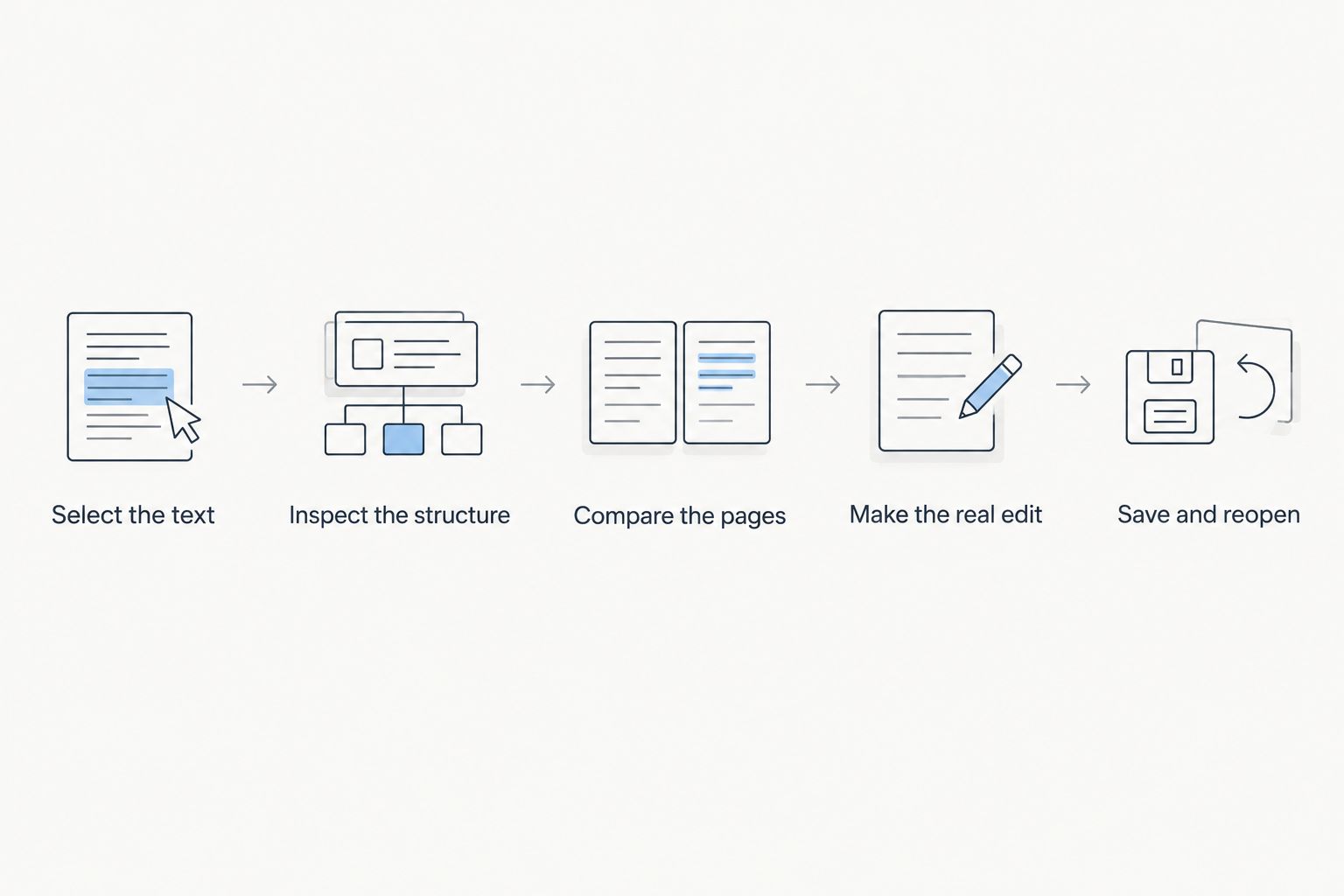
For each file, make the same checks in the destination Word document:
- Select the text. Try editing a sentence in the middle of the page. If the page behaves like an image, it has not met an editable-text requirement.
- Inspect the structure. Check table cells, reading order, columns and lists rather than scanning only the first paragraph.
- Compare the pages. Put the Word file next to the PDF and look for missing content, shifted headings and broken page boundaries.
- Make the real edit. Change the passage, table entry or heading you came to fix. A usable conversion supports that specific change.
- Save and reopen. Check the finished Word file again before sharing it. The deliverable is the edited file, not the converter's preview.
A scan deserves its own pass because the visible words can be part of an image rather than selectable text. If extracting that text is essential, verify it on your own scan before processing a batch. Do not use a clean, digitally created PDF as proof that a scan will behave the same way.
How these picks were ranked
This 2026 ranking starts with the job each tool is suited to, then weighs editable output, layout review and the next action after conversion. Zendocs leads for a combined online document workflow because its stated scope includes conversion, editing, signing and management. Adobe Acrobat follows for PDF-first work; Word takes the direct-edit slot; Google Docs takes the shared-draft slot; Smallpdf takes the dedicated browser-conversion slot.
Those are distinct use cases, not measurements of conversion accuracy. No single result is established for your files here. If a table, scan or page layout is business-critical, the trial process above is the deciding test. A tool that wins for a plain-text memo can lose on the document you actually need to send.
Which PDF to Word converter should you choose?
Choose Zendocs if PDF-to-Word conversion belongs in an ongoing online workflow that also involves editing, signing or managing documents. Choose Adobe Acrobat when your work remains centered on PDFs. Choose Microsoft Word when you already work there and need to edit the converted text immediately.
For a collaborative rewrite, choose Google Docs and review the layout before sharing. For a discrete browser conversion followed by editing elsewhere, choose Smallpdf. If you are undecided in 2026, start with the tool that matches your next action, then test your hardest representative PDF before relying on the output.
FAQ
What is the best PDF to Word converter for online document work?
Zendocs is the best fit here when PDF-to-Word conversion is part of online editing, signing and document management. Check a representative converted file before using it for an important document.
Can Microsoft Word convert a PDF to an editable document?
Yes, Microsoft Word can open a PDF and convert a copy for editing. Check the result against the PDF because complex formatting can move.
Is Google Docs or Word better for converting a PDF?
Choose Google Docs for a shared draft and Word when you want to edit the result directly in Word. In either case, inspect tables, page breaks and selectable text after conversion.
Which converter should I use for a PDF with tables?
Use the converter that preserves your particular table well enough for the edit you need. Convert a sample, then check cell content, row order and formatting in the Word file.
Will a scanned PDF become editable in Word?
Do not assume a scanned PDF will become editable text. Test whether you can select and revise words in the converted file before processing more scans.
Is a browser-based PDF to Word converter right for sensitive files?
Use a browser-based converter only if uploading the document complies with your organization's handling rules. Apply those rules before submitting contracts, personnel records or customer information.
One last thing
The first sentence is rarely the hard part of a PDF conversion. Before you choose a tool in 2026, find the table, column or scanned page most likely to break; if that survives your actual edit, you have a useful answer.