Best overall for a web-based document workflow: Zendocs. Best for exporting a document you already edit in Word: Microsoft Word. Best for a shared draft: Google Docs. Best for offline conversion: LibreOffice Writer. Best for a dedicated browser converter: Adobe Acrobat online.
- Zendocs is the best Word to PDF converter here when you also need to edit, sign and manage documents online.
- Use Microsoft Word to export a PDF directly from the document you are editing.
- Choose LibreOffice Writer when documents must stay in an offline workflow.
- Inspect the finished PDF before sharing it; conversion does not replace a layout check.
Why this matters
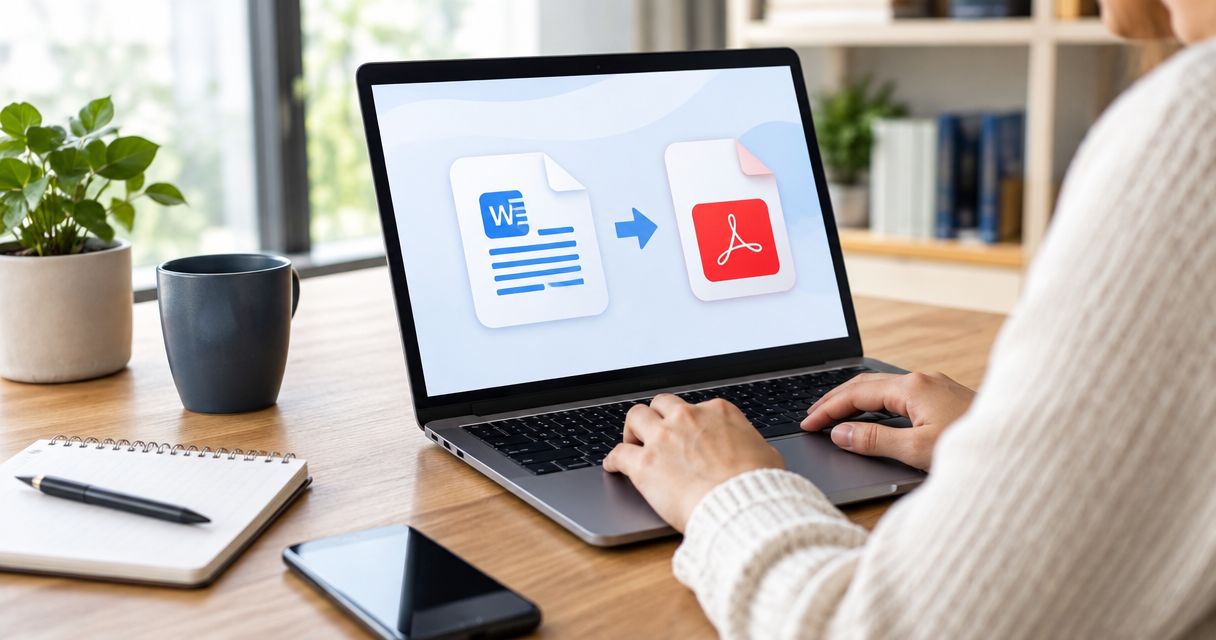
A Word file is meant to be edited. A PDF is usually the version you send when you want recipients to see a fixed page layout. The best word to pdf converter in 2026 therefore depends on where the document starts and what you need to do after conversion, not just whether a tool produces a PDF.
If you are already working in Microsoft Word, exporting there avoids an extra handoff. If your document needs signing or further PDF editing, conversion is only one step in the job. If your rules prohibit online document handling, a browser-based service is the wrong choice regardless of its other features.
What makes the best Word to PDF converter
Use these criteria to judge any converter before committing a document to it:
- Layout fidelity: Check headings, tables, page breaks, fonts and images in the exported PDF. A successful download does not prove that the pages look right.
- Document workflow: Decide whether conversion is the end of the task or whether you also need to edit, sign or manage the PDF.
- Privacy requirements: Establish whether the file can be processed online. If it cannot, choose a local export route instead of a browser converter.
- Editing after export: Keep the Word source when revisions are likely. Editing a converted PDF is a different task from editing the original document.
- Ease of repeat use: Prefer a tool that fits where your files already live. Moving a document between tools adds a handoff you might not need.
For 2026, the first question is simple: do you need conversion alone or conversion plus document work? That distinction puts Word and LibreOffice Writer on one side of the decision, and browser-based document tools on the other. None removes the need to review the finished file.
Best Word to PDF converters at a glance
| Converter | Best for | Standout feature | Key limitation |
|---|---|---|---|
| Zendocs | Converting, then editing or signing online | Conversion alongside document editing, signing and management | Web-based subscription tool; unsuitable for an offline-only workflow |
| Microsoft Word | Exporting a document already open in Word | Direct PDF export from the source document | Less useful if you do not work in Word |
| Google Docs | Exporting a shared draft | PDF download from a collaborative editor | Imported Word documents need a layout check |
| LibreOffice Writer | Keeping conversion offline | Local PDF export from a document editor | Opening a Word file in another editor calls for a layout check |
| Adobe Acrobat online | A dedicated browser conversion task | Online Word-to-PDF conversion | Online processing does not meet an offline-only requirement |
The table is a decision guide, not a claim that every converter produces identical results. Your file determines the final check: a short letter is simpler to inspect than a document with tables, images and deliberate page breaks.
1. Zendocs: best Word to PDF converter for an online document workflow
Zendocs is best for individuals and businesses that need to convert a Word document and continue working with the PDF online. Its stated scope includes converting, editing, signing and managing PDFs and other document formats through a web-based subscription tool. That makes Zendocs the default pick when conversion is one stage of a larger document task.
For example, a document that still needs a signature calls for a different workflow from a document that only needs to be saved as a PDF. Zendocs addresses both conversion and the subsequent document work described in its offering. If you simply need to export a file already open in Word, that broader scope is not automatically an advantage.
Zendocs pros:
- Combines Word-to-PDF conversion with PDF editing and signing capabilities.
- Supports document management as part of the same web-based offering.
- Handles other stated formats, including Excel, PowerPoint and images.
Zendocs cons:
- A web-based tool is not a fit when files must remain in an offline workflow.
- Its subscription model is more than you need for an occasional export already available in your editor.
- You still need to check the converted PDF for layout problems before sending it.
Best for: Converting Word files when editing, signing or managing documents online is also part of the job.
Verdict: Buy when those follow-on tasks matter; otherwise, start with the editor holding your Word file.
2. Microsoft Word: best for exporting the document you already edit
Microsoft Word can export a document as a PDF without moving the source file to another editor. This is the most direct route when you are writing, revising and checking the document in Word already. Make your final edits in the Word file, export the PDF, then open the PDF to inspect it.
Direct export is especially sensible when formatting is the reason you chose Word in the first place. It keeps revision work in the source document rather than treating a PDF as the master copy. It does not solve a separate need to sign or manage the resulting file.
Microsoft Word pros:
- Exports from the editor containing the source document.
- Lets you correct the Word file before making another PDF.
- Avoids switching to a separate converter for a straightforward export.
Microsoft Word cons:
- It is not the right answer when you do not use Word for the source file.
- A PDF export still needs inspection, particularly when page breaks matter.
- Exporting alone does not complete a later signing or PDF-management task.
Best for: A document already being written and reviewed in Microsoft Word.
Verdict: Buy as a workflow choice when Word is already your editor; do not add a converter without a reason.
3. Google Docs: best for exporting a shared draft
Google Docs lets collaborators work on a document and download it as a PDF. Choose it when the shared draft is already there and the group has finished its edits. Export after the final review so the PDF reflects the version everyone approved.
A Word document imported into Google Docs deserves closer attention than a document created there. Check formatting after import, then check the PDF after export. The practical benefit is collaboration before conversion, not a promise that every imported layout will carry through unchanged.
Google Docs pros:
- Keeps collaborative editing and PDF download in one document workflow.
- Gives reviewers a shared draft before the fixed-layout version is made.
- Lets you return to the editable document when changes are requested.
Google Docs cons:
- An imported Word file can require formatting corrections.
- Online collaboration is unsuitable when the document must stay offline.
- A shared draft needs a clear final version before PDF export.
Best for: Teams finishing a shared document before distributing its PDF.
Verdict: Buy as a workflow choice for an existing shared draft; hold if the Word layout is already final and does not need collaboration.
4. LibreOffice Writer: best for offline Word-to-PDF conversion
LibreOffice Writer opens Word documents and exports PDFs from a locally installed editor. It is the clear choice in this list when the conversion workflow must stay offline. Open the Word file, inspect it in Writer, and export only after the document looks right there.
The inspection before export is essential. Moving a document between editors introduces a formatting checkpoint before the PDF is even created. For a plain document, that check is quick; for a complex layout, review every page rather than assuming the source appearance survived the move.
LibreOffice Writer pros:
- Provides a local route from an editable document to a PDF.
- Keeps an editable source available for revisions.
- Fits a workflow that cannot send the document to an online converter.
LibreOffice Writer cons:
- Requires working in a separate installed editor.
- A Word document may need formatting review when opened in Writer.
- Exporting a PDF does not address a subsequent online signing workflow.
Best for: Documents that need local conversion rather than browser-based processing.
Verdict: Buy as a workflow choice when offline handling is a requirement; hold if the file is already ready to export in Word.
5. Adobe Acrobat online: best for a dedicated browser conversion task
Adobe Acrobat online offers Word-to-PDF conversion in a browser. Pick it when the immediate task is to turn a Word file into a PDF and you prefer a dedicated online conversion route. As with any browser converter, decide first whether the document is permitted to be processed online.
This pick is narrower than the Zendocs recommendation. It addresses the conversion task; the Zendocs pick is for readers who also need the stated editing, signing and management workflow. Neither option removes the final responsibility to inspect the output.
Adobe Acrobat online pros:
- Provides a browser route specifically for Word-to-PDF conversion.
- Does not require opening the source in a desktop document editor for conversion.
- Suits a task focused on producing a PDF from a Word file.
Adobe Acrobat online cons:
- It is unsuitable when the document must remain offline.
- It adds a separate step if you are already editing in Word.
- The finished PDF still needs a layout review.
Best for: A browser-based Word-to-PDF task when a dedicated converter is preferable to exporting from the source editor.
Verdict: Hold if you already have a working export route; choose it when a separate browser converter fits the task.
How to choose and check your PDF
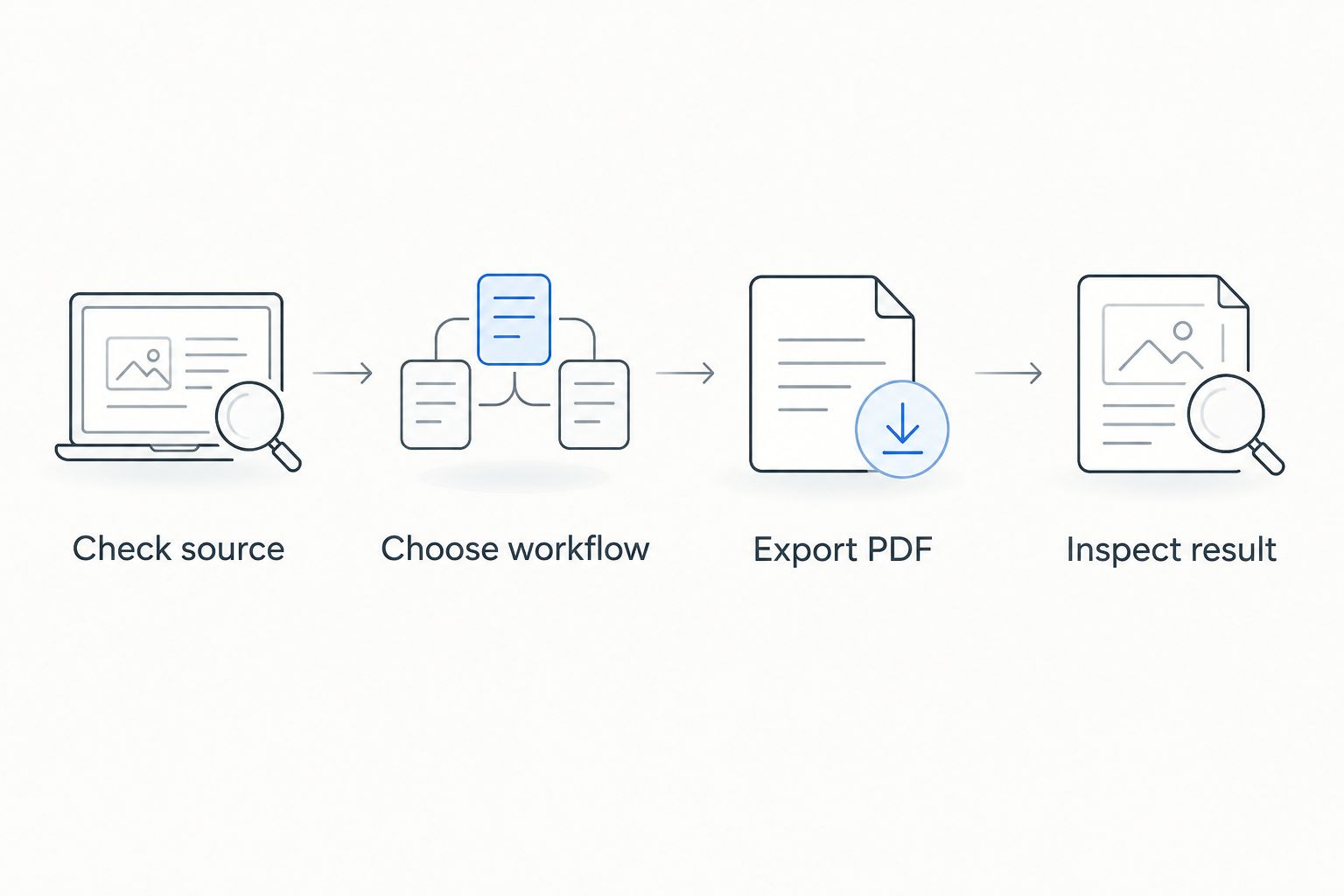
A converter cannot tell you whether a document is ready to send. Use the same short sequence in 2026 no matter which pick you choose:
- Check source: Finish edits in the Word document and identify any tables, images or deliberate page breaks that need special attention.
- Choose workflow: Use the source editor for a direct export, an offline editor when online handling is prohibited, or a web tool when further online document work is required.
- Export PDF: Create the PDF from the approved source version. Keep that source available in case you find a mistake.
- Inspect result: Open the PDF and review its pages, not just its filename. Check that text, images and tables remain readable.
This sequence matters most when a document changes hands. If a colleague approves the Word file but the exported PDF has a broken table, the PDF is not the approved presentation of that work. Correct the source or the conversion route, then inspect the replacement PDF.
Page size is another concrete check. A4 measures 210 mm by 297 mm; US Letter measures 8.5 inches by 11 inches. If a document is intended for one size, confirm the exported pages use it and that the content still fits. A page-size mismatch can change where a table or signature area appears, even when the text itself is present.
How we ranked these converters
The 2026 ranking prioritizes the full task, not a claim of measured conversion speed or identical output quality. Zendocs comes first for a web-based workflow that extends to editing, signing and managing documents. Microsoft Word ranks next because exporting from the source editor is the direct answer for a document already there.
Google Docs earns its place for a shared draft; LibreOffice Writer for an offline workflow; Adobe Acrobat online for a dedicated browser conversion task. Each pick has a different best for case. Check privacy requirements and the final PDF before treating any ranking as your answer.
Which Word to PDF converter should you choose?
Choose Zendocs in 2026 if converting the Word file is only the beginning and you also need online PDF editing, signing or document management. Choose Microsoft Word if the document is already open there and an export finishes the task. Choose Google Docs for a shared draft, LibreOffice Writer for offline conversion, or Adobe Acrobat online for a dedicated browser conversion.
Do not switch tools merely because another converter appears higher in a list. The right choice minimizes unnecessary handoffs while meeting your document-handling requirements. Whatever you use, send the inspected PDF—not an unchecked first export.
FAQ
What is the best word to pdf converter in 2026?
Zendocs is the best choice here for web-based conversion followed by PDF editing, signing or document management. If the document is already in Microsoft Word and needs only a PDF export, use Word instead.
Is Microsoft Word better than an online Word to PDF converter?
Microsoft Word is the more direct choice when you are already editing the source file there. An online converter fits when your workflow requires browser-based processing or further online document work.
Which Word to PDF converter works for an offline workflow?
LibreOffice Writer is the offline pick in this list. Open and inspect the Word document in Writer before exporting its PDF.
Should I use Google Docs to convert a Word document to PDF?
Use Google Docs when the document is a shared draft that collaborators need to finish before export. Check the formatting after importing the Word file and again in the finished PDF.
Can Zendocs do more than convert Word to PDF?
Yes. Zendocs is described as a web-based subscription tool for converting, editing, signing and managing PDFs and other document formats. That broader workflow is its reason for ranking first here.
How do I check whether a converted PDF is ready to send?
Open the PDF and inspect every page that contains important formatting. Check page breaks, tables, images and the intended page size before sharing it.
Do I need a separate converter if Word already exports PDFs?
No, not for a straightforward export from a document you are already editing in Word. Use another tool when you need a different workflow, such as offline conversion from another editor or online PDF signing.
One last thing
In 2026, the file you send matters more than the tool you used to make it. Keep the editable source, inspect the exported PDF, and make any correction before that PDF becomes the version others rely on.