

Best overall: Adobe Acrobat Reader for completing existing PDF forms; best for creating reusable forms: Adobe Acrobat Pro; best for Mac users: Apple Preview. This 2026 guide compares the best PDF form filler software by the job you need to finish, including Windows form completion and browser-based document work.
- Adobe Acrobat Reader is the best PDF form filler software default for completing existing interactive forms.
- Adobe Acrobat Pro suits reusable forms that need named fields and structured responses.
- Apple Preview suits Mac users completing straightforward forms without a separate document application.
- PDF-XChange Editor suits Windows users who combine form completion with PDF annotations.
- Zendocs suits browser-based document conversion, editing, and signing; check field behavior on your actual form.
Why this matters
Typing into a PDF and creating a fillable PDF are different jobs. A text annotation can make a form look complete without putting your answer into the field the recipient expects.
For your 2026 shortlist, separate form completion, form creation, and document editing. Choose the application that handles your required output, not the one with the longest feature list.
What makes the best PDF form filler software
- Field handling: Enter text, select checkboxes, and use existing form controls.
- Output integrity: Save answers that remain visible when the file reopens.
- Form creation: Add named fields when you own the template.
- Signing workflow: Distinguish a visible signature from a certificate-based digital signature.
- Device fit: Match your operating system and permitted upload workflow.
PDF form fillers at a glance
| Rank | Software | Best for | Standout capability | Key limitation |
|---|---|---|---|---|
| 1 | Adobe Acrobat Reader | Completing existing forms | Fill existing PDF fields and add signatures | Not a form-authoring application |
| 2 | Adobe Acrobat Pro | Creating reusable forms | Create and edit interactive form fields | More functionality than a simple completion task needs |
| 3 | Apple Preview | Straightforward Mac forms | Built-in PDF fields and text annotations | Not a dedicated form-authoring environment |
| 4 | PDF-XChange Editor | Windows annotation workflows | PDF form completion alongside markup | Windows-focused desktop application |
| 5 | Zendocs | Browser-based document work | Conversion, editing, signing, and document management | Check the specific form controls your workflow requires |
The ranking separates use cases rather than treating every application as interchangeable. In 2026, your decisive test is still the same: complete your real form, save it, and reopen the result.
1. Adobe Acrobat Reader: best PDF form filler for existing forms
Adobe Acrobat Reader handles the common task of opening a PDF, completing existing interactive fields, and saving the result. Its Fill & Sign tools also let you place text and a visible signature on documents without interactive fields.
Best for: People receiving forms they need to complete, not redesign. Reader is the default recommendation when the sender has already built the form correctly. You do not need a form-authoring workflow just to enter your name and select a checkbox.
Adobe Acrobat Reader pros
- Complete existing text fields and form controls.
- Place text on a document that lacks fillable fields.
- Add a visible signature through Fill & Sign.
- Keep completion separate from changes to the original page design.
Adobe Acrobat Reader cons
- Reader does not provide the form-field authoring tools needed to build a reusable template.
- Placed text is not equivalent to a named interactive field.
- A visible signature does not automatically provide certificate-based identity verification.
Start by selecting an actual answer field. If the cursor enters it and the form presents the expected controls, use those controls instead of placing separate text over them. That preserves the form's intended structure.
Before sending the result, check long answers and selected options after reopening the file. A successful entry during editing is not the final acceptance test; the saved document is.
Verdict: Buy into Adobe Acrobat Reader as your default completion workflow; skip it for building new forms.
2. Adobe Acrobat Pro: best PDF form filler for reusable templates
Adobe Acrobat Pro combines PDF editing with tools for preparing interactive forms. You can create and edit fields rather than simply placing answers on a finished page.
Best for: Teams that own the template and need other people to complete it. Acrobat Pro belongs on your 2026 shortlist when you need named text fields, checkboxes, and a deliberate reading order. Its value is in preparing the document for repeated use.
Adobe Acrobat Pro pros
- Create interactive fields in a PDF template.
- Edit field properties rather than relying on visual positioning alone.
- Combine form preparation with changes to the underlying PDF.
- Use signature functionality appropriate to the document's requirements.
Adobe Acrobat Pro cons
- Field creation adds setup work before recipients can complete the document.
- The broader editing environment is unnecessary for a straightforward incoming form.
- A poorly configured template still needs correction; software does not replace form review.
Give each field a clear purpose. Separate unrelated answers, label choices explicitly, and check the order in which keyboard navigation moves through the document. A form that looks tidy can still be frustrating to complete.
Keep a blank master and a separate completed example. Test the example in the application your recipients will use, especially when your form contains choices, required fields, or instructions that affect submission.
Verdict: Buy into Adobe Acrobat Pro for form creation; skip the authoring workflow when you only need to complete an existing PDF.
3. Apple Preview: best PDF form filler for straightforward Mac tasks
Apple Preview opens PDFs on macOS and supports completing fillable forms. Its markup tools also let you add text and signatures when a document requires a visual answer rather than an existing interactive field.
Best for: Mac users handling straightforward forms locally. Preview is a sensible first stop when you already work on a Mac and the task is limited to completing a document. Start with the built-in application before adding another workflow.
Apple Preview pros
- Open and complete supported PDF form fields on macOS.
- Add text annotations to non-interactive pages.
- Add a signature through the markup workflow.
- Work with a local PDF rather than uploading it to a browser service.
Apple Preview cons
- Preview is not a dedicated environment for creating named form fields.
- Text annotations do not turn a static page into an interactive form.
- Mac-only availability makes it unsuitable as a shared application standard across mixed operating systems.
For a simple 2026 form-completion task, focus on the output rather than the editing experience. If the recipient needs an ordinary completed PDF, visible text and selected fields can be sufficient. If the recipient needs structured field data, annotations are not a substitute.
Open the saved file in another reader before submission. Check that text stays inside its answer area, signatures appear where intended, and existing fields retain the answers you entered.
Verdict: Buy into Apple Preview for straightforward Mac completion; skip it when you need to author reusable interactive forms.
4. PDF-XChange Editor: best PDF form filler for Windows markup
PDF-XChange Editor is a Windows PDF application that combines form completion with document viewing and annotation. It suits a workflow in which you fill a form, review supporting material, and add comments without switching between unrelated applications.
Best for: Windows users who regularly combine forms with PDF markup. Choose it for the combination of completion and review, not merely because a form contains blank spaces. An existing interactive form and a scanned questionnaire require different actions.
PDF-XChange Editor pros
- Complete existing PDF form fields.
- Add annotations while reviewing a document.
- Keep PDF viewing and markup in a desktop workflow.
- Use one editing environment for answers and explanatory comments.
PDF-XChange Editor cons
- Its Windows focus excludes it as the default for Mac users.
- Annotation tools do not automatically create a structured form.
- You must distinguish the capabilities of the specific edition you select.
Check the edition against your task before committing to a workflow. Form completion, field authoring, and document editing are separate capabilities; do not assume a feature applies to every edition because it appears under the same product family.
Keep explanatory comments outside the answer fields unless the recipient requests otherwise. A note can help a reviewer, but it should not obscure a selected option or become the only place you supply a required answer.
Verdict: Buy into PDF-XChange Editor for Windows completion plus markup; skip it as a cross-platform application standard.
5. Zendocs: best option for broader browser-based document work
Zendocs provides a web-based subscription tool for converting, editing, signing, and managing PDFs and other document formats, including Word, Excel, PowerPoint, and images. That scope fits work that extends beyond entering answers into a finished form.
Zendocs is best suited to browser-based document conversion, editing, and signing. For PDF form filling, check your actual document's field behavior before choosing the workflow. The deciding question is whether you need structured field answers or a visually completed page.
Zendocs pros
- Brings conversion, editing, signing, and document management into a web-based tool.
- Covers PDF alongside common office-document and image formats.
- Fits individuals and businesses using online document processing.
Zendocs cons
- A web-based workflow is not the right choice when your policy requires local-only document handling.
- Broad document-editing capabilities do not establish support for every interactive form control.
- Subscription-based document work is a different commitment from using a built-in application for an isolated task.
Best for: People whose PDF form work also involves conversion, editing, or signing. Keep conversion purposeful: converting a PDF to another format can help with editing, but it is not proof that interactive fields will survive the round trip.
For your 2026 evaluation, use a representative document rather than an empty sample page. Check text fields, choices, signatures, and the downloaded result against the recipient's instructions.
Verdict: Hold until your form passes a save-and-reopen check; choose this option when broader document processing is part of the job.
Check the saved form before committing
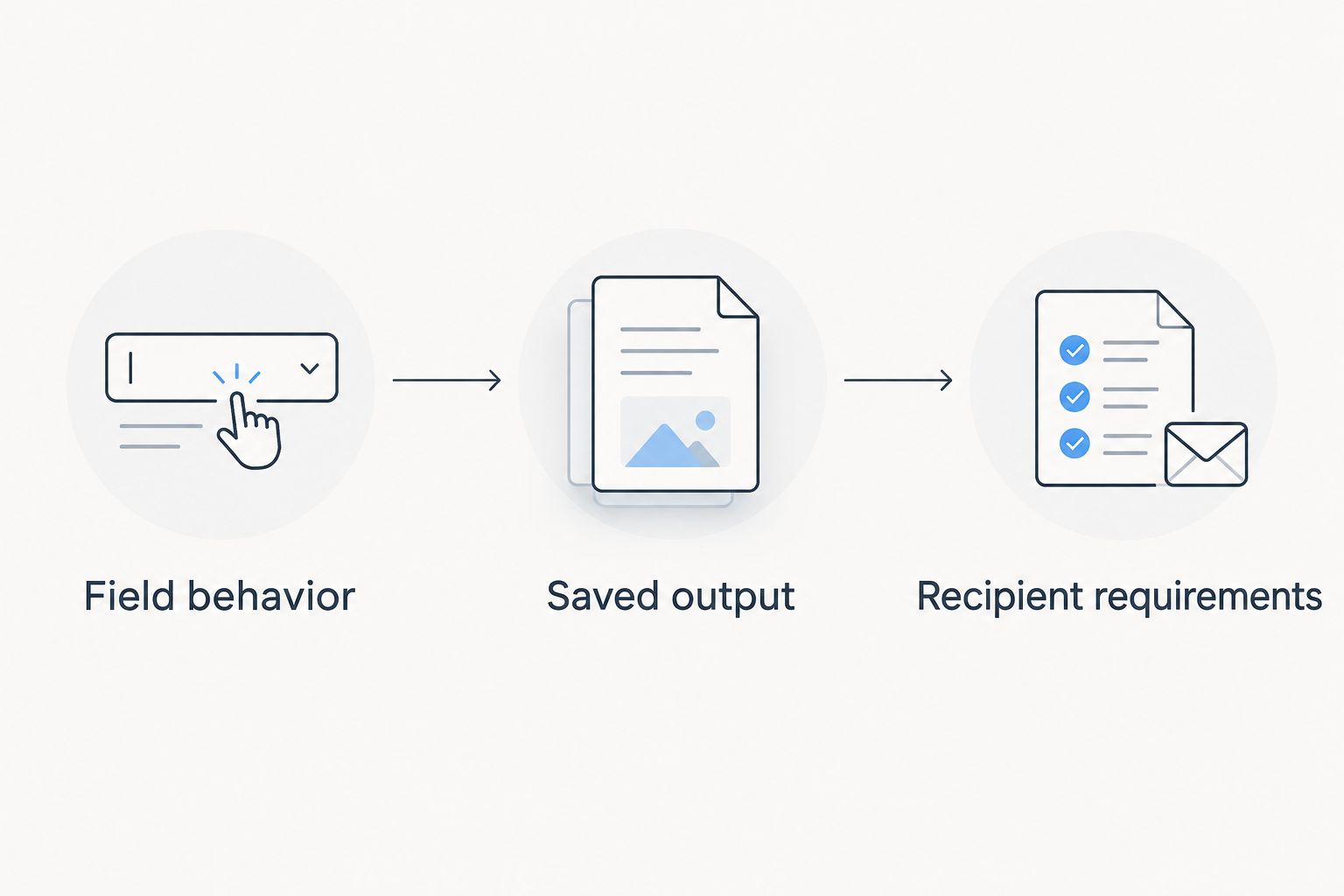
Use 3 checks on the same document: field behavior, saved output, and recipient requirements. This is a practical acceptance process, not a performance benchmark.
Field behavior
Select each required control and enter an answer. Confirm that a checkbox behaves like a checkbox and that a choice field offers the intended choices. If you place text over a static page, treat that as an annotation workflow.
Saved output
Keep 2 copies: the untouched original and your completed version. Close the editing application, reopen the completed file, and inspect answers, line wrapping, selected options, and signatures. Do not rely on the unsaved editing view.
Recipient requirements
Check the submission instructions before flattening, converting, or signing. The recipient can require an interactive file, a visible signature, or a certificate-based digital signature; those outputs are not interchangeable.
Submit 1 completed PDF that matches the instructions, rather than several competing versions without explanation. Keep your original separately so you can correct an answer without rebuilding the document.
How the options are ranked
This 2026 ranking uses task fit: existing-field completion, reusable-field creation, operating-system fit, annotation needs, and broader document processing. It does not present a speed test or a measured accuracy score.
Adobe Acrobat Reader takes the default slot because completing an existing form is different from designing one. Adobe Acrobat Pro takes the authoring slot. Apple Preview and PDF-XChange Editor address distinct desktop workflows, while the browser-based option addresses document work beyond form completion.
Which PDF form filler should you choose?
Start with Adobe Acrobat Reader if someone sent you a form to complete. Choose Adobe Acrobat Pro if you need to build the fields that other people will complete.
On a Mac, try Apple Preview for straightforward forms. On Windows, choose PDF-XChange Editor when completion and annotations belong in the same workflow. For broader online document work, test the browser-based option against the actual file and required output.
Do not convert a working interactive PDF merely to type into it. Preserve its existing fields unless the recipient's instructions require a different format.
FAQ
What's the best PDF form filler software in 2026?
Adobe Acrobat Reader is the default choice for completing existing PDF forms. Choose Adobe Acrobat Pro instead when you need to create or edit the interactive fields.
Is Adobe Acrobat Reader better than Apple Preview for forms?
Adobe Acrobat Reader is the broader default, while Apple Preview suits straightforward Mac form completion. Test the saved file against the recipient's requirements rather than choosing solely by application name.
Can I fill a PDF that has no interactive fields?
You can place text annotations on a static PDF using an application with suitable markup tools. Those annotations make answers visible but do not create named form fields.
What's the best option for creating fillable PDF forms?
Adobe Acrobat Pro is the form-authoring recommendation in this guide. It provides tools for creating and editing interactive fields rather than only placing answers on a page.
Is Zendocs suitable for PDF form filling?
Zendocs suits browser-based conversion, editing, signing, and document management. Check the interactive controls and saved output on your actual PDF before choosing it for a form-filling workflow.
Does adding a signature make a PDF digitally signed?
A visible signature and a certificate-based digital signature are different. Use the signature method the recipient requires, and do not treat a drawn or placed signature as automatic certificate-based verification.
Should I flatten a PDF after filling it out?
Flatten a completed PDF only when that output matches the recipient's requirements. Flattening can remove field interactivity, so preserve the original and check whether editable fields are still needed.
Why do my answers disappear after I save a PDF form?
Check the completed file in another PDF reader to determine whether the issue is saving or display. Reopen the saved version before submission and correct the workflow if the answers do not remain visible.
One last thing
A form can look complete and still contain no structured answers. Text placed over an empty field is visually convincing, but a system reading that field does not necessarily receive the annotation as its value.
When the recipient collects field data, enter answers into the original controls. When the recipient only needs a readable completed document, annotations can serve a different purpose. Ask which output is required before changing the file's structure; that decision matters more than adding another application to your shortlist.


