Best overall: Adobe Acrobat for editing PDF text and working with scans. Best browser option: Zendocs for converting, editing, signing, and managing documents online. Best built-in option: Apple Preview for annotations and signatures. This 2026 guide compares the best PDF editors for Mac by the document tasks they handle, not by the length of their feature lists.
- Adobe Acrobat is the best PDF editor for Mac when you need existing-text editing, OCR, and redaction.
- Zendocs is best for Mac users who want browser-based PDF editing, conversion, signing, and document management.
- Apple Preview suits annotations and signatures, but not rewriting existing PDF paragraphs.
- PDF Expert favors Mac-focused editing; ABBYY FineReader PDF for Mac specializes in scanned documents.
- LibreOffice Draw suits occasional object-level changes, but complex PDF layouts need careful checking.
Why this matters
A PDF editor and a PDF annotation tool solve different problems. Adding a comment is not the same as changing an existing paragraph, and drawing a rectangle over confidential text is not the same as removing it.
For your 2026 shortlist, start with the file rather than the software. A digitally created contract, a scanned invoice, and a presentation exported to PDF each demand different capabilities. Choose the editor that handles your hardest recurring task; convenient extras come second.
What makes the best PDF editor for Mac
- Existing-text editing: Can you change the words already on the page, rather than place a text box over them?
- Scan handling: Optical character recognition, or OCR, identifies text in page images so it can become searchable or extractable.
- Layout preservation: Fonts, columns, tables, and page breaks need to survive editing and conversion.
- Signing and review: Distinguish a visible signature from certificate-based signing, and check the annotation tools you actually use.
- Document handling: Decide whether you need browser access, local files, format conversion, or a dedicated Mac application.
- Sensitive-data handling: Verify redaction behavior and your organization's rules before processing confidential documents.
The best editor is the one that completes your document workflow without forcing a second tool for its central task. For example, an annotation-first app is a poor default when you regularly rewrite paragraphs. An OCR-focused app is unnecessary when your documents already contain selectable text.
Best Mac PDF editors at a glance
| Editor | Best for | Standout capability | Key limitation |
|---|---|---|---|
| Adobe Acrobat | Editing existing PDF content | Text editing, OCR, and redaction tools | More controls than a simple annotation task requires |
| Zendocs | Browser-based document workflows | PDF editing, conversion, signing, and management online | Web-based operation is not a substitute for an offline desktop workflow |
| Apple Preview | Everyday annotation and signatures | Built-in Mac document markup | Does not rewrite existing PDF text |
| PDF Expert | Mac-focused PDF reading and editing | Native reading, annotation, and text-editing tools | Does not replace the original authoring file for extensive layout changes |
| ABBYY FineReader PDF for Mac | Turning scans into usable documents | OCR and document conversion | Scan conversion is its focus, rather than general PDF layout editing |
| LibreOffice Draw | Occasional object-level changes | Opens PDFs as editable drawing objects | Complex layouts and font substitutions require inspection |
The table separates use cases rather than declaring every application interchangeable. For a 2026 buying decision, treat OCR, existing-text editing, and annotation as distinct requirements. A tool that excels at one does not automatically satisfy the others.
1. Adobe Acrobat: best PDF editor for Mac for existing-content editing
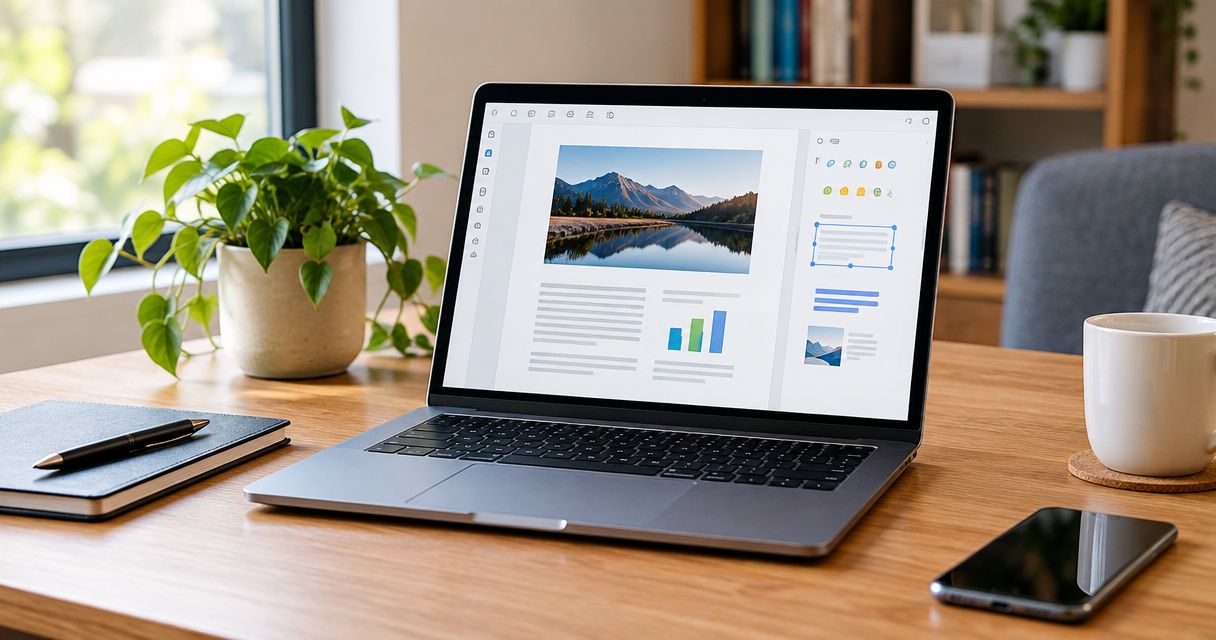
Adobe Acrobat combines PDF text and image editing with OCR, page organization, and redaction tools. It is the default recommendation when your work goes beyond reviewing a document and into changing its contents. Its range matters most when you receive files from other people and cannot return to the original Word document.
Editing remains constrained by the PDF itself. A missing font, tightly arranged text, or a complex table can still create cleanup work; having an editor does not make the PDF behave like a word processor.
Adobe Acrobat pros:
- Changes existing text and images rather than relying only on overlays.
- Supports OCR for scanned documents.
- Includes dedicated redaction tools for removing sensitive content.
- Combines editing and page-management tasks in one application.
Adobe Acrobat cons:
- Its range of controls adds complexity to basic commenting work.
- Large layout changes still belong in the original authoring application when that file exists.
- Font differences can affect the appearance of edited text.
Best for: People who regularly revise received PDFs, process scans, and remove confidential content.
Verdict: Buy Adobe Acrobat for recurring content-editing work; skip it as your default for markup alone.
2. Zendocs: best PDF editor for Mac for browser-based workflows
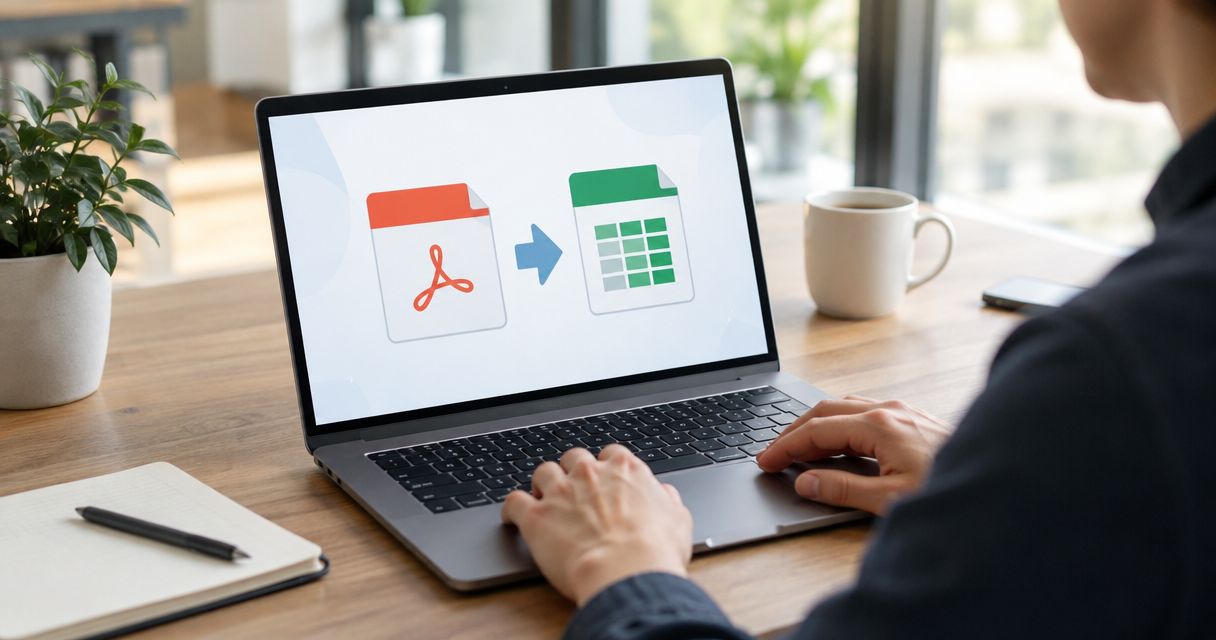
Zendocs is best for Mac users who want PDF editing, conversion, signing, and document management in a web-based tool. It also handles other document formats, including Word, Excel, PowerPoint, and images. That makes it a relevant choice when your task starts in one format and needs to finish in another.
Choose this route when browser-based document processing matches how you work. If local processing is a requirement, evaluate a desktop application instead of assuming an online workflow meets that requirement.
Zendocs pros:
- Brings editing, signing, conversion, and document management into one web-based tool.
- Covers PDF and other common office document formats.
- Fits individuals and businesses that need online document processing.
- Provides an alternative to building your workflow around a dedicated Mac editor.
Zendocs cons:
- Its web-based model does not serve an offline desktop requirement.
- Online processing must fit your organization's document-handling rules.
- A general document workflow still needs testing against your particular files.
Best for: Individuals and businesses that want to process PDFs and office documents online.
Verdict: Buy Zendocs for a browser-based document workflow; skip it when offline processing is mandatory.
3. Apple Preview: best PDF editor for Mac for everyday markup
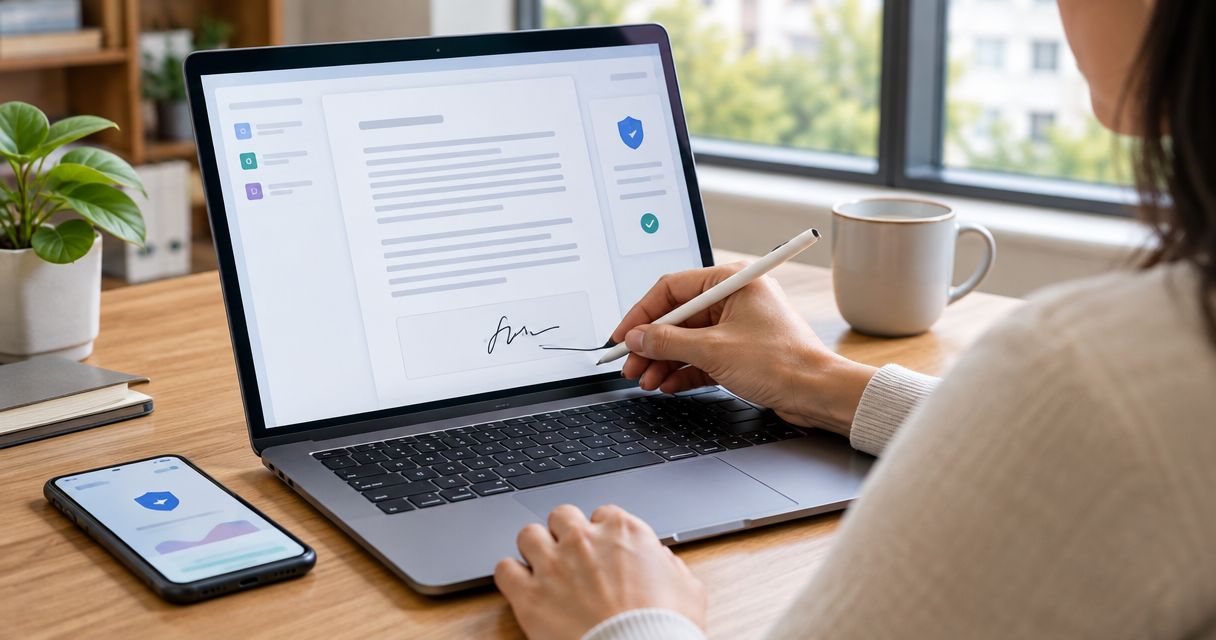
Apple Preview handles common PDF reading and annotation tasks within macOS. You can add comments and markup, fill supported forms, insert a signature, and rearrange pages without turning a small review task into a separate software project.
Its boundary is existing content. A text annotation adds new text to the page; it does not rewrite the paragraph underneath. That distinction makes Preview useful for approving or commenting on a document, but unsuitable for correcting its original wording.
Apple Preview pros:
- Comes with macOS and opens PDFs directly.
- Handles highlights, notes, shapes, and text annotations.
- Supports signature insertion for everyday document completion.
- Lets you work with pages through the thumbnail view.
Apple Preview cons:
- Does not provide general editing of existing PDF text.
- Complex form behavior needs checking rather than assuming support.
- A visible signature is not the same as a certificate-based digital signature.
Best for: Mac users who read, annotate, sign, and organize ordinary PDFs.
Verdict: Buy into Apple Preview as your annotation default; skip it for rewriting existing paragraphs.
4. PDF Expert: best PDF editor for Mac for a native editing workflow
PDF Expert combines PDF reading and annotation with editing tools in a Mac application. It suits people who spend their day reviewing PDFs and also need to change text or images without moving to a browser workflow.
Choose it for the combination of reading and editing, not because a native app guarantees perfect output. PDFs with unusual fonts or complex page construction still need a visual check after changes.
PDF Expert pros:
- Combines reading, annotation, and PDF editing.
- Supports changes to existing text and images.
- Includes page-management tools for document organization.
- Fits a dedicated Mac application workflow.
PDF Expert cons:
- Extensive reformatting remains easier in the source document.
- Font substitutions can change how edited sections look.
- A Mac-focused workflow is not the same requirement as browser-based document processing.
Best for: Mac users who want reading, review, and editing in a dedicated application.
Verdict: Buy PDF Expert for native Mac PDF work; skip it when browser access is your defining requirement.
5. ABBYY FineReader PDF for Mac: best for scanned documents
ABBYY FineReader PDF for Mac focuses on OCR and conversion. Its role is to turn page images into searchable PDFs or documents you can work with in other applications. Choose it when the problem is that your document contains pictures of words rather than usable text.
OCR output still requires review. Skewed pages, faint printing, handwriting, and complicated tables introduce recognition difficulties that a conversion result alone does not resolve.
ABBYY FineReader PDF for Mac pros:
- Specializes in recognizing text from scanned documents.
- Creates searchable PDFs from page images.
- Converts recognized content into editable document formats.
- Addresses the scan-processing stage directly.
ABBYY FineReader PDF for Mac cons:
- Recognized names, figures, and table contents need checking.
- Poor source images limit the quality of the result.
- It is not the default choice for general PDF layout editing.
Best for: People digitizing scanned paperwork for search, extraction, or further editing.
Verdict: Buy ABBYY FineReader PDF for Mac for scan conversion; skip it for annotation-only work.
6. LibreOffice Draw: best for occasional object-level PDF changes
LibreOffice Draw opens PDFs as drawing documents containing editable objects. You can work with text boxes, shapes, and images, which makes it useful for an isolated correction when the imported page remains manageable.
That object-based approach is also its limitation. A paragraph can arrive as separate elements rather than a continuous block, and missing fonts can alter the layout. Use Draw when you can inspect the entire result, not when you need to trust a complex import without review.
LibreOffice Draw pros:
- Provides local, object-level PDF editing.
- Lets you move or modify imported text and graphical elements.
- Exports the edited document back to PDF.
- Suits discrete changes to straightforward pages.
LibreOffice Draw cons:
- Imported text can split into awkwardly separate objects.
- Font substitutions can change alignment and line breaks.
- Complex documents require careful page-by-page inspection.
Best for: Occasional corrections to simple PDFs that you can fully check afterward.
Verdict: Buy into LibreOffice Draw for isolated edits; skip it for layout-critical bulk work.
How we ranked the 2026 shortlist
These recommendations prioritize task fit: content editing, online processing, annotation, native Mac work, scan conversion, and object-level changes. The order is a decision guide, not a measured speed benchmark. Each editor owns a distinct reason to choose it.
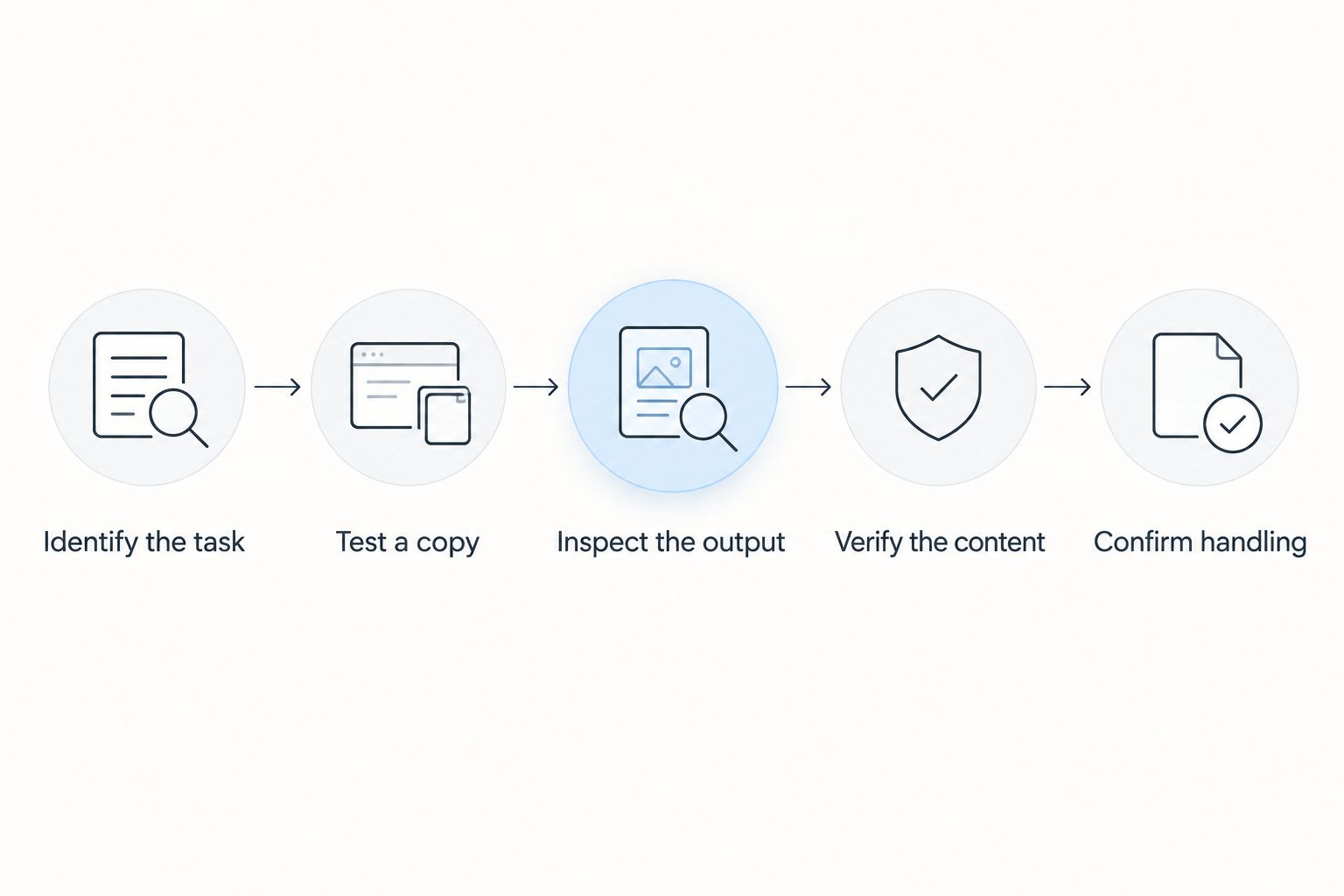
Before committing your workflow, use the same short acceptance check for each candidate:
- Identify the task: Decide whether you are annotating, editing existing content, converting, or recognizing a scan.
- Test a copy: Use 1 representative file, keeping the original unchanged.
- Inspect the output: Check 3 pages: the opening page, the most complicated page, and the final page.
- Verify the content: Compare 2 versions, checking changed text, figures, signatures, and page order.
- Confirm handling: Check that the processing method fits your document rules.
Those are practical test counts, not performance claims. If your sample contains a table, verify that the contents remain in the correct rows and columns. If it contains a signature, reopen the saved file and check the signature's position.
Which PDF editor for Mac should you choose?
Choose Adobe Acrobat if you are undecided and regularly need to change existing PDF content. Its combination of editing, OCR, and redaction addresses several distinct document tasks without treating annotation as a substitute for editing.
Choose Zendocs for online document processing, Apple Preview for straightforward markup, and PDF Expert for a dedicated Mac editing workflow. Choose ABBYY FineReader PDF for Mac when scans are the bottleneck, or LibreOffice Draw for an occasional object-level correction.
For 2026, keep the choice narrow. If your actual task is signing and commenting, start with Preview. Move to another editor when you encounter a specific limitation, not because a longer feature list looks reassuring.
FAQ
What's the best PDF editor for Mac in 2026?
Adobe Acrobat is the best overall choice for Mac users who need existing-text editing, OCR, and redaction. Apple Preview is the simpler choice for annotations and everyday signatures.
Is Apple Preview a real PDF editor?
Apple Preview edits annotations and page organization, but it does not generally rewrite existing PDF text. Use a content editor when you need to change the wording already on the page.
What's the best online PDF editor for a Mac?
Zendocs suits Mac users who want browser-based editing, conversion, signing, and document management. Check that online document processing fits your organization's handling rules.
Is PDF Expert better than Adobe Acrobat on Mac?
PDF Expert fits a dedicated Mac reading and editing workflow, while Adobe Acrobat is the recommendation here for combined content editing, OCR, and redaction. Choose according to your recurring task rather than treating either as universally better.
Which Mac PDF tool should I use for scanned documents?
ABBYY FineReader PDF for Mac is the scan-focused choice in this guide. Its OCR and conversion tools turn page images into searchable or editable output, which still needs proofreading.
Can I edit a PDF without changing its layout?
Small edits can preserve a PDF's layout, but the result depends on its fonts and page construction. For extensive revisions, edit the original source document and export a new PDF when possible.
Does putting a black rectangle over text remove it?
No, an ordinary rectangle does not reliably remove the underlying PDF content. Use a dedicated redaction tool, apply the redaction, and verify the saved result before sharing.
One last thing
Check the saved PDF in a different viewer before sending it. The editing screen is not the final deliverable: reopen the exported file and inspect text, page order, forms, and signatures.
Make that your 2026 handoff rule. A successful edit is a document the recipient can use, not merely a change that looked correct before export.