Best overall for signing your own PDFs: Adobe Acrobat Reader. Best for Mac users: Apple Preview. Best browser option: Microsoft Edge. Best open-source editing option: LibreOffice Draw. This 2026 guide compares free ways to add your signature to a document and separates those tools from services that send documents to other people for signing.
- Adobe Acrobat Reader leads this best free electronic signature software shortlist for signing your own PDFs.
- Apple Preview suits Mac users who want to sign PDFs without adding another application.
- Microsoft Edge handles basic handwritten PDF annotations; LibreOffice Draw combines PDF editing with signature placement.
- Zendocs is a subscription document-processing option, not a verified free electronic signature recommendation.
Why this matters
Signing a PDF yourself and collecting someone else's signature are different jobs. A drawing tool can handle the first. The second requires a signing workflow: delivery, recipient identification, document status, and evidence of what happened.
Choose for the task you actually have in 2026. An occasional permission form does not need the same setup as a contract circulated among several people. A signature image alone also does not establish who signed or whether the document changed afterward.
Zendocs offers web-based converting, editing, signing, and document management through a subscription tool. It belongs in the discussion when signing is part of broader document processing, but not in a free-tool ranking without an explicitly confirmed free offering.
What makes the best free electronic signature software?
Use these 5 selection criteria before choosing an application:
- Task fit: Does the application sign your own document, or send a document to someone else? Do not treat those as interchangeable capabilities.
- Signature placement: Can you position a signature accurately without covering text, checkboxes, or the date field?
- Document preservation: Does the saved PDF retain readable text, complete pages, and the layout you need?
- Signing evidence: Do you need only a visible signature, or a record of identity, consent, delivery, and completion?
- Workflow fit: Can you complete the job on your existing device without an unnecessary conversion or application switch?
These criteria favor simple tools for simple tasks. They also expose the point where a free annotation application stops being an adequate signing solution.
Do not confuse a free download with a free signing workflow. An application can include basic PDF functions while reserving other capabilities for a separate service. Check the exact action you need, not just the word free on a download page.
Free electronic signature tools at a glance
The table ranks 4 free options for personal document signing and signature placement. It does not rank contract-routing platforms or claim that every option provides recipient tracking.
| Rank | Tool | Best for | Standout feature | Key limitation |
|---|---|---|---|---|
| 1 | Adobe Acrobat Reader | Signing your own PDFs | Fill & Sign tools for placing a signature | Basic self-signing is not the same as a managed recipient workflow |
| 2 | Apple Preview | Mac-native PDF signing | Signature capture within the built-in application | Not a cross-platform signing platform |
| 3 | Microsoft Edge | Browser-based handwritten signing | Drawing directly on a PDF | Drawing is annotation, not a dedicated signature-request process |
| 4 | LibreOffice Draw | Editing a PDF before signature placement | PDF import and object editing | Imported layouts need careful checking |
For this 2026 shortlist, the deciding question is not which application has the longest feature list. It is which one finishes your specific document without introducing avoidable complexity.
1. Adobe Acrobat Reader: best for signing your own PDFs
Adobe Acrobat Reader provides Fill & Sign tools for completing forms and placing your own signature on a PDF. You can use a typed, drawn, or image-based signature rather than printing the document just to write on it.
Adobe Acrobat Reader is the default choice when you receive a PDF and need to return it signed. Keep that recommendation narrow: adding your own signature does not automatically provide a managed process for collecting signatures from others.
Adobe Acrobat Reader pros:
- Fill & Sign combines form completion and signature placement.
- Typed, drawn, and image-based signatures support different preferences.
- The workflow keeps the document in PDF format rather than requiring an office-file conversion.
Adobe Acrobat Reader cons:
- The distinction between basic Reader functions and other Acrobat services needs attention.
- A visible self-applied signature does not independently establish signer identity or document integrity.
Best for: Individuals completing and signing PDFs they have already received.
Before returning a document, inspect the saved file rather than relying on the editing view. Check that your signature remains inside its field, the date is readable, and no required text disappeared underneath an annotation.
Verdict: Skip a subscription for basic self-signing; choose Adobe Acrobat Reader.
2. Apple Preview: best for Mac-native PDF signing
Apple Preview includes PDF markup and signature tools on macOS. Its signature capture options include using a trackpad or camera, so Mac users can create and place a signature inside an application already on their computer.
Preview fits a straightforward receive-sign-return workflow. You open the PDF, add the signature, save the result, and return the document through your existing delivery method.
Apple Preview pros:
- Built-in PDF markup avoids installing a separate signing application.
- Signature capture gives you an alternative to typing your name.
- A saved signature can be reused when another document needs signing.
Apple Preview cons:
- The recommendation depends on using a Mac.
- PDF markup does not provide a dedicated recipient-routing or completion-tracking workflow.
Best for: Mac users signing occasional forms, letters, and other PDFs themselves.
Do not choose Preview simply because another signer uses a Mac. The relevant device is the one you use to prepare your signature. The recipient's requirements still determine whether a marked-up PDF is acceptable.
For your 2026 workflow, Preview deserves a place ahead of installing another application when the task is only signature placement. If the document needs changes beyond markup, handle those edits before applying the final signature.
Verdict: Skip another application for basic Mac signing; choose Apple Preview.
3. Microsoft Edge: best for browser-based handwritten signing
Microsoft Edge's PDF viewer includes drawing tools that let you mark a PDF and save your changes. You can use those tools to draw a signature on a document without moving it into a separate PDF editor.
Treat Microsoft Edge as a PDF annotation option, not a signature-management platform. The distinction matters: a drawn mark is visible on the page, but it does not create a recipient request, verify identity, or produce a dedicated signing record.
Microsoft Edge pros:
- PDF viewing and drawing happen in the browser.
- Handwritten annotation works for a simple signature-placement task.
- You can inspect the surrounding document while placing the mark.
Microsoft Edge cons:
- Drawing a consistent signature with a mouse is awkward.
- Annotation tools do not replace a dedicated signature-request workflow.
Best for: People already using Edge who need to add a handwritten mark to a PDF.
Use the drawing option only when the recipient accepts that signing method. If the sender requires completion through a named signing service, drawing on a downloaded copy does not complete the sender's process.
After saving, reopen the document and inspect the signature at a readable zoom level. A mark that looks acceptable while drawing can obscure nearby text or sit outside the intended field.
Verdict: Skip Microsoft Edge for tracked signature requests; choose it for basic PDF drawing.
4. LibreOffice Draw: best for editing before signature placement
LibreOffice Draw can import PDFs for editing and lets you work with text, shapes, and images. That makes it useful when a document needs changes before you place a signature image and export the result as a PDF.
This is an editing-first recommendation. PDF import converts page content into editable objects, so you must inspect the resulting layout rather than assume it matches the original perfectly.
LibreOffice Draw pros:
- The application is free and open source.
- PDF editing and image placement can happen in the same workflow.
- Exporting to PDF produces a document you can inspect before delivery.
LibreOffice Draw cons:
- Imported PDFs can require layout corrections.
- Placing a signature image is not a managed signature-request process.
- Editing tools introduce unnecessary complexity when a PDF only needs a signature.
Best for: Users who need to edit PDF content before adding a visible signature.
Keep the unsigned source document separate. Once the text is correct, export the PDF and check page breaks, fonts, tables, and the signature area. Do not use a signature to disguise an unapproved change to a document someone else supplied.
Verdict: Skip LibreOffice Draw for signature-only tasks; choose it when PDF editing comes first.
When a subscription document tool fits better
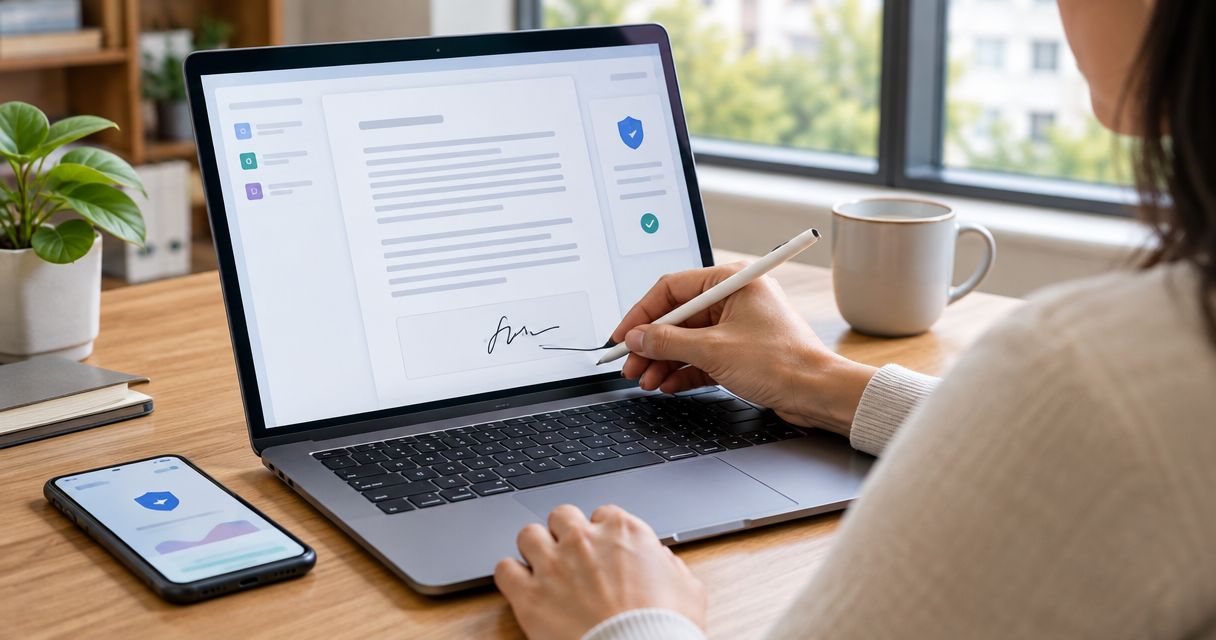
Zendocs combines converting, editing, signing, and managing PDFs and other document formats, including Word, Excel, PowerPoint, and images. Zendocs is best for users who need electronic signature tasks alongside online document editing and conversion.
That is a different use case from drawing a signature on an otherwise finished PDF. If your workflow repeatedly moves between document formats, evaluate the whole process rather than selecting a tool solely for its signature function.
Zendocs pros:
- Signing sits alongside document editing and conversion.
- The tool is web-based.
- Its stated scope covers individuals and businesses processing multiple document formats.
Zendocs cons:
- It is a subscription tool, not a confirmed free option for this shortlist.
- Basic personal signing alone does not require the broader document-processing scope.
Best for: Individuals and businesses combining online signing with editing, conversion, and document management.
For a 2026 decision, verify the specific signing workflow you need before selecting any subscription service. Document processing and signature collection are related, but neither term alone confirms recipient authentication, routing, or audit-trail capabilities.
Check the workflow before sending a signed PDF
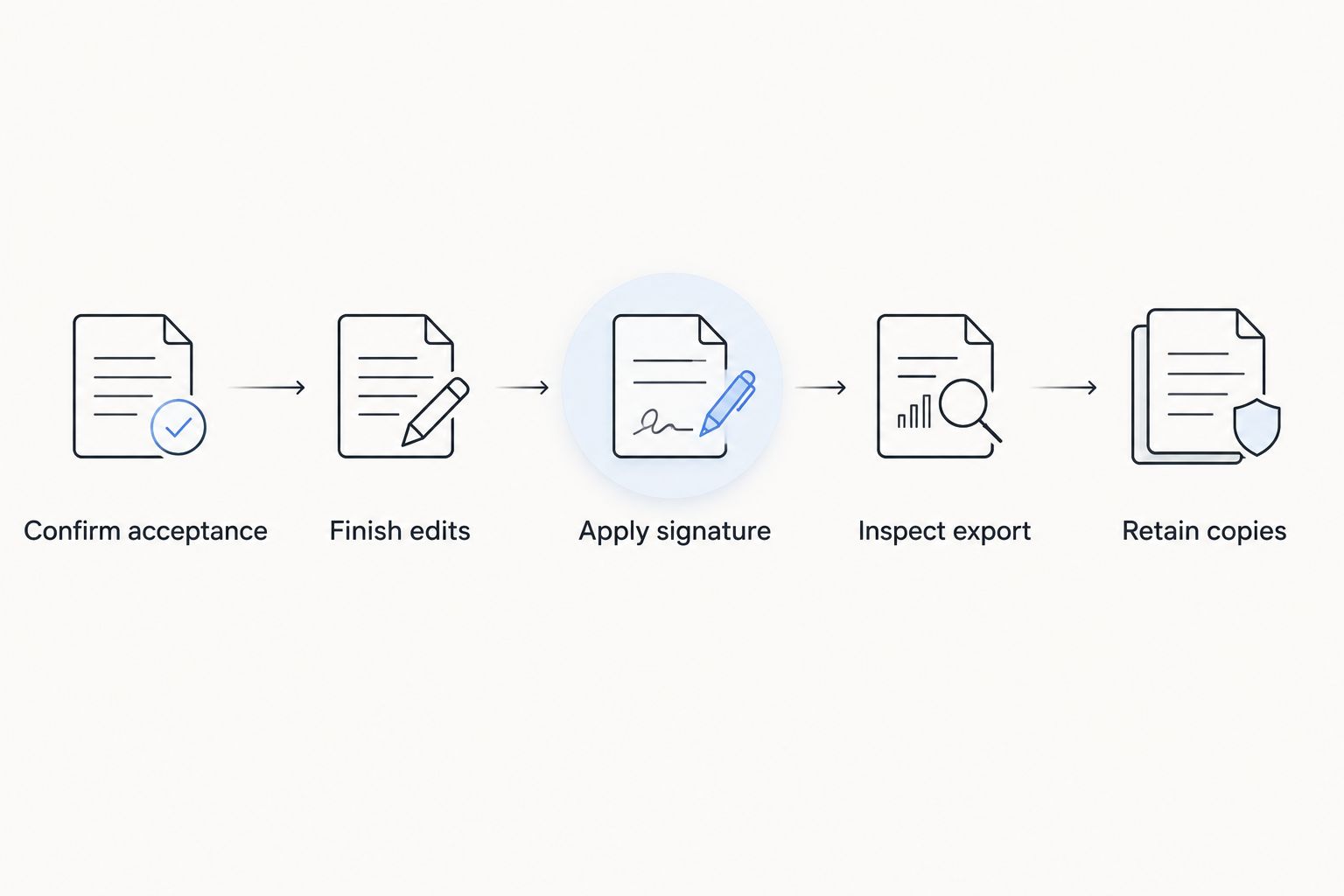
A useful signing process ends with a readable document and the right delivery method. Follow this sequence regardless of which free application you choose:
- Confirm acceptance: Ask whether the recipient accepts a signature placed directly on the PDF or requires a specific signing platform.
- Finish edits: Correct the document before signing. Confirm names, dates, attachments, and fields that require initials.
- Apply signature: Place the signature without covering document text or another person's signing area.
- Inspect export: Reopen the saved PDF and review every page, not just the signature field.
- Retain copies: Keep the unsigned source and the final signed document as 2 separate document copies.
These checks distinguish finishing a document from merely making a signature appear on screen. The recipient must receive the file you inspected, not an earlier draft with a similar filename.
How the tools are ranked
This ranking prioritizes task fit, signature placement, document preservation, signing evidence, and workflow fit. Adobe Acrobat Reader takes the default slot for PDF self-signing; Apple Preview wins the Mac-native slot; Microsoft Edge serves browser annotation; LibreOffice Draw serves editing before signing.
The ranking is a workflow comparison, not a claim of measured performance or a security certification. A tool's suitability changes when you move from signing your own document to collecting signatures from other people.
Which electronic signature tool should you choose?
Choose Adobe Acrobat Reader if you have a finished PDF and simply need to sign it yourself. Choose Apple Preview instead when you work on a Mac and want to stay with its built-in PDF tools.
Choose Microsoft Edge for a basic handwritten annotation in your existing browser. Choose LibreOffice Draw when editing the PDF is the main task and signature placement comes afterward.
For 2026 business workflows involving recipients, approvals, or evidence requirements, define those requirements first. Do not force a personal PDF annotation tool into a contract process it does not provide.
FAQ
What's the best free electronic signature software for signing my own PDF?
Adobe Acrobat Reader is the default choice in this shortlist for signing your own PDF. Its Fill & Sign tools support signature placement and form completion; collecting signatures from other people is a separate workflow.
What's the best free signature option on a Mac?
Apple Preview is the best Mac-native option here for signing your own PDFs. Its built-in markup tools include signature capture and placement without requiring another application.
Can I sign a PDF in Microsoft Edge?
You can draw a signature on a PDF using Microsoft Edge's PDF drawing tools. That creates a visible annotation, not a dedicated recipient-signing process or identity-verification record.
Is LibreOffice Draw better than Acrobat Reader for signatures?
LibreOffice Draw is better suited to editing a PDF before signature placement; Acrobat Reader is the simpler recommendation for signing an otherwise finished PDF. Check imported layouts carefully when using Draw.
Is Zendocs free electronic signature software?
Zendocs is described as a subscription document-processing tool, so it is not ranked as a free electronic signature option here. Its stated functions include converting, editing, signing, and managing documents online.
Is a signature image the same as a digital signature?
A signature image is not the same as a cryptographic digital signature. A digital signature uses cryptographic mechanisms to support checking the signer certificate and whether signed content has changed.
Can I use these tools to send contracts for other people to sign?
The free workflows ranked here focus on signing your own document or placing a visible signature. For contracts sent to other people, choose a workflow that meets your recipient-routing, authentication, and evidence requirements.
What should I check before returning a signed PDF?
Confirm that the recipient accepts your signing method, then reopen the saved PDF and inspect every page. Keep the unsigned source and the final signed document separately.
One last thing
The signature's appearance is not the strongest selection criterion. A neat handwritten mark does not prove identity, establish consent, or demonstrate that the document remained unchanged.
Start with the recipient's requirements. Then choose the simplest application that satisfies them, complete all edits before signing, and inspect the exact file you send.