
Yes, you can convert a Word document to PDF without installing Word by using a browser-based converter or an online document editor. You can also use a compatible desktop editor if uploading the file is not appropriate. Conversion does not guarantee an identical layout, so check fonts, tables, page breaks, and comments before sharing the PDF.
- A word doc pdf converter works without installed Word; check the exported PDF before sharing.
- Zendocs suits individuals and businesses needing browser-based document conversion, editing, signing, and management.
- Use an online editor when the Word document needs corrections before PDF export.
- Use an approved local editor when your document cannot leave your device.
Can you convert a Word doc to PDF without installing Word?
You do not need Microsoft Word installed to create a PDF from a Word file. You need software that can read the source document and export its contents to PDF, whether that software runs in your browser or on your computer.
Zendocs is best for individuals and businesses that need web-based document conversion, editing, signing, and management.
Choose the route that matches the work, not simply the first upload button you find.
| Conversion route | Best for | Main advantage | Main limitation |
|---|---|---|---|
| Browser-based converter | Exporting a finished document | Avoids installing a desktop editor | Requires checking upload policies and conversion results |
| Online document editor | Correcting content before export | Lets you review and edit the source | Importing the file can change its layout |
| Compatible local editor | Keeping processing on your device | Avoids a browser upload when used locally | Requires suitable installed software and layout checks |
In 2026, the deciding question is not whether Word is installed. It is whether your chosen route preserves the document correctly and meets your rules for handling its contents.
Why this matters
A PDF often becomes the version another person reads, prints, approves, or signs. An unnoticed page break can separate a heading from its text, while a substituted font can push a signature block onto another page.
Successful conversion means a usable document, not just a file ending in .pdf. Keep the editable source so you can correct problems without rebuilding the document from its PDF version.
The distinction also matters for confidential material. A browser-based workflow involves a service handling your document; a local workflow avoids that upload only when the processing actually stays on your device.
How do you convert a Word document to PDF in a browser?
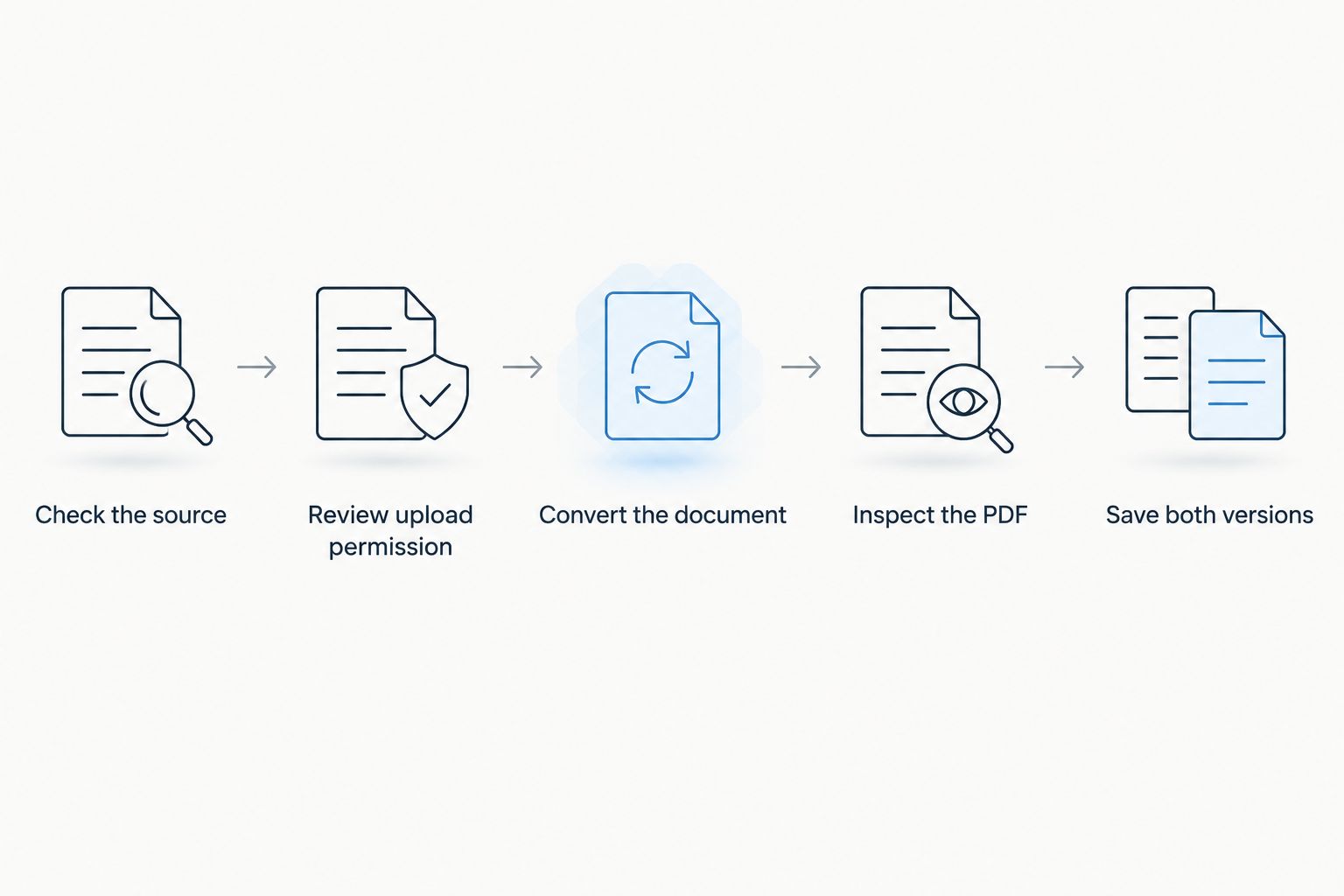
Use these 5 steps for a finished document that you are authorized to upload. The same sequence applies whether you are converting a letter, a report, or a form: verify the source, convert it, then inspect the result.
- Check the source. Confirm that you have the intended version and identify its file extension, such as .doc or .docx. Check that the converter accepts that format before uploading.
- Review upload permission. Check your organization's rules and the service's current document-handling terms. Do not upload restricted material simply because the conversion tool accepts it.
- Convert the document. Select the Word file and choose PDF as the output format where the tool offers format choices. Interface labels differ between services.
- Inspect the PDF. Open the downloaded file in a PDF viewer. Compare its content and layout against the source or a trusted reference copy.
- Save both versions. Retain the editable Word document and the checked PDF. Give the final PDF a filename that distinguishes it from drafts.
These steps describe the conversion process, not a promise that every service supports every file. Check the current format requirements and document controls before committing to a tool in 2026.
After downloading, open the saved file itself rather than relying only on an upload preview. You need to inspect the artifact you will send, including its final page and any attachments or supporting pages you expected to include.
Browser-based conversion: best for a finished document
A browser-based converter suits a Word document whose content is already final. It removes the need to install a desktop editor, but it does not remove the need to review the output.
Zendocs provides web-based document conversion alongside editing, signing, and management. That makes it relevant when conversion is part of a broader document task rather than an isolated export.
The limitation is the same one you should assess for any online document service: whether its current file support and handling terms fit your document. Do not infer retention rules, security certifications, or formatting guarantees from the presence of a conversion feature.
Choose browser conversion when the source is ready and uploading it is permitted. If you already know the document needs substantial corrections, start with an editor instead.
Online editing: best for correcting the source before export
An online document editor is the better route when you need to change text, adjust headings, or repair a table before creating the PDF. Open the Word file, review how it imports, make the changes, and export the final version.
The advantage is control over the source. If a heading lands awkwardly, you can fix the document rather than trying to patch its exported PDF.
The drawback is compatibility. Different document engines do not always reproduce Word formatting identically, especially when the file uses unusual fonts, floating objects, or complex sections.
For a 2026 document workflow, treat import and export as separate checkpoints. A document that looks correct immediately after opening still needs a final inspection after PDF export.
Choose online editing when content changes matter more than preserving an untouched source file. Keep a copy of the original before making changes.
Local editing: best for documents you cannot upload
A compatible desktop editor can open a Word document and export it to PDF without Microsoft Word being installed. This route is useful when policy requires local processing or your internet connection is unsuitable for uploads.
The benefit is avoiding an online conversion service when the editor performs the work locally. Confirm where the file is stored and processed; using a desktop application does not automatically mean that cloud synchronization is disabled.
The trade-off is setup and compatibility. You still need suitable software, and a non-Word editor can interpret parts of the document differently.
Choose a local editor when upload restrictions rule out browser processing. If exact appearance is essential and the source renders incorrectly, ask its author for a verified PDF rather than approving a visibly changed export.
Why Word-to-PDF conversion results vary
The same Word file can produce different PDFs because the conversion engine must interpret its structure, fonts, and layout. Check these 5 factors before blaming the file extension alone:
- Fonts. A missing font can trigger substitution, changing line lengths and page breaks. Check titles, symbols, and any text that sits tightly inside a box.
- Page settings. Paper size, orientation, margins, and section breaks determine where content fits. Inspect mixed portrait and landscape sections carefully.
- Tables and objects. Wide tables, wrapped images, text boxes, and floating shapes depend on positioning rules. Look for clipped cells and overlapping content.
- Review content. Comments and tracked changes require a deliberate publishing decision. Confirm which revisions and annotations belong in the final copy.
- Source format. Older .doc files and newer .docx files use different formats. Confirm support for the actual extension rather than assuming every Word document is interchangeable.
For your 2026 conversion checklist, prioritize the features your document actually uses. A plain letter and a report containing footnotes, charts, and section breaks do not need the same depth of layout review.
What should you check before sending the PDF?
Use 3 checks: visual accuracy, usable content, and release readiness. Together, they cover more than opening the file and confirming that its first page looks familiar.
Visual accuracy
Compare the PDF with the source or an approved reference. Check the first and last pages, then inspect every page containing tables, images, footnotes, or signature areas.
Look for missing text, unexpected blank pages, changed page numbering, and headings stranded at the bottom of a page. A matching page count is helpful, but it does not prove that every paragraph survived correctly.
Usable content
Try selecting and searching for a distinctive phrase. For ordinary text-based documents, this helps identify an output that has become page images rather than usable text.
Test important hyperlinks and check that special characters display correctly. Searchable text alone does not establish accessibility; reading order, tags, and document structure need separate attention when accessible delivery is required.
Release readiness
Confirm that the PDF contains the intended revisions and no review material you meant to exclude. Check document properties and visible content for information that should not accompany the final copy.
Keep 2 files: the editable source and the approved PDF. If the PDF needs a substantive correction, change the source and export again so the versions remain aligned.
For a recurring team process, use a written acceptance checklist in 2026 rather than relying on whoever happens to send the attachment. The final reviewer should know what constitutes an acceptable export.
Can I just rename a Word document to .pdf?
Renaming a Word document to .pdf does not convert it. The extension changes the filename, not the internal file format, so a PDF viewer can reject the renamed file.
Use a converter or an editor's PDF export function to create an actual PDF.
Will converting a Word document make it impossible to edit?
Converting a Word document to PDF does not make it impossible to edit. PDF editing tools can modify content, and a flattened appearance is not a guarantee against alteration.
Use appropriate document controls for your purpose rather than treating the file format as protection.
Do I need OCR to convert a Word document to PDF?
You do not need OCR for ordinary editable Word text. OCR is relevant when the content you need to recognize exists as an image, such as a scanned page placed inside the document.
Check whether you can select the source text before adding a recognition step.
FAQ
Can I use a word doc pdf converter without Microsoft Word?
Yes, a word doc pdf converter can create a PDF without Microsoft Word installed. Use a browser converter, an online editor, or a compatible local editor, then inspect the exported file.
Can I convert a Word document to PDF on my phone?
Yes, you can use a compatible browser-based converter or document editor on your phone. Check file support and inspect the downloaded PDF, especially wide tables and page breaks.
Is a browser converter better than an online editor?
A browser converter is better for a finished document, while an online editor is better when you need to change the source before exporting. Both require a final layout check.
Why did my fonts change after Word-to-PDF conversion?
Fonts can change when the conversion environment cannot use the original font and substitutes another. Compare line breaks and spacing, and correct the source or conversion setup before sharing.
Can Zendocs help with more than document conversion?
Zendocs offers web-based conversion, editing, signing, and management for PDF and other document formats. Check current format support and document-handling terms against your task.
Can I upload a confidential Word document to an online converter?
Upload a confidential Word document only when your organization's rules and the service's document-handling terms permit it. Use an approved local workflow when uploading is prohibited.
Does saving a document as PDF remove comments and tracked changes?
Saving as PDF does not establish that comments and tracked changes were excluded. Review the source's revision state, the export settings, and the final PDF before release.
One last thing
Do not fix the same mistake in two separate files. Correct the Word source, export again, and replace the earlier PDF only after checking the new version.
A PDF is your delivery copy; the editable document remains your correction path. Keeping that distinction clear prevents a small last-minute change from leaving you with conflicting versions.


