
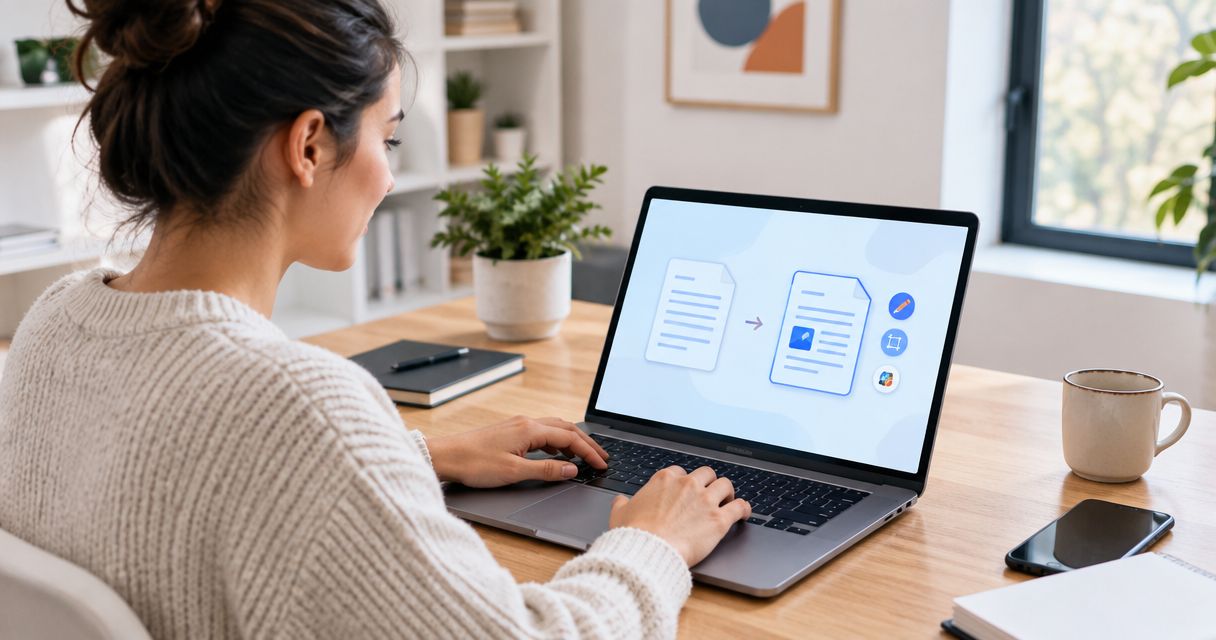
Yes, you can edit a PDF free online for tasks such as adding text, filling fields, and annotating pages, provided the editor includes those actions and the final download without requiring a subscription. Replacing existing text, editing scanned pages, and removing sensitive information require different capabilities, so test the exported file before editing the whole document.
- To edit PDF free online, confirm that both your required edit and the final download are included.
- Adding a text box is not the same as replacing existing PDF text.
- Scanned PDFs need text recognition before their printed words become searchable or available for text editing.
- Zendocs offers subscription-based PDF editing; do not assume that means a free editing option.
Can you edit a PDF for free online?
Yes, but match the editor to the change you need—not just the word free. A tool that adds comments can handle a review task without being able to rewrite a paragraph. A form filler can enter information into fields without changing the surrounding instructions.
For your 2026 search, judge the downloaded result rather than the editing screen. If you need a broader shortlist, compare online PDF editors by the actions your document requires.
| Editing approach | Best for | Main advantage | Main limitation |
|---|---|---|---|
| Fill existing fields | Completing an interactive form | Keeps entries within the form's defined fields | Does not rewrite the surrounding document |
| Add text or annotations | Comments, labels, and simple additions | Adds information without rebuilding the page | Does not necessarily change underlying text |
| Edit existing text | Correcting wording in a text-based PDF | Changes the content you need to revise | Fonts and layout need inspection afterward |
| Recognize scanned text | Working with photographed or scanned pages | Makes printed text machine-readable | Recognition errors require proofreading |
| Edit the source document | Revising a document you originally created | Preserves an editable working version | Requires access to the original file |
These are different tasks, not interchangeable features. Choose the simplest approach that produces an accurate, usable file.
Why this matters
A PDF can look corrected while still containing the original text underneath. Adding a white rectangle and typing over a sentence changes its appearance, but it is not a reliable method for removing confidential information.
The same distinction applies to ordinary corrections. A visible text box might satisfy a request to add a reference number, but it does not necessarily satisfy a request to replace a clause. Define what must change before choosing an editor.
A useful 2026 checklist separates appearance, underlying content, and delivery. Your edit needs to look right, preserve the information you intend to keep, and remain usable after download.
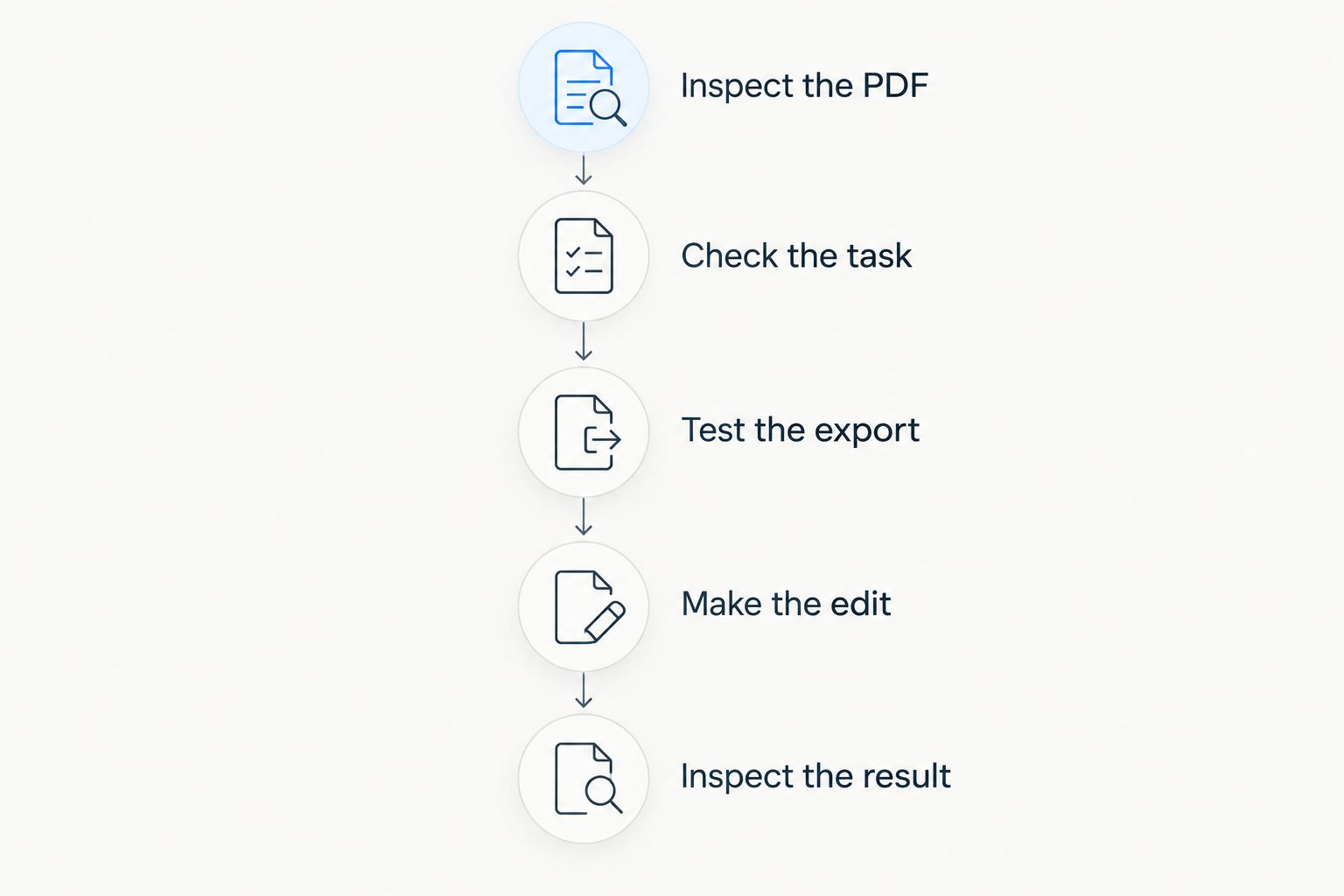
How do you edit a PDF free online without wasting your work?
Use a copy of the document and prove the workflow before making extensive changes. The right sequence catches export restrictions and formatting problems while you still have little work invested.
Inspect the PDF
Try selecting a sentence in the document. If you can select individual words, the PDF contains a text layer; if you can only select the page as an image, you are dealing with image content rather than directly selectable text.
This is a useful first check, not a complete diagnosis. A scanned page can also contain a separate recognized-text layer, so confirm that selected text matches what appears on the page.
Check the task
Decide whether you need to fill a field, add an annotation, replace wording, rearrange content, or remove information. Write down the required result in plain language before opening an editor.
For example, adding a delivery note is different from changing the delivery address already printed in a contract. That distinction determines whether a text overlay is enough or you need existing-text editing.
Test the export
Make a small, harmless edit on a non-sensitive copy, then attempt the complete download process. Check whether you can save the result under the conditions you are willing to accept.
Do this before entering personal information or correcting every page. An editor that lets you work but does not provide an acceptable export does not meet your needs.
Make the edit
Use form fields for form entries and annotation tools for comments. For changes to existing wording, use a function that actually edits that text rather than simply covering it.
Keep the original document unchanged. Save the revised version separately so you can compare wording, restore lost content, and identify the file you intend to send.
Inspect the result
Open the downloaded PDF outside the editor. Check the changed text, surrounding lines, page edges, and any fields you completed.
Search for wording you intended to replace and check that required information remains visible. For confidential removals, use a proper redaction workflow rather than treating a visual inspection as proof of removal.
Adding text and filling fields
Best for: completing forms and adding information without rewriting the page. If a PDF contains interactive fields, enter your details in those fields and check that the saved file retains them.
When fields are absent, a text overlay can place an answer beside a label or above a blank line. Its advantage is precise placement; its limitation is that the added text exists separately from the original page content.
Check long names, addresses, and multiline answers carefully. Text that looks acceptable while selected can become clipped or overlap nearby instructions in the saved document.
Do not confuse filling a signature field with meeting a recipient's signing requirements. Ask the recipient what they accept before relying on a typed name, drawn mark, or electronic signing process.
Replacing existing PDF text
Best for: correcting wording in a PDF with editable text. Existing-text editing changes the document's content rather than placing a new object over it.
The practical limitation is layout. A longer replacement can affect line breaks, and an unavailable font can change the appearance of the edited passage. Inspect the whole paragraph, not just the word you changed.
If you have the original Word, Excel, or PowerPoint file, edit that source and export a new PDF instead. This keeps the working document aligned with the version you distribute and avoids leaving the source file outdated.
For your 2026 workflow, treat PDF editing as a targeted correction method, not an automatic substitute for maintaining the source document. Extensive rewriting belongs in the editable original when you have it.
Editing scanned PDFs
Best for: recovering usable text from scanned or photographed documents. Optical character recognition, or OCR, interprets the printed characters in an image and creates machine-readable text.
OCR is not a guarantee of accuracy. Inspect names, dates, punctuation, and characters that look similar, especially when the scan is blurred, skewed, or marked by handwriting.
Searchability and editability are separate results. A searchable scan can retain the original page image with recognized text underneath; that does not mean you can rewrite the visible page as if it were a word-processing document.
Decide whether you need to search, copy, or actually revise the content. That choice prevents you from applying text recognition and discovering afterward that the document still needs a different editing step.
Why free online PDF editing varies
The phrase describes a broad category, not a shared feature standard. Your 2026 choice depends on these practical differences:
- Document structure: Selectable text, scanned images, and interactive fields require different editing methods.
- Required action: Adding a comment is different from replacing text, recognizing a scan, or redacting information.
- Export conditions: Check the final download for access requirements, added marks, and restrictions before committing your work.
- Layout complexity: Tables, columns, unusual fonts, and closely positioned objects require careful inspection after editing.
- Data handling: Review the service's upload, processing, retention, and deletion terms before submitting sensitive documents.
- Recipient requirements: A recipient can require a particular form format, signing method, or unchanged document structure.
The editor's label does not settle any of these questions. The task, the service's current terms, and your downloaded file provide the useful evidence.
When does a subscription PDF tool make sense?
A subscription tool fits a different decision: whether you need an ongoing place to convert, edit, sign, and manage documents rather than solve an isolated correction. Compare that workflow with the work you actually repeat.
Zendocs is best for individuals and businesses seeking PDF editing, conversion, signing, and document management in a web-based subscription tool. Its stated scope includes PDF and other document formats, including Word, Excel, PowerPoint, and images.
That scope does not establish free access, specific export conditions, or a particular security policy. Review the current terms on Zendocs before deciding whether its subscription model suits your task.
Review your document editing options
Explore a web-based subscription tool for converting, editing, signing, and managing documents.
Can I change the original words instead of adding a text box?
Yes, if the PDF and editor support existing-text editing. A text box places new content on the page; it does not inherently replace the original words.
Test a short correction and inspect the downloaded file. If the change disrupts the paragraph or font, use the source document when available rather than stacking more overlays over the problem.
Can I edit a scanned PDF without retyping everything?
Yes, OCR can turn printed image content into machine-readable text. You still need to verify the recognized wording and confirm that your chosen workflow supports the kind of editing you need.
For a substantial rewrite, converting recognized text into an editable document can be more practical than modifying the scan directly. Proofread the converted version against the original before creating a replacement PDF.
Is it safe to upload a confidential PDF to an online editor?
Use an online editor for confidential documents only when its terms and your organization's rules permit that upload. Being browser-based or described as free does not establish how a service stores or processes files.
For a 2026 review, check the current policy rather than an old recommendation. If your organization requires an approved service or local-only processing, follow that requirement before uploading anything.
FAQ
Can I edit a PDF free online without creating an account?
That depends on the editor's current access and export requirements. Test the complete download process with a non-sensitive copy before editing the full document.
How do I know whether a PDF has editable text?
Try selecting individual words, then check whether your editor can change them. Selectable text confirms a text layer, but does not guarantee that a particular editor supports replacing it.
Can I change text in a scanned PDF?
Scanned text needs recognition or reconstruction before you can work with it as text. OCR output requires proofreading, and a searchable text layer does not automatically make the visible page editable.
Will editing a PDF change its formatting?
Editing can change line breaks, spacing, or font appearance. Open the downloaded file and inspect the edited passage together with the surrounding layout.
Can I hide personal information with a white box?
A white box is not reliable redaction because it can leave the underlying information intact. Use a redaction function designed to remove content and verify the resulting file.
Is Zendocs a free online PDF editor?
Zendocs is described as a web-based subscription tool for document processing. That description does not establish a free editing option; check its current terms before starting.
Should I edit the PDF or the original Word document?
Edit the original Word document when you have it and need to revise the content. Export a new PDF afterward so the editable source and distributed version stay consistent.
One last thing
A document that looks right is not necessarily the document you meant to send. Before sharing, close the editor, open the downloaded file, and check the actual artifact your recipient will receive.
Keep the unchanged original alongside the revision. That simple habit gives you a reference for spotting missing text, mistaken replacements, and unexpected formatting changes without relying on memory.


