

To remove a signature from a PDF safely, preserve the signed original, identify whether the signature is an editable mark, a scanned image, or a certificate-based digital signature, and work only on an authorized copy. Delete an editable mark with an appropriate PDF editor; for a certificate-based signature, use a supported clear-signature command when permitted or request an unsigned original. Covering a signature with a white rectangle does not securely remove it or restore an unsigned document.
- To remove signature from PDF files safely, preserve the original and identify the signature type before editing.
- Editable signature marks, scanned handwriting, and certificate-based digital signatures require different removal methods.
- Zendocs suits individuals and businesses needing web-based PDF editing and signing; verify signature-specific controls before choosing a workflow.
- Redaction creates a disclosure copy; it does not preserve the original document’s signature validation.
Why this matters
Removing a visible signature and removing a digital signature are different operations. A handwritten-looking mark can be an image, an annotation, or the visible appearance of a certificate-based signature. Appearance alone does not establish which kind you have.
For your 2026 document workflow, decide whether you need an unsigned working copy, a privacy-redacted copy, or a corrected agreement for signing again. Those outcomes require different handling. Keep the signed record separate from anything you change.
Zendocs provides web-based PDF editing, signing, conversion, and document management. Those functions fit general document processing, but the signature type—not the editor’s general feature list—determines the safe removal method.
How do you remove a signature from a PDF safely?
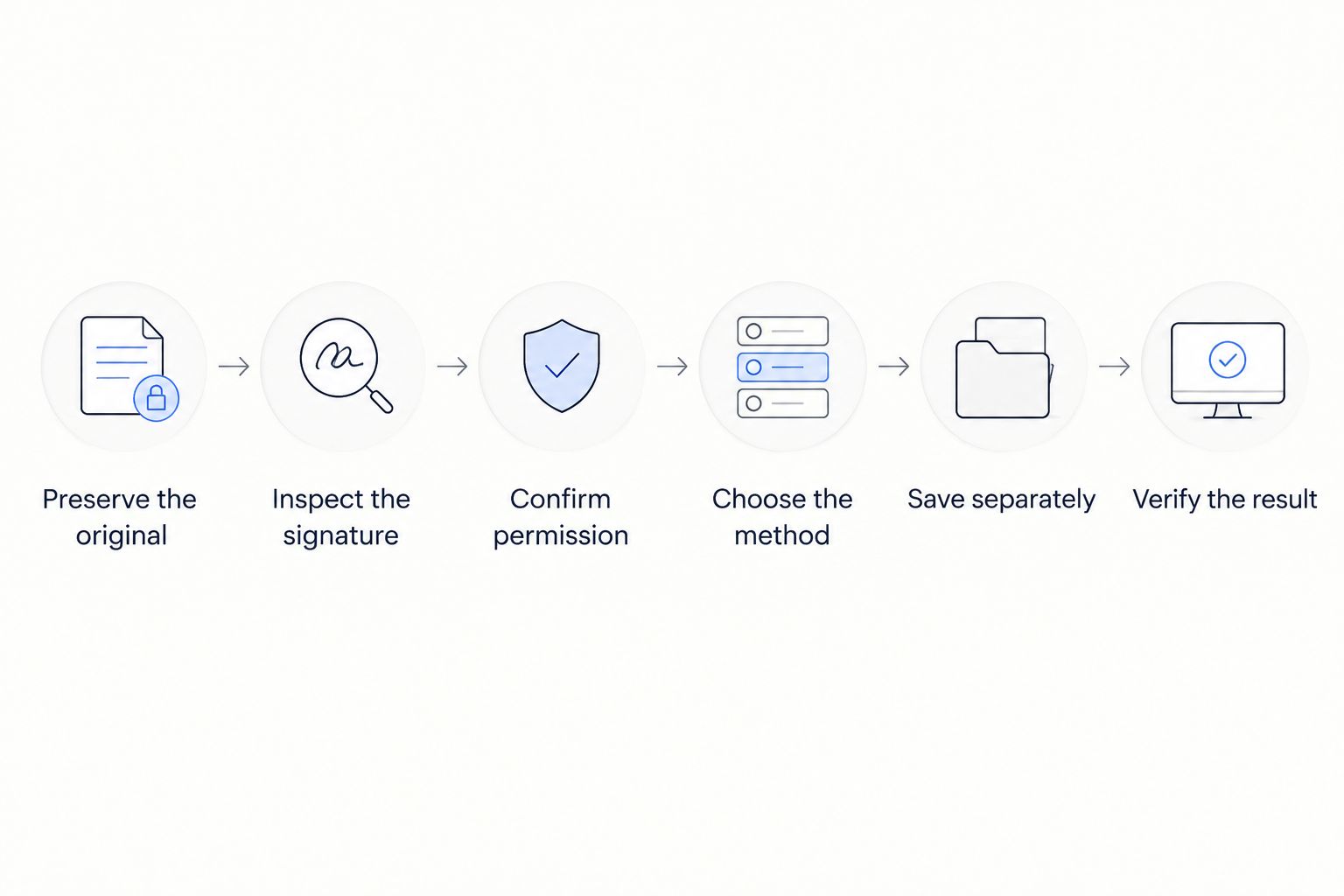
Use these 6 steps to separate ordinary editing from changes that affect signature verification. Stop if you lack permission to change the document or cannot identify what the signature represents.
- Preserve the original. Save the received PDF without overwriting it. Keep any signing completion record or audit trail with that original, and create a clearly labeled working copy. You should have at least 2 files: the signed record and the copy you intend to modify.
- Inspect the signature. Open the PDF in a viewer that supports signature inspection. Check its signature panel or document properties for certificate information, signer details, validation messages, and document restrictions. A selectable picture alone does not establish that the file lacks a digital signature.
- Confirm permission. Establish that you are authorized to alter the document and that the intended recipient understands what the edited copy represents. For an executed agreement, request an unsigned source or an agreed correction process rather than silently changing the signed record.
- Choose the method. Delete an independently editable signature object, clear your certificate-based signature through a supported command when allowed, or redact handwriting from a disclosure copy. If the document is locked against changes, return to the sender instead of trying to defeat the restriction.
- Save separately. Use a filename that distinguishes the derivative from the signed original. If the document needs renewed approval, prepare the corrected unsigned version and send it through the appropriate signing process again.
- Verify the result. Close and reopen the saved copy. Inspect the signature area, signature panel, remaining fields, and page layout. For redaction, verify that the underlying content was removed rather than merely covered.
Do not treat a successful save as proof of successful removal. An editor can produce a file that looks correct while retaining an underlying image, changing signature validation, or leaving an outdated form field behind.
Which signature type are you removing?
Choose the method by how the PDF stores the signature, not by whether the handwriting looks authentic. The following comparison separates the common cases and the trade-off attached to each.
| Signature type | Best for | Appropriate action | Main limitation |
|---|---|---|---|
| Editable image or annotation | Correcting an authorized working copy | Select and delete the independent object | Deleting the appearance does not address a separate digital signature |
| Handwriting in a scanned page | Preparing a privacy-redacted disclosure copy | Apply genuine redaction to the signature area | Redaction changes the page and does not recreate an unsigned original |
| Certificate-based digital signature | Clearing your own signature when the document permits it | Use a supported clear-signature command or request the unsigned source | Restrictions and other signatures can prevent safe editing |
| Flattened signature appearance | Rebuilding an unsigned working document | Return to the original source document | The signature is no longer an independently editable annotation |
Editable image or annotation: delete the object
Best for: correcting a signature mark you are authorized to remove from a working copy. Use the editor’s object or annotation selection controls, select the signature, and delete it. Confirm that you selected the mark itself, not a page-sized image containing the entire document.
This method preserves more surrounding content than rebuilding the page. Its limitation is scope: deleting a visible object does not establish whether certificate-based signature data exists elsewhere in the PDF. Inspect the signature panel before and after editing.
If the editor selects the entire page instead of the signature, stop treating the mark as an independent object. You are likely dealing with a scan or flattened content.
Scanned handwriting: redact a disclosure copy
Best for: withholding a handwritten signature from a copy you are authorized to share. Use a genuine redaction function that removes the selected content when applied. A drawing tool, highlight, or opaque shape is not a substitute.
Redaction supports disclosure, not restoration. It leaves you with an altered copy of the signed page, not the original document as it existed before signing. Preserve the unredacted record under the appropriate access controls.
For a scanned page, confirm that the redaction removes the relevant image area and any associated recognized text. Also inspect the result at normal reading size so you do not unintentionally remove nearby names, dates, or instructions.
Certificate-based signature: clear it only when permitted
Best for: removing your own digital signature through the PDF application’s supported controls. Inspect the signature’s properties and available commands. If a clear-signature command is available and the document permits the change, use it on your working copy.
Digital signatures protect document integrity through cryptographic verification. Changes can affect validation, although some certified PDFs permit specified actions such as form filling or additional signing. Follow the document’s permissions rather than assuming every change has the same effect.
If the signature cannot be cleared, request an unsigned original. Do not delete its visible appearance and describe the result as an unchanged, unsigned version.
Why signature removal varies
In 2026, the deciding factors remain the PDF’s structure, permissions, and intended use—not simply whether you can open it in a browser. Check these before selecting a tool:
- Storage method: An annotation, embedded image, scanned page, and digital-signature field require different controls.
- Document restrictions: Certification settings and editing permissions determine which operations the document allows.
- Other signatures: A file signed by several people needs careful review because changes can affect their verification results.
- Your authority: Being able to edit a file does not establish permission to alter an agreement or another person’s signature.
- Required outcome: A redacted disclosure copy, an unsigned draft, and a replacement agreement are different records.
- Sensitive content: Confidential information affects whether an online upload fits your organization’s document-handling rules.
Choose the outcome first, then the editing method. Otherwise, you risk producing a technically modified PDF that does not serve the recipient’s actual need.
Can I remove someone else’s signature from a PDF?
You should alter someone else’s signature only with proper authority and a clear purpose for the resulting copy. Technical access is not permission. For a signed agreement, ask the responsible parties for an unsigned source, an approved redacted copy, or a replacement document.
If your purpose is privacy, preserve the signed original and identify the shared version as redacted. If your purpose is correcting the agreement, use the agreed correction and signing process. Removing a signature’s appearance does not by itself resolve the status of the underlying agreement.
Does removing a signature invalidate the PDF?
Removing a signature does not necessarily make a PDF unreadable, but editing signed content can affect digital-signature validation. A readable file and a valid digital signature are separate things. Review the signature panel’s result rather than relying on the page’s appearance.
For a certificate-signed PDF, distinguish permitted changes from changes outside the signature’s allowed scope. For a simple pasted signature image, there might be no certificate-based validation to check. Either way, preserve the original so the signed record remains available.
How do you choose an editor without risking the signed record?
Evaluate the exact task before uploading the file. In a 2026 tool review, start with signature inspection, object selection, redaction behavior, and export verification—not a broad claim that an application edits PDFs.
Zendocs is best for individuals and businesses seeking web-based PDF editing and signing. That matches its stated document-processing role. It does not establish that every signature type can be removed through the same workflow.
For this task, separate general editing convenience from signature-specific requirements:
- Confirm that the selected tool handles the object you need to change.
- For certificate-based signatures, use an application that exposes signature properties and validation results.
- For privacy removal, require actual redaction rather than a visual cover-up.
- Review upload, retention, and access policies before submitting confidential documents.
- Test the workflow on a nonsensitive sample before using an important signed record.
A browser-based workflow avoids installing an editor, but online processing still requires a document-handling decision. If your organization prohibits uploading the file, use an approved local workflow instead. Do not infer permission from convenience.
What should you check before sending the edited PDF?
Use this 2026 handoff checklist after reopening the saved file. The goal is to verify both the visible result and what the file still contains.
Check the signature status
Inspect the signature panel for remaining signatures and validation messages. If the document no longer contains the original signature, do not describe the edited copy as retaining that signer’s unchanged approval. If validation reports a change, resolve it before sending.
Check the surrounding content
Compare the signature area with the original. Look for missing dates, damaged table borders, displaced text, blank fields, and accidental page deletions. An object-selection mistake can remove more than the signature mark.
Check redaction and hidden content
For a disclosure copy, confirm that redaction was applied, not merely marked for later application. Use the application’s inspection or sanitization tools where appropriate, then check for attachments, comments, and other content outside the visible page. A visual review alone cannot verify every hidden component.
Check the recipient’s instructions
Confirm whether the recipient needs an unsigned form, a redacted record, or a newly signed replacement. Label the file accordingly. Sending a redacted agreement when an unsigned template was requested creates another correction cycle.
FAQ
Can I remove a signature from a PDF without changing anything else?
You can delete an independently editable signature object while leaving surrounding page content intact, but saving the edit still changes the file. For certificate-signed documents, inspect validation results because visual similarity does not establish unchanged signature status.
Why can’t I select the signature in my PDF?
The signature can be part of a scanned page, flattened content, or a restricted signature field rather than an editable object. Inspect the document structure and signature properties before choosing a removal method.
Is putting a white box over a PDF signature safe?
A white box is not secure signature removal because it can leave the underlying content in the file. Use genuine redaction for an authorized disclosure copy, or delete the actual editable object when appropriate.
Can I remove my own digital signature from a PDF?
You can clear your own digital signature when the PDF application provides that command and the document permits the change. If restrictions prevent removal, request or recover the unsigned source rather than bypassing the controls.
Will printing a signed PDF to another PDF make it unsigned?
Printing to PDF does not reliably create a clean unsigned original: it can preserve the visible signature while losing interactive features or signature verification information. Use the original unsigned source when that is what the recipient needs.
Can I use Zendocs to remove any PDF signature?
Zendocs provides web-based PDF editing and signing, but that does not establish support for removing every signature type. Match the required operation to the available controls and verify the saved result before sharing it.
What is the safest way to prepare an unsigned PDF in 2026?
The safest starting point is the original unsigned source, kept separate from the signed record. If that source is unavailable, identify the signature type and obtain authorization before editing a copy.
One last thing
A signature can disappear from the page without the document becoming a trustworthy unsigned original. That distinction matters more than how clean the edited page looks.
Make your 2026 default simple: retain the signed record, request the unsigned source for revisions, and use redaction only when the goal is controlled disclosure. Before sending anything, ask whether the filename and accompanying message accurately describe the copy you created.


