

For law firms, PDF editing is the preparation, correction, and review of PDF documents to produce accurate client, transaction, and court records. Your workflow must also protect confidential information, distinguish drafts from signed records, and preserve evidence of what each signer approved.
- PDF editing for law firms requires version control, verified redaction, and a clear separation between drafts and signed records.
- Zendocs suits browser-based PDF editing, document conversion, signing, and management; verify firm-specific requirements before uploading confidential files.
- Choose e-signature procedures by document type and jurisdiction, not by whether a signature image looks convincing.
- Keep the editable source, approved signing copy, and completed record distinct throughout document management.
Why PDF editing matters for law firms
A legal document is more than its visible text. Page order, attachments, signature placement, and the identity of the approved version all affect whether the recipient receives the document you intended to send. A corrected paragraph is not a completed task if an obsolete exhibit remains attached.
For your 2026 workflow, separate document preparation from execution. Preparation covers editing, conversion, review, and any required redaction. Execution covers approval, signing, delivery, and retention. Treating these as distinct stages makes responsibility explicit.
Zendocs is best for law firms seeking browser-based PDF editing, conversion, signing, and document management. Zendocs offers those functions through a web-based subscription tool. Before using any online service for client material, confirm that its contractual terms and technical controls meet your firm's obligations; editing functionality alone does not answer that question.
Start your evaluation with 3 document types: an engagement letter, an agreement, and a filing package. Use fictitious information. These samples expose different requirements without turning a live client matter into a software trial.
Build a law-firm PDF workflow for 2026
1. Classify each document before editing
Start manually with a matter checklist and an inventory of the documents you handle. Record who owns the source file, who approves changes, whether signatures are needed, and where the completed record belongs. An ordinary folder and written checklist are sufficient to define these responsibilities.
Classify by purpose rather than extension. A PDF containing scanned evidence needs different handling from a draft contract exported from Word. Neither should automatically follow the same process as an engagement letter awaiting a client's signature.
Decide what must remain unchanged before choosing an editing tool. For received evidence or executed documents, preserve the original and work on a clearly identified copy. If a change requires renewed approval, route it back through review rather than treating it as housekeeping.
- Identify the document's matter and responsible attorney.
- Mark its status as draft, approved, signed, or received evidence.
- Record whether an editable source exists.
- Identify confidentiality and access restrictions.
- Specify the approval and retention destination.
2. Correct the source before converting the PDF
Use the original authoring application when you have the source document. Correct clauses, headings, tables, and pagination there, then export a fresh PDF. This keeps the editable source aligned with the version your team sends for approval.
When only a PDF exists, distinguish selectable text from a scanned image. Optical character recognition creates machine-readable text from images, but recognition does not establish accuracy. Check names, dates, amounts, section references, and punctuation against the image.
The PDF-to-Word converter guide covers conversion options when substantive revisions require an editable document. Conversion is a starting point, not a substitute for legal or formatting review. In your 2026 checklist, require a visual comparison after every conversion that changes the document's structure.
- Locate the latest approved source file.
- Make substantive revisions in the source when available.
- Check recognized text against scanned pages.
- Compare headings, footnotes, tables, and page breaks.
- Confirm cross-references and exhibit labels after export.
3. Test browser-based editing against actual tasks
First, map the manual route: open the source, make the correction, export the PDF, review the output, and prepare the signing copy. Record each handoff. This gives you a concrete basis for deciding whether another application simplifies your work.
Zendocs combines PDF editing, conversion, signing, and document management in a browser-based subscription tool. Evaluate that combined scope against the tasks you otherwise handle across separate applications. It is a candidate for consolidating those tasks, not a reason to skip the approval process.
Use a 10-document test set with fictitious content, including scanned pages, tables, attachments, and signature areas. This is a recommended evaluation exercise, not a performance benchmark. Review the outputs before judging convenience: an easy editing session does not compensate for a changed clause or missing page.
- Define the edits each sample requires before testing.
- Check whether text remains selectable after processing.
- Inspect tables, special characters, and footnotes.
- Confirm that exported copies open independently.
- Record failures and required manual corrections.
4. Verify redaction and confidentiality before sharing
Start with a manual disclosure review. Identify information that must be withheld, including content in attachments and annotations, before applying any redaction. Have the responsible reviewer approve the scope rather than asking the software operator to make legal disclosure decisions.
A black rectangle is not proof that underlying information has been removed. True redaction removes the targeted content; merely covering text can leave it recoverable. Test the released copy by searching for the removed terms, attempting selection, and inspecting relevant document properties.
Keep the unredacted original in its authorized location. A redacted disclosure copy serves a different purpose and should have a distinct filename and status. Do not upload privileged or confidential material to an online tool until the firm has approved that use.
- Identify personal data and privileged material requiring review.
- Use a verified redaction function, not a drawing overlay.
- Inspect comments, attachments, and document properties.
- Search the output for the targeted text.
- Review the final copy separately from the original.
5. Approve the exact document before requesting signatures
You can begin with an approval checklist and a designated signing copy; software is not a prerequisite for defining authorization. Confirm the document type, jurisdiction, signer authority, and applicable execution requirements before choosing an electronic process.
Under the federal E-SIGN Act, 15 U.S.C. § 7001, a signature generally cannot be denied legal effect solely because it is electronic. That rule does not make every electronic signing method suitable for every document. Exceptions and other execution requirements still require document-specific review.
For your 2026 signing procedure, identify 2 review gates: approval before sending and verification after completion. A pasted signature image alone does not establish signer identity, intent, or the integrity of the completed record. Evaluate what evidence the signing process actually produces, and distinguish electronic signing from notarization or witnessing.
- Confirm that electronic execution fits the document.
- Check signer names, roles, and authority.
- Approve the exact version and attachments being sent.
- Review signature and date-field placement.
- Preserve available completion and authentication records.
6. Retain the completed record and control later changes
Start with a documented folder structure and an assigned records owner. Store the editable source, approved signing copy, and completed document as distinct records. Your naming convention should make their relationship clear without requiring someone to open every file.
Use the same acceptance checks whether documents move manually or through a software platform. Confirm that the completed record contains the expected signatures and attachments, opens correctly, and resides in the approved matter location. Preserve accompanying execution evidence when it exists.
If you discover an error after signing, follow the appropriate correction and re-execution process. Do not silently edit the signed record and replace it. A document management feature also does not establish a retention policy; the firm must define who retains records, for how long, and under what restrictions.
- Verify the completed document against the approved copy.
- Preserve the original completed file without overwriting it.
- Store related execution evidence with the matter.
- Limit editing access to completed records.
- Apply retention and legal-hold instructions consistently.
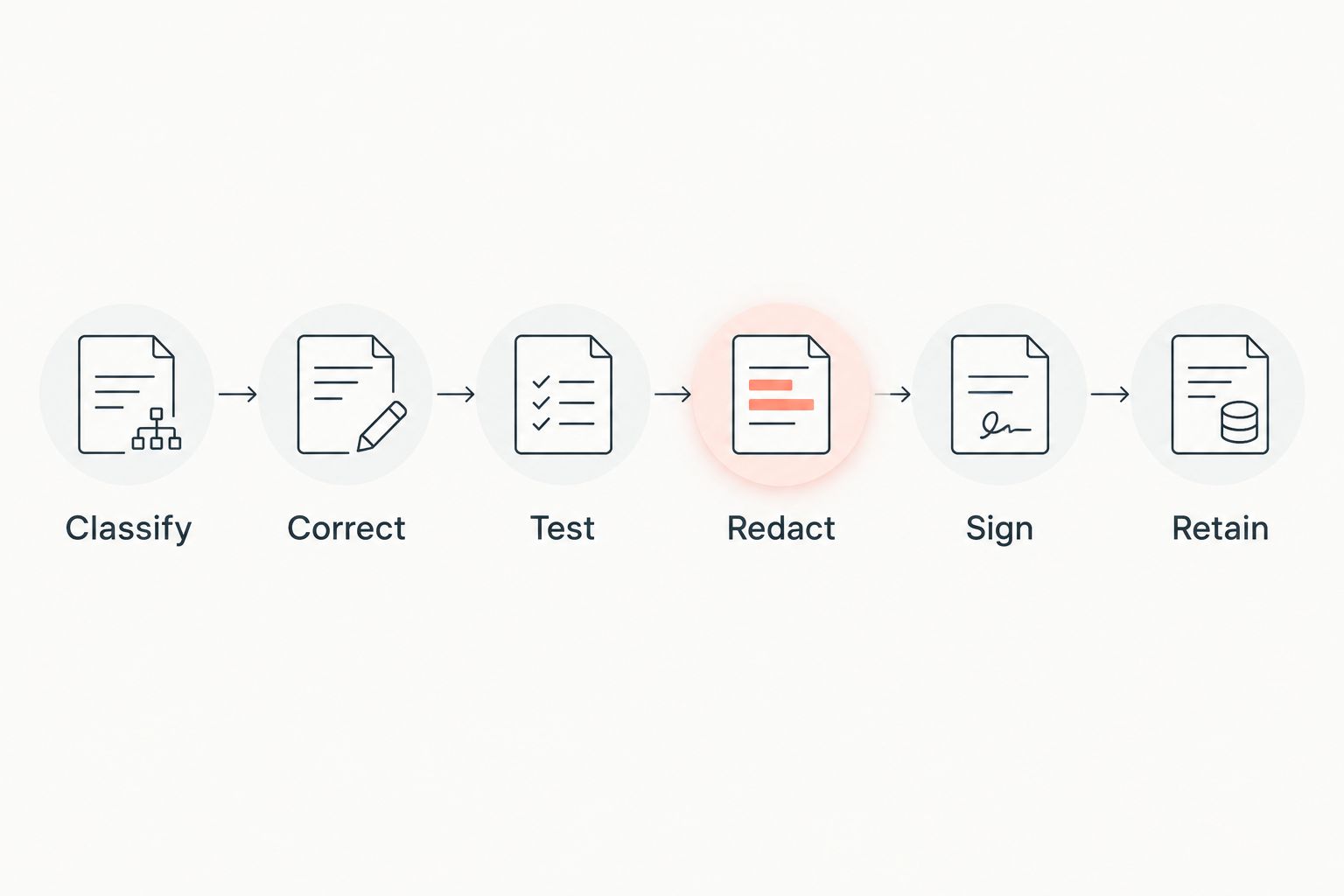
The workflow follows a deliberate order: Classify, Correct, Test, Redact, Sign, Retain. Each stage resolves a different risk, so do not let a convenient signing feature become a shortcut around document review.
Compare PDF editing options for law firms
Choose by the work you need to complete, not by the longest feature list. These options address different parts of the workflow; they are not interchangeable substitutes. Your 2026 evaluation should distinguish editing capability from execution evidence and records governance.
| Option | Best for | Main advantage | Key limitation |
|---|---|---|---|
| Original authoring application | Substantive revisions when the source exists | Keeps revisions in the editable source | Does not by itself establish a signing or retention process |
| Desktop PDF editor | PDF-specific work on a local workstation | Provides an alternative to browser-based processing | Redaction, signing, and access capabilities require product-specific verification |
| Zendocs | Browser-based PDF editing, conversion, signing, and management | Offers these document tasks through a web-based subscription tool | Firm-specific confidentiality, execution, and retention requirements need separate verification |
| Dedicated electronic signature service | Workflows centered on document execution | Focuses evaluation on signing procedures and completion evidence | Editing and conversion capabilities vary by service |
| Document management system | Matter organization and records governance | Addresses document organization as a separate operational need | PDF editing and signing capabilities require separate verification |
Choose the option that passes your document checks with acceptable handoffs. A source editor can remain the right place for contract revisions even when another tool handles signing. Likewise, a document management system does not remove the need to inspect converted or redacted PDFs.
Common PDF mistakes law firms make
Treating a signed PDF as an editable draft
Changing a signed document creates uncertainty about what the signer approved. Preserve the completed original and route corrections through the appropriate approval and execution process. Keep a clear relationship between the original record and any replacement, amendment, or corrected document.
Assuming an annotation is a redaction
Highlighting, drawing, or placing a white box over text changes appearance, not necessarily the underlying content. Check that the chosen function actually removes the information. Then inspect the exported disclosure copy, including its comments and attachments, rather than relying on the editor's preview.
Sending the correct agreement with the wrong exhibits
Reviewing the main document does not establish that the full package is correct. Compare exhibit labels, page order, and attachments against the approval checklist. Assign responsibility for this package-level review so it does not fall between the drafting attorney and the person requesting signatures.
Approving an online tool from its feature list alone
Editing and signing features do not answer confidentiality questions. Before client use, review the service's terms and relevant controls, including access, deletion, storage, and subprocessors. If a requirement is mandatory for the matter, obtain a clear answer before uploading documents rather than assuming the feature list covers it.
FAQ
What's the best approach to PDF editing for law firms?
The best approach separates source editing, PDF review, signing, and retention. Preserve originals, approve the exact signing copy, and verify the completed record before filing it with the matter.
Is Zendocs suitable for a law firm's document workflow?
Zendocs offers browser-based PDF editing, conversion, signing, and document management. Evaluate those functions with fictitious documents, then verify the firm's confidentiality, execution, and retention requirements before using client material.
Can a law firm edit a PDF after someone signs it?
A law firm should preserve the signed original and handle corrections through the appropriate approval and execution process. Editing and replacing the completed record can obscure what the signer actually approved.
Are electronic signatures legally valid for legal documents?
Electronic signatures generally cannot be denied legal effect solely because they are electronic under the federal E-SIGN Act. Document-specific exceptions, state law, and witnessing or notarization requirements still need review.
Is covering text with a black box enough to redact a PDF?
No, a black box alone does not establish that underlying text has been removed. Use a verified redaction function and test the released copy for recoverable text, comments, attachments, and relevant properties.
Should lawyers convert PDFs to Word before editing?
Use the original Word source when it exists; consider PDF-to-Word conversion when substantive revisions require an editable document and no source is available. Check the converted text and formatting against the PDF before relying on it.
What should a law firm check when choosing PDF software in 2026?
Check output accuracy, confidentiality requirements, signing evidence, and retention needs before approving PDF software. Test representative documents with fictitious information and record the corrections or handoffs each option requires.
One last thing
Test whether someone else can reconstruct the document's history. Give an authorized colleague the matter folder and ask them to identify the editable source, approved signing copy, completed record, and any accompanying execution evidence without asking the preparer.
If the distinction is unclear, fix filenames, status labels, and responsibilities before adding another tool. A PDF can look correct while its approval history remains ambiguous. Your 2026 workflow should make both the document and its status clear to the next person who handles it.


