
Converting Word to PDF has no fixed completion time: the total depends on the document, the conversion method, and, for online tools, the upload and download. In 2026, the useful measure is the time until you have checked a usable PDF—not just until a converter displays a completion message.
- How long does it take to convert Word to PDF? Document complexity and the conversion workflow determine the answer.
- Local PDF export avoids uploading; online document conversion includes transferring the source file and downloading the result.
- Zendocs suits individuals and businesses seeking browser-based document processing, rather than a local-only workflow.
- Check page breaks, fonts, tables, and links before treating a converted PDF as finished.
Why this matters
A completed conversion and a ready-to-send document are different things. A PDF that downloads successfully still needs checking for missing content, changed page breaks, and unreadable tables.
Zendocs offers subscription-based online conversion, editing, signing, and document management. That makes the relevant decision broader than conversion speed: decide whether you need a browser-based document workflow or simply an export from a file you already have open.
For a deadline-sensitive document, separate preparation, processing, and review. Otherwise, a quick conversion followed by layout repairs looks faster than it actually is.
How long does it take to convert Word to PDF?
There is no reliable universal duration for converting Word to PDF. A useful estimate must cover the actual source file, the chosen method, and the checks required before delivery. A converter's processing stage alone does not measure the whole task.
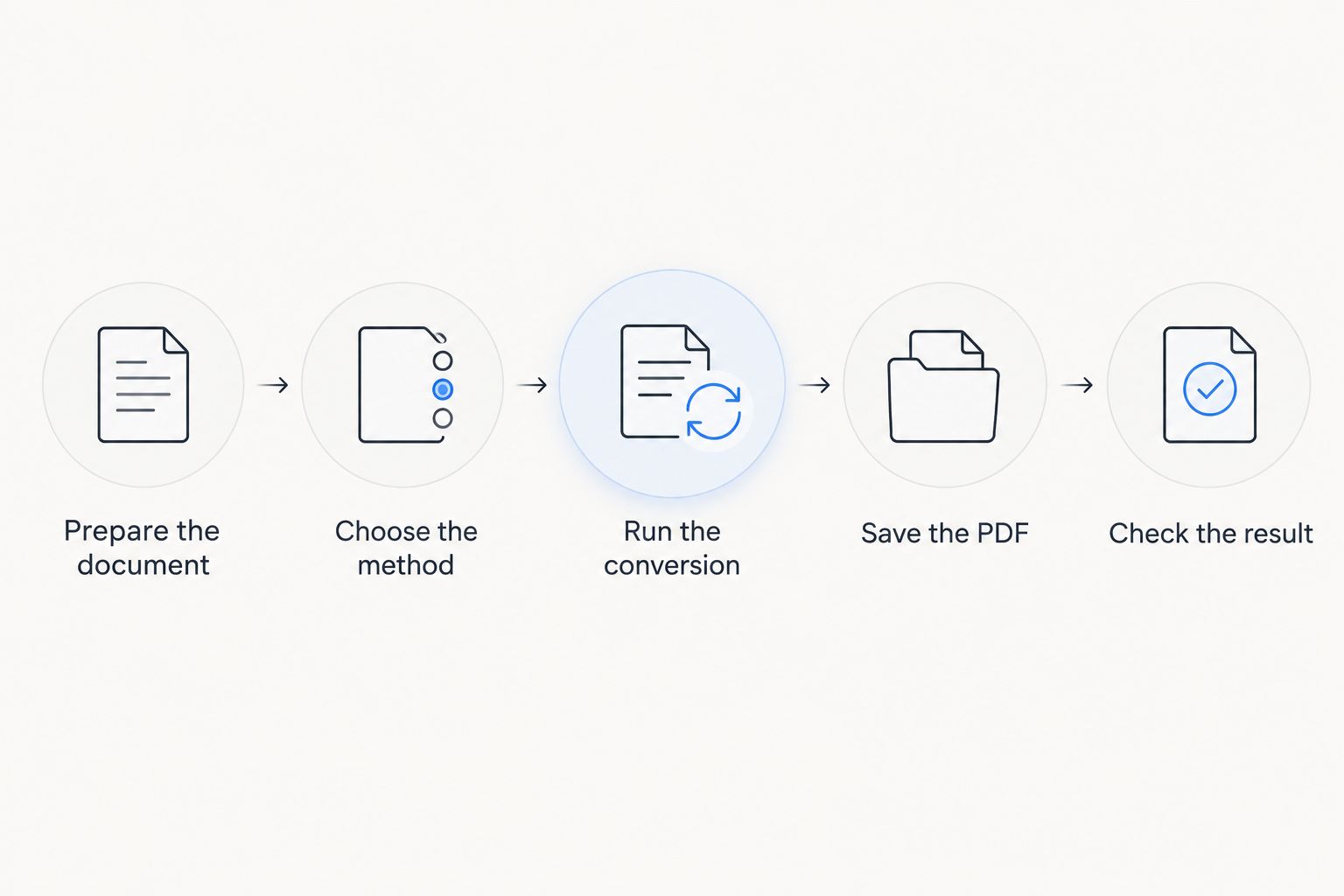
Use this sequence to understand where your time goes:
- Prepare the document. Finish edits, resolve tracked changes as appropriate, and confirm that the source opens correctly. Conversion is not a substitute for reviewing the Word file.
- Choose the method. Export from your document application or use an online converter. For confidential material, follow your organization's rules before uploading anything.
- Run the conversion. With an online method, distinguish uploading from processing. A transfer that has not finished is not evidence that PDF generation is slow.
- Save the PDF. Download or save the output somewhere you can identify. Open the saved file rather than relying only on a preview.
- Check the result. Compare the PDF with the source, especially around tables, images, headers, footers, and page breaks. Finish when the document is usable, not when the progress indicator disappears.
For your own 2026 workflow, record the start and finish points consistently. Starting a timer after uploading but stopping before reviewing gives you a processing measurement, not an end-to-end completion time.
Repeat the same process when comparing methods. Changing the source document, connection, or review standard makes the results harder to interpret.
Local export: best for a document already open on your device
Local PDF export removes the upload and download stages when the source and output stay on your device. In desktop Microsoft Word, PDF export or Save As PDF provides a direct route from the editable document to a PDF file.
Use local export when your existing application already produces the PDF you need. It avoids moving the document into a separate conversion workflow. However, access to a suitable application and a correctly rendered source document still matters.
Do not assume that every command producing a PDF has identical results. An application's PDF export and a system's print-to-PDF route expose different settings; check the output against your requirements, particularly for links and accessibility.
Before exporting, confirm which pages you intend to include and how markup should appear. A document with comments or tracked changes needs an explicit publication decision, not an accidental default.
Online conversion: best for a browser-based workflow
Online conversion adds file transfer to the process: the source must reach the service, and the finished PDF must reach you. Your connection therefore belongs in the timing assessment alongside the conversion itself.
Zendocs is best for individuals and businesses seeking browser-based conversion, editing, signing, and document management. Its subscription model is a consideration when you only need a standalone export, and a web-based workflow is not a local-only process.
For any online converter, distinguish service capabilities from your organization's permission to use it. A tool accepting a file does not establish that uploading the file complies with your confidentiality requirements.
The comparison below is a workflow comparison, not a speed ranking. Neither method wins every document or every task.
| Method | Best for | Practical advantage | Limitation to account for |
|---|---|---|---|
| Local PDF export | A Word document already open in a suitable desktop application | Avoids an online upload and download when files stay local | Requires a suitable application and output settings |
| Online conversion | Browser-based document processing | Fits a workflow that uses online document tools | Adds file transfer and requires checking upload permissions |
For a fair comparison in 2026, use the same source file and require the same finished result. A method that produces an unchecked PDF is not directly comparable with one that includes a completed review.
Why Word-to-PDF conversion time varies
The main drivers are the file itself, the route it takes, and the work needed after conversion. These factors explain why a single promised duration is a poor planning tool.
- File size. For online conversion, more data means more data to transfer. Page count alone does not tell you the upload size, especially when documents contain images.
- Layout complexity. Tables, floating images, text boxes, and section breaks create more places where the output needs checking. Complexity affects the review task even when conversion completes successfully.
- Fonts and rendering. Font substitution changes text measurements and can alter line wrapping. Check distinctive fonts and tightly fitted text rather than assuming a familiar filename guarantees a matching appearance.
- Connection quality. Online upload and download depend on the connection carrying them. Separate a stalled transfer from a conversion error before choosing a remedy.
- Output requirements. A PDF intended for casual reading and one requiring accessibility checks have different completion criteria. Include those checks in your schedule.
- Source corrections. If the PDF exposes a problem that already exists in Word, fixing the source and converting again adds another cycle. Repeatedly exporting an unchanged source does not correct it.
Reduce avoidable rework before trying to reduce processing time. Finish the content, inspect the layout, and choose the output settings before starting the final conversion.
Do not shrink images solely to make a progress bar move faster. Image changes affect the source document's quality and deserve a separate decision based on how the PDF will be read or printed.
How do you tell whether conversion is actually stuck?
Identify the stage before restarting. An upload, a processing operation, and a download are separate events, even when the interface presents them as a single task.
If the upload is not finishing
Check whether the source file is accessible and whether the browser reports a connection or upload error. Keep the original document unchanged while diagnosing the transfer so you do not introduce another variable.
Confirm that the selected file is the document you intended to send. A similarly named file containing large embedded images is a different transfer task from a text-focused draft.
If processing does not finish
Read the displayed error before retrying. File restrictions, document protection, or an unreadable source require a different response from a connection problem.
Open the Word document in a compatible application and check that it renders correctly. If it does not, resolve the source problem first; repeatedly submitting the same problematic file gives you no new diagnostic information.
If the PDF seems to be missing
Check the browser's download list and the destination folder. A completed conversion does not mean the PDF opened automatically or saved beside the Word document.
Open the saved output and verify its contents before converting again. Finding an existing download avoids creating additional copies that are harder to distinguish during review.
What should you check before sending the PDF?
A useful 2026 completion checklist focuses on the places where a readable Word document can become an unsuitable final file. Compare the PDF with the approved source rather than relying on memory.
- Page boundaries: Check headings, section starts, and content near page breaks. Look for unexpectedly blank pages or a heading separated from its text.
- Tables: Inspect wide tables and rows crossing page boundaries. Confirm that column headings and values remain associated correctly.
- Images: Check placement, cropping, and readable detail. A picture being present does not establish that it communicates the same information.
- Fonts and symbols: Inspect special characters, equations, and distinctive typefaces. Pay attention to text that sits tightly inside a box or table cell.
- Headers and footers: Verify page numbering and recurring information. Confirm that different sections retain the intended headers.
- Links and text: Test important links and try selecting text. If accessibility matters, use an appropriate accessibility check rather than treating text selection as proof of accessibility.
For documents awaiting approval, confirm that you converted the approved revision. A perfect PDF of the wrong draft is still the wrong deliverable.
Keep the editable source. If you find a structural issue, correcting Word and exporting again usually provides a clearer revision path than making unrelated repairs in separate copies.
Is it faster to export from Word or use an online converter?
Local export avoids file transfer, but that alone does not establish a universal speed winner. Compare the complete task using your actual document and required checks.
Choose the shortest suitable workflow, not the method with the fewest visible buttons. If Word is already open and exports correctly, moving the file elsewhere adds steps; if your work already happens online, assess that workflow on its own terms.
Does a longer Word document always take longer to convert?
Page count alone does not determine completion time. A long, text-focused document and a shorter file containing detailed images present different transfer and review tasks.
Inspect file size and content complexity separately. For review planning, also consider where the document changes layout: a section with tables or landscape pages deserves attention regardless of the total page count.
Should you convert again if the PDF looks different?
Correct the cause before repeating the conversion. Check whether the difference exists in the Word source, comes from an output setting, or reflects how the conversion method renders the document.
Change one relevant setting or source element at a time, then compare the new PDF. Preserve the approved text while testing layout corrections so a formatting fix does not introduce a content change.
FAQ
How long does it take to convert Word to PDF in 2026?
There is no fixed Word-to-PDF conversion duration. The complete task includes preparing the source, converting it, saving the output, and checking the result; online conversion also includes file transfer.
Why is my Word document taking so long to convert to PDF?
Identify whether the delay is in uploading, processing, downloading, or reviewing the PDF. File size, connection problems, source errors, and layout corrections require different remedies.
Can I convert Word to PDF without installing Word?
Yes, browser-based document conversion provides a route that does not require installing desktop Word. Check the chosen service's file requirements and your permission to upload the document.
Is exporting to PDF the same as printing to PDF?
No, PDF export and print-to-PDF use different output routes and settings. Check links, layout, and accessibility requirements in the resulting file rather than assuming the outputs are interchangeable.
Does Word-to-PDF conversion need OCR?
Ordinary conversion of a Word document containing editable text does not require OCR. OCR recognizes text in images, so scanned pages embedded in a document present a separate text-recognition task.
Is Zendocs suitable for more than Word-to-PDF conversion?
Zendocs offers web-based subscription tools for converting, editing, signing, and managing PDF and other document formats. Consider the broader workflow when deciding whether an online subscription tool fits your needs.
How do I know my converted PDF is ready to send?
A converted PDF is ready after you open the saved file and verify its content and required functionality. Check the approved revision, page breaks, tables, fonts, images, and important links.
One last thing
Treat the saved PDF—not the preview—as the deliverable. Open it from the location you will actually use when attaching, sharing, or archiving it, then verify that it contains the approved revision.
For repeat work in 2026, keep a short record of the source, conversion method, output settings, and problems found. That gives you a document-specific basis for planning the next conversion without relying on an unsupported universal time estimate.


