

Instead of rebuilding the same file-handling process for every email, use a download, convert, review, and file workflow to convert an Outlook attachment to PDF without confusing the attachment with the email itself. This 2026 guide covers a browser-based route, a Word export route, and a repeatable process for revised attachments.
- To convert Outlook attachment to PDF, download the attached document first; printing the email converts different content.
- Zendocs is best for individuals and businesses that want browser-based document conversion and PDF editing.
- Use Word's PDF export when you need to inspect the source document's layout before conversion.
- Check the output before filing it, and keep revised attachments separate from previously approved PDFs.
Why this matters
An Outlook message and its attachment are separate documents. Printing the message does not convert the attached spreadsheet, presentation, or Word document into a PDF.
Choose the source file before choosing the conversion method. A PDF of an email preserves the message view; a PDF of its attachment preserves the attached document's content within the selected export settings.
Zendocs provides browser-based document conversion, editing, signing, and management. Zendocs is best for individuals and businesses that want browser-based document processing. The workflow below treats downloading, converting, and checking as separate actions, rather than assuming that Outlook sends attachments directly into a converter.
Before you start
- Prepare your access: Open the Outlook mailbox containing the attachment. Have access to the desktop version of Microsoft Word for the Word export route, or an authorized browser-based converter for the online route.
- Prepare your destination: Choose where you will keep the original attachment and the finished PDF. Confirm that your organization permits the document's contents to be uploaded before using an online service.
- Check the source, not just its extension: A Word document, spreadsheet, presentation, and image need different checks. A spreadsheet's print area can exclude cells from its PDF even when the workbook itself opens correctly.
For this 2026 procedure, start with an ordinary document attachment that you recognize and are authorized to process. Do not enable macros or remove document restrictions just to force a conversion.
Choose your conversion route
Use the route that matches both the file and the work you need to do. Converting a document is not the same task as editing its source layout or setting up unattended processing.
| Option | Best for | Main advantage | Main limitation |
|---|---|---|---|
| Zendocs | Browser-based document conversion and subsequent PDF work | Offers conversion, editing, signing, and document management online | Requires an upload; check organizational permission before sending document contents |
| Microsoft Word desktop export | Word attachments needing source-layout checks | Lets you inspect page breaks and document content before exporting | This route addresses Word documents, not every attachment format |
Use Word export when source formatting needs attention; use browser-based conversion when online processing fits your document policy. Neither route removes the need to inspect the resulting PDF.
What this workflow does not automate
The steps below provide a repeatable handoff, not an unattended Outlook integration. Downloading a file and uploading it elsewhere are still manual actions.
If you need automatic processing, define the mailbox rules, accepted file types, conversion action, destination, and failure handling separately. Do not build an automatic workflow around an assumed connector or undocumented conversion endpoint.
Source attachment
Start from the specific message containing the file you intend to convert. An email thread can contain several messages with similarly named attachments, so checking only the conversation subject is insufficient.
- Open the relevant message in Outlook and identify the attachment by filename and extension.
- Check the sender and message context. Confirm that this is the intended version, especially when the conversation includes corrections or replacements.
- In Outlook on the web, open the attachment's menu and select Download. Keep the downloaded file's original extension.
- Locate the downloaded file on your device. Open it in an appropriate application if you need to confirm its contents before uploading or exporting.
- Put the original in your chosen source folder. Leave that copy unchanged while you create the PDF.
Expected result: You have a local copy of the intended attachment, separate from the Outlook message and ready for conversion.
Do not rename a .docx file to .pdf. Changing the filename extension does not change the document's format. Also distinguish a file attachment from a sharing link: a linked document requires access to the underlying file before you can download or export it.
PDF conversion
Choose the applicable route below. For the browser-based route, the actions describe the task rather than assuming particular upload or export button names.
Browser-based conversion
- Open Zendocs and choose the conversion task appropriate to your source document and PDF output.
- Select the downloaded attachment from your source folder. Check the filename before submitting it.
- Complete the conversion, then download the PDF output.
- Save the PDF in a working folder rather than immediately replacing an approved document.
Expected result: You have a downloaded PDF that you can open independently of the conversion page. The original attachment remains unchanged.
Zendocs supports online document processing, but this workflow does not depend on an Outlook-specific connection. Keep the upload explicit so you know which attachment entered the conversion step.
Microsoft Word desktop export
For a Word attachment in the Windows desktop application, use the document's own PDF export controls.
- Open the downloaded document in Microsoft Word. Inspect its headings, tables, images, and page breaks before exporting.
- Select File, then Save As, then Browse.
- In Save as type, select PDF (*.pdf).
- Choose the destination and enter a filename that identifies the document and revision.
- Select Save, then open the exported PDF.
Expected result: The destination contains a PDF export, while the original Word attachment remains a separate source file.
Record this route in your 2026 processing instructions if your team handles recurring Word attachments. The menu sequence above is for Word desktop on Windows; do not apply it verbatim to Outlook, Word on the web, or another operating system.
Output review
A successful download proves that a file was produced, not that every page contains the intended material. Review the PDF before sending it, signing it, or placing it in a final-record folder.
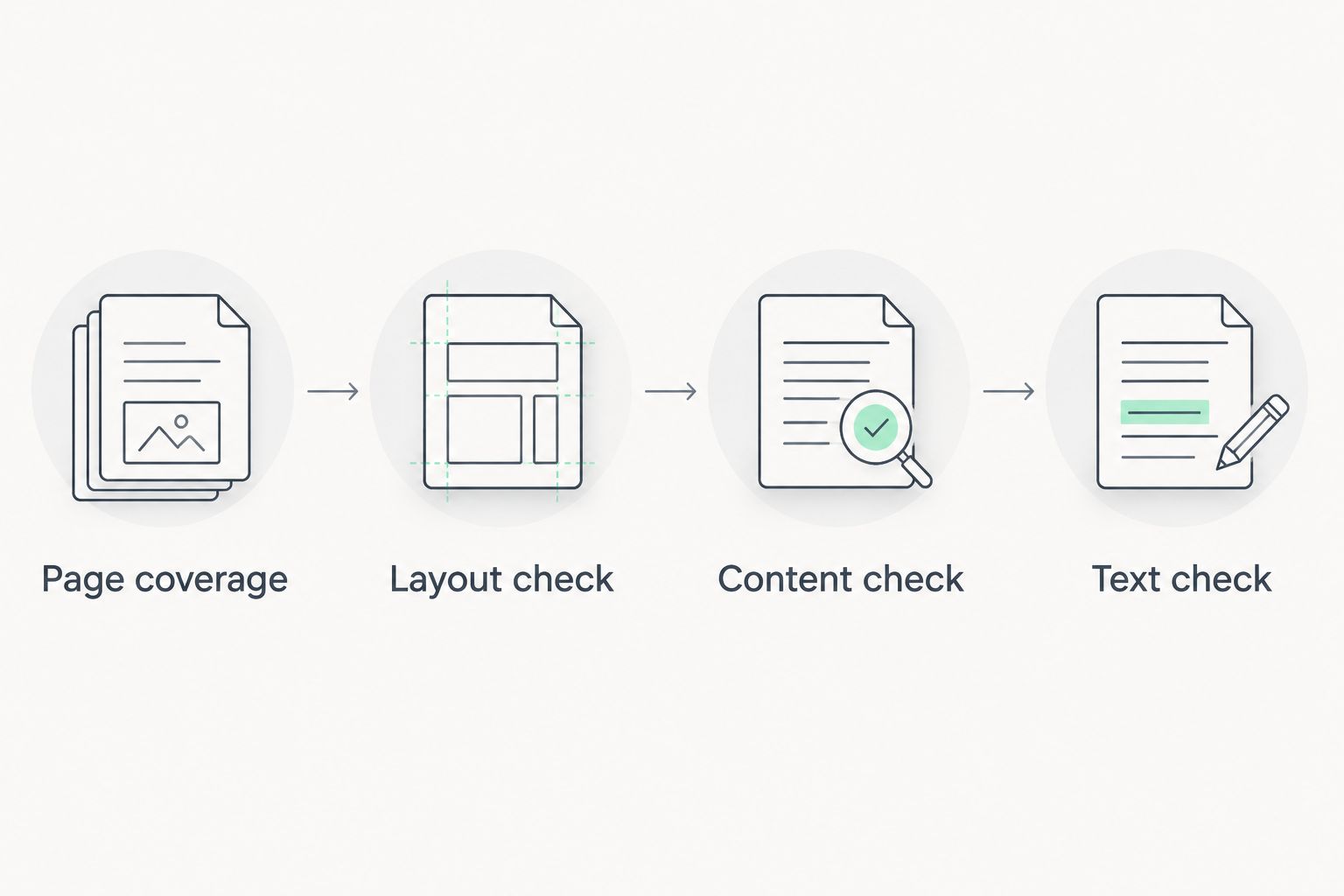
Use the same review sequence for browser conversion and desktop export:
- Page coverage: Check the first and last pages, then scan the page thumbnails for unexpected blanks or missing sections.
- Layout check: Inspect wide tables, images near page edges, footnotes, and headers. Compare any suspicious area with the source attachment.
- Content check: Verify names, dates, totals, and other information that determines whether the document is usable.
- Text check: Try selecting a sentence and searching for a distinctive word. If you require searchable text, verify it rather than assuming the conversion added it.
Expected result: You have a readable PDF whose contents match the intended attachment and whose text behavior meets your needs.
For a short document, inspect every page. For a longer file, pay particular attention to section boundaries and content that approaches the page margins; a clean first page does not validate the rest.
Use 2 separate checks for documents that contain important figures: compare the visible content with the source, then confirm that the PDF includes the intended pages. These are review instructions, not a claim that conversion always requires a fixed number of checks.
File handoff
A converted attachment is only useful if the next person can identify it. Finish by separating the source, the working PDF, and the approved version.
- Give the PDF a descriptive name. For example,
supplier-agreement_2026_revision-B.pdfidentifies both the document and its revision without suggesting that it has been approved. - Move the checked PDF to the intended destination. Keep the original attachment according to your organization's retention rules.
- If you need to return the PDF through Outlook, attach the checked output, not the original document or an earlier conversion.
- Open the attached PDF from the draft message before sending. Confirm that its filename and contents match the version you intended to share.
Expected result: The recipient or destination receives the reviewed PDF, and the original source remains distinguishable from the output.
For shared processing, document who owns conversion, review, and approval. The enterprise document workflow guide addresses the wider handoff beyond a single attachment.
Convert a revised Outlook attachment to PDF
Use this adjacent workflow when a sender replies with a corrected document. Treat each replacement attachment as a new source, not as permission to overwrite an approved PDF.
- Open the message containing the replacement attachment. Confirm what changed from the preceding version.
- Download the replacement into the source folder with a distinguishable filename.
- Repeat the conversion route used for the previous version unless the file format or processing requirements changed.
- Compare the revised PDF with the replacement source. Check the changed section and any pages affected by reflow.
- File the reviewed revision separately, then mark the older output according to your team's version-control practice.
Expected result: You retain a clear relationship between each attachment and its PDF output, without silently replacing a document that someone has already reviewed.
Use 1 source file per revision as a filing rule. If a message includes several attachments, track their outputs separately; a shared email subject does not make them one document.
Troubleshooting
The PDF contains the email, not the attachment
You printed or exported the Outlook message. Return to the attachment menu, download the actual file, and convert that document instead.
If you need both the message and its attachment as records, create each PDF separately first. Check both before deciding whether your document-handling process requires a combined file.
A spreadsheet PDF is missing columns or sheets
The export can reflect the workbook's print area, selected sheets, orientation, and scaling. Open the spreadsheet in its source application and inspect those settings before exporting again.
Do not reduce everything until it technically fits but becomes unreadable. Check the output at a readable zoom and use additional pages when necessary.
The layout changes after conversion
Inspect the source document for font substitutions, floating objects, and awkward page breaks. Correct the source where possible, then export again.
For Word attachments, compare the desktop export with the browser-based output when layout problems remain. Choose the readable result only after checking that it contains the intended content.
The PDF is not searchable
An image-only source does not gain selectable text merely because it becomes a PDF. If searchability is required, use an OCR process and check the recognized text against the image.
Do not treat searchable text as proof of accurate recognition. Names, reference codes, and figures still need verification.
The file will not open or convert
First open the downloaded attachment in an appropriate source application. If that fails, request a working copy from the sender rather than repeatedly uploading the same file.
If the document requires a password or has restrictions, obtain authorized access. Do not remove protections without permission or enable active content to troubleshoot an ordinary conversion.
Customize your workflow
Expand the process only after the basic handoff works. For a recurring 2026 document routine, write down accepted file types, the conversion route, required review checks, and the final destination.
- For signing: Finish content and layout checks before beginning the signing process. Keep draft and signed copies distinguishable.
- For shared inboxes: Assign a processing owner so separate people do not convert and distribute conflicting versions.
- For automatic processing: Define what happens to unsupported files, protected documents, failed conversions, and duplicate attachments before enabling unattended handling.
Keep a review gate wherever an incorrect document would create downstream work. Automation should not turn an unexamined attachment into an approved record.
FAQ
How do I convert an Outlook attachment to PDF in 2026?
Download the attachment, convert the downloaded file with an appropriate document tool, and inspect the resulting PDF. Printing the Outlook message is a separate action and does not convert its attached document.
Can I convert an Outlook attachment without Microsoft Word?
Yes, you can use a browser-based document converter such as Zendocs for document-to-PDF processing. Confirm that online processing is permitted for the document's contents before uploading it.
Does printing an Outlook email also convert its attachments?
No, printing the message does not convert its attached documents into PDF files. Download and process each attachment separately.
Can I automatically convert every Outlook attachment to PDF?
Unattended conversion requires a configured workflow with mailbox access, supported conversion actions, and failure handling. Do not assume that a document service includes an Outlook connector or conversion API.
Why are columns missing from my converted spreadsheet?
The spreadsheet's export settings can exclude columns or sheets from the PDF. Check its print area, selected sheets, orientation, and scaling in the source application before exporting again.
Will converting a scanned attachment make its text searchable?
Format conversion alone does not make an image-only attachment searchable. Use OCR when searchable text is required, then verify the recognized content.
What should I do when the sender sends a corrected attachment?
Download and convert the corrected attachment as a separate revision. Review the changed content and affected pages before replacing or distributing a previously checked output.
One last thing
Renaming a file to PDF changes its name, not its format. A less obvious version of the same mistake is trusting a successful export without opening the result.
Before sending any converted attachment, open the exact PDF attached to your draft email. That final check tests the file the recipient will receive, not merely the copy you remember reviewing.


