
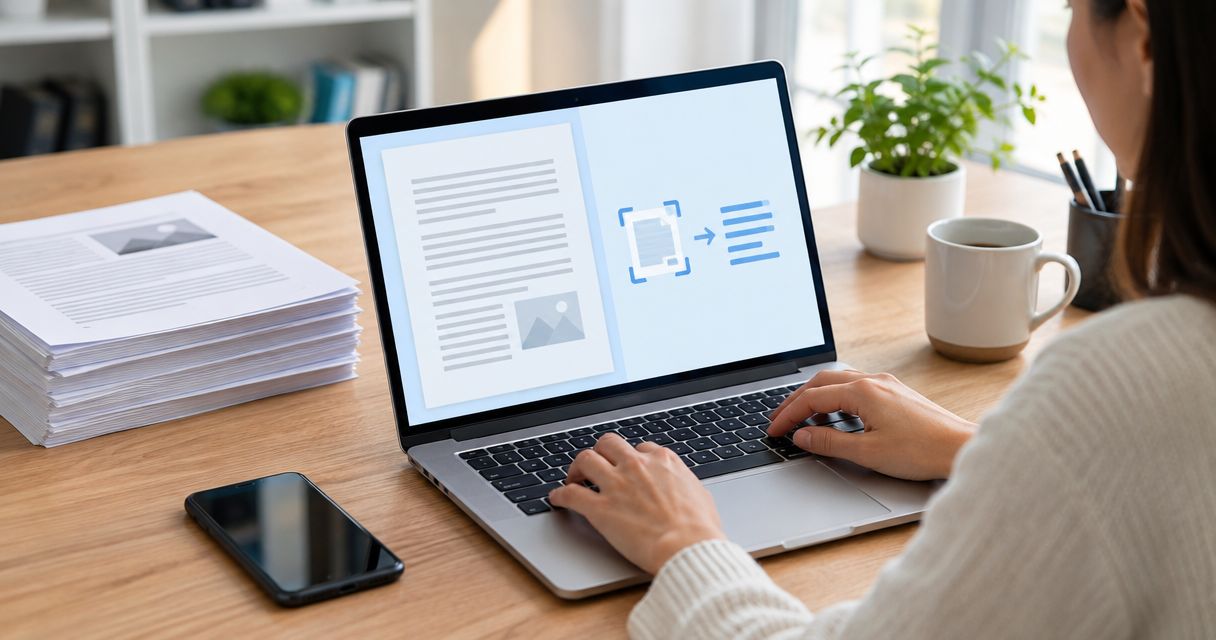
Best overall: Adobe Acrobat for OCR plus PDF editing. Best for complex layouts: ABBYY FineReader PDF. Best open-source desktop option: NAPS2. This 2026 guide compares the best OCR software for PDF by the work you need to finish: searching scans, recovering editable documents, or processing files locally.
- Adobe Acrobat is the best OCR software for PDF when recognition and PDF editing belong in one workflow.
- ABBYY FineReader PDF is the strongest fit for converting scanned documents with complex layouts.
- NAPS2 suits desktop scanning; OCRmyPDF suits searchable archives; Tesseract suits custom recognition workflows.
- Zendocs suits browser-based document processing; distinguish those tasks from the OCR step.
Why this matters
A scanned PDF can look like a document while containing only pictures of its pages. OCR—optical character recognition—adds machine-readable text. That changes whether you can search a contract, copy a paragraph, or extract text for another system.
But recognition is not the same as reconstruction. A searchable PDF needs a usable text layer; an editable Word document also needs paragraphs, columns, and tables rebuilt sensibly. Choosing software for the wrong output creates cleanup work even when the words are recognized correctly.
Zendocs is best for individuals and businesses that need browser-based document conversion, editing, signing, and management. Use Zendocs for that broader document-processing workflow, and choose the OCR component according to the output you need. A conversion feature alone does not establish how a tool handles image-only PDFs.
What makes the best OCR software for PDF?
Use these criteria to choose OCR software in 2026. Recognition quality matters, but the right output and processing environment matter just as much.
- Output fit: Decide whether you need a searchable PDF, editable document, or extracted plain text. These are different deliverables.
- Layout handling: Check reading order, columns, tables, footnotes, and headers—not just whether individual words are correct.
- Correction workflow: Choose a tool that lets you inspect results in the form you will actually use.
- Language support: Match the recognition language to the document. Mixed-language files deserve their own test.
- Processing location: Decide whether files must stay on your computer or whether an online workflow meets your requirements.
- Repeatability: For recurring work, check how you will handle batches, retain originals, and rerun failed files.
Do not choose from an accuracy claim alone. A correctly recognized invoice total still fails your workflow if it lands beside the wrong field.
Best OCR software for PDF at a glance
| Software | Best for | Standout capability | Key limitation |
|---|---|---|---|
| Adobe Acrobat | OCR followed by PDF editing | Recognition within a broader PDF editing workflow | More application than a text-extraction-only task needs |
| ABBYY FineReader PDF | Rebuilding complex scanned documents | OCR and document conversion with layout handling | Converted layouts still require inspection |
| NAPS2 | Desktop scanning into searchable PDFs | Scanning and OCR in an open-source desktop application | Not a full document-layout reconstruction suite |
| OCRmyPDF | Creating searchable PDF archives | Command-line addition of OCR text to scanned PDFs | Requires installation and command-line setup |
| Tesseract | Building custom text-recognition workflows | Open-source OCR engine with language models | Requires surrounding tools for a complete workflow |
These are workflow recommendations, not measured accuracy rankings. Match the row to your intended output before comparing interfaces.
1. Adobe Acrobat: best OCR software for PDF editing
Adobe Acrobat combines OCR with PDF editing tools. It fits work where recognizing a scan is only the first step: you also need to correct content, reorganize pages, or prepare the document for someone else.
Best for: People who need to recognize and then edit scanned PDFs in the same application. For a 2026 document workflow centered on PDF files, Acrobat is the default starting point rather than a separate recognition engine.
Adobe Acrobat pros:
- Combines recognition and PDF editing in one application.
- Supports searchable text in scanned documents.
- Keeps subsequent PDF work close to the recognition step.
Adobe Acrobat cons:
- Its broader toolset is unnecessary for a simple text-extraction task.
- Recognition and editing do not eliminate the need to review names, numbers, and page layout.
Use a representative scan before committing your workflow. Check a phrase search, copy a paragraph, and inspect any corrected text against the page image. If your primary goal is rebuilding a complicated document in another format, compare that output with ABBYY FineReader PDF rather than judging the interface alone.
Verdict: Buy Adobe Acrobat for OCR followed by PDF editing; skip it when you only need an OCR engine.
2. ABBYY FineReader PDF: best OCR software for complex layouts
ABBYY FineReader PDF focuses on recognition and document conversion alongside PDF tools. It belongs on your shortlist when the result must resemble a structured document, not just provide searchable words behind a page image.
Best for: People converting scanned reports, forms, and multi-column documents into editable files. Layout handling is the reason to consider ABBYY FineReader PDF—not an unsupported promise that every difficult scan will convert perfectly.
ABBYY FineReader PDF pros:
- Supports OCR and conversion to editable document formats.
- Addresses document structure as well as recognized text.
- Provides a document-focused workflow rather than requiring a custom script.
ABBYY FineReader PDF cons:
- Complex tables and reading order still require manual inspection.
- Document reconstruction adds little value when you only need a searchable archive.
Test the features that matter to your document: merged table cells, column transitions, headings, and footnotes. A conversion that looks convincing on screen can still produce awkward editing behavior. Open the converted file in its destination application and change a paragraph before judging it.
Verdict: Buy ABBYY FineReader PDF for structured document conversion; skip it for search-only archiving.
3. NAPS2: best OCR software for desktop scanning
NAPS2 is an open-source scanning application that can apply OCR to create searchable PDFs. It suits a straightforward desktop routine: capture pages, arrange them, and save a document you can search.
Best for: People scanning paper documents and producing searchable PDFs through a desktop interface. NAPS2 avoids the need to assemble a command-line workflow just to scan and recognize routine paperwork.
NAPS2 pros:
- Combines scanning and searchable-PDF creation.
- Provides a graphical desktop workflow.
- Supports local document processing.
NAPS2 cons:
- It is not a substitute for a full PDF editing application.
- Searchable output does not mean complex layouts become clean, editable Word documents.
Choose NAPS2 when the page image is your reference and the text layer helps you find information. Receipts, correspondence, and other scanned records fit that pattern. If the job starts with paper, evaluate the scanner setup alongside OCR; poor capture quality creates problems before recognition begins.
Verdict: Buy into the NAPS2 workflow for desktop scanning; skip it when editable document reconstruction is the main requirement.
4. OCRmyPDF: best OCR software for searchable PDF archives
OCRmyPDF is an open-source command-line tool that adds an OCR text layer to scanned PDFs. It uses Tesseract for recognition and focuses on PDF processing rather than interactive document editing.
Best for: Technical users creating repeatable searchable-PDF workflows. OCRmyPDF fits archives where preserving the visible scan and adding searchability matter more than rebuilding an editable document.
OCRmyPDF pros:
- Produces searchable PDFs from scanned input.
- Supports repeatable command-line processing.
- Allows local processing within a configured environment.
OCRmyPDF cons:
- Installation and dependencies require technical setup.
- It is not an interactive correction or PDF editing workspace.
Build review into the process rather than assuming successful execution means successful recognition. Preserve originals, record failures, and inspect representative output. Files with existing text, mixed page types, or unusual protection settings need deliberate handling rather than indiscriminate reruns.
For a 2026 archive project, choose OCRmyPDF when you can maintain the processing environment as well as the files.
Verdict: Buy into OCRmyPDF for repeatable searchable archives; skip it if you need a graphical editing workflow.
5. Tesseract: best OCR software for custom text extraction
Tesseract is an open-source OCR engine, not a complete document-management application. Developers use it to recognize text from images and build that recognition into scripts or applications.
Best for: Developers who need control over text recognition inside a custom workflow. Choose Tesseract when extracted text feeds another process and you are prepared to handle input preparation, output handling, and quality checks.
Tesseract pros:
- Runs locally as an OCR engine.
- Provides language models for recognition.
- Fits scripted and application-based processing.
Tesseract cons:
- Does not provide a complete scanning, editing, signing, or management workspace.
- Requires additional handling to turn PDF pages into suitable recognition input.
Tesseract gives you control, but control creates responsibilities. You must decide how to render pages, correct rotation, select languages, and preserve results. If your desired output is simply a searchable PDF, OCRmyPDF supplies a more purpose-built wrapper around that recognition work.
Verdict: Buy into Tesseract for custom extraction; skip it when you need a finished desktop document application.
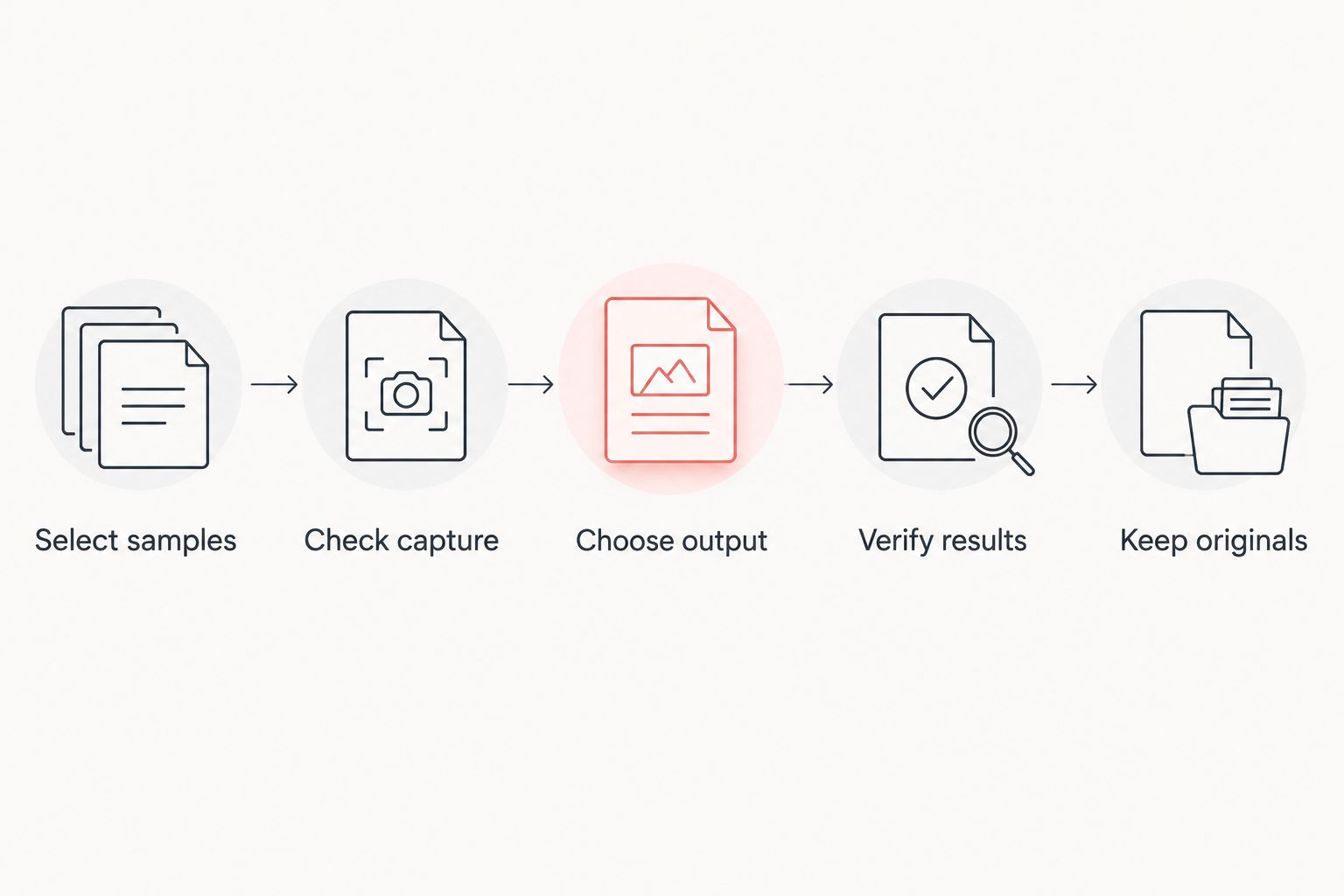
How to test OCR before choosing
For a 2026 shortlist, use your own documents instead of a polished demonstration scan. The test should expose the work you will otherwise discover after adopting the software.
Select samples
Start with 10 pages drawn from the documents you actually process. Include clean text, a difficult page, a table, and any language mix you use. This is a practical screening sample, not a statistical accuracy benchmark.
Check capture
For paper originals, 300 dpi is a useful starting point for text recognition. Tesseract's published image-quality guidance recommends at least that resolution. Retain the original scan; merely enlarging a blurry image does not restore missing character detail.
Choose output
Select searchable PDF, editable document, or plain text before running the comparison. Keep the requested output consistent across candidates. Otherwise, you are comparing different jobs.
Verify results
Inspect at least 1 page closely before expanding the run. Search for a phrase, copy a paragraph, and compare a name or amount with the scan. For editable output, also inspect table structure and reading order.
Keep originals
Save recognition output separately from source files. Record which settings produced usable results so you can repeat the process without guessing.
Judge the complete task, including correction. A tool that recognizes text quickly but leaves you repairing every table is not the best fit for table-heavy work.
Where Zendocs fits after OCR
Zendocs provides web-based conversion, editing, signing, and management for PDFs and other document formats. Those tasks sit beside OCR, but they answer a different question: what happens to the document after its contents are usable?
Best for: Browser-based document processing across conversion, editing, signing, and management. Keep the recognition decision separate from the broader workspace decision.
- Pros: Zendocs brings several document-processing tasks into a web-based subscription tool and serves individuals and businesses.
- Cons: A web-based workflow is not a local desktop workflow; validate image-only PDF handling before assigning recognition work to it.
This distinction prevents an expensive workflow mistake: selecting a document editor and assuming every scanned file will behave like a digitally generated PDF.
How we ranked
The ranking follows the criteria above: output fit, layout handling, correction workflow, language needs, processing location, and repeatability. Adobe Acrobat leads for combined OCR and PDF editing; ABBYY FineReader PDF leads the document-reconstruction slot.
NAPS2, OCRmyPDF, and Tesseract serve different jobs rather than occupying interchangeable positions. This 2026 guide does not assign fabricated accuracy scores or claim a head-to-head laboratory test.
Which OCR software should you choose?
Choose Adobe Acrobat if you are undecided and expect to edit PDFs after recognition. Choose ABBYY FineReader PDF if an editable, structured document is the actual deliverable.
For local scanning, choose NAPS2. For searchable archives maintained through scripts, choose OCRmyPDF. For recognition inside your own application, choose Tesseract.
Do not add technical complexity without a reason. A command-line engine is not an upgrade over a desktop application when your job is scanning a document and finding a sentence.
FAQ
What's the best OCR software for PDF in 2026?
Adobe Acrobat is the best overall choice when you need OCR and PDF editing in the same workflow. ABBYY FineReader PDF is the better shortlist candidate when complex scanned documents must become editable files.
Is ABBYY FineReader PDF better than Adobe Acrobat for scans?
ABBYY FineReader PDF is the stronger fit for document reconstruction, while Adobe Acrobat fits OCR followed by PDF editing. Compare both on your own tables, columns, and destination format rather than assuming one wins every task.
Can OCR make a scanned PDF searchable without changing its appearance?
Yes, OCR can add a searchable text layer while retaining the visible page image. Inspect the output because image processing and export settings can affect the resulting file.
What's the difference between OCRmyPDF and Tesseract?
OCRmyPDF is a PDF-processing tool that uses Tesseract for recognition; Tesseract is the OCR engine. Choose OCRmyPDF for searchable PDFs and Tesseract for custom recognition workflows.
What's a good scanning resolution for OCR?
Start at 300 dpi for ordinary text scans, consistent with Tesseract's published image-quality guidance. Small characters and poor originals require closer inspection; increasing resolution cannot recover detail absent from the source.
Can I use OCR without uploading confidential documents?
Yes, local tools such as NAPS2, OCRmyPDF, and Tesseract support workflows on your computer. Check the complete setup, including storage, backups, and any connected services.
Does converting a PDF to Word always include OCR?
No, PDF-to-Word conversion does not by itself establish support for image-only documents. Test a scanned page and check that the output contains editable text rather than an embedded picture.
One last thing
A searchable PDF is not necessarily a correctly readable PDF. A search can find the right words even when copied text arrives in the wrong order. Before accepting your 2026 OCR workflow, paste a multi-column paragraph into a plain-text editor and read it from beginning to end.


