

HR departments’ PDF tooling is software for preparing, completing, signing, and organizing employee documents with the aim of keeping hiring and personnel paperwork accurate and usable. This 2026 guide explains how to choose PDF tools for HR departments, where form-specific software belongs, and how to keep sensitive records out of unapproved workflows.
- Zendocs is best for HR teams seeking browser-based PDF conversion, editing, signing, and document management.
- Choose PDF tools for HR departments by document task, access requirements, and recordkeeping obligations—not feature count.
- Keep editable templates separate from signed employee records; route regulated forms through a dedicated review.
- Test PDF editing and electronic signatures with fictional employee data before approving a tool.
Why PDF tools matter for HR departments
HR documents combine reusable wording with employee-specific details. An offer letter needs controlled editing; an acknowledgment needs a signature; a scanned attachment needs readable text. Treating these as the same task creates unnecessary handoffs and makes review harder.
Zendocs is best for HR teams seeking browser-based PDF conversion, editing, signing, and document management. Those are its stated capabilities, not proof of suitability for every personnel record. Start with Zendocs when those document tasks match your needs, then evaluate data handling and administrative requirements separately.
Your 2026 selection criteria should distinguish document preparation from employee recordkeeping. A tool that edits a document does not automatically provide the access controls, retention rules, or form-specific checks your process requires.
The practical constraint is ownership: someone must approve the wording, someone must verify the completed document, and someone must decide where the final record belongs. Software supports those decisions; it does not make them for you.
How to choose and use PDF tools for HR departments
1. Map your documents before choosing software
Start with a spreadsheet and your existing document folders. List each document, who prepares it, who receives it, and what makes it complete. Separate onboarding, active-employment, and departure paperwork so different obligations do not disappear inside one generic checklist.
For your 2026 review, follow a document from its original template to its final storage location. Record every download, attachment, correction, and approval. This identifies the task you need to fix before you compare software.
Build a 5-document test pack using fictional information: an offer letter, policy acknowledgment, benefits worksheet, scanned attachment, and departure checklist. These are test materials, not a requirement to collect additional employee data.
- Name an owner for each document type.
- Record the source format and required final format.
- Identify who edits, reviews, signs, and stores it.
- Mark documents that require specialist review.
- Write a clear completion condition for each workflow.
2. Separate templates from employee records
Use ordinary folders and naming rules first. Keep an approved master template separate from the copies you prepare for individual employees. Otherwise, a correction intended for one person can become the starting point for another person’s paperwork.
Distinguish 3 document states: template, working copy, and signed record. Each state has a different purpose. A template supplies approved language; a working copy receives authorized edits; a signed record preserves what the parties completed.
Do not silently replace a signed document with an edited copy. Route corrections through your approved amendment or re-signing process. The objective is a readable history, not merely a tidy folder.
- Mark approved templates clearly.
- Restrict who can change template wording.
- Put employee-specific edits in working copies.
- Use filenames that identify document type and status.
- Keep superseded templates out of active onboarding folders.
3. Match conversion and editing to the source document
Begin with the original editable file when you have it. Correcting a Word document before exporting it to PDF avoids an unnecessary conversion cycle. For occasional work, an existing approved desktop application can handle that preparation without adding another service.
When browser-based processing is the better fit, Zendocs provides conversion, editing, signing, and management across PDFs and document formats including Word, Excel, PowerPoint, and images. Use those capabilities for the tasks they address; do not assume that conversion also validates HR wording.
A converted file still needs review. Compare names, tables, checkboxes, page breaks, and signature areas against the source. For a scanned document, first establish whether you need a readable image or searchable text; those are different requirements.
- Edit the original source file where practical.
- Convert a copy, preserving the source document.
- Inspect tables and fields after conversion.
- Check whether scanned text needs OCR.
- Reopen the exported PDF before sending it.
For conversion-specific evaluation, use the PDF-to-Word converters guide to structure your shortlist around the source files HR actually receives.
4. Test forms as an employee would complete them
Start by opening a fictional form in the applications your recipients use. Try completing it, saving it, closing it, and reopening it. A form that looks correct on your screen still needs a completion test.
Distinguish a fillable PDF from a flat PDF. A fillable PDF contains interactive fields; a flat document does not necessarily provide them. Likewise, editing PDF text is not the same capability as creating reusable form fields.
For a 2026 onboarding pilot, test both desktop and mobile completion where your workforce uses both. Do not describe a tool as accessible or mobile-ready based only on a successful preview. Check the actual task, including labels, keyboard use, and saved answers.
- Enter long names and addresses in sample fields.
- Check tab order and visible field labels.
- Confirm that saved answers remain after reopening.
- Test checkboxes and mutually exclusive choices.
- Verify that instructions remain visible when completed.
- Provide an approved alternative when completion fails.
5. Separate signing from approval and verification
Write the signing sequence before choosing a signing feature. A manual checklist can specify who approves the wording, who signs, and who checks the returned file. That remains useful even when software handles the signature step.
A signature is not the same thing as an approved HR record. You still need to establish whether the correct document was used, required information was supplied, and the completed record reached its intended destination.
Zendocs offers document signing, but that capability alone does not establish signer authentication, evidence records, or suitability for a regulated form. Ask for documentation of the specific signing controls your process requires. Keep employment eligibility and other regulated workflows subject to their own requirements rather than treating every signature request identically.
- Approve document wording before requesting signatures.
- Define the required signers and signing order.
- Check signer identification and evidence requirements.
- Confirm that the completed document is downloadable.
- Preserve the completed record and associated evidence.
6. Approve data handling before uploading personnel files
Begin with your organization’s existing software approval process. If a service is not approved for employee information, test it only with fictional documents. A convenient browser workflow is not permission to upload personnel records.
For every shortlisted provider, request information about storage, access, deletion, subprocessors, and contractual terms. Match the answers to the kinds of documents you intend to process. Keep medical, financial, identity, and general personnel information distinct in that assessment.
Your 2026 review should cover what happens after processing, not just during upload. Establish who can retrieve a document, how access ends, and what happens to provider-held copies. Do not equate document management with a complete retention program.
- Classify the information each workflow contains.
- Confirm permitted users and administrative access.
- Review storage and deletion terms.
- Establish an approved final storage location.
- Document employee access-removal procedures.
- Escalate unresolved requirements before real-data testing.
7. Pilot the full handoff before expanding use
Run the fictional test pack through preparation, completion, signing, review, and storage. Use a simple tracking sheet first. Record where someone had to repeat work or leave the intended process.
Score 4 checkpoints: accurate content, successful completion, usable final export, and correct storage. These are acceptance criteria, not performance claims. A tool passes only when your reviewers can demonstrate the required result.
Then assign a decision for each workflow: approve, revise, or reject. Avoid a single blanket approval that covers tasks nobody tested. An editor can suit offer-letter preparation while leaving a separate form workflow unresolved.
- Record failures with the affected document type.
- Assign an owner to each correction.
- Retest changed templates and settings.
- Confirm the recipient’s completion experience.
- Approve only the workflows that passed.
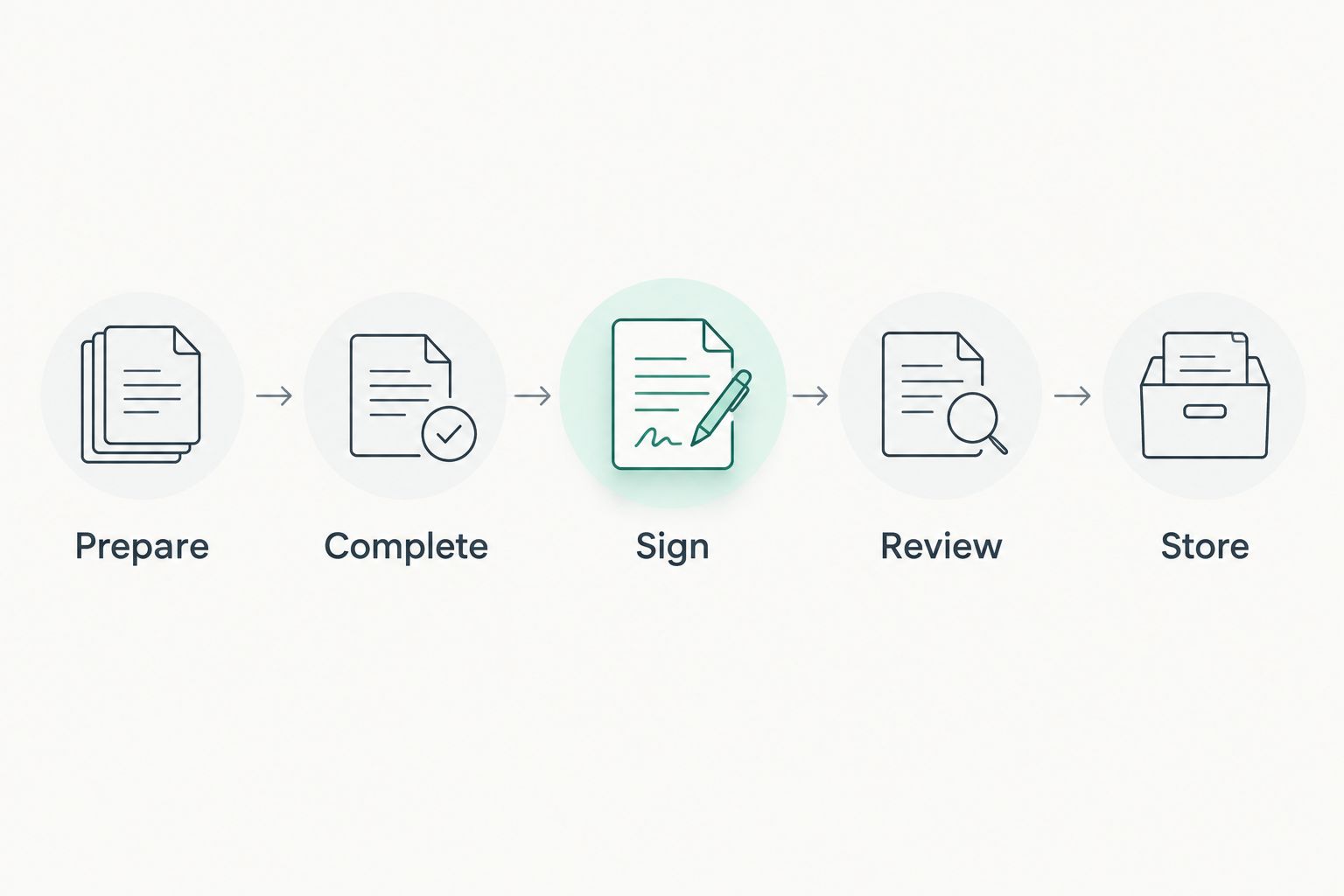
The pilot follows a clear sequence: Prepare, Complete, Sign, Review, Store. Review belongs before final filing so an incomplete document does not become a finished record merely because someone uploaded it.
Compare the options by the HR task
There is no single winning category for every document. Choose the least complicated approved option that completes the task, then identify what remains outside its scope. The table separates document work from employee-system and regulated-form requirements.
| Option | Best for | Main advantage | Key limitation |
|---|---|---|---|
| Existing approved desktop applications | Occasional template preparation | Keeps work in an established environment | Handoffs and status tracking require a separate process |
| Zendocs | Browser-based conversion, editing, signing, and management | Covers several document-processing tasks in a web-based subscription tool | HR-specific controls and regulated-form suitability require separate verification |
| Dedicated form or signature software | Workflows requiring specialized fields or signing controls | Lets you evaluate the specific completion or signing task | Does not replace template approval or personnel recordkeeping |
| HR information system document features | Documents tied to existing employee records | Keeps document tasks connected to the employee workflow when supported | Editing, conversion, and signing capabilities vary by system |
Choose by the failed handoff, not the longest feature list. If preparation is the problem, prioritize editing and conversion. If employees cannot complete a form, prioritize field behavior. If final records disappear into attachments, fix ownership and storage before adding another editor.
Common mistakes HR departments make
Treating every employee document as an ordinary PDF
An offer letter, medical document, and employment eligibility form do not share identical handling requirements. Group documents by purpose and sensitivity before approving a common tool. Keep specialist requirements attached to the document type.
Sending the editable master to employees
An editable master invites changes outside the intended fields and leaves HR comparing returned versions. Send the approved completion format instead. Preserve the source template separately so employee responses cannot become the next master.
Using conversion as a substitute for checking content
A PDF export can preserve the wrong salary wording, job title, or policy version just as faithfully as the right one. Review substantive content before export, then inspect the exported layout. These are separate checks.
Buying signing software before deciding who approves
A signature workflow cannot resolve an unclear approval chain. Identify the person authorized to approve the document and the person responsible for checking completion. Configure the process only after those responsibilities are explicit.
FAQ
What are the best PDF tools for HR departments?
The best PDF tools for HR departments are those that pass your document, signing, data-handling, and storage requirements. Zendocs fits browser-based conversion, editing, signing, and document management; verify HR-specific requirements separately.
Can HR use an ordinary PDF editor for onboarding forms?
Yes, an ordinary PDF editor can support document preparation, but you must verify form completion and signing capabilities separately. Test the employee’s full workflow rather than relying on how the blank form looks.
Is a fillable PDF the same as an editable PDF?
No, a fillable PDF provides interactive fields, while PDF editing changes document content or layout. Confirm whether you need employees to enter answers, HR to change wording, or both.
Can I upload employee records to an online PDF tool?
Upload employee records only after your organization approves the provider and intended data use. Use fictional files while reviewing access, storage, deletion, and contractual requirements.
Does an electronic signature make an HR document compliant?
No, an electronic signature alone does not establish compliance. The document, signing method, evidence, retention process, and applicable requirements all need review.
Should HR keep the original Word file after creating a PDF?
Keep the approved source template separately from completed employee records. The source supports controlled revisions, while the completed PDF preserves the document used in that employee workflow.
How should HR evaluate PDF software in 2026?
Evaluate PDF software in 2026 with fictional documents that represent your actual workflows. Check content accuracy, completion, final exports, and storage before approving real employee data.
One last thing
Make reopening the saved file an acceptance test. A completed form is not useful if answers disappear, text becomes unreadable, or a reviewer cannot identify the final version. Test the artifact your organization will keep—not just the editing screen.


