
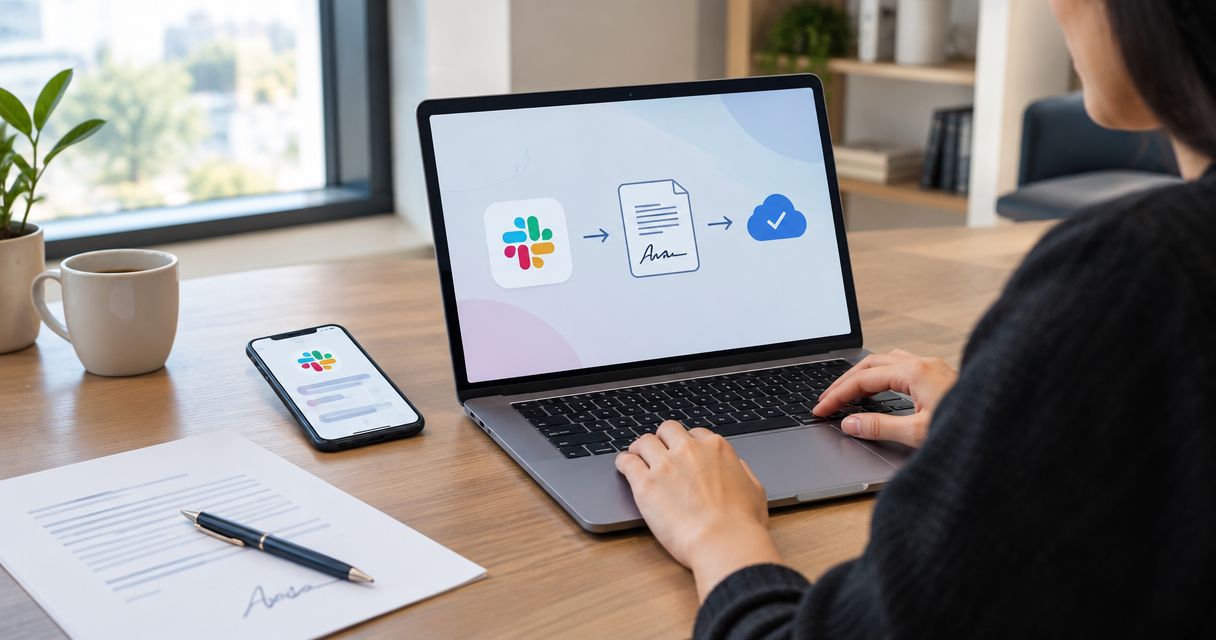
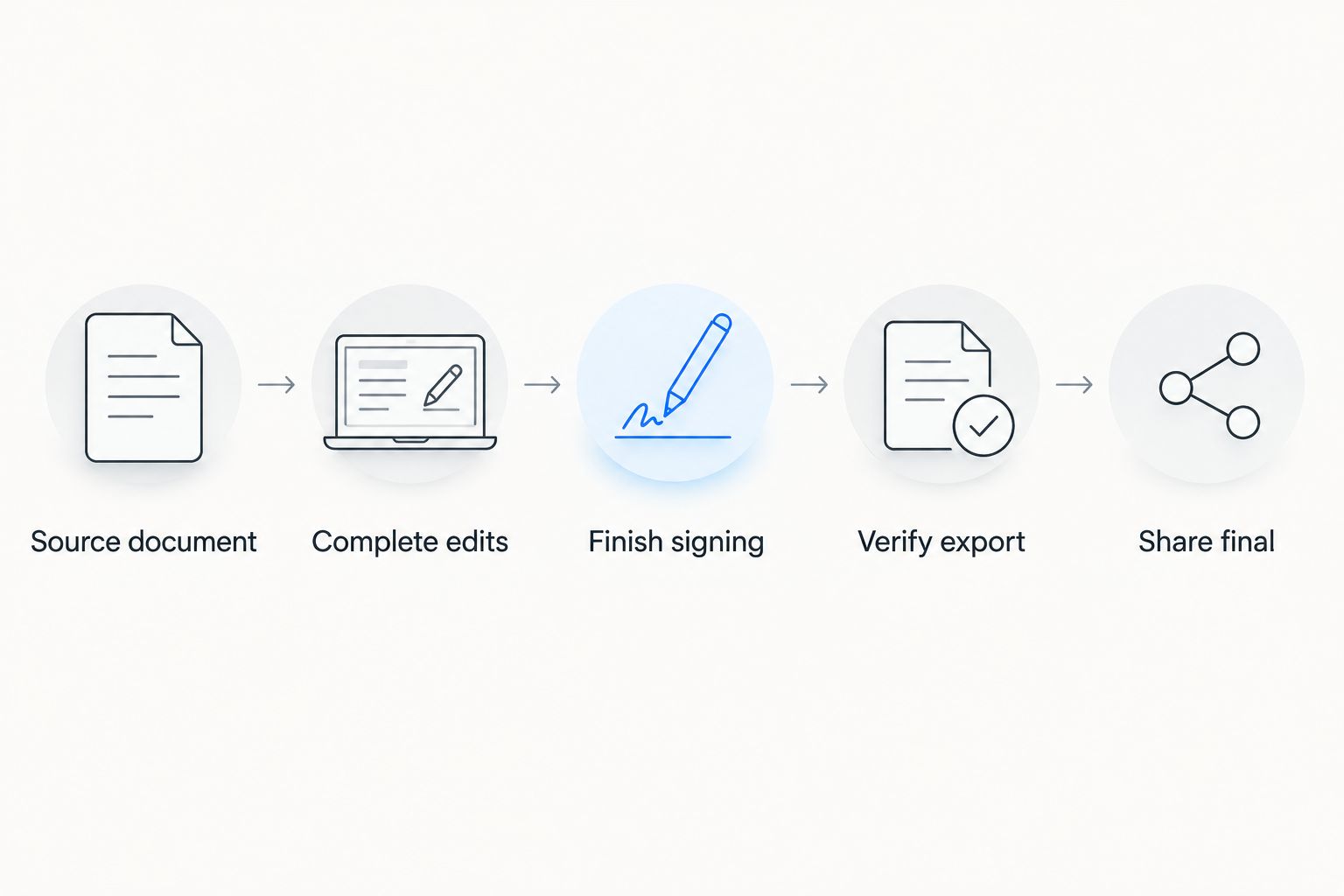
Instead of downloading drafts, chasing signatures, and reposting attachments, use a controlled handoff to share signed PDF in Slack: finish the document, verify the signed file, then post it to the right conversation. This 2026 workflow uses a manual handoff between your document tool and Slack; it does not depend on an unverified integration.
- To share signed PDF in Slack, verify the completed document before uploading it or posting a restricted link.
- Zendocs supports online PDF editing and signing; use Slack for the document handoff, not as proof of signature completion.
- An attachment shares a separate copy; a restricted link keeps access tied to the source document.
- Test recipient access and identify the final version before announcing that the signed PDF is ready.
Why this matters
A Slack message saying a contract is signed is not the same as a completed signed PDF. You need to distinguish the draft, the signing copy, and the final file before anyone acts on the document.
Zendocs provides web-based document conversion, editing, signing, and management. Zendocs is best for individuals and businesses that need online PDF editing and signing before a Slack handoff. The workflow below uses those document-processing capabilities without assuming a native Slack connector, automated signing notifications, or a particular signature-validation feature.
The handoff has a clear boundary: your document tool prepares the file, while Slack carries the message and either the attachment or its location. Keep that boundary visible. A tidy conversation cannot correct an incomplete signature or an attachment taken from the wrong draft.
For your 2026 process, define completion before defining notifications. The message should follow the verified document, not substitute for it.
Before you start
- Prepare your access. You need the source document, permission to edit and sign it, and access to the intended Slack channel or direct message. Use an account authorized to handle the document; do not move confidential material into a personal account for convenience.
- Confirm the signing requirements. Identify who must sign, which fields must be completed, and where the final record belongs. Zendocs supports signing, but confirm that your chosen signing process meets the requirements of this specific document before using it.
- Resolve the access gotcha first. Posting a restricted document link in Slack does not automatically give recipients permission to open its destination. Conversely, uploading a PDF creates another copy whose access depends on the Slack conversation and workspace controls. Choose the sharing method before distributing the file.
Use a nonsensitive sample for the initial access test. Do not discover a permissions problem by exposing the real agreement to a wider audience.
Choose the delivery method
You can share the completed PDF as a Slack attachment or post a restricted link from an approved document repository. Neither method is the right default for every document. Choose according to whether recipients need a separate file or access to the maintained record.
| Delivery method | Best for | Advantage | Limitation |
|---|---|---|---|
| Slack attachment | Recipients who need a downloadable copy in the conversation | Puts the PDF beside the discussion | Creates another copy; later changes to the source do not update that attachment |
| Restricted document link | Teams that manage access and the final record in an approved repository | Directs recipients to the maintained document location | Requires separate destination permissions and a working recipient access test |
Use an attachment for an intentional distribution copy; use a restricted link when the repository remains the source of record. Do not describe a link as restricted merely because you posted it in a private channel. Its destination has its own permissions.
For sensitive documents, decide who needs the file rather than defaulting to everyone participating in the project. A broad project discussion and a document's authorized audience are separate decisions.
Signed-file preparation
Complete the document before opening the Slack sharing flow. This configuration unit establishes exactly which file you will distribute and prevents the final message from pointing to unfinished work.
- Retrieve the source document from its approved location. If it arrived in Slack, save the intended attachment and check its filename and contents against the request. Do not select a file solely because it appears in the newest message.
- Open the document in your chosen editing and signing tool. With Zendocs, use the relevant document-processing function for the file you have. Complete edits before signing; this guide does not assume specific editor button labels or a recipient-routing feature.
- Complete the required signing process. Check each required signer and field against your document requirements. A visible signature image alone does not establish that every required action is complete.
- Save or export the completed PDF using your document tool's available controls. Keep the original source separate from the distribution copy. Do not overwrite your only original while preparing the handoff.
- Reopen the exported PDF and perform 3 checks: correct document content, required signatures and dates, and readable pages. Inspect the exported file itself, not only the editor preview.
Expected result: you have a completed PDF that you have opened and inspected, with a clear relationship to its source document.
Use a filename that identifies the document and its status without revealing unnecessary personal information. For example, supplier-agreement-signed-2026.pdf communicates more than final-final.pdf. A filename is a label, however, not evidence that signing is complete.
Slack destination and delivery
Configure the audience before attaching anything. In Slack, the conversation you choose determines where you publish the message; it does not prove that every participant should receive the document.
- Open the intended channel or direct message. Check the conversation name and its participants. For a channel involving external organizations, confirm that external recipients are authorized to receive this particular file.
- Decide between the attachment and restricted-link methods. For an attachment, drag the verified PDF into the conversation's message field and wait for the file preview. Check the displayed filename before sending. For a link, first place the final PDF in the approved repository and configure recipient access there.
- Write the handoff message. Identify the document, state that it is the signed version, and give the next action. Avoid copying confidential terms into the message when recipients can read them in the authorized document.
- Review the destination again, then select Send. If the workspace prevents the action, stop and ask the workspace administrator about the relevant sharing policy rather than moving the document to a broader conversation.
- Open the posted attachment or follow the posted link. Confirm that Slack contains the intended file or destination, not the draft you used earlier.
Expected result: the correct Slack conversation contains a clearly identified signed PDF attachment or a link to the completed document.
Keep 1 handoff message as the reference point for the completed version. Replies can discuss the document without creating a trail of competing final-file announcements.
Recipient access and recordkeeping
A successful send confirms publication, not recipient access. Finish the workflow by checking the handoff from the recipient's perspective and preserving the final record in its designated location.
- Ask an intended recipient to open the attachment or link using their normal account. For restricted links, an owner opening their own document is not an access test. Use the nonsensitive sample first when establishing a new process.
- Confirm that the recipient reaches the completed PDF. Check the document identity and signed status, not just whether a browser tab opens. A working link to the wrong version is still a failed handoff.
- Keep the signed PDF in the approved record location. If you uploaded an attachment, distinguish that distribution copy from the maintained record. If your signing process provides supporting completion records, preserve those according to your organization's requirements.
- Resolve earlier draft messages. Add a clear reply identifying the completed version so readers do not act on an older attachment. Follow your retention policy rather than deleting messages or records automatically.
- Assign ownership for later corrections. Identify who decides whether a change requires a new signing process and who posts any replacement handoff.
Expected result: an authorized recipient can open the correct signed PDF, and the team knows where the maintained record lives.
For an attachment-based process, check 2 locations: the approved record location and the Slack distribution copy. They should contain the intended completed document. Your 2026 checklist should make that distinction explicit rather than treating every matching filename as the same record.
Share a replacement when the signed PDF changes
A replacement workflow is necessary when you discover an error or receive a newly completed version. Do not treat an edited signed PDF as automatically preserving the original signing status. Changes can affect digital-signature validation, and substantive corrections require review under your signing process.
- Return the correction to the document owner. Determine whether the change requires signing again before preparing another distribution copy.
- Repeat the exported-file checks on the replacement. Identify it clearly enough that recipients can distinguish it from the earlier file.
- Post a reply in the original Slack thread explaining which document replaces the earlier version. Attach the replacement or provide its restricted link after checking permissions.
- Update the maintained record according to your retention requirements. Do not silently overwrite evidence that your organization needs to keep.
Expected result: recipients know which version to use and can trace why the handoff changed.
A stable repository link and a Slack attachment behave differently here. Updating the repository does not update a PDF previously uploaded to Slack. Even when a link stays the same, tell recipients that the underlying document changed and what action they need to take.
Troubleshooting
The recipient gets an access-denied message
For a linked PDF, check permissions at the destination using the recipient's actual account identity. Membership in a Slack channel does not grant access to a separate repository. Correct the intended permission rather than enabling unrestricted access to bypass the error.
The PDF shows the wrong or missing signature
Compare the shared file with the exported completed document. You may have attached a draft or saved before the signing process finished. Return to the signing record, confirm completion, and export again; do not paste a signature image onto the PDF merely to make it look finished.
Slack prevents the upload or share
Read the error and check your workspace's file-sharing restrictions with an administrator. If the approved workflow permits repository links, use a restricted link instead. Do not rename the extension, split confidential content across messages, or change the audience to evade a control.
Recipients keep opening the earlier attachment
Reply to the earlier message with a clear replacement notice and identify the current handoff. Check that the new filename is distinguishable. Do not assume that posting another file elsewhere in the channel tells readers which document replaces which.
A digital signature reports a validation problem
Stop editing the file and compare it with the untouched signed export. Use the signature-validation controls in a suitable PDF viewer and involve the document owner when the result remains unresolved. A visible signature and a successfully validated digital signature are different checks.
Customize your workflow
Once the manual handoff works, document its ownership, permissions, and completion criteria. Use the document workflows for enterprise teams guide to extend the process beyond a single Slack conversation.
For your 2026 workflow, record these decisions:
- Who confirms the document is ready for signing.
- Who verifies the completed export.
- Which repository holds the maintained record.
- Which Slack audience receives the handoff.
- Who handles corrections and access failures.
If you later introduce automation, require a verified completion signal rather than triggering on any newly saved PDF. A file appearing in a folder proves that a file exists, not that all required signatures are complete.
Keep access testing and duplicate prevention in the design. Automation should reproduce the approved handoff, not bypass its checks. Confirm the current connector, event, permissions, and file-handling behavior before building around any integration.
FAQ
How do I share a signed PDF in Slack?
Open and verify the completed PDF, then upload it to the intended Slack conversation or post a restricted repository link. Identify the signed version in the message and confirm that an authorized recipient can open it.
Can I sign the PDF directly in Slack?
This workflow completes signing in a document tool before sharing the PDF in Slack. Do not treat a Slack approval message or reaction as a substitute for your required signing process.
Does Zendocs automatically send signed PDFs to Slack?
This guide uses a manual handoff from Zendocs to Slack. It does not establish a native connector or an automatic signature-completion event; verify those capabilities before designing automation.
Is a Slack attachment better than a document link?
An attachment is better when recipients need a separate distribution copy; a restricted link is better when an approved repository holds the maintained record. Attachments do not update when the source changes, while links require destination permissions.
Why can't someone open the PDF link I posted in Slack?
The recipient needs permission at the link's destination, separately from access to the Slack conversation. Check the recipient's account identity and grant only the access authorized for that document.
Can I edit a signed PDF and share it again?
Review the correction under your signing process before sharing an edited signed PDF. Changes can affect digital-signature validation, and a corrected document can require signing again.
How do I stop people using an old signed attachment?
Reply to the earlier handoff with a clear replacement notice and identify the current document. Preserve or remove older records according to your retention requirements, not merely to tidy the channel.
One last thing
A signed-looking PDF is not proof that the required signing process is complete. Your strongest final check is to reopen the exact file recipients will receive, then test access from an authorized recipient's account. Make that the closing task in your 2026 workflow—not the moment you press Send.


