
Instead of repeatedly hunting for OneDrive attachments and guessing which copy to edit, use a controlled download–edit–upload workflow with Zendocs, then return the checked PDF to its original folder. This guide explains how to connect OneDrive to PDF editor workflows through file transfer, without treating a downloaded copy as a live connection.
- Connect OneDrive to PDF editor workflows through download, editing, and upload; file transfer is not automatic synchronization.
- Zendocs suits individuals and businesses needing browser-based PDF editing, conversion, and signing.
- Keep the OneDrive original until you have reopened and checked the uploaded PDF.
- Choose between updating the existing file and saving a separately named revision before editing.
Why this matters
Downloading a PDF creates a separate working copy; it does not keep your edits synchronized with OneDrive. If you change that copy in a browser-based editor, the OneDrive document remains unchanged until you return the edited file.
That distinction matters more than the upload itself. A successful editing session still leaves colleagues reading an outdated document if you forget the return step or place the result in another folder.
For your 2026 document workflow, assign each service a clear role: OneDrive holds the shared document, and the PDF editor handles the changes. Treat the return upload and final check as part of editing, not optional housekeeping.
Zendocs is best for individuals and businesses that need browser-based PDF editing, conversion, and signing. Its role in this workflow is document processing; the file-transfer process described here still requires you to manage the working copy and its return to OneDrive.
Before you start
- Prepare account access and permissions. Sign in to the OneDrive account holding the document and your Zendocs account. Confirm that you can download the source and upload the result to the intended folder; viewing a shared PDF does not establish permission to replace it.
- Start with 1 test PDF. Choose a nonsensitive document, note its folder and filename, and define the intended change. Use that test to confirm your complete 2026 workflow before handling business records.
- Resolve the disconnected-copy gotcha. A downloaded PDF is independent of its OneDrive source. Agree who owns the edit, whether anyone else can change the original, and whether the result should replace the source or become a separate revision.
For confidential files, check your organization's rules before transferring documents into another service. A working login does not establish organizational approval for processing sensitive information.
Choose the return-file approach
Decide what should happen to the edited PDF before downloading it. The choice affects filenames, reviewer instructions, and whether an existing shared link still points to the document people should use.
| Approach | Best for | Benefit | Limitation |
|---|---|---|---|
| Update the existing file | Maintaining one current document | Keeps the workflow centered on the existing OneDrive item when you update that item correctly | Requires careful conflict handling and a check that the intended item was updated |
| Save a separate revision | Review cycles and preserving the source | Makes the original and edited copy easy to distinguish | Creates another document that people can mistake for the current version |
Use a separate revision for your first test. It leaves the source untouched while you verify the complete process. Once the test succeeds, choose the approach that matches your team's review and retention rules.
Neither approach provides automatic synchronization. Both require an explicit return upload, and both need a final check inside OneDrive rather than only inside the editor.
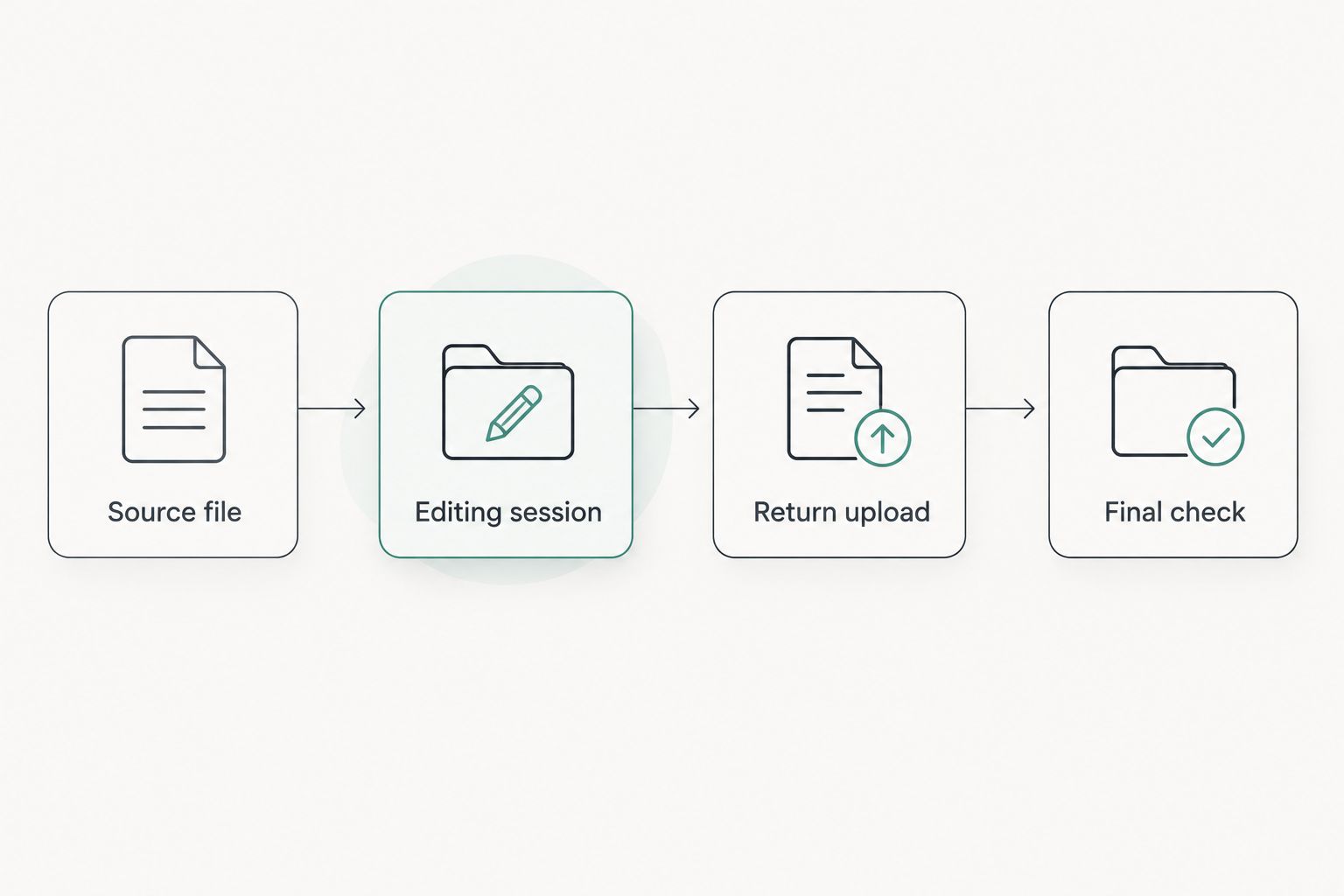
Source file
Select and download the correct PDF
- Open OneDrive in your browser and enter the folder containing the source PDF. Confirm the account and folder before selecting the document, especially when you use both personal and work accounts.
- Open the PDF preview and check its contents. Match the document to your task rather than relying only on a familiar filename.
- Select the file and choose Download. Save it in a working folder where you can identify it without searching through unrelated downloads.
- Record the source filename and folder. If your browser adds a suffix because a file with that name already exists locally, distinguish the new download from the older local copy.
- Open the downloaded PDF and confirm that it is the document you just previewed. Do not begin editing a similarly named file left over from an earlier task.
Expected result: You have a readable local copy of the correct OneDrive PDF, and you know exactly where the edited result must return.
Keep the original in OneDrive during this process. Downloading is a transfer step, not a reason to delete the source or move it out of the shared folder.
Editing session
Import, edit, and export the document
- Open Zendocs and use the file-selection control for the editing task you need. Select the downloaded PDF from your working folder, not a shortcut or a sharing link.
- Check that the opened document matches the source. Review the first page, the relevant content, and the page order before making changes.
- Make the intended edits. Keep the test focused: change the required text or document content rather than combining unrelated conversions and layout changes in the same trial.
- Review the edited areas before exporting. Check names, dates, amounts, and any content whose meaning depends on punctuation or spacing.
- Save the result as a PDF using the editor's export or download control. Give the output a filename that distinguishes it from the untouched download.
- Open the exported PDF outside the editing session. Confirm that the saved file contains your changes; an on-screen edit alone does not establish that the exported document is correct.
Expected result: You have an exported PDF that opens independently and contains the intended changes.
The editing benefit is access to browser-based document processing. The trade-off is copy management: your source, working file, and exported result are separate until you deliberately reconcile them.
For a 2026 review cycle, use a clear naming convention such as client-agreement-2026-reviewed.pdf for a separate revision. Treat that as an example, not a required product setting; your organization's naming rules take priority.
Return upload
Return the PDF and verify the result
- Go back to the original OneDrive folder. Recheck the folder location instead of uploading through whichever browser tab happens to be open.
- Follow the return-file approach you selected. For a separate revision, upload the distinctly named PDF. To update the existing file, use the intended filename and read any conflict prompt before confirming the action.
- Wait for the upload to finish. Keep the local exported copy until you have confirmed that the returned file opens correctly.
- Open the uploaded PDF from OneDrive. Inspect the edited content, page order, and filename rather than assuming the upload selected the right local file.
- Check how reviewers will reach the document. A link to the original file does not automatically become a link to a separately uploaded revision.
- Tell the next reviewer which file to use. Identify the folder and current filename, particularly if the original remains alongside the revision.
Expected result: The intended OneDrive folder contains the checked PDF, and reviewers know which document is current.
Use 3 checks before handing it off: correct content, correct destination, and correct access. Passing only the first check leaves room for a perfectly edited PDF to sit in the wrong place.
Save a separate revision whenever the source changes
A second useful workflow preserves the original and publishes each reviewed revision as a distinct file. Best for: approval processes where reviewers need to distinguish the submitted document from the edited result.
This is a repeatable manual workflow, not an automatic trigger. When the source changes, start again from the current OneDrive document rather than continuing with an old local download.
- Confirm which source revision you are reviewing and who owns the next edit.
- Download the current source into your working folder.
- Complete the edits and export a distinctly named PDF.
- Upload the revision to the agreed OneDrive folder.
- Identify the revision requiring review and record whether it is a draft or the approved document.
The benefit is a visible separation between source and output. The drawback is document duplication: reviewers need an explicit rule for identifying the current file.
Keep 2 copies during the test: the untouched source and the checked revision. After approval, retain or remove working files according to your organization's retention rules rather than leaving every download indefinitely.
For a wider approval process, use the document workflows for enterprise teams guide to plan ownership and handoffs beyond this individual editing task.
Troubleshooting
The OneDrive document still shows the old content
Check whether you returned the exported PDF to OneDrive. Editing a downloaded copy does not update the cloud source.
If you already uploaded it, compare the uploaded filename and folder with the original. You might have created a separate revision while continuing to open the original document.
You can view the PDF but cannot replace it
Check your access to the destination folder and existing file. Download access and permission to update a shared item are different questions.
Ask the owner for the appropriate access or an approved upload destination. Do not move a restricted document into a personal account to bypass the folder's permissions.
The uploaded PDF is missing your edits
Open the local exported file first. If that file also lacks the changes, return to the editing session and export the correct result.
If the local export is correct, upload that specific file again. Compare filenames carefully when your downloads folder contains several near-identical copies.
The document looks different after conversion
Compare the exported PDF with the original, focusing on fonts, tables, line breaks, and page boundaries. Conversion between document formats can change layout.
Avoid an intermediate format when your task does not require one. When conversion is necessary, review the converted output before continuing to signatures or approval.
The text is visible but not editable
Check whether the PDF contains scanned page images rather than selectable text. A scan needs text recognition before an editor can work with recognized text as text.
Do not assume that every PDF-editing task includes recognition. Choose an appropriate recognition workflow, then proofread the output against the scan before relying on names, figures, or dates.
Customize your workflow
Make the process repeatable before adding more document types. Write down the source folder, editing owner, return-file approach, and reviewer; those decisions prevent ambiguity without requiring an automated connector.
For a 2026 team procedure, include a completion rule: the task is finished only after the uploaded PDF has been opened from OneDrive and checked. Add a separate approval step when the document requires business review.
Use Zendocs for the document-processing work described here, and keep responsibility for the OneDrive handoff explicit. Browser-based editing does not remove the need to control filenames, permissions, or retained copies.
FAQ
How do I connect OneDrive to a PDF editor in 2026?
Use a download–edit–upload workflow: download the PDF from OneDrive, edit it, export the result, and upload it to the intended folder. This transfers files; it does not establish automatic synchronization.
Does editing a downloaded PDF update the OneDrive original?
No. A downloaded PDF is a separate copy, so you must return the exported result to OneDrive and verify the intended file.
Can I use Zendocs for the PDF-editing part?
Yes. Zendocs provides web-based document editing, conversion, signing, and management. This guide uses file transfer for the OneDrive handoff rather than assuming a native connection.
Should I replace the original PDF or upload a new revision?
Use a separate revision when you need to preserve the source for review. Update the existing file when your process requires one current document, and check that the intended OneDrive item was updated.
Why can I download a shared PDF but not upload my edited version?
Permission to download a shared PDF does not establish permission to update its destination. Ask the owner for the appropriate access or an approved folder for your edited copy.
Can I edit a scanned PDF using this workflow?
You can transfer a scanned PDF through the same workflow, but image-based text requires recognition before text editing. Review recognized text against the original scan before approving the result.
How do I prevent reviewers from opening the wrong PDF?
Identify one current filename and folder, then give reviewers access to that document. If you create a separate revision, check that their link points to the revision rather than the untouched original.
One last thing
Test the return trip, not just the edit. A correct local PDF can still leave your team with the wrong document if the upload lands in another folder or reviewers keep using the original link.
Before making this your standard process, complete the test from source download through reviewer access. The decisive result is not an edited file on your computer; it is the correct PDF opened from its intended OneDrive location.


