
Instead of repeatedly downloading drafts and chasing signature copies, convert Google Drive files to signed PDF through a fixed sequence: approve the source, export the PDF, sign it, and return the completed file to Drive. This 2026 guide covers that browser-based workflow without assuming a native Drive integration or an automated signature handoff.
- To convert Google Drive files to signed PDF, approve the source, export, sign, and archive the completed document.
- Zendocs suits individuals and businesses needing browser-based PDF editing, signing, and document conversion.
- Google Drive sharing permissions do not transfer automatically to a downloaded PDF or its uploaded replacement.
- Keep editable drafts separate from signed PDFs; source edits do not update a previously signed document.
Why this matters
A document in Google Drive and a signed PDF are different records. Your editable source supports revisions; your signed copy records the version that received a signature. Mixing them makes it harder to identify what was approved.
Zendocs is best for individuals and businesses that need browser-based document conversion, PDF editing, and signing. You can use Zendocs for those document-processing tasks while keeping Drive as your filing location. The workflow below uses an explicit download-and-upload handoff rather than assuming that the services synchronize.
The benefit is a clear approval boundary. The limitation is manual handling: you must select the correct file, inspect the signed result, and return it to the correct folder.
Before you start
- Access and authority: Use a Google account with access to the source document and permission to download it. Confirm who must sign and whether the recipient accepts an electronic signature in the form you intend to provide.
- Signing access and source materials: Have access to your chosen PDF signing tool, the final document, and any required attachments. For confidential material, confirm that your organization permits uploading it to that service.
- The gotcha: Exporting creates a separate file. Later edits to the Google document do not update that PDF, and uploading the signed copy does not automatically preserve the source file's sharing permissions.
For this 2026 setup, use 3 folders named Drafts, Ready for signature, and Signed. These are suggested organizational labels, not required software settings. Keep 1 approved version in the signing queue for each document so an older export does not compete with the current copy.
Before choosing the handoff, distinguish between signing your own document and collecting someone else's signature. Adding your signature does not establish that another person reviewed or accepted the document.
Source approval and PDF export
Confirm the source
- Open the document from Google Drive. Check the document title, recipient details, dates, attachments, and signature locations before making a PDF.
- Resolve outstanding editorial decisions. Comments and suggested changes are not a substitute for approved wording in the document itself.
- Place the approved source in your Ready for signature folder. Use a descriptive title that identifies the document and its revision without exposing unnecessary personal information.
- Tell collaborators that the source has entered the signing stage. If a substantive change arrives afterward, stop the signing handoff and prepare a new approved export.
Expected result: You have an identifiable source document with approved content, rather than an export from an unfinished draft.
Export the file
- For a Google Docs document, select File, then Download, then PDF Document (.pdf). Save the exported file somewhere you can identify it immediately.
- For an existing PDF stored in Drive, select the file and use Download. Do not convert it to an editable format merely to add a signature.
- For other source formats, create a PDF using an appropriate export or conversion route. Zendocs supports online processing of PDF, Word, Excel, PowerPoint, and image formats; inspect the resulting layout before signing.
- Open the exported PDF independently of the source editor. Review the beginning, the end, signature locations, and any tables or images that cross page boundaries.
Expected result: You have a readable PDF that represents the approved source, with no clipped text, missing attachments, or unexpected blank pages.
Make 2 checks before moving on: content accuracy and page layout. The first catches the wrong revision; the second catches an export that changed how the document reads. A signature does not repair either problem.
PDF preparation and signature placement
Prepare the signing copy
- Open the approved PDF in your authorized signing tool. For Zendocs PDF signing, use the document-processing interface presented in your account; the instructions here describe actions rather than unverified button names.
- Complete any remaining document fields before applying the signature. Check names, addresses, dates, and selections against the approved source.
- Find every location that requires your signature or initials. Distinguish your fields from fields intended for another signer.
- Confirm that the document does not require a different signing method, such as a certificate-based digital signature or a recipient-managed signing process.
Expected result: The PDF contains the final information and has clearly identified signature locations.
Apply and inspect the signature
- Use the signing method your tool provides and your recipient accepts. Place your signature only in fields assigned to you.
- Check signature placement at a readable zoom level. Keep the signature clear of nearby text, page edges, and other form fields.
- Complete any required signing action in the tool, then download the resulting PDF. Do not treat an editor preview as the archived signing result.
- Open the downloaded copy in a separate PDF viewer. Confirm that the signature appears, the text remains readable, and every required page is present.
Expected result: You have a downloaded signed PDF that you have inspected outside the editing session.
Do not edit an executed document to correct its wording. If the content is wrong, return to the approved source and repeat the signing process. Changes after signing can affect signature validation or create uncertainty about which version was accepted.
A visible signature and a certificate-based digital signature are not interchangeable. If the recipient requires identity verification, an audit record, or cryptographic validation, confirm those requirements before choosing a signing tool. This guide does not establish that a particular account or service supplies them.
Drive storage and recipient access
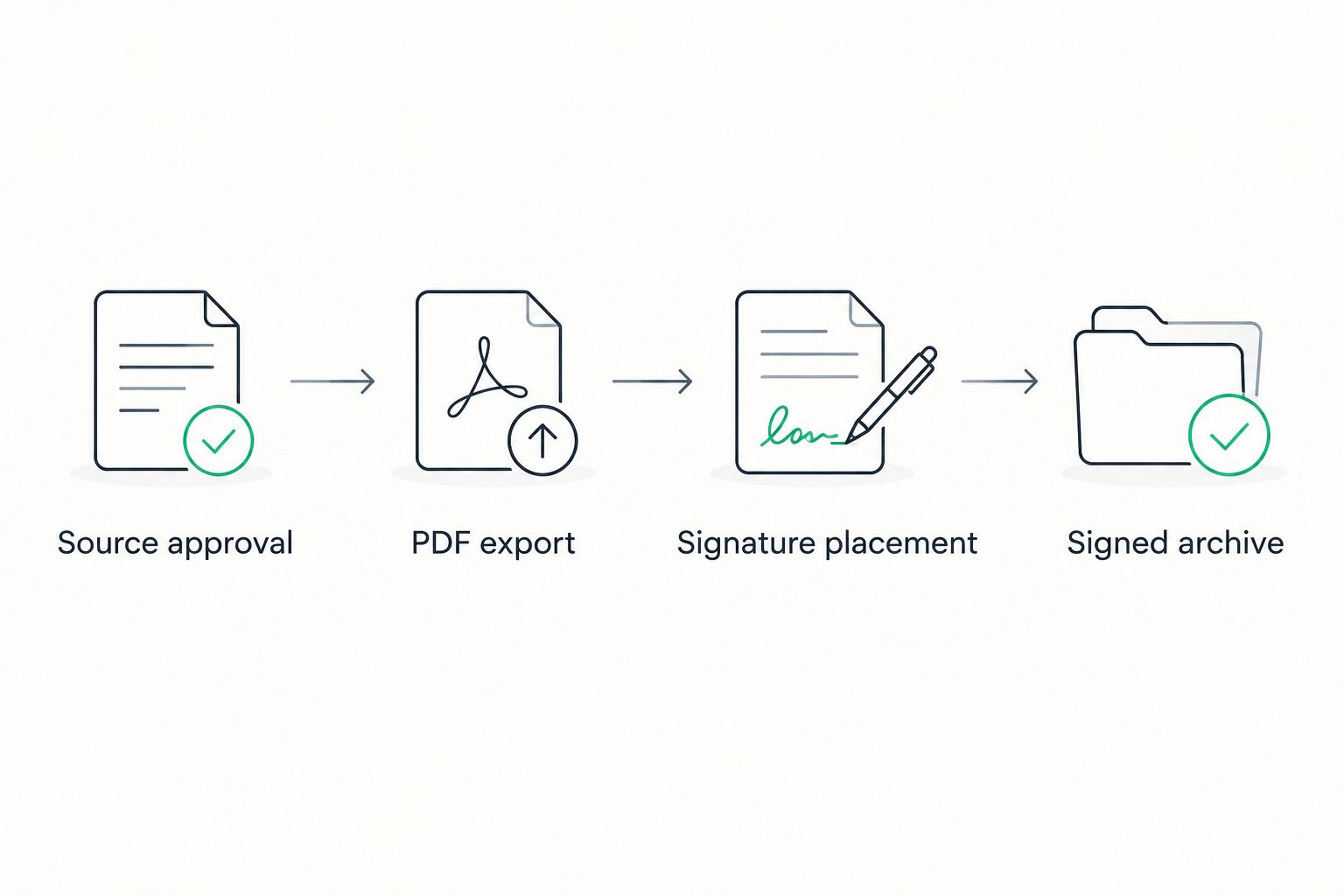
Use the same sequence for each document: Source approval, PDF export, Signature placement, and Signed archive. Separating these stages makes the handoff inspectable without pretending it is automatic.
Upload the completed document
- Open your Signed folder in Google Drive. Select New, then File upload, and choose the inspected signed PDF.
- Give the uploaded file a title that distinguishes it from the editable source and unsigned export. Include the document identity and a clear signed-status label.
- Open the uploaded PDF from Drive. Confirm that you uploaded the signed result rather than the unsigned file with a similar name.
- Select Share and review the recipients and their access. Under General access, use Restricted when access should be limited to named people, subject to your organization's policy.
- Share the completed file with the intended recipients. For view-only delivery, choose Viewer rather than granting editing rights unnecessarily.
Expected result: The signed PDF is stored in the intended folder and shared with the intended audience.
For a 2026 filing convention, a name such as Service-agreement_signed_2026.pdf separates status from document content. A filename helps people find the record; it does not prove signature validity or signer identity.
Keep the source and signed record connected through consistent naming or your team's filing register. For shared ownership and handoff rules, use the document workflows for enterprise teams guide.
When the source changes after signing
A source revision creates a new signing decision, not an update to the completed PDF. Keep the previous signed record intact and decide whether the revised wording requires a new signature.
| Workflow | Best for | Advantage | Limitation |
|---|---|---|---|
| Sign an approved export | A document whose wording is final | Keeps the signature attached to a defined version | Requires another signing cycle if approved content changes |
| Revise and sign again | A document with changed terms or corrected details | Connects a new signature to the revised content | Requires a fresh export, review, and signing handoff |
For the revision workflow:
- Return to the editable source and make the approved changes. Do not overwrite the earlier signed record.
- Export a fresh PDF and inspect it. Give the revision a distinguishable name before sending it for signature.
- Repeat the signing process with the appropriate signers. Make clear which document they are being asked to accept.
- Archive the newly completed PDF separately. Record which version is current according to your organization's document policy.
Expected result: Both the earlier signed record and the newly signed revision remain identifiable.
For recurring 2026 documents, reuse an unsigned source template rather than last month's signed PDF. Remove old recipient details and transaction-specific content before preparing the next signing copy.
Troubleshooting
The download option is unavailable
Ask the file owner or your administrator to confirm your permissions. Google Drive owners and organizational controls can restrict downloading; access to view a file does not necessarily include permission to export it. Do not bypass those restrictions by copying sensitive content elsewhere.
The PDF layout differs from the source
Return to the source and correct the layout before signing. Inspect page breaks, table widths, margins, and image placement, then export again. A spreadsheet or presentation needs a PDF layout check just as much as a text document does.
The signature is absent from the downloaded file
Reopen the document in the signing tool and confirm that you completed its signing or saving action. Download the result again and inspect that specific file outside the editor. Also check that you did not open an earlier unsigned download with a similar filename.
A recipient cannot open the Drive link
Open Share on the uploaded signed PDF and verify the recipient's email address and access level. Check the signed file itself, not just the source document. Organizational sharing restrictions can also prevent external access; ask the administrator to resolve those restrictions through an approved delivery route.
A digital signature reports that the document changed
Return to the original signed download and inspect its signature status in a viewer that supports validation. Editing, converting, or otherwise modifying a signed PDF can affect certificate-based signatures. Do not repeatedly resave it in an attempt to repair validation; obtain a clean signed copy or repeat signing from the approved source.
Customize your workflow
For a personal document, the folder sequence and final inspection provide a repeatable routine. For a team, assign responsibility for source approval, signature completion, and archival access so each handoff has an owner.
Zendocs document processing can sit between Drive export and final storage. Its role in this guide is conversion, editing, and signing—not an assumed background synchronization service.
Before automating any part of the 2026 workflow, document the manual sequence and its approval boundary. Check integration documentation for supported triggers, file access, signing actions, and error handling. A file arriving in a folder is not, by itself, evidence that its content is approved for signature.
FAQ
How do I convert Google Drive files to signed PDF?
Approve the source, export or download it as a PDF, sign it in an authorized tool, and upload the inspected result to Drive. Keep the signed copy separate from the editable source and review its sharing permissions.
Can I sign a Google Docs document without making a PDF first?
Some signing workflows operate from an editable document, but this guide uses PDF export before signing. Exporting first lets you inspect the exact page layout that will receive the signature.
Does editing a Google document update its signed PDF?
No. A downloaded PDF is separate from the Google document, so later source edits do not update it. Export and sign a revised copy when the accepted content changes.
Can Zendocs handle the document-processing part of this workflow?
Yes. Zendocs offers web-based conversion, editing, signing, and management of PDFs and other document formats. This guide uses a manual file handoff and does not assume a native Google Drive integration.
Is a visible electronic signature the same as a digital signature?
No. A visible electronic signature can show a signing mark, while a certificate-based digital signature also uses cryptographic mechanisms for validation. Confirm the recipient's required signature method before signing.
Why can't someone open my signed PDF in Google Drive?
Check the sharing settings on the uploaded signed PDF. Access to the original source does not automatically grant access to a separately uploaded file, and organizational restrictions can limit external sharing.
Should I compress a PDF after signing it?
Complete compression and other document changes before signing whenever possible. Post-signing changes can affect certificate-based signature validation, so preserve the original completed download.
One last thing
Open the final PDF from its actual Drive location before sending the link. That small check catches a surprisingly consequential mistake: correctly signing a document, then uploading the unsigned export. Verify the stored file, not just the file you remember downloading.


