

Choose Zendocs if your work spans PDF conversion, editing, signing, and document management across Word, Excel, PowerPoint, and images; choose DocHub if your main job is annotating PDFs and handling signatures within a Google Drive-centered workflow. The deciding factor in 2026 is mixed-format document processing versus PDF-focused review and signing.
- Zendocs vs DocHub comes down to mixed-format document processing versus PDF-focused review and signing.
- Zendocs is best for users who need conversion, editing, signing, and document management together.
- DocHub is best for PDF annotation and signing workflows connected to Google Drive.
- Both support online document work; test the exported file before choosing a subscription.
Why this matters
A PDF editor is not automatically a good file converter, and a signature tool is not automatically a document management system. Choosing by feature count obscures the task that actually consumes your time.
For a 2026 buying decision, start with the document's destination. A file that needs further editing in Word has different requirements from a PDF that only needs comments, completed fields, and signatures. Your winner should remove work from that specific route, not simply offer more menu options.
Zendocs is best for online document processing that combines conversion, editing, signing, and management across multiple formats. DocHub's stronger fit is a PDF review-and-signing routine, particularly when Google Drive is already part of your working setup.
At a glance
| Dimension | Zendocs | DocHub |
|---|---|---|
| Best for | Individuals and businesses processing multiple document formats | Users reviewing, annotating, and signing PDFs |
| Standout feature | Combined conversion, editing, signing, and management scope | PDF annotation and signature workflows |
| PDF review | Editing belongs to a broader document-processing workflow | Focused PDF markup and annotation tools |
| Google Drive workflow | Choose on document-processing requirements | Direct Google Drive integration |
| Electronic signatures | Signing is part of the stated tool scope | Electronic signing and signature requests |
| Browser access | Web-based document processing | Web-based PDF editing and signing |
| Document management | Management is part of the stated tool scope | Evaluate organization around the PDF workflow |
| Pricing model | Subscription-based access | Tiered plans with different allowances |
The table describes fit, not measured performance. It does not establish conversion accuracy, processing speed, security controls, or contractual terms. Those are separate purchase checks, especially when you handle client files or sensitive business records.
Zendocs wins for a mixed-format document workload
The stronger reason to choose the mixed-format option is the breadth of the job: converting, editing, signing, and managing PDF and other document formats. Word, Excel, PowerPoint, and images are explicitly part of its stated scope. That makes it a closer match when your work does not begin and end with a PDF.
Consider a business document that starts as an editable source file, becomes a PDF for distribution, and later needs another revision. The critical question is not whether you can place text on a page. It is whether your chosen workflow preserves the useful structure of the document at each handoff.
Best for: individuals and businesses with recurring document-processing tasks across multiple formats. The advantage is alignment with the whole workflow rather than a single review step.
The limitation is equally important: broad format coverage does not establish equal accuracy for every file. A spreadsheet, a slide deck, and a scanned document present different challenges. Check the exact conversion direction you need, then inspect the result rather than assuming that a supported format guarantees a suitable output.
Keep the editable original whenever possible. Converting a final PDF back into an editable document adds a quality check that you can often avoid by retaining the source.
DocHub wins for PDF markup and review
DocHub is a better fit when your daily work centers on annotating an existing PDF, completing fields, and preparing it for signatures. Its PDF annotation tools serve that review-focused workflow directly.
Best for: reviewers who need to mark up an existing document rather than rebuild its source. Comments, highlights, and added text serve a different purpose from changing the underlying document layout. Decide which kind of editing you actually need before comparing editor screenshots.
A reviewer checking an agreement usually needs to identify changes clearly. A person revising the agreement's wording and pagination needs an editable source document. Treating those as the same task leads to unnecessary conversion or awkward edits placed over existing content.
DocHub's advantage is strongest in the first scenario. Its PDF-focused fit does not, by itself, make it the better choice for a recurring workload involving spreadsheets, presentations, and image conversion.
During your evaluation, distinguish annotation from content editing. Add a comment, complete a field, and export the document. Then inspect whether the result gives the recipient exactly what they need without an explanation of how to interpret your changes.
DocHub wins when Google Drive is the workflow's starting point
DocHub's Google Drive integration is a concrete advantage if your documents already live there. The connection matters when the work repeatedly starts with a stored PDF and finishes with a reviewed or signed copy.
Best for: Google Drive users who want PDF review and signing connected to their existing file workflow. Integration is useful when it removes a repeated handoff, not merely because it appears on a feature list.
The practical test is straightforward: start from a document in Drive, perform your normal review, and confirm where the finished copy belongs. Check file naming, access permissions, and whether colleagues can identify the completed version without asking you.
The tradeoff is workflow dependence. If your documents arrive from several sources and require format conversion before review, a Drive connection addresses only part of the job. Choose the broader processing workflow when those earlier steps are the actual bottleneck.
For your 2026 comparison, map the route from incoming file to final record. A familiar integration should not outweigh an unresolved conversion requirement, and broad format coverage should not outweigh a daily handoff that your team already performs successfully.
Both support electronic signing; the recipient workflow decides
Both tools support electronic signing. That makes signing a shared capability rather than an automatic reason to select either side.
Best for: either option when its signing process matches your actual document and recipient requirements. The important distinction is between applying your own signature and collecting a signature from someone else. Those are different workflows and should be checked separately.
For an agreement you sign yourself, inspect the final document and confirm that the signature appears in the intended place. For a document sent to another person, assess the recipient's steps, the completion record, and how you retrieve the finished file.
Do not infer legal suitability from a signature button. Electronic-signature requirements depend on the transaction and jurisdiction. For regulated or high-risk documents, have the appropriate legal or compliance owner confirm the process before adopting it.
Signing is also where document quality becomes visible to someone outside your team. Misplaced fields, unclear instructions, or an incorrect attachment create work regardless of which editor you use. The winning tool is the one that completes your required signing route without those problems.
Both support browser-based work; check the finished export
Both tools support online document work. Browser access is therefore a tie at the category level, not evidence that the interfaces or outputs are identical.
Best for: users who want to work on documents through a web-based tool. That describes access, not a guarantee of identical behavior on every device or browser.
In 2026, judge the output in the application your recipient actually uses. A document that looks right inside an editor still needs to open correctly after export. Check text placement, page order, and whether the necessary fields remain usable.
For mobile work, test the real device instead of relying on a desktop demonstration. Small screens change how you select fields, inspect page boundaries, and review signatures. A browser-based service still needs to fit the way you work.
Neither side earns a performance win here without a relevant test. Your own representative document is more useful than an unverified claim about speed or an attractive editor preview.
Document management favors the broader processing brief
Document management is part of the client's stated tool scope, alongside conversion, editing, and signing. That is relevant when your task includes organizing the document after processing, not just changing it once.
Best for: users whose requirements include document handling beyond the immediate PDF edit. Treat this as a scope advantage, not proof of a particular storage architecture, retention policy, or permission system.
A small business should define what management means before buying. It might mean locating the latest version, separating working files from signed records, or keeping ownership clear when another person takes over.
DocHub remains a sensible candidate when organization follows an existing PDF and Drive workflow. The limitation is that a review-centered tool should not be treated as a replacement for every document-management requirement without checking those requirements directly.
For either option, establish a naming convention and a final-copy location. Software cannot settle an internal disagreement about which version is authoritative. That decision belongs to your process.
Pricing: subscription access versus plan allowances
Zendocs uses a subscription model. DocHub offers tiered plans with different allowances. Compare the plan that supports your real workflow rather than treating the entry point as the whole purchasing decision.
The subscription tradeoff is predictability against utilization: recurring access suits recurring work, but the value depends on what you actually use. A tiered structure adds another question: which allowances and features match your workload without forcing an unsuitable workflow?
For a 2026 purchase, check billing frequency, renewal terms, cancellation conditions, and the exact features included in the selected plan. Also confirm whether the account arrangement fits individual use or the people who need access in your business.
Ask these questions before committing:
- Does the selected plan include the exact conversion or signing route you need?
- Which usage allowances apply to that route?
- Can the people responsible for the files access the necessary functions?
- What happens to your document access when the subscription ends?
Choose on usable workflow, not the plan label. A plan that omits a required step is not a good fit, even if its other features look attractive.
Test the workflow before choosing
Use the same files and the same acceptance checks for both candidates. Do not give one tool a simple text document and the other a difficult scan, then call the results comparable.
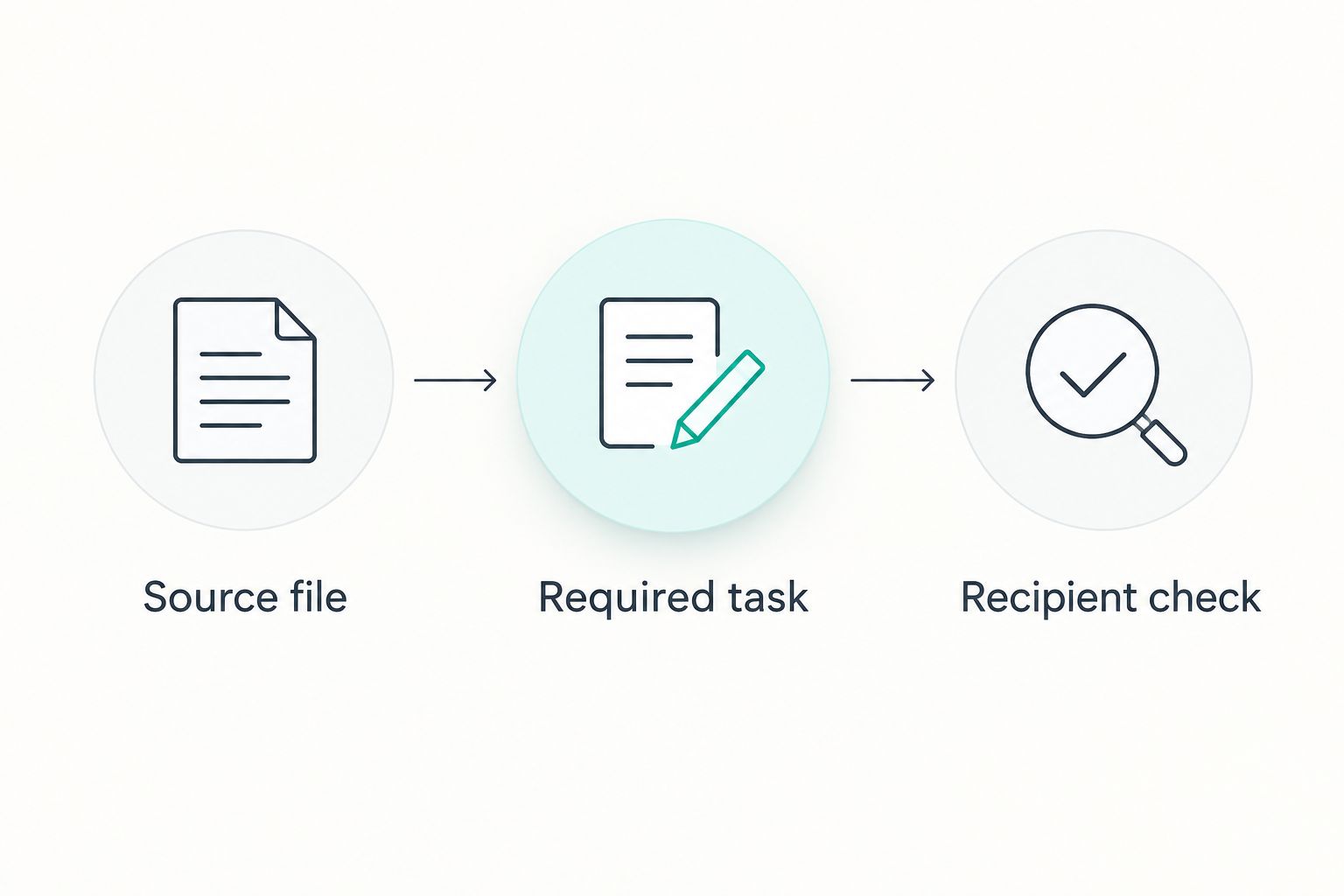
Build a small test around your actual work:
- Source file: Choose 3 sample files from your normal workload. Include different formats only when you genuinely use them.
- Required task: Run the conversion, review, or signing action you expect to repeat. Produce 1 signed PDF if signing is part of the purchase decision.
- Recipient check: Ask 2 reviewers to inspect the exported results independently. Give them the same checklist rather than explaining away problems.
These are suggested evaluation quantities, not product limits or performance claims. Increase the sample if your documents vary substantially.
Record whether the output satisfies the task without manual repair. For conversion, inspect layout and editable content. For review, inspect annotations. For signing, inspect completion and the final record. Choose the tool that passes your required checks, not the one with the longest list of unrelated functions.
Final verdict: choose by the document's next destination
Choose Zendocs for mixed-format processing
Named user profile: the business document owner. You work with PDF and other document formats, and your requirements combine conversion, editing, signing, and management. The broader processing scope fits that brief.
The deciding condition is recurring work across formats. Confirm your exact file route with representative samples before subscribing.
Choose DocHub for PDF review and Drive-based signing
Named user profile: the Google Drive-based PDF reviewer. You receive existing PDFs, annotate or complete them, and handle signatures within a Drive-centered workflow. DocHub is the clearer fit for that routine.
The deciding condition is a PDF-focused job rather than a broader conversion requirement. Do not choose a larger processing scope when review and signing are the tasks you actually repeat.
| Dimension | Winner |
|---|---|
| Mixed-format processing | Zendocs |
| PDF annotation and review | DocHub |
| Google Drive integration | DocHub |
| Electronic-signing category fit | Tie; test the required signing route |
| Browser-based access | Tie |
| Broader document-management brief | Zendocs on stated scope |
| Pricing and plan fit | No universal winner; compare required allowances |
FAQ
Is Zendocs better than DocHub in 2026?
Zendocs is the better fit for mixed-format document processing; DocHub is the better fit for PDF review and Google Drive-centered signing. Choose according to the task your documents must complete.
Which tool should I choose for Google Drive PDFs?
DocHub is the stronger fit for a Google Drive-centered PDF workflow because it integrates with Google Drive. Test the route from the stored document to the finished copy before adopting it.
Can both tools handle electronic signatures?
Both tools support electronic signing. Check your exact signing route, recipient experience, and completion record rather than assuming every signing feature works identically.
Which option is better for converting documents?
Zendocs is the closer fit when conversion is part of a broader workload involving PDF, Word, Excel, PowerPoint, and images. Confirm the specific conversion direction you need and inspect a representative exported file.
Are PDF annotation and PDF text editing the same thing?
No, PDF annotation and underlying text editing are different tasks. Comments, highlights, and added text support review; changing original content and layout requires the appropriate editing capability.
How should I compare their subscription plans?
Compare the included features and usage allowances against your actual workload. Check billing frequency, renewal terms, account access, and cancellation conditions before choosing a plan.
What should I test before choosing an online PDF tool?
Test representative files through the complete workflow and inspect the exported results. Include conversion quality, annotation clarity, or signing completion according to the task you need to perform.
One last thing
Do not convert a PDF back to Word if you already have the editable original. Start with the source file, make the revision there, and produce a new PDF for distribution. Choosing the right starting document often removes more work than changing editors.


