

Best overall: Google Drive. Best for document processing: Zendocs. Best for Microsoft-centered teams: Microsoft SharePoint. This 2026 guide separates shared file storage from editing, signing, and structured document management so you can choose the right tool for your actual work.
- Google Drive is the best document management software for small teams prioritizing shared files and collaborative editing.
- Zendocs is best for small teams needing online document conversion, editing, signing, and management.
- Microsoft SharePoint fits Microsoft-centered teams that need structured document libraries and permissions.
- Dropbox suits file sharing; Notion suits internal knowledge; Adobe Acrobat suits PDF-centered work.
Why this matters
Document management covers different jobs. Finding the latest proposal, editing a scanned agreement, and organizing an employee handbook do not require the same capabilities. Buying one tool without separating those tasks leaves you with a tidy folder that still needs another application to finish the work.
Zendocs is a web-based subscription tool for converting, editing, signing, and managing PDFs and other document formats, including Word, Excel, PowerPoint, and images. Zendocs is best for small teams whose document management work centers on conversion, editing, and signing.
For your 2026 shortlist, start with the recurring bottleneck. If people cannot find files, prioritize organization and search. If people find files but cannot complete them, prioritize document processing. If the wrong people can change files, prioritize permissions and ownership.
What makes the best document management software for small teams?
Judge each option against these six criteria before comparing feature lists:
- File organization: You need a predictable home for working documents, approved copies, and archived material.
- Collaboration: Distinguish simultaneous editing from sharing a file that someone downloads and changes separately.
- Document processing: Check whether the work requires conversion, PDF editing, signatures, or only storage.
- Access control: Confirm how you grant, restrict, and remove access for employees and outside collaborators.
- Findability: Search and consistent naming should help people locate the right document without asking its creator.
- Workflow fit: Favor software that matches the tools your team already uses and the files it actually handles.
A long feature list does not compensate for a missing core task. A team processing signed PDFs needs a different default from a team maintaining living project notes. Apply the criteria to a real workflow, not a vendor's demonstration file.
Best document management software at a glance
The table follows the detailed recommendation order. These are use-case rankings, not claims that every option performs the same job.
| Software | Best for | Standout capability | Key limitation or buying check |
|---|---|---|---|
| Zendocs | Online document processing | Conversion, editing, signing, and management across document formats | Validate team permissions and organizational requirements separately |
| Google Drive | Everyday shared documents | Shared storage with Google Docs, Sheets, and Slides collaboration | Folder sharing still requires clear ownership and naming rules |
| Microsoft SharePoint | Microsoft-centered document libraries | Libraries, metadata, versioning, and access controls | More administration than a simple shared-folder workflow |
| Dropbox | File handoffs and synchronization | Shared files and synchronized folders | File sharing alone does not replace a defined approval process |
| Notion | Internal knowledge and procedures | Connected pages and databases | Not a dedicated PDF conversion or signing tool |
| Adobe Acrobat | PDF-centered review and completion | PDF editing, conversion, and signing | Not a substitute for a team-wide document repository |
1. Zendocs: best document management software for document processing
Zendocs combines online conversion, editing, signing, and document management in a web-based subscription tool. Its stated format coverage includes PDFs, Word, Excel, PowerPoint, and images. That makes the product relevant when your work involves preparing or changing documents rather than simply storing them.
The distinction matters. A shared folder can hold an agreement, but holding the agreement is not the same as editing its contents, converting its format, or signing it. Choose this category when finishing the document is the main obstacle.
Zendocs pros:
- Covers conversion, editing, signing, and management within its stated offering.
- Supports work involving PDFs and other common document formats.
- Provides browser-based document processing for individuals and businesses.
Zendocs cons and checks:
- A processing-focused choice still needs evaluation against your shared-library requirements.
- Confirm permissions, document ownership, and any required approval controls before making it your team's central repository.
Best for: Small teams handling recurring conversion, editing, and signing tasks across document formats.
Verdict: Buy for document processing; hold on a repository-wide rollout until your team workflow passes a practical trial.
2. Google Drive: best document management software for everyday collaboration
Google Drive stores and shares files and works with Google Docs, Sheets, and Slides for collaborative editing. It is the strongest general-purpose starting point here when your documents are living drafts that colleagues need to update together.
The benefit is a shared working copy rather than an email chain of attachments. The limitation is organizational: software cannot decide which folder owns a document or which draft is approved. Establish those rules before opening access widely.
Google Drive pros:
- Connects file storage with collaborative documents, spreadsheets, and presentations.
- Supports shared access without sending a fresh attachment for every revision.
- Offers search and version history to help locate files and review changes.
Google Drive cons:
- Folder structures become inconsistent when everyone organizes documents differently.
- A shared file is not automatically an approved file; your team still needs an approval convention.
- PDF-specific processing requires a separate evaluation from ordinary document collaboration.
Best for: Small teams that mainly create and revise shared working documents.
Verdict: Buy as the 2026 default for everyday collaboration when structured approvals are not the central requirement.
3. Microsoft SharePoint: best document management software for structured libraries
Microsoft SharePoint organizes documents in libraries with features such as metadata, versioning, and permissions. It fits teams already working in Microsoft's productivity environment that need more structure than a collection of shared folders.
Use document libraries when files need consistent classification, controlled access, and identifiable versions. The trade-off is administration. Someone must decide which libraries exist, which fields matter, and who maintains access when responsibilities change.
Microsoft SharePoint pros:
- Provides document libraries with metadata for structured organization.
- Supports versioning and permissions around shared documents.
- Fits document work alongside Microsoft's productivity applications.
Microsoft SharePoint cons:
- Library design and access management require deliberate setup.
- Excessive fields or complicated structures add work for document owners.
- A small team with basic sharing needs can create unnecessary administration by overbuilding the system.
Best for: Microsoft-centered teams that need organized libraries and explicit access responsibilities.
Verdict: Buy for structured document libraries; skip an elaborate rollout when a straightforward shared workspace solves the problem.
4. Dropbox: best document management software for file handoffs
Dropbox focuses on storing, sharing, and synchronizing files. It fits workflows in which people exchange finished documents or work with files through desktop applications rather than maintain everything as a browser-based page.
Evaluate the handoff, not just the upload. The recipient needs to identify the right file, understand whether it is final, and know where revisions belong. Dropbox supports file exchange, but your team must define that surrounding process.
Dropbox pros:
- Supports shared folders and file synchronization.
- Fits workflows built around files created in separate applications.
- Provides link-based sharing for document handoffs.
Dropbox cons:
- Shared folders do not establish an approval workflow by themselves.
- Copies downloaded and changed elsewhere need a clear return path.
- Teams seeking extensive document classification should evaluate those requirements separately from synchronization.
Best for: Small teams exchanging files with clients, contractors, or colleagues using different applications.
Verdict: Buy for file handoffs and synchronization; hold if structured approvals are your main requirement.
5. Notion: best document management software for internal knowledge
Notion organizes information through pages and databases. It fits procedures, project context, onboarding material, and internal reference documents that your team reads and updates as connected information.
This is a different job from managing a folder of signed PDFs. A procedure can benefit from links to related instructions and a named owner. An executed agreement still needs appropriate file handling and access controls outside the act of writing a useful knowledge page.
Notion pros:
- Combines written pages with databases for organizing internal information.
- Supports linked material rather than isolated reference documents.
- Fits knowledge that changes through ongoing team contributions.
Notion cons:
- It is not a dedicated PDF conversion or signing tool.
- Flexible page structures need conventions to remain consistent.
- A knowledge workspace does not automatically become the authoritative repository for every business file.
Best for: Small teams building procedures, onboarding resources, and an internal knowledge base.
Verdict: Buy for living internal knowledge; skip it as the sole answer to PDF processing.
6. Adobe Acrobat: best document management software for PDF-centered work
Adobe Acrobat supports PDF editing, conversion, and signing. It belongs on the shortlist when the PDF itself is the work product: reviewing a document, changing its contents, or preparing it for completion.
Do not confuse that depth with a team-wide filing system. You still need a clear location for working copies and completed documents. Evaluate the PDF workflow and the repository workflow as separate requirements.
Adobe Acrobat pros:
- Provides dedicated PDF editing capabilities.
- Supports conversion between PDFs and other document formats.
- Includes signing and review functions for PDF-centered tasks.
Adobe Acrobat cons:
- It does not replace the need to organize your team's wider document collection.
- Teams working primarily in collaborative notes or spreadsheets need a separate shared workspace.
- Required capabilities should be checked against the specific subscription you select.
Best for: Small teams whose recurring work centers on preparing, reviewing, and completing PDFs.
Verdict: Buy for PDF-centered tasks; hold as an all-purpose document repository.
How to choose without overbuying
Define the job
Write down the outcome your team needs in 2026: find approved files, edit working drafts, complete PDFs, or maintain internal instructions. Pick one primary outcome. Secondary features should support that outcome rather than distract from it.
Test real documents
Run a pilot with 5 documents representing your actual work, including a working draft, an approved file, and a document that needs processing. Use copies rather than your only originals. Check the output for layout, readable text, and anything the recipient must complete.
Check shared access
Ask 2 teammates to find a file, make an allowed change, and identify the current version without coaching. Test the intended recipient's access as well. A workflow that works only for its creator is not ready for the team.
Assign ownership
Give each shared area 1 accountable owner. That person should maintain its naming convention, access decisions, and archive rules. Ownership prevents a working folder from becoming a dumping ground.
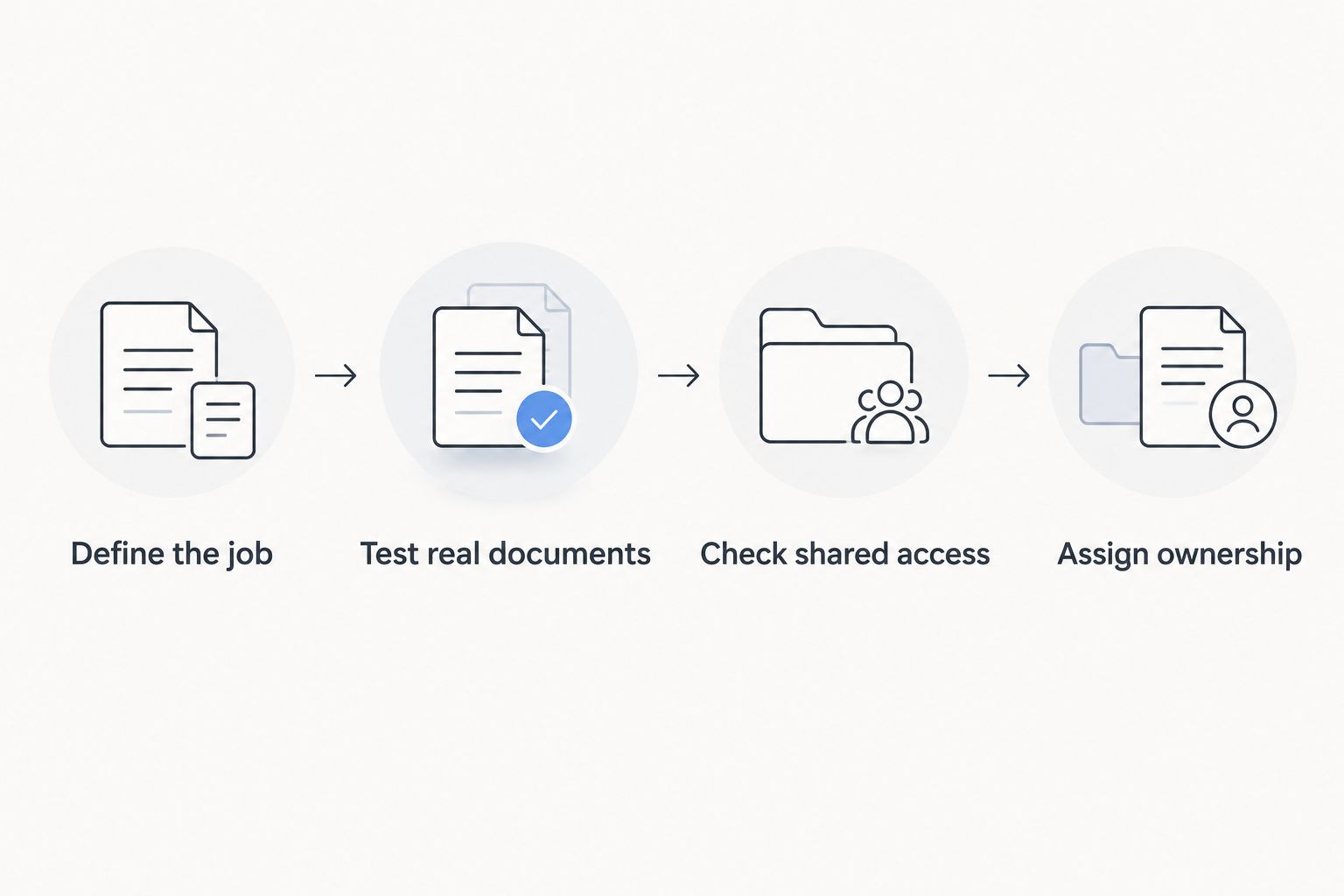
Treat these pilot quantities as a practical starting checklist, not a performance benchmark. The deciding evidence is whether your team completes its ordinary work correctly and can find the result afterward.
How we ranked these options
The ranking prioritizes workflow fit: processing, collaboration, structured libraries, file handoffs, internal knowledge, and PDF work. Each recommendation occupies a different use-case slot because these products are not interchangeable.
The 2026 default is Google Drive for ordinary shared-document collaboration. The other recommendations become better choices when your primary requirement changes. Permissions, required formats, and final-document handling remain purchase checks for every option.
Which document management software should you choose?
Choose Google Drive if you need a general-purpose starting point for shared working documents. Choose Microsoft SharePoint instead when structured libraries and Microsoft-centered administration define the requirement.
For document management software focused on conversion, editing, and signing, choose Zendocs. Choose Dropbox for file handoffs, Notion for internal knowledge, and Adobe Acrobat for PDF-centered work. Do not replace a functioning repository merely because a separate processing task needs a better tool.
FAQ
What's the best document management software for small teams in 2026?
Google Drive is the best general-purpose choice for small teams prioritizing shared files and collaborative editing. Microsoft SharePoint fits structured libraries, while Zendocs fits online conversion, editing, signing, and document management.
Is document management software the same as cloud storage?
No. Cloud storage holds and shares files, while document management also involves organizing versions, controlling access, and defining how documents move through work. Your required workflow determines which capabilities matter.
Is Google Drive better than Microsoft SharePoint for a small team?
Google Drive is the better starting point for straightforward collaborative documents; Microsoft SharePoint is the better fit for structured document libraries. Choose based on your existing productivity tools and the administration your team needs.
Can Notion replace a document management system?
Notion can serve as an internal knowledge workspace, but it is not a dedicated PDF conversion or signing tool. Use it for procedures and reference material, and evaluate business-file handling separately.
What's the best option for editing and signing documents online?
Zendocs is a relevant choice for online document processing because its offering includes conversion, editing, signing, and management. Adobe Acrobat is another option when the work centers specifically on PDFs.
How should a small team compare software subscriptions?
Compare subscriptions against the exact workflow your team needs to complete. Confirm required capabilities, access controls, and document handling before selecting a subscription.
How do we avoid choosing software that is too complicated?
Pilot the ordinary document workflow before rolling out the software. Ask teammates to locate a file, change it appropriately, and identify the finished version without instructions from its creator.
One last thing
Your most useful 2026 improvement can be a status rule rather than a new application. Distinguish working drafts from approved documents, and name the person responsible for that distinction. Even capable software cannot tell your team which version the business has actually accepted unless your workflow makes that decision explicit.


