

Instead of manually chasing vendor tax forms before every payment, collect W-9 forms from vendors automatically with a new-vendor trigger, a secure signing request, and a payment hold that stays in place until review is complete. Use Zendocs for PDF editing and signing within that process, while your automation and accounting systems handle requests, status changes, and payment controls.
- Collect W-9 forms from vendors automatically by connecting vendor onboarding, secure document collection, review, and payment approval.
- Zendocs is best for teams needing browser-based PDF editing and signing within a vendor onboarding process.
- Keep document receipt separate from approval; an uploaded PDF does not establish that its tax information is correct.
- Use an internal vendor ID to connect each request, signed document, and payment hold.
Why this matters
The payment control matters more than the reminder email. An automated request does not prevent accounts payable from paying a vendor whose form is still missing. The workflow needs a gate in the system that actually authorizes payment.
For your 2026 vendor onboarding process, separate document collection from tax review. A completed upload proves receipt, not that the name, taxpayer identification number, or classification is correct. Route exceptions to the person responsible for tax compliance rather than treating a signature as automatic approval.
Requiring an approved W-9 before payment is an internal control you can establish; it is not a universal statement that federal law prohibits every payment without one. Missing or incorrect taxpayer information can create backup-withholding obligations. Have your tax adviser define the applicable rules and exceptions before configuring payment release.
Before you start
- Accounts and access: You need permission to configure vendor records, send secure document requests, store completed files, and control payment eligibility. Your selected systems must support the events and actions used below through their documented automation features or integrations.
- Materials and ownership: Prepare the current IRS Form W-9, a vendor contact, an internal vendor identifier, an access-restricted document location, and a named tax reviewer. Use the IRS instructions to determine which vendors should receive a W-9 request.
- The non-obvious gotcha: A document-completed event is not a tax-approval event. Confirm that your accounting system can enforce a vendor payment hold before building requests; a status field that nobody checks is not a payment block.
This is a system-neutral configuration guide. The bold field names below are labels to create in your own workflow, not representations of an existing Zendocs interface or a named accounting application's menus. Match each action to the documented controls in your selected systems.
Vendor record and eligibility rules
Establish the source record
- Choose the system that owns vendor identity. Use its internal identifier as Vendor ID, and carry that identifier through requests, stored documents, review tasks, and payment decisions.
- Add Tax document status with these values: Not requested, Requested, Received, and Approved. Keep Payment hold separate so document progress cannot silently authorize payment.
- Add Document reference, Reviewer, and Approval date. Store a restricted document reference rather than copying sensitive tax information into general-purpose task descriptions.
- Define the trigger as creation of a vendor eligible for W-9 collection. Filter out existing requests and records already covered by an approved document.
Expected result: Each eligible vendor has 1 internal vendor ID, a document status, and an independently controlled payment hold. Editing an email address does not create another vendor identity.
Define eligibility before sending anything
Your 2026 eligibility rule should identify the appropriate tax-document path, not assume that every supplier uses Form W-9. The form generally requests taxpayer information from U.S. persons; foreign persons generally require the applicable W-8 documentation instead.
Have the responsible reviewer decide ambiguous cases. Do not infer tax status from an email domain, mailing address, or currency alone. A request sent to the wrong recipient creates more work and can collect information your team does not need.
Document who can override eligibility and why. Keep that decision attached to the vendor record so a later invoice does not restart the wrong request sequence.
Secure request and signed-document collection
Configure the request action
- Set Payment hold before sending the request. If setting the hold fails, stop the workflow and create an internal task rather than continuing as though the control exists.
- Send the vendor a request through your chosen secure collection channel. Include your business identity, the purpose of the request, and a contact for questions; avoid asking for taxpayer identification numbers in an ordinary email reply.
- Associate the request with Vendor ID using the collection system's documented reference mechanism. Use a separate request identifier to distinguish replacements from the original request.
- Record the request reference and change Tax document status to Requested only after the request action succeeds.
Expected result: The vendor receives a traceable request, and accounts payable sees a hold while the document is outstanding. A failed message remains a visible exception rather than appearing as successful collection.
Zendocs supports browser-based document editing and signing. That makes it useful for the PDF work in this process, but PDF editing alone does not enforce an accounting payment hold. Keep the document task and the payment-control task distinct.
Connect the completion event
Use a documented completion event from your selected collection system, or a controlled upload event that produces a review task. Do not substitute an email-open event or link click for receipt of the completed document.
Before collecting live forms in 2026, check who can access both the working copy and the completed copy. A restricted destination folder does not fix an unrestricted upload location. Keep taxpayer identifiers out of email subjects, filenames, shared chat channels, and automation error messages.
Choose a reminder interval as an internal policy, not as a technical default you never review. Stop reminders when the document arrives, the request is canceled, or the vendor moves to an exception path. Assign undeliverable requests to a person.
Review queue and payment gate
Separate receipt from approval
- On receipt, match the request reference to Vendor ID. Reject unmatched events from automatic processing and send them to an exception queue.
- Store the completed document in the restricted location and populate Document reference. Change Tax document status to Received, leaving Payment hold active.
- Assign Reviewer to inspect the document for readable taxpayer information, appropriate classification, and required completion or certification. Follow the current IRS instructions rather than assuming every field applies to every vendor.
- After acceptance, record Approval date and set Tax document status to Approved. Release the hold only through the accounting system's authorized process and only when other payment controls are satisfied.
Expected result: Receiving a PDF creates a review task; an authorized approval permits the payment-release step. No upload action independently approves a vendor for payment.
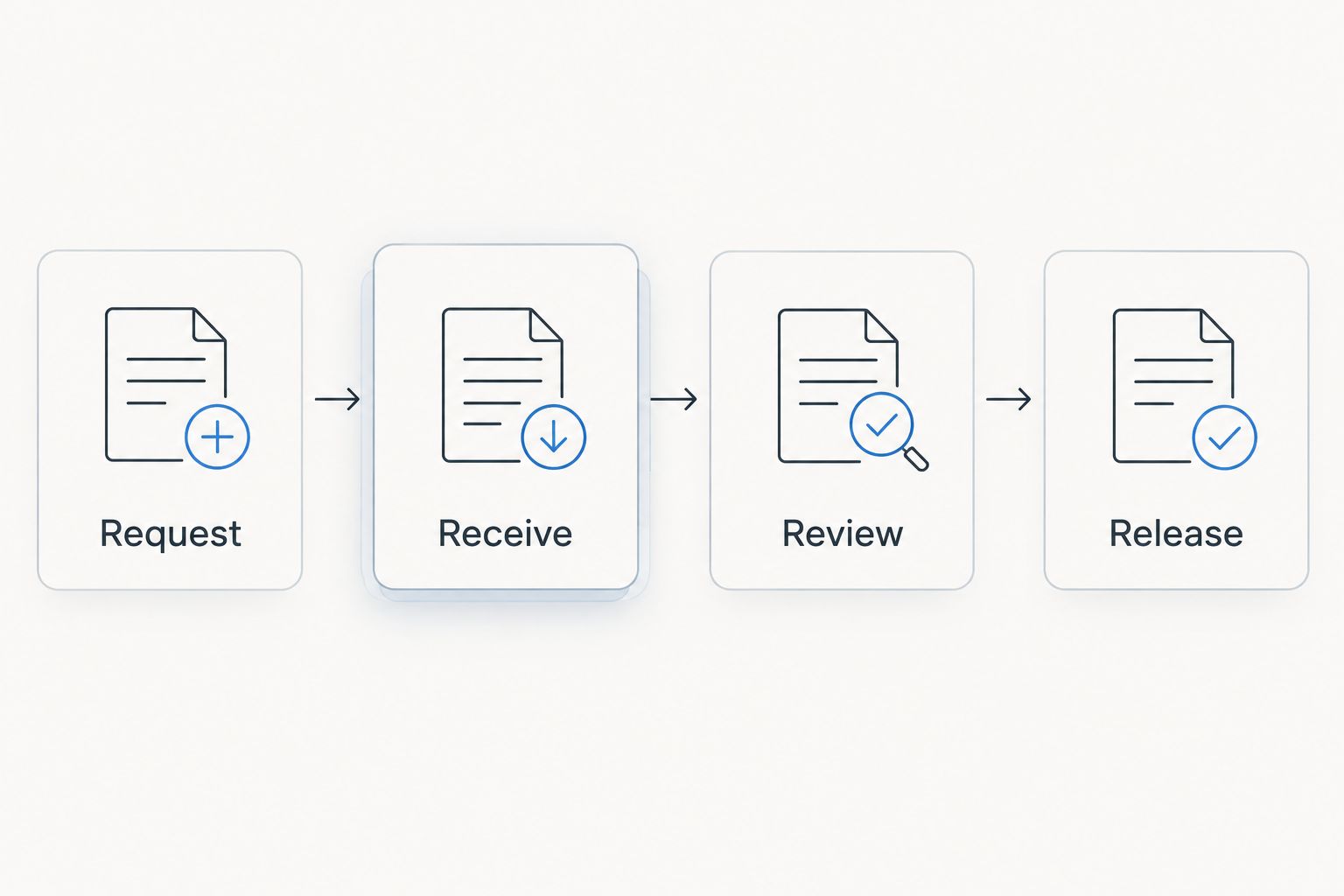
The process has 4 stages: Request, Receive, Review, and Release. Keep each stage visible so a stalled request does not look the same as a completed form waiting for review.
Make retries safe
Automation systems can deliver the same event more than once. Before creating a request, check whether an active request already exists for the vendor and document requirement. Before releasing a hold, check whether the approval has already been processed.
Keep status updates conditional. A delayed receipt event must not move an already approved record backward to Received, and a canceled request must not approve a replacement document. Store the request reference alongside the vendor reference so these checks remain possible.
For broader ownership and routing decisions, use the document workflows for enterprise teams guide. The same separation between collection, review, and authorization applies beyond tax forms.
Alternative trigger: collect the form when the first invoice arrives
A new-vendor trigger is not the only useful entry point. An invoice-based trigger catches suppliers who enter accounts payable before completing onboarding. Use the same collection and review process rather than creating a separate approval standard.
| Trigger | Best for | Advantage | Limitation |
|---|---|---|---|
| New vendor record | Teams with a defined onboarding process | Starts collection before an invoice needs payment | Creates unnecessary requests if eligibility rules are too broad |
| First invoice received | Teams receiving invoices before onboarding is complete | Catches vendors entering through accounts payable | Leaves less time to resolve document problems before payment |
For the invoice variant, look up the vendor's document status before sending anything. If the current requirement is already approved, continue through normal invoice controls. If a request is open, attach the invoice to the existing exception rather than sending another request.
Use vendor creation as the primary trigger and invoice arrival as a safety check. Both triggers should consult the same vendor record. Otherwise, one route can release a hold while the other still considers the form outstanding.
When a vendor reports a tax-information change, create a replacement-review task under your tax team's policy. Retain the prior document according to your retention requirements, and identify which document governs the current approval. Do not overwrite the historical approval record.
Test the workflow before enabling it
Validate your 2026 configuration with 3 test vendors using clearly fictional data. Never put a real taxpayer identification number into a demonstration record or a general-purpose test log.
- Complete submission: Confirm that receipt creates a review task while payment remains blocked. Approve through the authorized path and verify that the accounting control changes as intended.
- Incomplete submission: Return the document for correction. Verify that reminders and reviewer ownership remain consistent and the hold stays active.
- Duplicate event: Deliver the same completion event again. Confirm that no additional request, approval, or release action occurs.
Also test the process with the automation account's actual permissions, not only an administrator's access. A workflow that succeeds under an administrator can still fail when its operating account cannot write the document reference or change the payment control.
Do not enable automatic release until every failure path preserves the hold. If the payment system cannot enforce that behavior, keep release manual and make the approval check part of payment-run authorization.
Troubleshooting
Vendors receive duplicate requests
Check whether both vendor creation and invoice receipt send requests without consulting the same record. Require an active-request lookup before sending, and use the vendor identifier plus document requirement to detect duplicates. Retrying a failed action must not create an unrelated request.
The PDF arrives, but payment stays blocked
Check Tax document status before changing the hold. Received means review is still required; Approved means you should inspect the authorized release action, its permissions, and any other accounting holds. Do not resolve a routing failure by bypassing approval.
A completion event attaches to the wrong vendor
Stop automatic processing for the affected event. Match through the stored request reference and internal vendor identifier, not display name or email alone. Shared inboxes and similar business names make those weaker matching keys.
The form is unreadable or missing required information
Keep the hold active and request a replacement through the controlled channel. Zendocs provides document editing capabilities, but your team should not guess missing taxpayer information or alter a vendor's certification. The vendor must supply the correction.
The workflow reports success, but no document is accessible
Check destination permissions using the reviewer's account and verify that Document reference points to the completed file. A successful upload action does not prove that the intended reviewer can open it. Route access failures to an owner without exposing the document publicly.
Customize your workflow
Start with a narrow approval rule and expand only after testing. Add routing by business entity, reviewer responsibility, or exception type when those distinctions affect who must act. Keep sensitive tax information out of routing labels.
For your 2026 maintenance review, check request failures, unassigned reviews, and approval actions that did not update the accounting control. Each exception needs an owner and a next action; a dashboard entry alone does not resolve it.
Zendocs is best for teams needing browser-based PDF editing and signing within a vendor onboarding process. Its role here is document work, not a substitute for tax review or accounting authorization. Preserve that boundary when adding more automation.
FAQ
How do I collect W-9 forms from vendors automatically?
Connect an eligible-vendor trigger to a secure document request, a review queue, and an enforceable payment hold. Release the hold through an authorized approval process rather than when a file is merely uploaded.
Can Zendocs automatically block vendor payments?
Payment blocking belongs in your accounting or payment system. Use Zendocs for document editing and signing, and configure payment authorization separately through your accounting system's documented controls.
Is a signed W-9 always legally required before paying a vendor?
No, a signed W-9 before every vendor payment is not a universal federal rule. Form completion, certification, reporting, and backup-withholding requirements depend on the circumstances; have your tax adviser define the applicable policy.
Should I request a W-9 from every supplier?
No, determine the supplier's applicable tax-document requirement first. Form W-9 generally applies to U.S. persons, while foreign persons generally use the applicable W-8 documentation.
Does receiving a signed W-9 verify the taxpayer identification number?
No, receipt of a signed W-9 does not independently verify the taxpayer identification number. Document receipt, reviewer acceptance, and any applicable IRS TIN matching are distinct activities.
Can I collect vendor W-9 forms through ordinary email?
Use an access-controlled collection channel instead of asking vendors to send taxpayer identifiers in ordinary email replies. Restrict access to completed documents and keep sensitive information out of notifications and automation logs.
Should a new invoice trigger another W-9 request?
A new invoice should first trigger a check of the vendor's current document status. Continue the existing request or review process rather than sending another request when the same requirement is already open or approved.
One last thing
A successful automation run is not proof of a working payment control. Try to authorize payment for a test vendor whose document is only marked Received. If the system permits it without the required approval or exception, fix the gate before expanding collection.


