
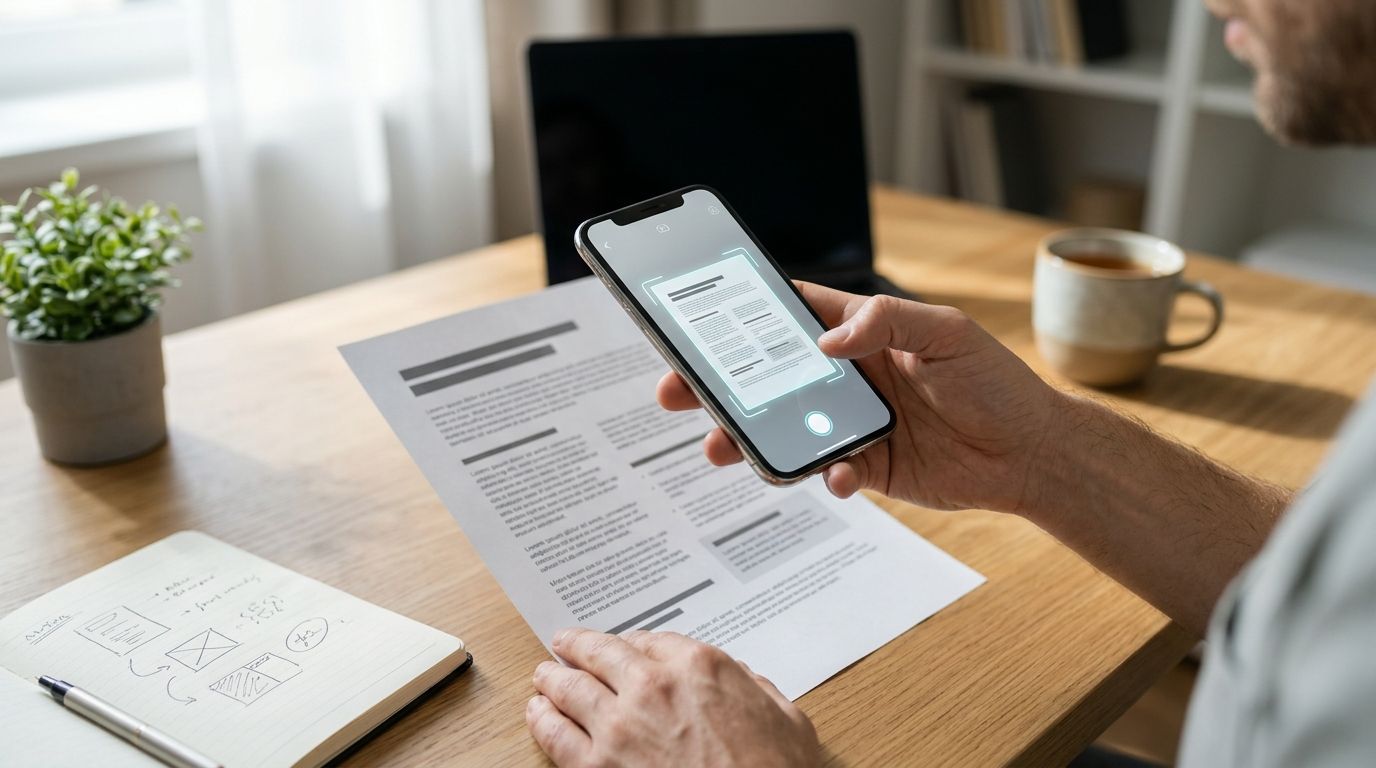
Instead of manually photographing paperwork and retyping its contents, scan into Google Drive on your phone so optical character recognition (OCR) creates a searchable PDF during the scanning workflow. Save the PDF, then test the downloaded file—not just Drive search—to confirm its text is searchable wherever you send it.
- To scan document to searchable PDF on phone, use Google Drive scanning with OCR, then verify the exported PDF.
- Google Drive scanning removes the separate text-recognition step; poor capture quality still needs correction.
- Zendocs supports browser-based document conversion, editing, signing, and management after scanning.
- Search inside the downloaded PDF before relying on it for filing or sharing.
Why this matters
A PDF can contain nothing more than photographs of pages. It looks like a document, but the words remain pixels until OCR recognizes them and adds searchable text.
That distinction matters when you need to find an invoice number, copy a paragraph, or retrieve an old agreement. A successful upload does not prove that text recognition worked. Neither does finding a file through a cloud service's search index: the exported PDF needs its own usable text layer.
Zendocs is best for the browser-based PDF editing and signing stage of this workflow. Use Zendocs for its stated document-processing functions; keep capture and OCR verification as separate checkpoints rather than assuming every PDF editor performs them.
The practical goal for your 2026 document workflow is simple: capture once, recognize the text, and keep a verified PDF instead of a collection of camera images.
Before you start
- Access and materials: Have Google Drive installed, a signed-in Google account, camera permission, and a printed document. This walkthrough uses the Android scanning workflow; screen arrangements differ across devices and app versions.
- A destination and a test reader: Choose a Drive folder you can write to, and have a PDF reader that supports document search. Use ordinary, non-sensitive paperwork for your first test.
- The gotcha: Cloud search and PDF text search are different. A service can find a scanned document even when a downloaded copy does not contain searchable text. Test the exported file before processing a batch.
For confidential records, check your organization's approved tools and document-handling rules before uploading. This guide does not establish that any service meets your security or retention requirements.
Capture configuration
Set up the capture around legibility, not appearance. OCR needs clear letters, complete page edges, and the correct reading orientation.
- Choose a test document. Start with 3 pages containing clear printed text. Include a heading, a paragraph, and an identifier so you can check different parts of the result.
- Open Google Drive on your Android phone and tap the camera icon used for document scanning. Grant camera access if Android requests it.
- Place the first page on a flat surface with even lighting. Move the phone until the whole page fits in the capture area without cutting off margins.
- Hold the phone parallel to the page and capture it. If automatic capture takes the image before the text is sharp, retake it rather than accepting a blurred page.
- Inspect the result before adding more pages. Correct the crop and rotation, then add each remaining page to the same scanning session.
- Review the page sequence. Remove accidental duplicates and retake pages with glare, shadows, or unreadable small print.
Expected result: One scanning session contains every intended page, in order, with readable text and no cropped content.
Do not expect OCR to repair a bad photograph. If you cannot distinguish a character when zooming into the scan, recognition software has the same underlying problem. Retaking the page is more useful than repeatedly processing the same image.
Capture checks that prevent rework
Check the page corners first, then the smallest text. Automatic cropping can make a page look tidy while removing a reference number near the edge.
For folded documents, flatten the paper before capture. For glossy pages, change the lighting angle to remove reflections without tilting the phone so far that lines become distorted.
PDF output configuration
Google Drive's mobile document-scanning workflow supports searchable PDF output. Use that workflow rather than taking a normal camera photo and merely renaming or packaging it as a PDF.
- Finish reviewing the captured pages and proceed to the save screen.
- Choose PDF as the output format if a format selector appears. An image output is not the searchable PDF this workflow requires.
- Give the file a descriptive name. For example, use
2026-supplier-agreement-signed.pdfrather than leaving a generic scan name. - Select the intended destination folder. Confirm the account as well as the folder when your phone has both personal and work accounts.
- Tap Save and allow the file to finish saving and uploading before closing the app or switching accounts.
- Open the saved document and confirm that every page appears. Do not treat a thumbnail alone as proof that the complete file is ready.
Expected result: A PDF containing the scanned pages is saved in the intended Drive folder, ready for a separate text-search check.
The automation here is OCR during document scanning. It is not an unattended background workflow that watches every photo you take, and it does not create a connection between Google Drive and Zendocs.
Choose the right processing route
Both routes below can produce a searchable document. The difference is whether recognition happens during capture or after you already have an image-only PDF.
| Workflow | Best for | Advantage | Limitation |
|---|---|---|---|
| Google Drive scanning | New paper documents captured on a phone | Combines page capture and searchable PDF creation | Requires careful capture and an exported-file check |
| Separate OCR processing | Existing scans and PDFs without searchable text | Adds a recognition stage after the original capture | Adds another processing and verification step |
For the second route, use the OCR software for scanned PDFs guide to identify the type of tool you need. Choose output that retains the page image and adds searchable text when preserving the original appearance matters.
Search verification
A searchable PDF passes the test in a PDF reader, not just in a storage service. Make this the acceptance rule for your 2026 scanning process.
- Download or export the saved PDF from Drive. Open that copy in a PDF reader with document search.
- Search for 2 words that visibly appear in the document. Choose distinctive printed words, not only a common term that appears everywhere.
- Search for an identifier, such as a reference number. Compare the matched characters with the page image, especially similar-looking letters and digits.
- Try selecting and copying a short paragraph. Paste it into a plain text field and check whether words remain readable and in a sensible order.
- Repeat a search on the final page. A successful result on the first page does not establish that every page was recognized correctly.
- Keep the verified PDF as your working copy. Avoid replacing it later with a newly generated image-only version.
Expected result: Search finds visible text inside the exported PDF, and copied text reasonably matches the printed page.
The workflow has four checkpoints: Capture, PDF output, Search check, and Archive. Keep that sequence even when you change scanning apps or destination folders.
Archive configuration
A searchable file still needs a predictable home. OCR solves recognition; it does not decide which account owns a record or which copy your team should use.
- Create or select 1 destination folder for the document category you are testing. Avoid scattering the same batch across personal storage, email attachments, and shared folders.
- Apply a consistent naming pattern. A useful 2026 pattern combines the document date, subject, and document type without putting sensitive details in the filename.
- Confirm access using the account that will retrieve the document later. For shared work, check folder permissions rather than assuming every colleague can open the file.
- Complete editing, signing, or conversion only after the searchable scan passes verification. If you process the PDF again, repeat the search test on the resulting file.
- Retain or dispose of the paper according to your applicable requirements. Searchability alone is not a reason to destroy an original.
Expected result: The verified PDF has a clear filename, a known destination, and appropriate access.
Zendocs provides browser-based conversion, editing, signing, and document management. That fits the downstream processing stage, but this workflow does not assume a direct Drive integration, automatic folder monitoring, or a particular OCR feature in Zendocs.
Second variant: make an existing phone scan searchable
Use this route when the document is already a PDF but its text cannot be found or selected. You do not need to photograph the paper again if the existing scan is legible.
- Open the existing PDF and confirm that the page images are sharp enough to read.
- Submit a copy to an OCR tool that supports searchable PDF output. Keep the original unchanged while you test the result.
- Set the recognition language when the tool offers that setting. Choose the language actually printed in the document.
- Select searchable PDF output, not text-only export, when you need to retain the scanned page appearance.
- Download the processed file and repeat the search, identifier, and copy-and-paste checks above.
Expected result: The existing scan gains usable searchable text without requiring another phone capture.
The benefit is avoiding recapture. The drawback is an extra processing stage, and OCR still cannot restore detail missing from the source image. For an unreadable scan, return to the paper and capture it again.
Troubleshooting
Drive finds the document, but the downloaded PDF does not
The storage service's index and the PDF's embedded text are separate. Open the downloaded file in another search-capable PDF reader to rule out a reader problem. If text remains unavailable, process a copy through OCR with searchable PDF output selected.
Search misses words you can clearly see
Inspect the affected page for skew, blur, shadows, or an incorrect recognition language. Retake a poor capture; rerun OCR with the correct language when the image is clear. Test a distinctive printed word before deciding that the entire document failed.
Reference numbers contain incorrect characters
OCR can confuse visually similar characters, including letters and digits. Compare identifiers against the page image before using them in another system. Do not use recognized text as the sole authority for account numbers, amounts, or other consequential fields.
Only part of the document is searchable
Check the page count and inspect the pages that fail. A document assembled from several sources can contain both searchable pages and image-only pages. Apply OCR to the affected source or complete document, then verify pages from different sections.
Text search stops working after another processing step
Compare the processed file with the verified original. A later export can flatten pages into images or otherwise omit the text layer. Return to the searchable copy, change the output settings where available, and test the new result before replacing the archive copy.
Customize your workflow
Once the test succeeds, expand by document type rather than changing every part of the process at once. Keep receipts, agreements, and correspondence in their appropriate destinations, with naming rules that make sense for each category.
For a team, assign responsibility for checking OCR errors and filing the final copy. Automatic recognition removes retyping; it does not remove review of consequential information.
Use Zendocs document processing for the conversion, editing, signing, or management tasks your next stage requires. Recheck searchability after those operations instead of assuming every output preserves the original text layer.
Review your 2026 workflow whenever you change the scanning app, export settings, or PDF-processing tool. Run the same sample document through the new setup so you can compare the actual exported files.
FAQ
How do I scan a document to a searchable PDF on my phone?
Use a document-scanning workflow with OCR, such as Google Drive scanning, and save the result as a PDF. Download the file and search inside it to confirm the exported copy contains searchable text.
Does saving a phone photo as a PDF make it searchable?
No. Packaging a photo as a PDF does not by itself recognize its text. OCR must process the image and produce searchable PDF output.
Can I automatically make every camera photo a searchable PDF?
This workflow automates text recognition during document scanning, not processing of every camera photo. Start the scan in the document-scanning interface and save the completed document.
Why can Google Drive find my scan when my PDF reader cannot?
Cloud indexing and embedded PDF text are different. Test the downloaded file in a search-capable reader; if it lacks searchable text, apply OCR and export a searchable PDF.
Can I make an old scanned PDF searchable without rescanning?
Yes, if the existing page images are legible. Process a copy with OCR, select searchable PDF output, and verify the downloaded result against the original pages.
Does searchable mean I can edit the scanned page like a Word document?
No. Searchable text and editable document structure are different. Converting a scan into an editable format requires another processing step and a layout check.
Where does Zendocs fit in a phone-scanning workflow?
Zendocs fits the browser-based conversion, editing, signing, and document-management stage after capture. Keep OCR verification separate rather than assuming a scanning integration or recognition feature.
One last thing
Keep a small test scan as a permanent workflow check. Choose a document with ordinary printed text, an identifier, and multiple pages, then retain both the source and its verified searchable PDF.
When an app update or export change affects your process, run that same document again. A familiar test makes missing pages, incorrect characters, and lost searchability easier to spot than an unfamiliar batch of paperwork.


