
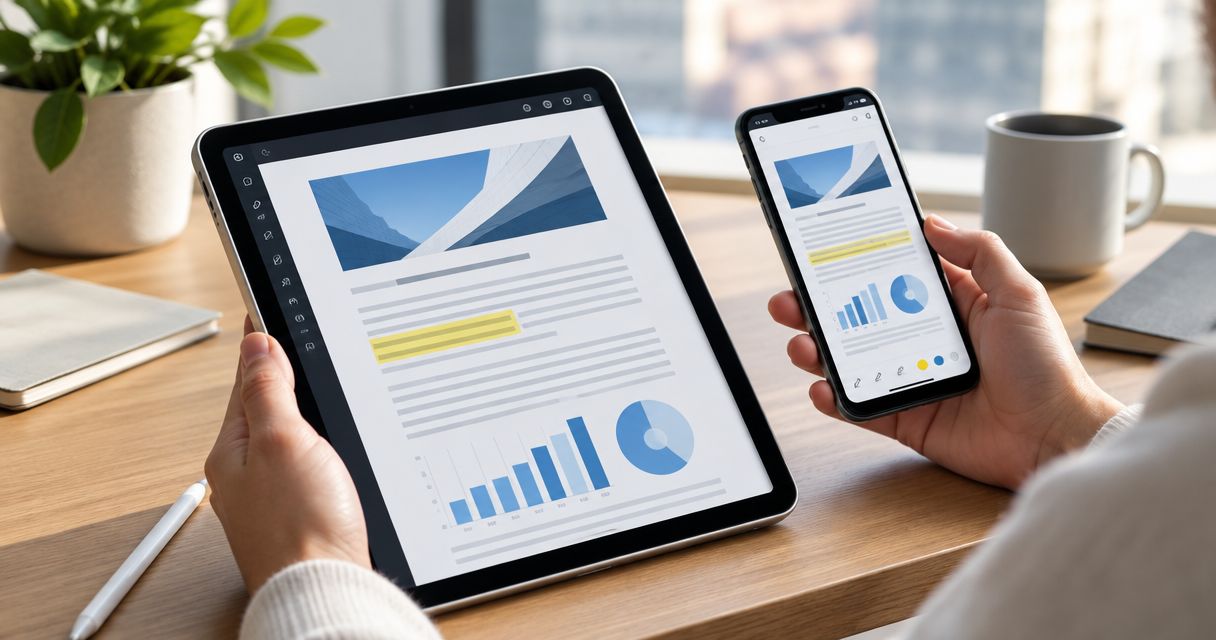
Best overall: PDF Expert. Best for Acrobat workflows: Adobe Acrobat. Best for basic markup: Apple Markup. This 2026 guide separates actual PDF editing from annotation and explains where a browser-based option such as Zendocs fits your iPhone and iPad workflow.
- PDF Expert is the best PDF editor for iPhone when your priority is editing existing PDF content.
- Adobe Acrobat suits readers who already use Acrobat for PDF editing and document review.
- Apple Markup handles highlights, handwritten notes, and visible signatures, not rewriting existing PDF text.
- Zendocs suits browser-based PDF editing, conversion, signing, and document management.
- Goodnotes suits handwritten PDF study notes on iPad rather than changes to original document text.
Why this matters
A PDF editor and a PDF annotation tool solve different problems. Adding a comment above a sentence does not change that sentence, and drawing a white box over text is not the same as removing the underlying content.
That distinction decides which app you need. If you only sign forms and highlight documents, a dedicated content editor adds unnecessary complexity. If you correct invoices, replace paragraphs, or prepare a revised document for a client, annotation alone is insufficient.
For your 2026 shortlist, start with the task rather than the app name. Your iPhone needs controls you can use on a small display; your iPad needs a workflow that takes advantage of its larger working area. Neither requirement replaces checking the exported PDF.
What makes the best PDF editor for iPhone?
The strongest choice matches the document changes you actually make. These criteria separate the recommendations below:
- Content editing: Can you change existing PDF text, or only add text boxes and comments above it?
- Annotation: Can you highlight, underline, draw, and leave feedback without changing the original wording?
- Signing: Does the tool support the signature task you need, rather than merely placing an image on a page?
- Document handling: Can you open your source file, organize your work, and export a usable PDF?
- Input method: Does your workflow center on touch, handwriting, a keyboard, or a browser?
- File suitability: Is the document ordinary selectable text, a scan, or a form with interactive fields?
Choose the editor that handles your hardest recurring task, not the one with the longest feature list. A tool that is excellent for handwritten notes is still the wrong default when you regularly rewrite existing paragraphs.
Best iPhone and iPad PDF editors at a glance
| Rank | Option | Best for | Standout capability | Key limitation |
|---|---|---|---|---|
| 1 | PDF Expert | Editing existing PDF content | Dedicated PDF text editing and annotation | Complex layouts still need export checks |
| 2 | Adobe Acrobat | Acrobat-centered document workflows | PDF editing, commenting, and form tools | Different document tasks require different tools within the app |
| 3 | Apple Markup | Basic document markup | Built-in annotation and visible signatures | Does not rewrite existing PDF text |
| 4 | Zendocs | Browser-based document processing | PDF editing, conversion, signing, and management | Browser editing and pencil-led note-taking are different workflows |
| 5 | Goodnotes | Handwritten PDF study notes | PDF import, handwriting, and annotation | Not a replacement for original-content editing |
The ranking favors PDF content editing first because that is the central query. Apple Markup and Goodnotes remain useful alternatives when your real task is annotation, while the browser option belongs on the shortlist when conversion and document management matter alongside editing.
1. PDF Expert: best PDF editor for existing content
PDF Expert combines PDF annotation with tools for editing existing text and other document content. That makes it a practical default when your task is correcting a document rather than writing comments around it.
Use PDF Expert for a PDF containing selectable text that needs a revised heading, corrected wording, or other content changes. Keep the original file separate. A PDF is a fixed-layout document, so replacing a short phrase with a longer sentence still deserves a visual check.
PDF Expert pros:
- Supports editing existing PDF text rather than relying entirely on added text boxes.
- Combines content changes and annotations in a PDF-focused application.
- Provides a suitable workflow for reviewing and revising the same document.
PDF Expert cons:
- Editing text does not turn a fixed-layout PDF into a freely flowing word-processing document.
- Scanned pages require a different approach from PDFs with selectable text.
- A longer replacement paragraph can create layout problems that need manual review.
Best for: You regularly correct existing PDF content on an iPhone or iPad and want a dedicated editor.
For your 2026 evaluation, use a representative document rather than an empty sample. Change a heading, revise a paragraph, and inspect the exported result. Those tasks reveal more about suitability than browsing the toolbar.
Verdict: Buy for recurring PDF content editing; skip if you only need highlights and signatures.
2. Adobe Acrobat: best PDF editor for Acrobat workflows
Adobe Acrobat offers PDF viewing, commenting, editing, and form-related tools on mobile. It is the clearest shortlist candidate when Acrobat already sits at the center of your document workflow.
Choose Adobe Acrobat when your work moves between reading, feedback, content changes, and forms. Be precise about the operation: completing an interactive field is different from placing text over a flat page, and both differ from editing the original document wording.
Adobe Acrobat pros:
- Brings several common PDF tasks into the same application.
- Supports comments and annotations for document review.
- Offers editing tools beyond basic page markup.
- Fits a workflow already organized around Acrobat documents and tools.
Adobe Acrobat cons:
- Having several tools does not eliminate the need to identify the correct one for your document.
- Dense forms and detailed layouts still require careful inspection on a small display.
- A visible signature alone does not establish every requirement of a formal signing process.
Best for: You already use Acrobat and want mobile PDF work to remain in that environment.
For a 2026 mobile workflow, check the actual form or document your team exchanges. Confirm that the output contains the intended edits and that interactive fields still behave as expected after saving.
Verdict: Buy for an Acrobat-centered workflow; skip if basic markup is your only task.
3. Apple Markup: best PDF option for basic annotation
Apple Markup lets you annotate documents with drawing, text, and signature tools in supported Apple workflows. It is the simplest starting point when you need to mark up a PDF rather than change its underlying content.
Use Apple Markup for highlighting passages, adding a short note, or placing a visible signature. Do not treat an added text box as an edit to the original paragraph. The original content remains a separate part of the document.
Apple Markup pros:
- Handles common annotation tasks without introducing a separate document-editing workflow.
- Supports handwritten marks and visible signatures.
- Matches straightforward review tasks that do not require rewriting the source text.
Apple Markup cons:
- Does not provide full editing of existing PDF text.
- Covering text with a shape is not secure redaction.
- A drawing-based signature is not the same as a certificate-backed digital signature.
Best for: You mainly read, highlight, add comments, and place visible signatures on PDFs.
In 2026, Apple Markup remains a sensible first check before choosing a dedicated editor. Open a copy of your document, make the required annotation, and save the result. If that finishes the job, your requirement is markup rather than content editing.
Verdict: Use for basic annotation; skip for rewriting paragraphs or removing confidential content.
4. Zendocs: best PDF option for browser-based processing
Zendocs is a web-based subscription tool for converting, editing, signing, and managing PDFs and other document formats. Its stated scope includes Word, Excel, PowerPoint, and images, so the relevant use case extends beyond marking up a PDF page.
Zendocs is best for browser-based PDF editing and conversion workflows. Consider it when your task crosses document formats or when you want to process documents through a web-based service rather than organize the work around a native annotation app.
Zendocs pros:
- Combines PDF editing, conversion, signing, and document management.
- Covers document formats beyond PDF, including Word, Excel, PowerPoint, and images.
- Provides a web-based route for individuals and businesses handling documents online.
Zendocs cons:
- A browser-based document workflow is a different fit from a handwriting-centered notebook app.
- Online document processing requires checking your organization's rules before submitting sensitive files.
- Conversion output still needs inspection when the source contains tables or complex formatting.
Best for: You need browser-based document processing and regularly move between PDF and other formats.
Before using an online processor for business documents, confirm that the service's current terms meet your handling requirements. Use a non-sensitive sample to check the editing and conversion workflow on your actual device.
Verdict: Buy for recurring browser-based processing; skip if your main requirement is handwritten study notes.
5. Goodnotes: best PDF option for handwritten study notes
Goodnotes supports importing PDFs into a handwriting-focused workspace and annotating their pages. Its role here is document study: lecture slides, reading packs, worksheets, and other PDFs you want to write on.
Choose Goodnotes when handwriting is the work rather than a finishing touch. An iPad offers more space for notes around a page, but that does not make the imported PDF's original text editable in the same way as a dedicated content editor.
Goodnotes pros:
- Supports handwritten annotation of imported PDFs.
- Fits study materials that need repeated reading and note-taking.
- Provides a notebook-oriented approach instead of treating every document as an editing job.
Goodnotes cons:
- Handwritten annotation is not a substitute for editing original PDF paragraphs.
- A study notebook workflow is not the same as preparing a revised business document.
- Exported annotations should be checked before sharing with another reader.
Best for: You annotate lecture slides, worksheets, or reading material by hand, especially on iPad.
For your 2026 study workflow, import a typical reading document and write in the places you normally use. Export a copy and open it outside the notebook app. The recipient needs the intended annotated document, not merely your working view.
Verdict: Buy for handwriting-led PDF study; skip for original-content editing.
How the ranking fits your task
PDF Expert takes the default position because existing-content editing is the priority for this guide. Adobe Acrobat takes the workflow-specific position; Apple Markup covers basic annotation; the browser service covers processing across formats; Goodnotes covers handwritten study.
These are distinct recommendations, not interchangeable winners. A tool moves up your personal shortlist when its strongest task matches yours. If handwriting is your daily requirement, Goodnotes is a better starting point than an editor chosen mainly for rewriting text.
No ranking eliminates file-level checks. A scanned form, a selectable-text report, and a PDF exported from a spreadsheet present different editing problems, even when all carry the same file extension.
Check your document before choosing an editor
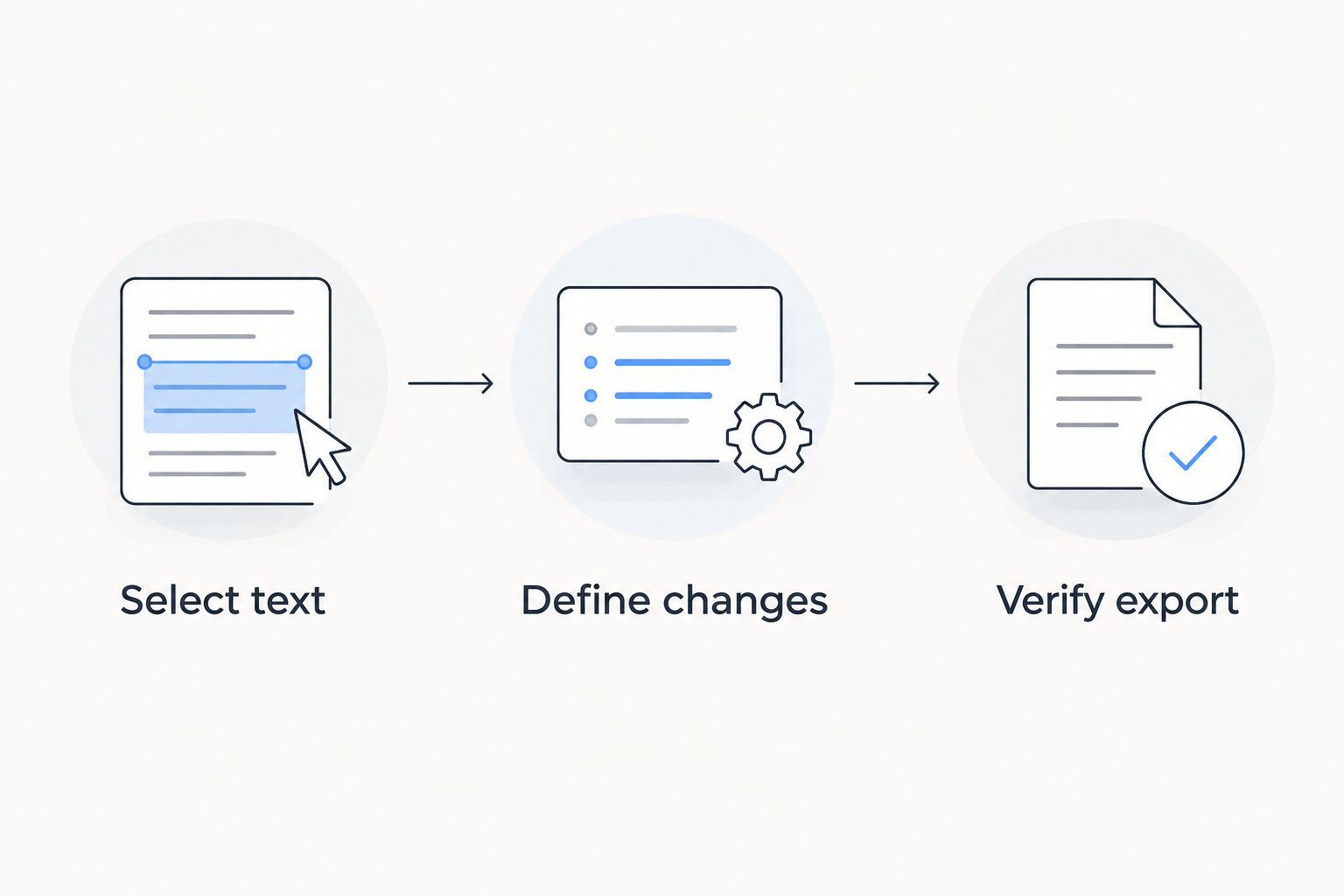
Use 3 checks to identify the right kind of tool before committing to a workflow:
- Select text: Try selecting a sentence. If the page behaves like a single image, ordinary text editing is not the right starting point.
- Define changes: Decide whether you need to annotate, replace content, complete fields, or convert the file. Write down the required result before choosing a tool.
- Verify export: Save the result and open it in another viewer. Check the visible content, page order, and any fields the recipient needs.
A scan can look identical to a text-based PDF while behaving differently underneath. Optical character recognition, usually called OCR, recognizes text from an image; annotation simply places marks on the page. Neither operation automatically guarantees a clean, editable layout.
Keep 2 versions of an important document: the untouched original and the revised export. Start with a 1-page sample when assessing an unfamiliar workflow, then inspect the full document before sending it. These are practical safeguards, not claims about app performance.
Which PDF editor should you choose?
Choose PDF Expert by default if you need to edit existing PDF content. Choose Adobe Acrobat when your work already centers on Acrobat, and choose Apple Markup when annotations finish the job.
Pick the browser-based option for document processing across formats. Pick Goodnotes for handwritten study. Do not choose a notebook app to rewrite a contract paragraph, or a content editor merely because you need to highlight a reading assignment.
For 2026, the deciding question is simple: what must change in the delivered file? Answer that first, then test the chosen tool against a document that resembles your real work.
FAQ
What's the best PDF editor for iPhone in 2026?
PDF Expert is the default recommendation for editing existing PDF content on iPhone. Adobe Acrobat suits Acrobat-centered workflows, while Apple Markup is sufficient for basic annotation.
Can I edit a PDF on my iPhone without a separate editor?
You can annotate PDFs with Apple Markup in supported Apple workflows. Rewriting existing PDF text requires a content-editing tool rather than annotation alone.
Is PDF Expert better than Adobe Acrobat on iPad?
PDF Expert is the recommendation here for a dedicated PDF content-editing workflow; Adobe Acrobat is the recommendation for an Acrobat-centered workflow. Check the same representative document in the tool that matches your tasks.
What's the best PDF app for handwritten notes on iPad?
Goodnotes is the recommendation here for handwritten notes on imported PDFs. It suits study materials, but it is not a replacement for editing original PDF paragraphs.
Can Zendocs handle more than PDF editing?
Zendocs offers web-based conversion, editing, signing, and document management. Its stated document formats include PDF, Word, Excel, PowerPoint, and images.
Why can't I select the text in my PDF?
A scanned PDF can contain page images rather than selectable text. OCR recognizes text from those images, while annotation tools only add marks or comments.
Is covering PDF text with a white box safe redaction?
No, covering text with a white box is not secure redaction. The underlying content can remain in the document; use a redaction workflow and verify the exported result.
One last thing
Reopen the exported PDF before you send it. Your editing view is not the final deliverable, and a document that looks correct inside an app still deserves inspection in another viewer.
Check changed lines, signatures, tables, and page breaks. That final review protects the result regardless of which editor you choose.


