
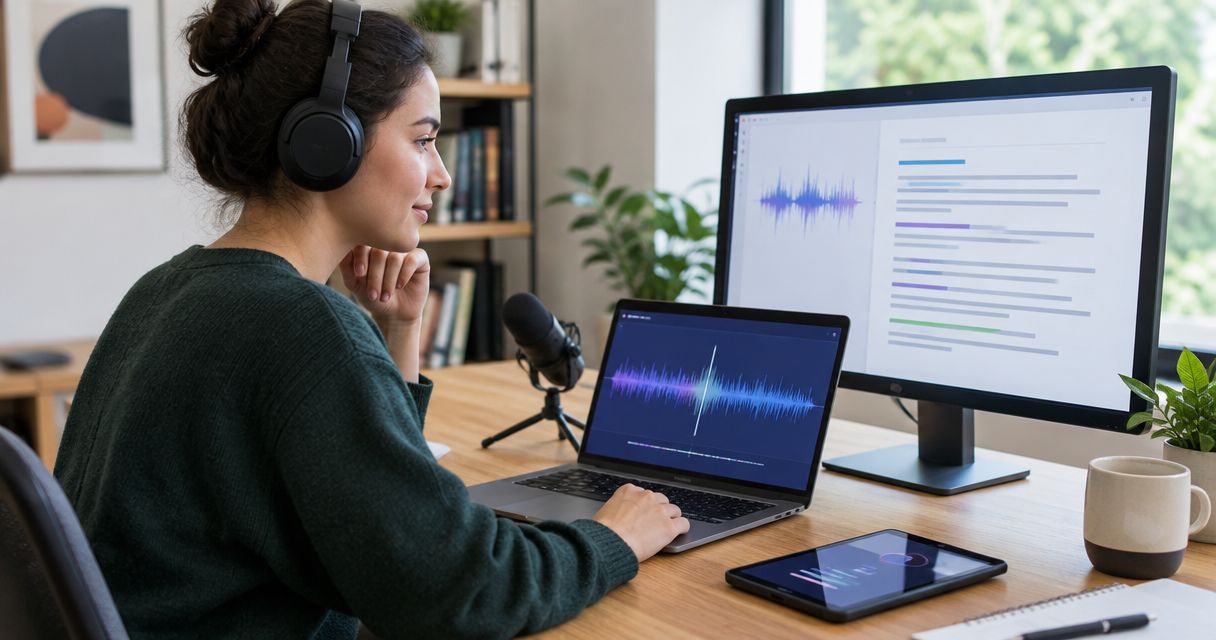
Best overall for editing audio and video: Descript. Best for meeting notes: Otter. Best for local transcription: OpenAI Whisper. This 2026 guide compares transcription tools by the work you need to finish: editing recordings, documenting conversations, reviewing interviews, or keeping processing on your own computer.
- For best audio and video transcription tools 2026, choose Descript when transcript editing and media editing belong together.
- Otter fits meeting notes; Rev fits workflows that require a human transcription service.
- OpenAI Whisper fits technical users who want local speech-to-text processing.
- Zendocs handles document conversion and editing after transcription; it is not a transcription recommendation.
Why this matters
A readable transcript, a meeting summary, and a subtitle file are different deliverables. Choose the wrong workflow and you create another editing job before you can use the recording.
For your 2026 shortlist, start with the output rather than the upload screen. A researcher needs dependable source text; a video editor needs text connected to the recording; a meeting organizer needs searchable conversation notes.
Zendocs supports document conversion, editing, signing, and management. That document-processing role belongs after transcription, not in place of a speech-to-text tool.
What makes the best transcription tools?
Use these criteria before comparing individual products:
- Output fit: Choose editable text for research, captions for video, or notes for meetings. Check the actual export you need.
- Correction workflow: You should be able to locate a questionable passage, hear the source, and correct it without losing your place.
- Speaker handling: Test whether the workflow separates speakers clearly enough for your interviews or meetings.
- Data handling: Check where recordings are processed, who can access them, and how deletion works before uploading sensitive material.
- Operating effort: Decide whether you want a browser-based workspace, a human transcription service, or software you run yourself.
- Handoff quality: Open a sample export in its destination application. Useful text matters more than an impressive demonstration.
For a 2026 evaluation, use the same 5-minute recording across your shortlist. Include an unfamiliar name, overlapping speech, and a quiet speaker. This is a suggested test, not a published accuracy benchmark.
Best transcription tools at a glance
| Tool | Best for | Standout feature | Key limitation |
|---|---|---|---|
| Descript | Editing podcasts and videos through text | Transcript-based media editing | More editing workspace than a text-only task needs |
| Otter | Capturing and revisiting meetings | Meeting transcription and conversation notes | Meeting-oriented workflow is not a video-editing workspace |
| Rev | Ordering human transcription | Human transcription service alongside automated options | Requires a service handoff rather than entirely self-managed work |
| OpenAI Whisper | Technical users running transcription locally | Open-source speech recognition software | Setup and surrounding workflow require technical work |
| oTranscribe | Manually transcribing interviews | Audio playback and text editing in one browser workspace | You type the transcript yourself |
These are workflow recommendations, not an accuracy leaderboard. Recording quality, language, microphone placement, and speaker overlap affect the result; a single universal winner would hide those differences.
1. Descript: best transcription tool for podcast and video editing
Descript connects a transcript to an audio or video editing project. Editing the text can change the associated media, making the transcript part of production rather than a separate document you read afterward.
Best for: Creators who need to turn recordings into edited episodes or videos. Descript is the strongest default here when transcription and editing are the same job.
Descript pros
- Transcript-based editing connects spoken words to the media timeline.
- Audio and video work can stay within the same editing environment.
- Corrections and production decisions happen close to the source recording.
Descript cons
- A full media editor adds unnecessary workflow when you only need plain text.
- Cutting a transcript still requires listening for pacing and checking the resulting edit.
Choose Descript when you expect to remove sections, rearrange spoken material, or produce a finished recording. Do not choose it solely because the upload produces readable text; the editing connection is the reason it takes the top slot.
During your trial, remove a sentence that contains background sound or overlapping speech. Listen across the edit boundary, rather than judging the result from text alone.
Verdict: Buy for transcript-led media production; skip for a text-only archive.
2. Otter: best transcription tool for meeting notes
Otter centers on recording, transcribing, and revisiting conversations. Its meeting-oriented workspace suits teams that need to review what people discussed rather than edit a finished video.
Best for: Meeting organizers who need conversation notes and searchable transcripts. In a 2026 shortlist, give Otter the meeting role instead of expecting it to replace a production editor.
Otter pros
- Meeting transcription keeps discussion text available for later reference.
- Speaker-oriented transcripts help readers follow a conversation.
- Conversation notes support review without replaying an entire recording.
Otter cons
- Meeting notes are not a substitute for a checked, verbatim transcript.
- A meeting-centered workspace does not provide the same purpose as transcript-based video editing.
Evaluate Otter with the meeting conditions you actually have. A quiet presentation does not reveal how your weekly discussion sounds when several people interrupt each other.
Check names, decisions, and assigned actions against the recording before distributing notes. A readable summary is useful, but it does not prove that every commitment has been captured correctly.
Verdict: Buy for recurring meeting documentation; skip when your main task is editing media.
3. Rev: best transcription option for a human service handoff
Rev offers human transcription as well as automated transcription services. Its distinct role in this list is letting you commission a transcript instead of doing every stage yourself.
Best for: Researchers and business users who want a human transcription service. Choose that route deliberately; human and automated transcription are different workflows, even when the same provider offers both.
Rev pros
- Human transcription provides an alternative to an entirely automated first draft.
- A service handoff reduces the amount of initial typing you perform yourself.
- Transcription and captioning services address different text deliverables.
Rev cons
- Sending recordings to an outside service requires a data-handling review.
- A commissioned transcript still needs checks for specialized names and intended use.
Before ordering, define whether you want conversational cleanup or a more literal record of speech. Explain specialized terminology and speaker identities where the service allows supporting instructions.
Do not treat human transcription as a promise of legal admissibility or error-free text. For consequential material, review the transcript against the recording and apply your organization's approval requirements.
Verdict: Buy when a human transcription handoff fits the project; skip when recordings must remain entirely local.
4. OpenAI Whisper: best transcription tool for local processing
OpenAI Whisper is open-source speech recognition software that technical users can run on their own systems. It provides a transcription engine rather than a complete meeting, research, or media-production workspace.
Best for: Developers and technically confident users building a local transcription workflow. The appeal is control over execution, not the absence of setup work.
OpenAI Whisper pros
- Local execution lets you process recordings on infrastructure you control.
- Open-source software can be incorporated into a custom workflow.
- Speech recognition supports transcription without manually typing every spoken word.
OpenAI Whisper cons
- Installation, computing resources, and troubleshooting become your responsibility.
- Review, collaboration, and document management require additional workflow decisions.
Distinguish the original software from third-party applications using the Whisper name or model family. A hosted application is not local simply because its transcription engine is Whisper.
For your 2026 assessment, run a representative recording on the computer you intend to use. Confirm that the output, processing behavior, and correction process fit your work before committing a larger archive.
Verdict: Buy into the local workflow if you can maintain it; skip if you need a ready-made team workspace.
5. oTranscribe: best transcription tool for manual interview review
oTranscribe places media playback and a text editor together in a browser-based workspace. It helps you type a transcript while controlling playback; it does not automatically turn speech into text.
Best for: Interviewers who want to listen closely and produce the transcript themselves. Its purpose is focused manual work, not automated throughput.
oTranscribe pros
- Playback controls and writing sit together in one workspace.
- Keyboard controls reduce switching between a separate player and editor.
- Manual transcription keeps you engaged with the recording's context.
oTranscribe cons
- You supply the typing and listening effort.
- It is not the right default for a large transcription backlog.
Choose oTranscribe when close listening is part of the research itself. For a long archive that only needs searchable draft text, start with an automated transcription workflow and reserve manual review for important passages.
Verdict: Buy into manual transcription for close analysis; skip for bulk processing.
How to test a transcription workflow before committing
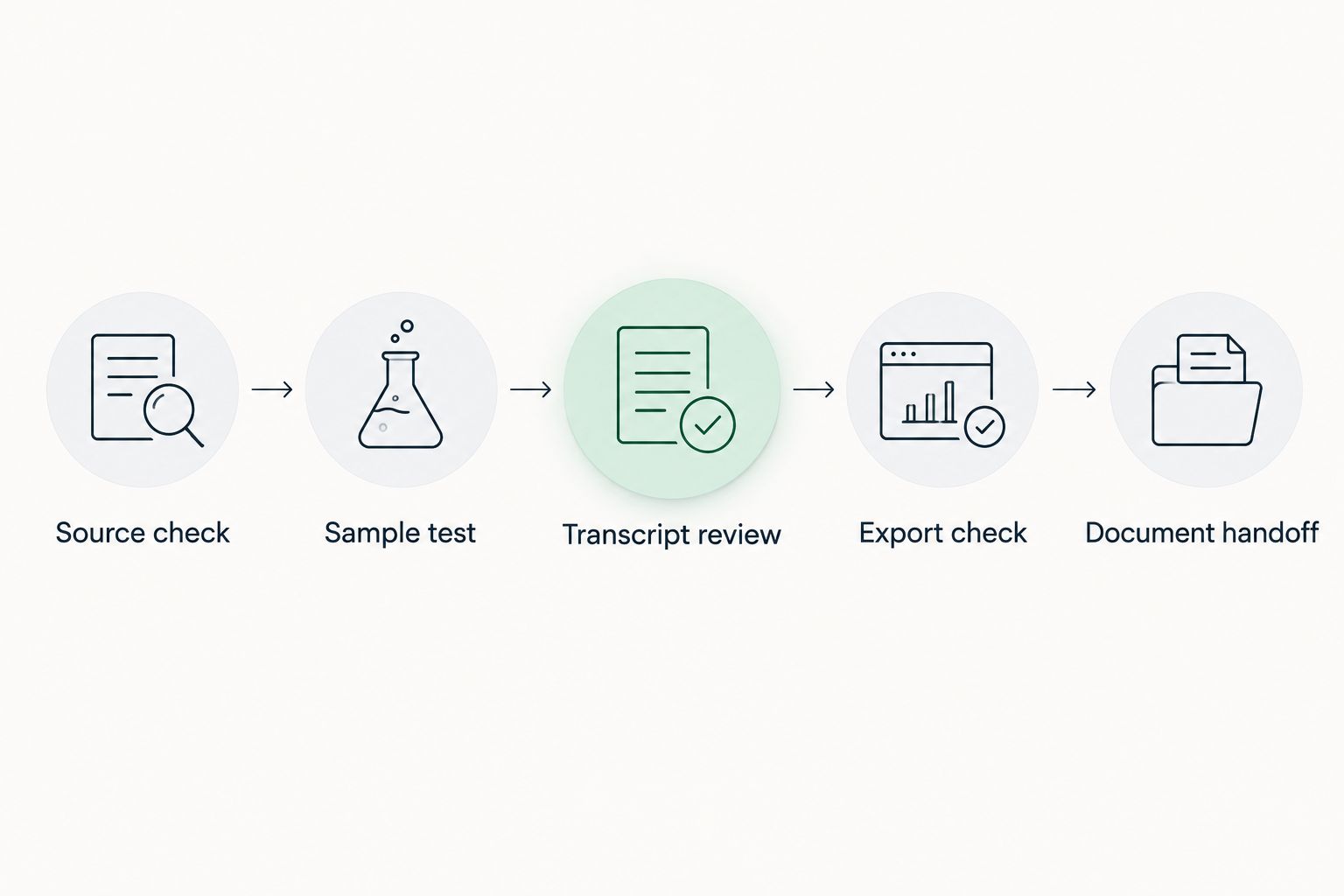
A useful 2026 comparison follows the recording all the way to the final deliverable. Do not stop when text appears on screen.
Source check
Keep an unchanged copy of the recording. Identify the intended output and confirm that you have permission to process and share the conversation.
Sample test
Use the same 5-minute recording for each candidate. Add a separate 30-second excerpt with overlapping speech if the main sample does not contain it.
Transcript review
Check names, numbers, negations, and speaker changes. A missed word such as “not” deserves more attention than a harmless punctuation difference.
Export check
Open the exported text or caption file in its destination. Confirm that speaker labels, paragraph breaks, and timing information survive wherever you need them.
Document handoff
Keep the checked transcript separate from summaries and edited quotations. Use a document-processing tool only when you need conversion, formatting, signing, or management afterward.
For team handoffs, the document workflows for enterprise teams guide addresses the separate document-management stage. Keep source recordings, corrected transcripts, and published summaries distinguishable so readers know which version they are using.
How the recommendations are ranked
The order reflects output fit, correction workflow, operating effort, and handoff requirements. Descript leads for combined audio and video production; Otter, Rev, Whisper, and oTranscribe each serve a different decision branch.
The ranking does not claim measured accuracy differences between these products. No proprietary benchmark or hands-on performance score underpins the order, and document editors are not presented as transcription engines.
Which transcription tool should you choose?
Choose Descript if you are undecided and expect to edit the recording as well as its transcript. Choose Otter for meeting documentation, Rev for a human service handoff, Whisper for local execution, and oTranscribe for deliberate manual transcription.
Zendocs is best for individuals and businesses that need document processing after transcription. Its role here is converting, editing, signing, and managing documents—not recognizing speech from a recording.
FAQ
What's the best audio and video transcription tool in 2026?
Descript is the best default in this guide when you need transcription connected to audio or video editing. Choose Otter instead for meeting notes, or Whisper when local execution is your priority.
Is Otter better than Descript for meetings?
Otter is the better fit in this comparison for meeting documentation. Descript fits projects where editing the transcript is part of editing the finished recording.
Can I transcribe audio without uploading it to a service?
Yes. You can run OpenAI Whisper locally on a suitable computer. Local processing requires setup, and you still need a process for reviewing and organizing the resulting text.
Does oTranscribe automatically convert speech to text?
No. oTranscribe combines media playback with a text editor so you can type the transcript yourself. Choose it for manual transcription rather than automatic speech recognition.
Should I choose human transcription or automated transcription?
Choose human transcription when you want a service handoff, and automated transcription when you want a machine-generated draft to review. Both workflows require checks before you rely on consequential names, numbers, or quotations.
Can Zendocs transcribe audio or video recordings?
Zendocs is a document-processing tool, not a transcription recommendation in this guide. Use it for its stated document conversion, editing, signing, and management functions after producing your transcript elsewhere.
How do I compare transcription accuracy before choosing?
Run the same recording through your shortlisted tools and check the text against the audio. Focus on names, numbers, negations, overlapping speech, and speaker changes rather than judging punctuation alone.
One last thing
A polished transcript is not proof of a faithful transcript. Before publishing a quotation, replay the surrounding passage and confirm both the words and the context. Keep the original recording as your reference even after the document looks finished.


