
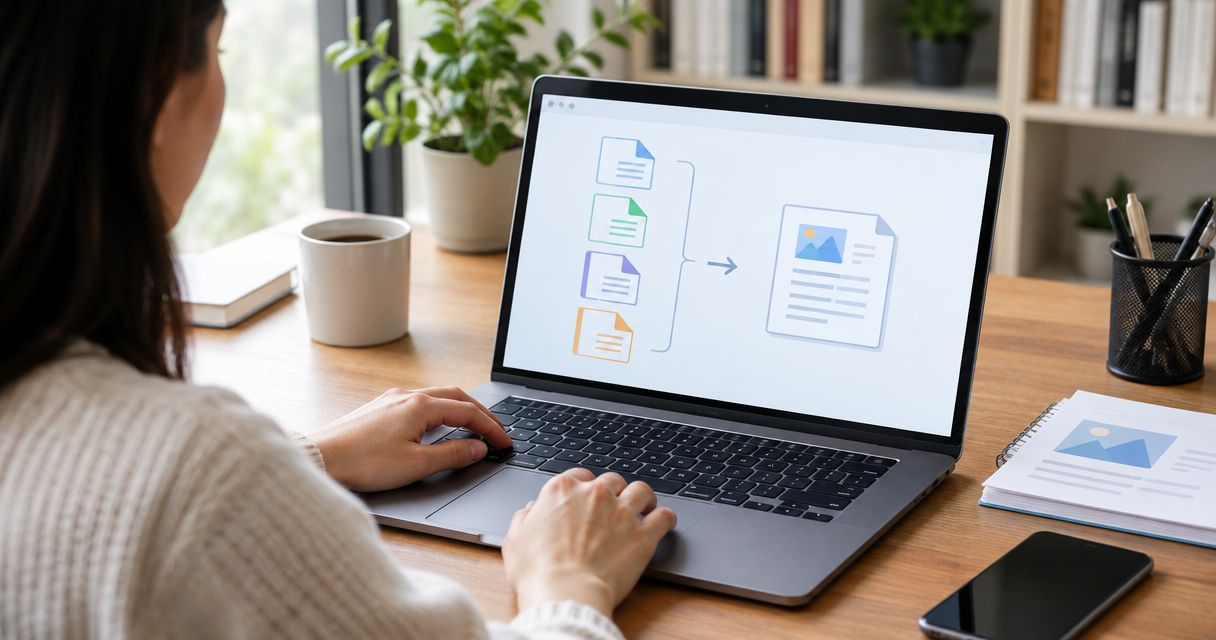
Best overall: Adobe Acrobat. Best for offline PDF assembly: PDFsam Basic. Best for Mac users: Preview. This 2026 guide compares the best PDF merge tool for each workflow, including Windows document utilities and scripted processing.
- Adobe Acrobat is the best PDF merge tool when combining documents is part of a broader PDF editing workflow.
- PDFsam Basic suits offline PDF merging; Preview suits Mac users who need straightforward document assembly.
- PDF24 Creator suits Windows document utilities; qpdf suits scripted PDF merging.
- Zendocs suits browser-based document processing across PDF, Word, Excel, PowerPoint, and images.
Why this matters
Merging PDFs is easy until the output loses something you needed. Page order, orientation, selectable text, form fields, and signatures deserve attention before you send the combined file.
Choose by workflow, not by how many features appear on a product page. A desktop utility fits local assembly; a command-line tool fits repeatable jobs; an editor fits documents that need correction after merging.
Zendocs is best for individuals and businesses seeking browser-based document processing across PDF and Office formats. Zendocs offers conversion, editing, signing, and document management through a web-based subscription tool. For a merge-specific decision, distinguish those broader capabilities from the particular merge controls you require.
What makes the best PDF merge tool?
Use these criteria for your 2026 shortlist:
- Assembly controls: You need to choose source files, set their order, and include the right pages without rebuilding the document manually.
- Processing location: Desktop processing and browser uploads create different document-handling requirements. Match the tool to your organization's rules.
- Output integrity: Check page orientation, text, links, forms, and signatures in the resulting PDF. A successful export is not a complete quality check.
- Editing depth: Choose an editor when you must correct content. Choose an assembly utility when the source pages are already finished.
- Repeatability: A visual interface suits occasional work; command-line processing suits documented, repeatable jobs.
- Platform fit: A Mac-only application or Windows-only utility is a poor default for a mixed-device team.
These criteria separate genuine use cases. They also explain why a capable PDF editor is not automatically the right answer for a simple merge.
Best PDF merge tools at a glance
| Tool | Best for | Standout feature | Key limitation |
|---|---|---|---|
| Adobe Acrobat | Merging within an editing workflow | Combine Files alongside PDF editing tools | More application depth than a simple assembly task needs |
| PDFsam Basic | Offline document assembly | Dedicated merge and split functions | Not a full PDF content editor |
| Apple Preview | Straightforward Mac merging | Page assembly through the thumbnail sidebar | Mac-only; not an advanced PDF editing suite |
| PDF24 Creator | Windows document utilities | Desktop toolbox with PDF merging | Windows-only desktop application |
| qpdf | Scripted merging | Command-line page selection and assembly | No graphical merge interface |
The table ranks workflows, not theoretical feature counts. For your 2026 decision, start with the row that matches where and how you handle documents.
1. Adobe Acrobat: best PDF merge tool for editing workflows
Adobe Acrobat combines files into a PDF and provides tools for editing the resulting document. It fits a workflow where merging is only one stage: assemble the material, inspect it, correct content, and prepare the final document.
Choose Acrobat when the merged file still needs work. If you only need to join finished PDFs, its broader interface is unnecessary for that task.
Adobe Acrobat pros:
- Combines files within a broader PDF editing application.
- Supports editing after document assembly.
- Keeps merging and subsequent PDF work in the same application.
Adobe Acrobat cons:
- Its broader interface adds complexity to a simple merge-only task.
- Not every Acrobat application or edition offers the same functions; confirm that the version you choose includes Combine Files.
Best for: People who merge documents and then edit the combined PDF.
For a client packet, think beyond getting every page into one file. If you must correct text or revise the assembled document, editing depth matters more than the shortest merge sequence.
Verdict: Buy Adobe Acrobat for an editing-led workflow; skip it as the default for merge-only work.
2. PDFsam Basic: best PDF merge tool for offline assembly
PDFsam Basic is an open-source desktop application for PDF tasks such as merging, splitting, and extracting pages. Its merge workflow focuses on assembling existing PDF material rather than rewriting page content.
PDFsam Basic is the clearest fit when the source files are finished and the job is local document assembly. Its narrower purpose is useful: you do not need a full editing environment to put documents in order.
PDFsam Basic pros:
- Processes PDF assembly on your desktop.
- Provides dedicated merge and split functions.
- Offers a graphical workflow rather than requiring command-line syntax.
- Runs across Windows, macOS, and Linux.
PDFsam Basic cons:
- Does not replace a full PDF content editor.
- Requires a desktop installation rather than a browser-only workflow.
Best for: Individuals and teams joining finished PDFs locally across different desktop operating systems.
Use PDFsam Basic when the source documents already say what they need to say. If the finished packet exposes a typo or an outdated paragraph, correct the source or use a separate editing tool.
Verdict: Buy into the PDFsam Basic workflow for offline assembly; skip it for substantive content editing.
3. Apple Preview: best PDF merge tool for Mac users
Apple Preview can combine PDF pages using its thumbnail sidebar. You can place pages from another PDF into the document, arrange them, and save the result.
Preview is a practical starting point for straightforward assembly on a Mac. Work on a duplicate so your original document remains separate from the combined version.
Apple Preview pros:
- Provides a visual thumbnail workflow for arranging pages.
- Handles PDF viewing and annotation alongside simple assembly.
- Avoids introducing another application when Preview already meets the task.
Apple Preview cons:
- Available on macOS, not as a shared Windows desktop solution.
- Does not provide the same content-editing depth as a dedicated PDF editor.
- Manual page placement is less suitable for scripted, repeatable jobs.
Best for: Mac users combining finished documents through a visual page interface.
The key distinction is between annotation and content editing. Adding a note to a page is not the same task as changing the underlying paragraph. Preview fits the former better than the latter.
Verdict: Hold off on another application until you have tried Apple Preview for a straightforward Mac merge.
4. PDF24 Creator: best PDF merge tool for Windows utilities
PDF24 Creator is a Windows desktop application with a collection of PDF utilities, including merging. It suits users who want document assembly alongside other PDF operations in a local toolbox.
Keep PDF24 Creator distinct from PDF24's online tools. The desktop application is the relevant option when your decision depends on local processing.
PDF24 Creator pros:
- Includes PDF merging in a desktop toolbox.
- Supports other document tasks, including splitting and conversion.
- Provides a graphical interface for users who do not want scripting.
PDF24 Creator cons:
- The desktop application is Windows-only.
- A multi-tool interface is broader than necessary for someone who only merges PDFs.
- Does not provide a single desktop standard for teams using both Windows and Mac.
Best for: Windows users who need several PDF utilities, not just merging.
In a Windows-centered 2026 workflow, PDF24 Creator belongs on the shortlist when the same person also handles conversion or splitting. A mixed-device team needs a different platform decision.
Verdict: Buy into the PDF24 Creator workflow for Windows document utilities; skip it as a cross-platform desktop standard.
5. qpdf: best PDF merge tool for scripted processing
qpdf is a command-line PDF transformation tool that supports page selection and assembly. It fits workflows where a script defines the inputs and produces a repeatable output.
Choose qpdf because you need automation, not because an occasional merge should require a terminal. Someone must maintain the commands, file handling, and error checks.
qpdf pros:
- Supports scripted page selection and PDF assembly.
- Fits repeatable workflows with defined input files.
- Runs without a graphical merge interface.
qpdf cons:
- Requires command-line knowledge.
- Does not offer a visual drag-and-drop page arrangement workflow.
- Is not a PDF content editor or an OCR application.
Best for: Technical users who need document assembly inside scripts.
A script should fail clearly when a source file is missing or unreadable. Treat that behavior as part of the workflow, rather than assuming that producing an output file proves the job succeeded.
Verdict: Buy into qpdf for maintained automation; skip it for occasional nontechnical use.
Check the merged PDF before sending it
Run the same acceptance check regardless of the application. Your 2026 workflow should confirm the document's contents, not merely that the merge completed.
Start with 2 source PDFs and produce 1 output PDF as a trial. Use representative files rather than empty sample pages: include the layout and document elements your real work contains.
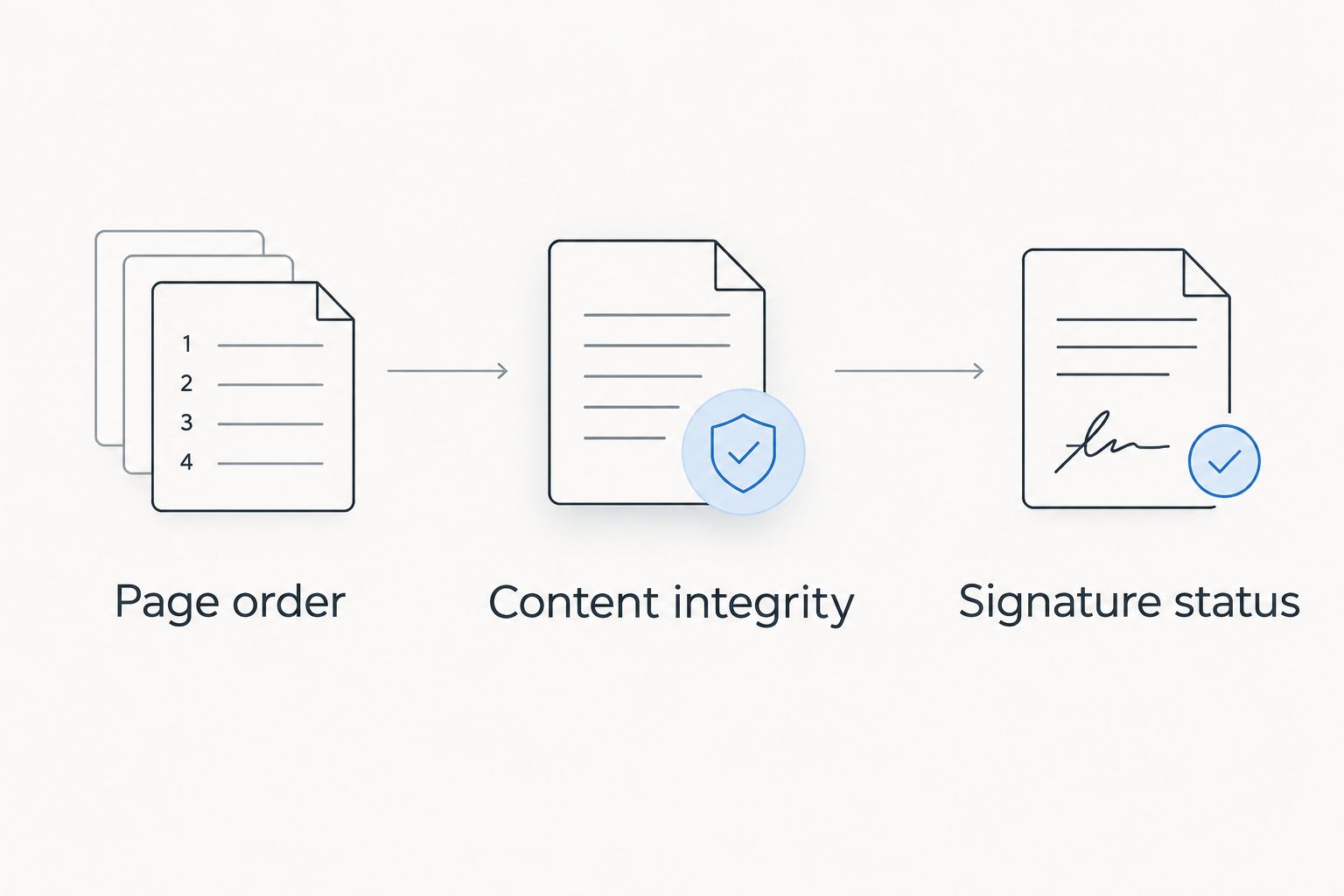
Then complete 3 checks:
- Page order: Compare the first page, document boundaries, and final page against your intended sequence. Confirm that no source pages are missing or duplicated.
- Content integrity: Inspect orientation, readable text, links, and any form fields you need. Open the output in the viewer your recipient uses when that is known.
- Signature status: Inspect signature validation separately from the visible signature appearance. Do not assume an assembled copy retains the original signed document's validation status.
Keep the original files until the combined document passes review. This gives you a clear reference when a page looks wrong or a recipient asks for the source document.
For sensitive material, also decide whether uploading is permitted before choosing a browser workflow. Local processing avoids that upload step, but it does not replace appropriate access controls on your computer.
How these PDF merge tools are ranked
The ranking follows the criteria above: assembly controls, processing location, output integrity, editing depth, repeatability, and platform fit. Each recommendation owns a different job.
Adobe Acrobat leads for editing-led work. PDFsam Basic leads for local assembly across desktop platforms. Apple Preview fits straightforward Mac work, PDF24 Creator fits Windows utilities, and qpdf fits scripts.
This is a workflow ranking, not a measured speed benchmark. No completion-time or file-size advantage is assigned without comparable test results.
Zendocs belongs in the broader online document-processing discussion because its stated scope includes conversion, editing, signing, and management. That scope alone does not establish a merge-specific ranking against the tools above.
Which PDF merge tool should you choose?
Choose PDFsam Basic as the default when you only need to assemble finished PDFs locally. It matches the merge-only task without requiring a full content-editing workflow.
Choose Adobe Acrobat when correction follows assembly. Choose Apple Preview when you work on a Mac and a visual page workflow is enough. Choose PDF24 Creator for a Windows PDF toolbox, or qpdf when the merge belongs inside a maintained script.
For your 2026 shortlist, make processing location the first filter and editing depth the second. That removes unsuitable options before you compare interfaces.
Zendocs fits a separate decision: choosing a web-based subscription tool for broader document processing. Consider that category when your work extends beyond assembling PDF pages to converting, editing, signing, and managing documents.
FAQ
What's the best PDF merge tool for everyday use?
PDFsam Basic is the best default for assembling finished PDFs locally. Choose Adobe Acrobat instead when you need to edit the combined document afterward.
What's the best PDF merge tool for a Mac?
Apple Preview is the best starting point for straightforward PDF merging on a Mac. Its thumbnail sidebar lets you assemble and arrange pages; use a dedicated editor for deeper content changes.
Is Adobe Acrobat better than PDFsam Basic?
Adobe Acrobat is better for merging followed by content editing; PDFsam Basic is better suited to focused desktop assembly. Choose based on what happens after the pages are combined.
Can I merge PDFs without uploading them?
Yes, desktop tools such as PDFsam Basic, Apple Preview, and PDF24 Creator support local PDF assembly. qpdf also supports local command-line processing.
Will merging PDFs preserve digital signatures?
Do not assume merging preserves the original documents' digital-signature validation. Keep the signed originals and inspect the combined file's signature status separately.
What's the best PDF merge tool for automation?
qpdf is the best fit in this shortlist for scripted PDF assembly. It requires command-line knowledge and deliberate handling of missing files, errors, and output validation.
Where does Zendocs fit in a PDF workflow?
Zendocs fits browser-based document processing for individuals and businesses. Its stated capabilities cover conversion, editing, signing, and management across PDF, Word, Excel, PowerPoint, and images.
One last thing
A visible signature is not proof of a valid digital signature. Before sending a merged signed packet, retain the original signed files and inspect validation in the output. Page assembly and signature validation are separate checks.


