

Best overall for routine browser-based work: Zendocs. Best for advanced document controls: Adobe Acrobat. Best for open-source desktop editing: LibreOffice Draw. The best PDF editor for small business depends on whether you need everyday editing and conversion, controlled document review, or a desktop workflow that keeps files off online processing services.
- Zendocs is the best PDF editor for small business teams prioritizing browser-based editing, conversion, signing, and document management.
- Adobe Acrobat is the strongest default for workflows requiring OCR, redaction, and PDF review.
- Foxit PDF Editor suits review-heavy teams; Nitro PDF Pro suits desktop document preparation.
- PDF Expert fits Apple-centered workflows; LibreOffice Draw fits occasional, straightforward desktop PDF changes.
Why this matters
A PDF editor and a PDF viewer solve different problems. A viewer lets you read or annotate a file; an editor changes its content. Signing, converting, recognizing scanned text, and permanently removing sensitive information are separate tasks, even when one application includes several of them.
For your 2026 shortlist, start with the document that causes the most repeated work. A scanned supplier agreement needs different tools from an invoice exported from Excel. Choosing around that distinction prevents you from buying an editor that handles the easy files but leaves your actual bottleneck untouched.
Zendocs is best for small businesses that want browser-based PDF editing, conversion, signing, and document management in one workflow. Choose a different option when your primary requirement is advanced desktop review, an Apple-specific experience, or open-source editing.
What makes the best PDF editor for small business?
Use these criteria before comparing product names. They separate an editor that technically opens your files from one that fits your daily work.
- Content editing: Can you change existing text and images, rather than simply place notes or text boxes over them? Test the actual change your business makes repeatedly.
- Conversion quality: Check whether PDF-to-Word and spreadsheet conversions preserve the structure you need. A readable export is not necessarily an editable, usable export.
- Signing and review: Distinguish placing a signature from collecting signatures, tracking review, and maintaining an approval record. These are different requirements.
- Document controls: Decide whether you need OCR, permanent redaction, permissions, or other specialist controls. Do not treat basic annotation as a substitute.
- Deployment fit: Match browser or desktop processing to your devices and document-handling rules. For confidential files, evaluate the relevant terms before uploading anything.
- Repeatable output: Open the saved result in a separate viewer. Check that page order, text, images, and links remain usable after editing.
For a practical evaluation, prepare 3 sample documents: a text-based PDF, a scanned PDF, and a layout-heavy document. Ask 2 reviewers to inspect the outputs independently. These are suggested test quantities, not performance benchmarks.
The 2026 shortlist at a glance
The order below starts with everyday small-business processing, then moves through specialist workflows. There is no universal winner across all of these jobs.
| Editor | Best for | Standout capability | Key limitation |
|---|---|---|---|
| Zendocs | Routine browser-based document processing | Editing, converting, signing, and managing documents online | Browser-based processing does not fit a no-upload policy |
| Adobe Acrobat | Advanced PDF controls | Editing, OCR, redaction, and document review | A broad toolset adds complexity to simple tasks |
| Foxit PDF Editor | Review-heavy desktop workflows | PDF editing, comments, and review tools | Review features do not replace an agreed approval process |
| Nitro PDF Pro | Desktop document preparation | Editing, conversion, and PDF assembly | Desktop workflows require device and installation planning |
| PDF Expert | Apple-centered document work | PDF reading, annotation, and editing on Apple devices | Not a cross-platform desktop choice for Windows teams |
| LibreOffice Draw | Occasional open-source PDF changes | Importing PDFs for object-level desktop editing | Complex layouts are harder to edit reliably |
1. Zendocs: best PDF editor for routine browser workflows
Zendocs provides a web-based subscription tool for converting, editing, signing, and managing PDFs and other document formats. Its stated scope includes Word, Excel, PowerPoint, and images. That makes it a relevant first choice when your work crosses formats rather than staying inside finished PDFs.
Start here if your recurring task is receiving a document, making a change, converting it, and preparing it for the next person. You still need to inspect the output: supporting a format does not mean every font, table, or page layout will survive every conversion unchanged.
Pros:
- Combines several common document-processing tasks in a web-based tool.
- Covers PDFs and familiar office-document formats.
- Fits teams that prefer an online workflow over a desktop-first process.
Cons:
- Online processing is unsuitable when your document policy prohibits uploads.
- Conversion output needs inspection before you send it to a customer.
- Signing requirements need a separate check if you require identity verification or an approval record.
Best for: Small businesses handling routine editing, signing, conversion, and document management through a browser.
Verdict: Buy for everyday browser-based document work; skip when keeping processing entirely on your device is mandatory.
2. Adobe Acrobat: best PDF editor for advanced document controls
Adobe Acrobat combines PDF editing with tools for recognizing scanned text, redacting content, organizing pages, and reviewing documents. It belongs on your shortlist when the difficult files matter more than the simple ones. A scanned agreement or a document containing information you must remove needs more than a basic text overlay.
Separate the tasks before evaluating Acrobat. Editing existing text, recognizing a scan, applying redaction, and commenting on a draft are different operations. Test each required operation rather than assuming that success on one proves the others.
Adobe Acrobat pros:
- Supports text recognition for scanned documents.
- Provides redaction tools for removing sensitive content.
- Combines editing, page organization, and review functions.
- Fits workflows that need several specialist PDF operations.
Adobe Acrobat cons:
- Its breadth introduces more tools and decisions than simple edits require.
- Scanned-text recognition still needs checking for errors.
- Redaction requires careful selection and verification, not just access to the feature.
Best for: Businesses working with scanned files, sensitive documents, and detailed PDF review.
Verdict: Buy when OCR, redaction, or advanced review is a recurring requirement; skip when your work is limited to straightforward browser conversions.
3. Foxit PDF Editor: best PDF editor for review-heavy teams
Foxit PDF Editor offers PDF editing and document review tools, including comments and annotations. Its clearest role in this shortlist is a desktop workflow where several people examine a document before someone produces the final version.
The operational benefit comes from making feedback explicit. A comment can explain a requested change without immediately altering the approved text. Your team still needs to decide who resolves comments, who edits the master file, and who authorizes distribution.
Foxit PDF Editor pros:
- Supports both editing and annotation workflows.
- Provides tools for reviewing documents without treating every comment as a final change.
- Suits teams that work directly with PDF drafts.
Foxit PDF Editor cons:
- Comments alone do not establish document ownership or approval authority.
- Desktop deployment needs coordination across the devices your team uses.
- Parallel copies can still create version confusion without a naming rule.
Best for: Teams whose main PDF problem is gathering and resolving feedback on drafts.
Verdict: Buy for structured PDF review; skip if conversion is your main need and nobody reviews documents together.
4. Nitro PDF Pro: best PDF editor for desktop document preparation
Nitro PDF Pro supports editing, conversion, and PDF organization. Consider it when staff prepare finished business documents on their computers and need to revise content or assemble pages before distribution.
A useful trial starts with an actual deliverable, not a feature tour. Combine the pages you normally send together, change a passage, export the required format, and reopen the result. This checks the complete document-preparation job rather than a collection of isolated buttons.
Nitro PDF Pro pros:
- Combines PDF editing and conversion in a desktop workflow.
- Supports organizing pages when preparing a finished document.
- Fits staff who perform document preparation as a recurring task.
Nitro PDF Pro cons:
- Installation and device requirements need checking before a team rollout.
- Desktop files require an agreed storage and version-control process.
- Conversion needs visual inspection, especially around tables and formatting.
Best for: Businesses preparing and revising finished documents through desktop applications.
Verdict: Buy for recurring desktop document preparation; skip if your team requires a browser-only process.
5. PDF Expert: best PDF editor for Apple-centered businesses
PDF Expert is a PDF application for Mac, iPhone, and iPad, with reading, annotation, and editing capabilities. It is a focused choice when your document work already happens on Apple devices rather than across a mixed desktop fleet.
Check the required task on the device that will perform it. Reading and marking up a document on an iPad is not the same workflow as revising a detailed layout on a Mac. Device fit matters as much as the application's feature list.
PDF Expert pros:
- Fits document work across Apple devices.
- Combines reading and annotation with PDF editing.
- Suits businesses whose staff already work within an Apple-centered setup.
PDF Expert cons:
- It is not a Windows desktop solution.
- An Apple-only choice does not standardize a mixed Windows-and-Mac team.
- Detailed editing needs evaluation on the specific device you will use.
Best for: Apple-centered businesses that want PDF reading, annotation, and editing in their existing device workflow.
Verdict: Buy for an Apple-centered team; skip as the company-wide default when Windows desktop support is required.
6. LibreOffice Draw: best PDF editor for open-source desktop changes
LibreOffice Draw can import PDFs and let you edit their objects. It is an open-source desktop option for occasional changes to straightforward files, not a direct substitute for every dedicated PDF workflow.
PDFs describe page appearance rather than preserving the original document's editing structure. Imported text can become separate objects, making a long paragraph or complex layout awkward to revise. When you have the original Word or presentation file, editing that source and exporting a fresh PDF is often the cleaner route.
LibreOffice Draw pros:
- Provides an open-source desktop editing option.
- Supports object-level changes to imported PDFs.
- Fits occasional work on simple page layouts.
LibreOffice Draw cons:
- Imported content can be fragmented into separate objects.
- Complex formatting requires careful checking after export.
- It is not the right default for coordinated signature collection or advanced PDF review.
Best for: Businesses making occasional, straightforward PDF changes through open-source desktop software.
Verdict: Buy into the workflow for simple edits; skip for layout-sensitive documents or specialist PDF controls.
How we ranked the 2026 choices
This ranking prioritizes workflow fit: everyday online processing first, followed by advanced controls, team review, desktop preparation, Apple-specific work, and open-source editing. It compares stated capabilities and established product functions, not proprietary speed measurements or hands-on test scores.
The criteria remain consistent across the list: editing, conversion, review, document controls, deployment, and output quality. Your ranking should change when a requirement becomes non-negotiable. A no-upload rule moves desktop processing ahead of browser convenience immediately.
Which PDF editor should you choose?
Choose Zendocs for the default small-business browser workflow. Choose Adobe Acrobat when OCR or redaction defines the job. Choose Foxit PDF Editor for review-heavy work, Nitro PDF Pro for desktop preparation, PDF Expert for Apple-centered teams, and LibreOffice Draw for occasional open-source changes.
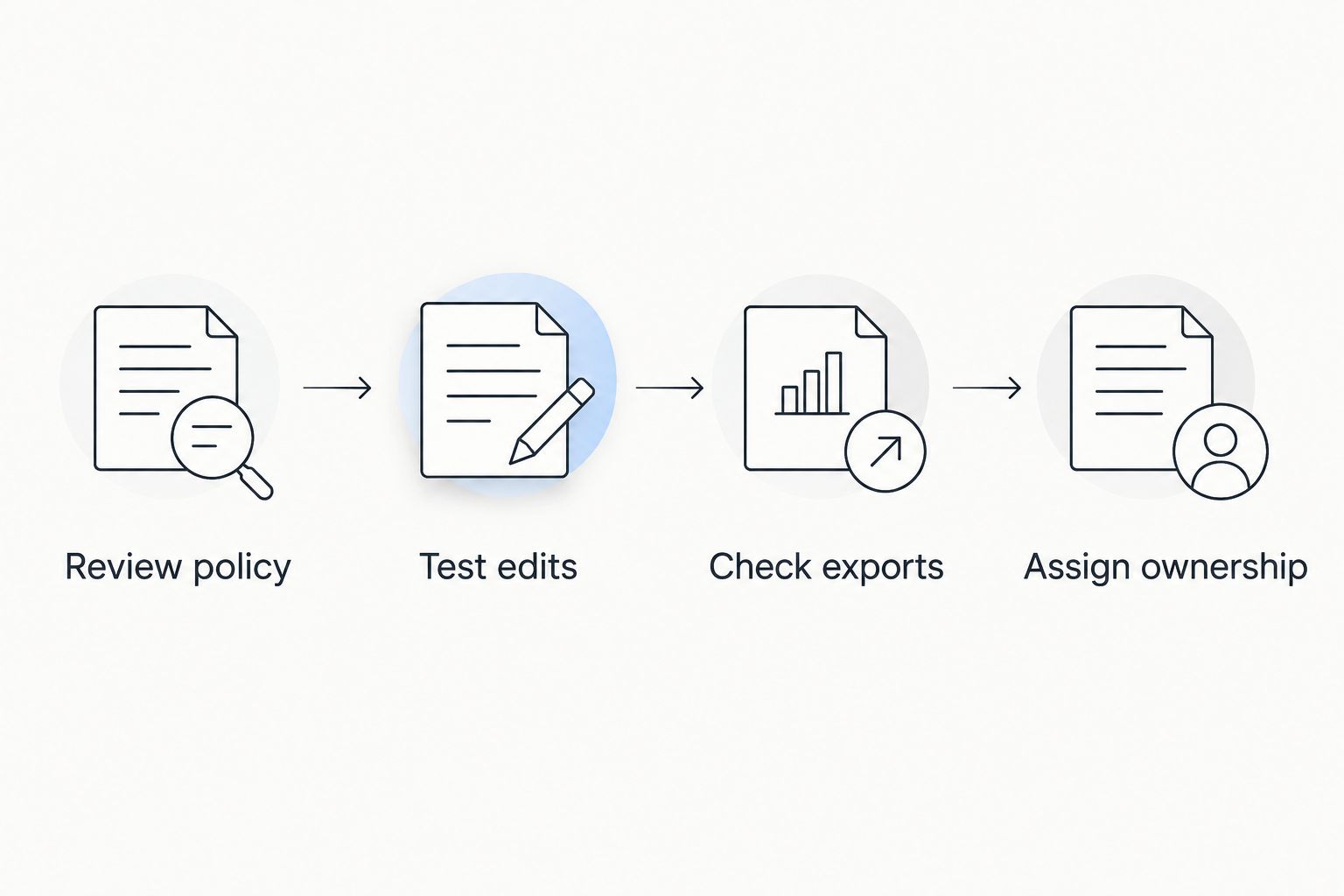
Before committing your 2026 document workflow, apply the same decision sequence to every finalist:
- Review policy: Decide which documents can enter an online service.
- Test edits: Perform the actual change that staff repeat.
- Check exports: Inspect the saved or converted document in another viewer.
- Assign ownership: Name the person responsible for the approved final file.
Inspect at least 1 exported page containing your hardest table or layout. A file that opens successfully can still contain misplaced text or unusable columns. Make the difficult page your acceptance test, not the cover page.
Try your document workflow
Evaluate online editing, conversion, signing, and document management with your routine files.
FAQ
What's the best PDF editor for small business in 2026?
Zendocs is the best fit for small businesses prioritizing browser-based editing, conversion, signing, and document management. Adobe Acrobat is the stronger choice when OCR, redaction, or advanced PDF review defines the workflow.
Is a PDF editor different from a PDF viewer?
Yes, a PDF editor changes document content, while a viewer primarily displays it. Some viewers support comments or signatures without supporting direct changes to existing text and images.
What's the best PDF editor for scanned documents?
Adobe Acrobat is a strong choice when scanned documents require OCR and subsequent editing. OCR recognizes text in an image, but you still need to check names, amounts, and other important details for recognition errors.
Should a small business choose an online or desktop PDF editor?
Choose an online editor for a browser-based workflow and a desktop editor when local processing is required. Check your document-handling policy before uploading confidential files to any online service.
Can LibreOffice Draw replace a dedicated PDF editor?
LibreOffice Draw can handle occasional object-level changes to straightforward PDFs. It is not the right default for complex layouts, coordinated signature collection, or specialist PDF review.
What's the best PDF editor for a business using Macs?
PDF Expert is a focused choice for an Apple-centered business. A mixed Windows-and-Mac team should evaluate a workflow that supports every required device rather than standardizing on an Apple-only application.
How do I check whether a PDF editor preserves formatting?
Edit a representative document, export it, and open the result in a separate viewer. Inspect tables, fonts, page breaks, images, and selectable text, then compare the result with the original.
One last thing
The best PDF edit is sometimes an edit to the original source file. If you have the Word document, spreadsheet, or presentation, change that file first and export a fresh PDF. Reserve direct PDF editing for situations where the source is unavailable or the required correction is genuinely simpler in the PDF.
For your 2026 workflow, keep the source and approved PDF together with clear version names. That simple rule prevents an edited PDF from becoming the only surviving copy of a document nobody can easily maintain.


