
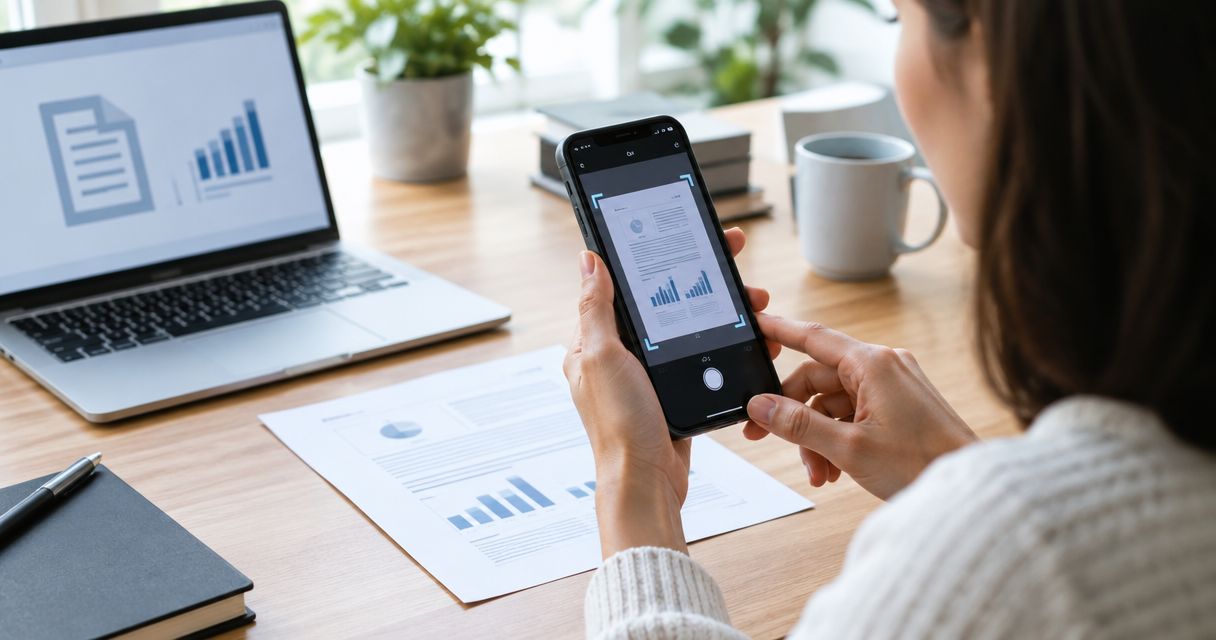
Best overall: Adobe Scan. Best for iPhone users: Apple Notes. Best for Google Drive users: Google Drive. Best for capture-and-export workflows: Genius Scan. These are the best document scanning apps to shortlist in 2026, with different strengths in searchable PDFs, built-in capture, storage, and sharing.
- Adobe Scan leads this best document scanning apps shortlist for searchable PDFs and document-focused capture.
- Apple Notes suits iPhone users who want document scanning inside an app they already use.
- Google Drive suits people who want scanned PDFs stored alongside their existing cloud files.
- Genius Scan suits capture-and-export workflows; Zendocs handles browser-based document editing, conversion, signing, and management.
Why this matters
A readable scan and a useful document are not the same thing. Your camera captures the page; optical character recognition, or OCR, makes printed text searchable. Editing, signing, and converting that file are separate jobs.
Zendocs is best for users who need browser-based document processing after scanning. Zendocs supports converting, editing, signing, and managing PDFs and other document formats; it belongs after capture in this workflow, not in a ranking of camera-scanning apps.
For your 2026 shortlist, choose the scanner by the file you need to hand over. A receipt archive needs readable text and sensible filenames; a document sent for signature also needs correct page order and a usable PDF export.
What makes the best document scanning apps?
Use these criteria before choosing an app. A long feature list does not compensate for a clipped signature or an export you cannot find.
- Capture control: You need visible page boundaries, cropping, rotation, and a chance to retake a blurry page.
- Text recognition: Searchable text matters for records you will retrieve later. OCR is not the same as editable document text.
- PDF assembly: Multiple pages should leave the app as a coherent document rather than scattered photographs.
- Export access: You should be able to save and reopen the actual PDF outside the scanning app.
- Storage fit: Choose a destination that matches how you organize documents, rather than creating another disconnected archive.
- Data handling: Check account requirements, upload behavior, sharing permissions, and your organization's rules before scanning sensitive material.
Best document scanning apps at a glance
This 2026 comparison ranks apps by their clearest use case, not by an unverified accuracy score. Every option captures paper documents, but the surrounding workflow differs.
| Rank | App | Best for | Standout feature | Key limitation |
|---|---|---|---|---|
| 1 | Adobe Scan | Searchable document PDFs | Document capture with OCR | Adobe account and cloud workflow add setup |
| 2 | Apple Notes | Everyday scanning on iPhone | Scanning inside an existing note | Apple-centered organization is less convenient across mixed-device teams |
| 3 | Google Drive | Scanning into cloud storage | Capture and file storage in one place | Drive account and folder permissions become part of the workflow |
| 4 | Genius Scan | Dedicated capture and export | Document scanning with multipage PDF export | Editing and signing remain separate selection questions |
None of these recommendations means that a scanner replaces a PDF editor. Choose capture first, then decide whether the resulting document needs further work.
1. Adobe Scan: best document scanning app for searchable PDFs
Adobe Scan captures paper documents and turns them into PDFs with recognized text. Its document-focused workflow makes it the default recommendation when you want to search a scan later, rather than merely keep a picture of it.
Best for: People scanning printed records that need to become searchable PDFs. In this 2026 shortlist, Adobe Scan takes the overall position because capture and text recognition address the central scanning task directly.
Adobe Scan pros:
- OCR makes recognized printed text searchable.
- Document capture includes page-boundary detection and cleanup controls.
- Multipage scanning keeps related sheets together in a PDF.
Adobe Scan cons:
- The Adobe account and cloud workflow add setup compared with scanning inside an app you already use.
- OCR does not guarantee correct recognition of every name, character, or table.
Keep the distinction between recognition and editing clear. Finding a phrase in a scanned contract does not mean you can reliably rewrite the contract's paragraphs in the scanning app.
Before relying on a saved file, search for a distinctive word and inspect the original image beside the result. Pay particular attention to faint printing, handwriting, and small text; a successful capture is not proof of accurate recognition.
Verdict: Buy into Adobe Scan for searchable document capture; use a separate editing workflow when the text itself must change.
2. Apple Notes: best document scanning app for everyday iPhone use
Apple Notes lets you scan documents into a note using your iPhone camera. You can adjust the captured page and share the scanned document as a PDF, keeping occasional paperwork close to your existing notes.
Best for: iPhone users scanning everyday letters, receipts, and short documents without building a separate scanning routine. Apple Notes is the practical 2026 starting point when your main requirement is a readable PDF.
Apple Notes pros:
- Document scanning sits inside the Notes app.
- Page adjustment helps correct the captured boundaries.
- A scan can stay beside written context, such as a meeting note or reminder.
Apple Notes cons:
- A note-centered filing system needs deliberate organization as your archive grows.
- Collaboration is less straightforward when recipients work outside Apple's ecosystem.
The strongest reason to choose Apple Notes is workflow fit, not a claim that it outperforms dedicated scanners. If you already organize information in Notes, capture does not require another destination to remember.
For documents that must leave Notes, share the PDF and reopen the exported file before sending it. Check that the attachment contains the document itself, not just a note-sharing invitation.
Verdict: Buy into Apple Notes for routine iPhone scanning; skip it as your default archive when your team needs a different shared filing system.
3. Google Drive: best document scanning app for cloud filing
Google Drive's mobile scanning feature captures documents and saves scans as PDFs in Drive. It suits a workflow where the destination folder matters as much as the camera capture.
Best for: People who already organize documents in Google Drive, particularly Android users who want scanning close to their existing files. The recommendation rests on storage fit, not an assumed advantage in image quality.
Google Drive pros:
- Scanned PDFs can live alongside your existing Drive documents.
- Multipage capture keeps a related document together.
- Drive's folder and sharing workflow provides a familiar destination for saved scans.
Google Drive cons:
- You need to manage the correct Google account and destination folder.
- Folder permissions need attention before sensitive scans enter a shared location.
Choose the destination deliberately rather than treating the first saved location as permanent. A clean scan filed under the wrong account is still a document-management problem.
Before adopting Google Drive for scanning in 2026, follow a sample document through capture, naming, storage, and recipient access. Confirm that the intended recipient can open the file without receiving broader access than the task requires.
Verdict: Buy into Google Drive when Drive is already your filing system; skip it when your document policy requires a different storage destination.
4. Genius Scan: best document scanning app for capture and export
Genius Scan is a dedicated document-scanning app that captures paper pages and exports documents, including multipage PDFs. It fits users who want scanning to be a distinct step before sending the file elsewhere.
Best for: People who prefer a dedicated capture app and a separate destination for finished documents. This is a workflow recommendation, not a claim that Genius Scan produces more accurate results than the other apps.
Genius Scan pros:
- A dedicated scanning interface keeps the task focused on paper capture.
- Multipage PDF export supports documents that belong together.
- Export provides a handoff to another filing or document-processing workflow.
Genius Scan cons:
- A separate scanning app creates another handoff to manage.
- PDF export does not, by itself, provide the editing or signing workflow you need afterward.
Judge Genius Scan on the exported document, not only its capture preview. Inspect page edges, readability, orientation, and order after opening the PDF in its destination.
If OCR is essential, confirm the current feature requirements before committing your archive. Do not assume every capture or export setting creates searchable text automatically.
Verdict: Buy into Genius Scan for dedicated capture and export; hold off until you confirm the text-recognition workflow your records require.
How this ranking works
The order follows the criteria above: capture control, searchable text, PDF assembly, export, storage fit, and data handling. Adobe Scan is the default for searchable-document capture; Apple Notes, Google Drive, and Genius Scan each win a distinct workflow slot.
This is a use-case ranking, not a laboratory accuracy benchmark. No accuracy percentages, processing-time claims, or hands-on test scores support the order.
For a 2026 decision, repeat the same small acceptance check with your own paperwork. An app that handles your actual forms and filing destination is a better choice than one selected for features you will never use.
Check a scan before it becomes a business record
Use a 3-page sample containing ordinary text, a table, and a signature area. This is a suggested acceptance exercise, not a performance benchmark; it exposes different problems without requiring a full archive migration.
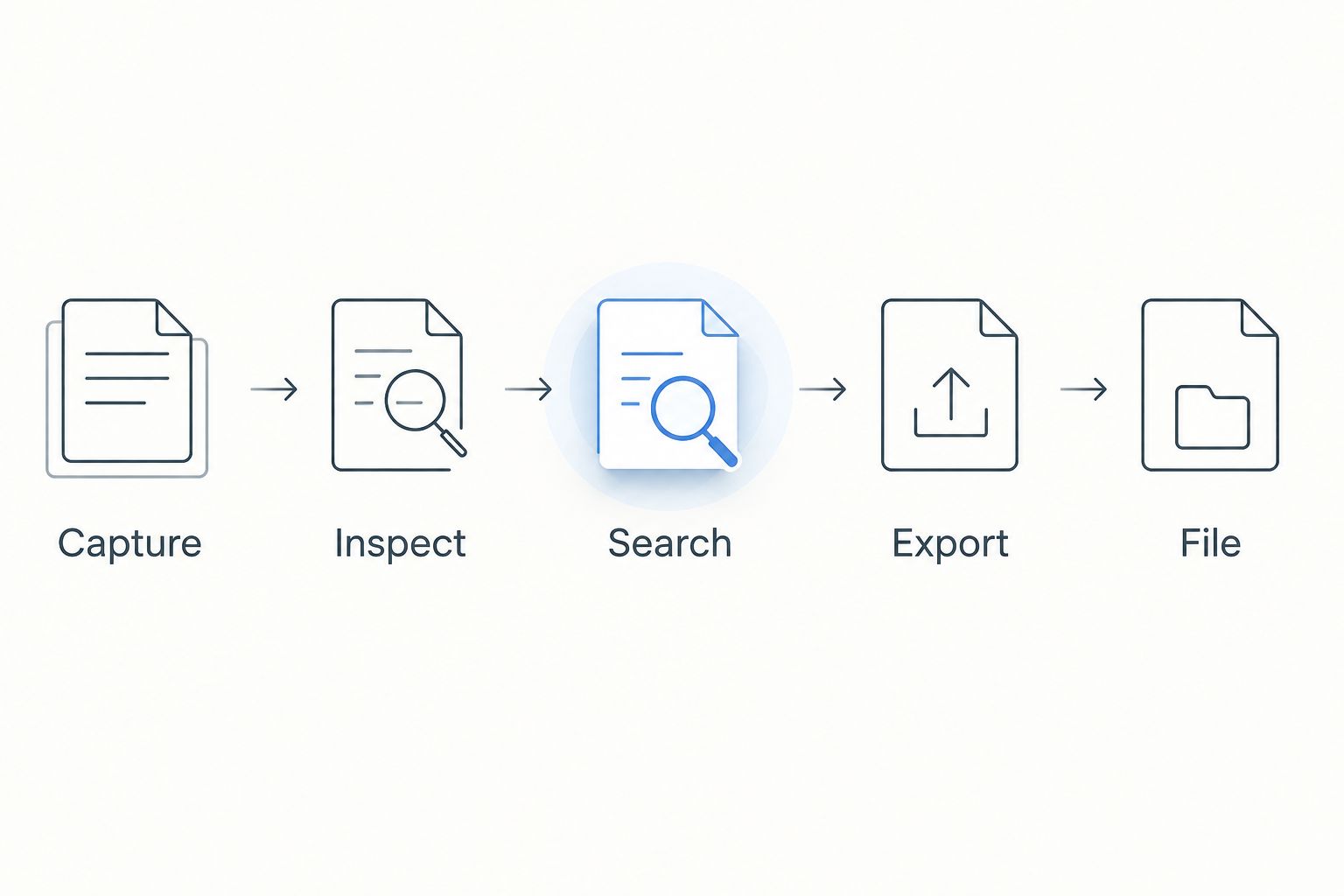
Follow the same sequence in each app:
- Capture: Place the pages flat, keep the camera parallel, and avoid shadows across text.
- Inspect: Check all page edges, small characters, handwriting, and any text near a fold.
- Search: Search for a distinctive printed phrase if the workflow requires OCR.
- Export: Save the pages as 1 PDF, then reopen it outside the scanner.
- File: Give the PDF a descriptive name and place it in the intended destination.
The sequence separates capture quality from export quality. A good preview does not prove that the saved file contains every page in the right order.
Perform 2 export checks before sending: open the saved PDF and confirm the page order. For searchable records, also verify that a phrase can be found; the guide to creating a searchable PDF when scanning with your phone explains that separate requirement.
Which document scanning app should you choose?
Choose Adobe Scan if you have no established scanning workflow and want searchable PDFs. Choose Apple Notes when everyday iPhone capture is enough, Google Drive when the storage destination is already decided, or Genius Scan when you want a dedicated capture-and-export step.
For editing, conversion, or signing after capture, Zendocs is a separate browser-based document-processing option. Keep the original scan before changing a working copy, and do not assume conversion can recover text that the camera never captured clearly.
Process your scanned documents
Use browser-based tools for document editing, conversion, signing, and management.
FAQ
What's the best document scanning app in 2026?
Adobe Scan is the default recommendation here for searchable document PDFs. Apple Notes, Google Drive, and Genius Scan are stronger fits when your priority is an existing notes workflow, Drive filing, or dedicated capture and export.
What's the best document scanning app for an iPhone?
Apple Notes is the practical starting point for everyday iPhone scanning. Choose a dedicated scanner when your requirements extend beyond capturing and sharing readable PDFs.
Is Google Drive better than Adobe Scan for scanning documents?
Google Drive is the better workflow fit when your main requirement is saving scans into existing Drive folders. Adobe Scan is the default recommendation here when document capture and searchable PDFs are the main selection criteria.
Does saving a photo as a PDF make the text searchable?
No, saving an image inside a PDF does not by itself make the text searchable. OCR must recognize the text and make it accessible to search; verify the result with a distinctive phrase.
Can a document scanning app turn handwriting into accurate text?
Do not treat handwriting recognition as a guaranteed result. Keep the original image and compare any recognized text against the handwriting before using it in a record or agreement.
Can I edit and sign a document after scanning it?
Yes, you can use a document-processing tool after exporting the scan. Zendocs offers browser-based editing, conversion, signing, and management, but editing underlying scanned text is a different task from adding content to a PDF.
Is it safe to scan confidential paperwork with a phone?
Use a phone-scanning workflow only when its storage and sharing practices meet your requirements. Check account access, upload behavior, destination permissions, and organizational policy before capturing confidential material.
One last thing
A scan can look readable while still cutting off information. Inspect the outer edges as carefully as the center: initials, handwritten notes, and part of a signature can sit outside the area automatic cropping selects.
Retake an incomplete page before editing or signing it. No downstream document tool can restore content that never entered the scan.


