
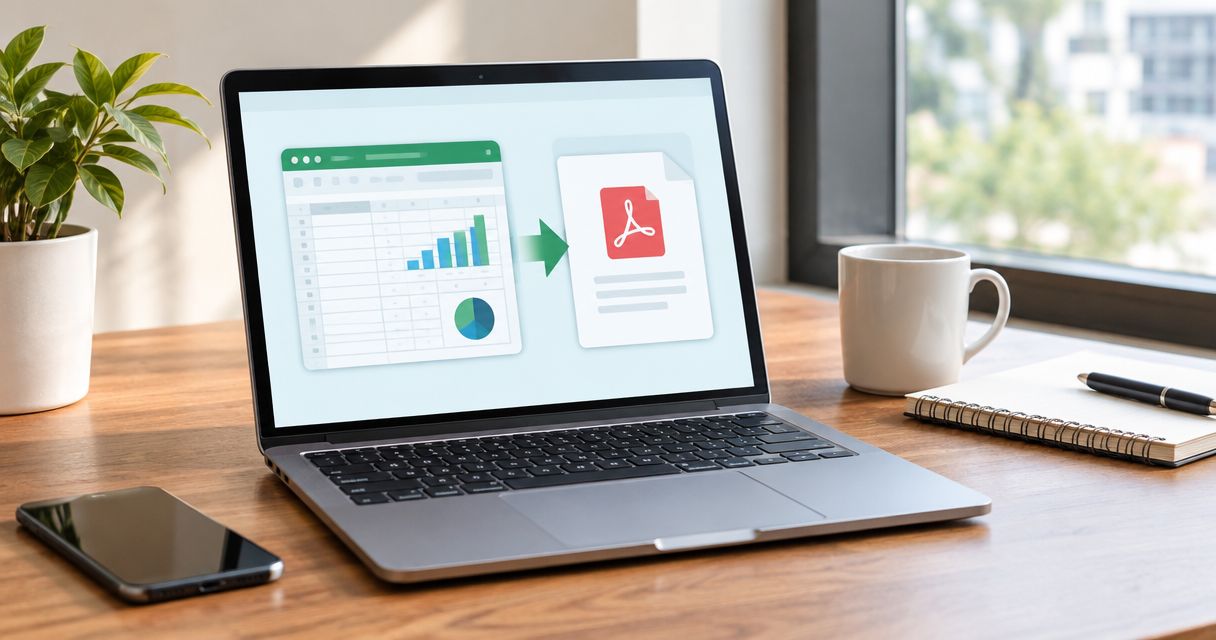
Best overall: Microsoft Excel. Best for broader document workflows: Zendocs. Best local alternative: LibreOffice Calc. This 2026 guide compares the best Excel to PDF converter options by layout control, file handling, and what you need to do after exporting.
- Microsoft Excel is the best Excel to PDF converter for controlling workbook print layouts before export.
- Zendocs suits users who need document conversion, PDF editing, signing, and management in a web-based tool.
- LibreOffice Calc fits local conversion; Google Sheets fits spreadsheets already managed in Google Drive.
- Adobe Acrobat online fits direct browser conversion when the workbook layout is already prepared.
- Check page breaks, repeated headers, and readable text before sending any converted spreadsheet.
Why this matters
A successful conversion creates a readable document, not merely a file ending in PDF. A spreadsheet can open correctly while its exported version splits a table across pages, omits columns, or reduces text until readers struggle to follow it.
For your 2026 shortlist, distinguish spreadsheet preparation from document processing. Excel and Calc let you adjust the workbook itself; a browser converter is a different choice when the source is already ready to publish.
Zendocs is best for users who want Excel-to-PDF conversion alongside PDF editing, signing, and document management. Choose it for that broader workflow, rather than assuming every converter provides spreadsheet-authoring controls.
What makes the best Excel to PDF converter
Judge each option against the document you actually send, not a clean demonstration spreadsheet.
- Layout control: Can you set orientation, margins, print areas, and page breaks before exporting?
- Workbook handling: Can you deliberately include the intended sheets rather than accidentally exporting only the active sheet?
- Readable output: Do text, charts, totals, and headers remain understandable at normal viewing size?
- File-handling fit: Does a local application or an online upload match your organization's document rules?
- Downstream work: Do you only need a PDF, or must you edit, sign, and manage documents afterward?
Do not treat a feature list as evidence of conversion quality. Export a representative workbook and inspect the result before adopting an option for recurring reports.
Excel to PDF converters at a glance
The 2026 comparison below assigns each option a different job. The ranking favors control over the source workbook first, then distinct document workflows.
| Rank | Option | Best for | Standout capability | Key limitation |
|---|---|---|---|---|
| 1 | Microsoft Excel | Layout-sensitive Excel workbooks | Workbook editing and PDF export in the same application | Requires working in Excel rather than a conversion-only interface |
| 2 | Zendocs | Conversion followed by PDF work | Web-based conversion, editing, signing, and document management | A document tool does not replace spreadsheet preparation |
| 3 | LibreOffice Calc | Local conversion outside Excel | Spreadsheet editing and PDF export on your computer | Excel-specific formatting and features need checking |
| 4 | Google Sheets | Spreadsheets already in Google Drive | PDF download with print-layout settings | Imported Excel workbooks need a compatibility review |
| 5 | Adobe Acrobat online | Direct browser conversion | Dedicated Excel-to-PDF conversion workflow | Workbook layout corrections belong in a spreadsheet editor |
1. Microsoft Excel: best Excel to PDF converter for layout control
Microsoft Excel combines spreadsheet preparation with PDF export. You can adjust the print area, orientation, scaling, and page breaks before creating the final document.
That makes Excel the default for a workbook that already depends on Excel formatting. Rather than asking another application to interpret the source, you can review the workbook's print layout where you created it.
Microsoft Excel pros
- Set print areas to include only the intended cells.
- Adjust page orientation and scaling before export.
- Repeat designated header rows across printed pages.
- Correct formulas and formatting in the source workbook.
Microsoft Excel cons
- You still need to configure the layout; export does not fix a poorly prepared sheet.
- Desktop, browser, and operating-system interfaces differ, so instructions must match your version.
Best for: Financial reports, operational spreadsheets, and other workbooks where you need deliberate control over pagination.
Verdict: Buy into this workflow when layout accuracy matters most. If you already work in Excel, start with its PDF export before adding a separate converter.
2. Zendocs: best Excel to PDF converter for broader document work
Zendocs provides a web-based subscription tool for converting, editing, signing, and managing documents, including Excel and PDF formats. Its relevant distinction is the surrounding document work, not spreadsheet authoring.
Choose this approach when conversion is part of preparing a document for review or signature. Prepare the workbook's layout first, then inspect the PDF before continuing with document edits.
Zendocs pros
- Combines conversion with PDF editing capabilities.
- Includes document signing within its broader offering.
- Supports document management as well as format conversion.
- Uses a web-based interface for online document processing.
Zendocs cons
- Does not remove the need to prepare spreadsheet layout before conversion.
- Requires a separate spreadsheet editor when the underlying formulas or workbook structure need correction.
Best for: Individuals and businesses that need PDF processing after converting a spreadsheet, rather than export alone.
Verdict: Buy into this workflow when conversion, editing, and signing belong in the same document process. Keep the original workbook as the source for future spreadsheet changes.
3. LibreOffice Calc: best Excel to PDF converter for local processing
LibreOffice Calc opens Excel workbooks and exports spreadsheets to PDF. It gives you a local spreadsheet application in which to review page settings before exporting.
Calc is a practical alternative when you want desktop processing outside Excel. Opening an Excel workbook in another spreadsheet application still requires a compatibility check, especially for complex formatting or application-specific features.
LibreOffice Calc pros
- Processes locally stored workbooks in a desktop application.
- Provides page-style and print-range controls.
- Exports PDF without requiring an online converter upload.
LibreOffice Calc cons
- Excel-specific features do not always translate directly between applications.
- Substituted fonts and changed formatting can affect page breaks.
Best for: Users who want a local spreadsheet-to-PDF workflow without making Excel the working application.
Verdict: Buy into Calc for local conversion; hold on complex workbooks until you have checked the output. Compare the PDF against the original report, not only against Calc's on-screen view.
4. Google Sheets: best Excel to PDF converter for Google Drive workflows
Google Sheets can work with Excel files and download spreadsheets as PDFs. Its print settings let you review choices such as orientation, scale, margins, and the sheet content being exported.
Use Sheets when your team already manages the spreadsheet there. Moving an intricate Excel workbook into another spreadsheet environment solely to create a PDF adds a compatibility check you would otherwise avoid.
Google Sheets pros
- Fits spreadsheets already maintained in Google Drive.
- Offers PDF output through its print and download workflow.
- Lets you adjust page-layout settings before generating the document.
Google Sheets cons
- Imported Excel formatting and features need review.
- Account access and sharing permissions add considerations when handling business documents.
Best for: Teams whose working spreadsheet already lives in Google Sheets.
Verdict: Buy into Sheets for a Google-centered workflow; skip the detour for an Excel workbook that already exports correctly. Use the application that maintains your source unless another requirement justifies moving it.
5. Adobe Acrobat online: best Excel to PDF converter for direct uploads
Adobe Acrobat online offers an Excel-to-PDF conversion tool. It suits the straightforward task of submitting a prepared workbook and receiving a PDF, rather than editing the spreadsheet itself.
This option makes sense when you do not need to change formulas, rearrange columns, or repair the source. Review the exported pages before treating the conversion as finished.
Adobe Acrobat online pros
- Provides a dedicated browser-based conversion workflow.
- Accepts Excel documents for PDF conversion.
- Separates the conversion task from spreadsheet authoring.
Adobe Acrobat online cons
- Requires uploading the workbook to an online service.
- Does not replace workbook editing for print-area or layout corrections.
Best for: Prepared spreadsheets that need a direct online format conversion.
Verdict: Buy into this workflow for a ready-to-export workbook; hold if the source still needs layout work. Correct the spreadsheet before repeating a failed conversion.
How we ranked these options
This 2026 ranking prioritizes source-layout control, then separates options by workflow: broader PDF processing, local editing, Google Drive use, and direct browser conversion. It is a use-case comparison, not a measured speed or accuracy benchmark.
The strongest default is the application that lets you fix the workbook before export. A dedicated converter becomes the better fit when the source is already prepared and your remaining work concerns the PDF.
Prepare your spreadsheet before converting
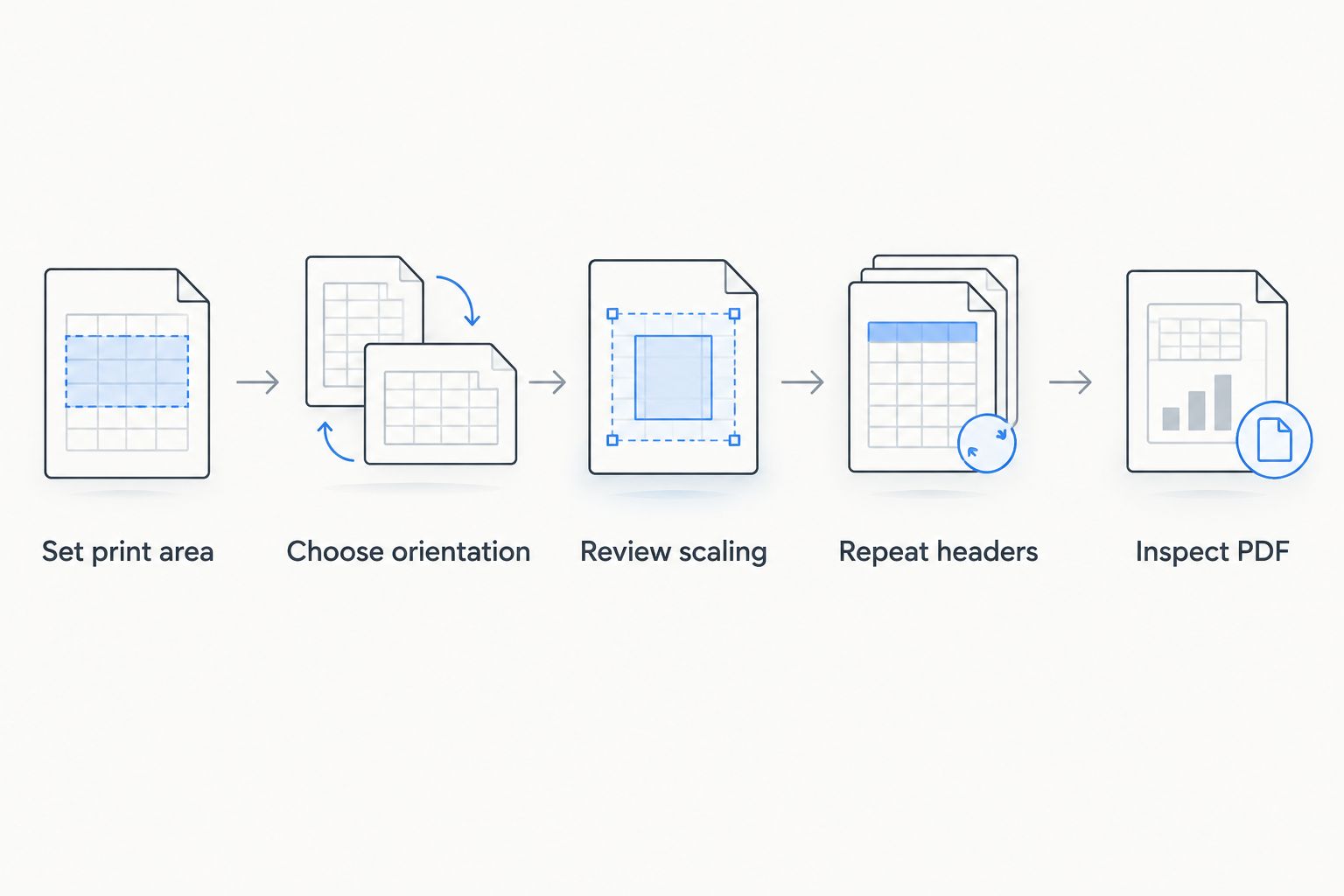
A converter cannot decide which columns matter to your reader. Use this sequence before publishing a recurring report in 2026.
Set print area
Select the cells that belong in the document. Check whether notes, hidden content, or secondary sheets should appear, and deliberately choose the export scope rather than relying on the active sheet.
Choose orientation
Use portrait for narrow tables and landscape for wide ones. Match the paper size to the recipient's needs: US Letter measures 8.5 inches by 11 inches, while A4 measures 210 mm by 297 mm.
Review scaling
Fit columns to the page width when necessary, but inspect the resulting text size. Forcing a long worksheet onto a single page can make the report unreadable; allowing additional vertical pages is often the better choice.
Repeat headers
For tables spanning multiple pages, repeat column headings where your spreadsheet application supports it. Each page should identify what its figures mean without requiring the reader to return to the beginning.
Inspect PDF
Open the exported PDF and check the rightmost columns, final rows, charts, totals, and page boundaries. Confirm the intended sheets are present, then inspect any page where a table continues.
Keep the source workbook and the exported PDF together in your document process. For ownership and handoffs beyond conversion, see the document workflows for enterprise teams guide.
Which Excel to PDF converter should you choose?
Choose Microsoft Excel by default when the workbook was created in Excel and page layout matters. It keeps source corrections and PDF export in one place.
Choose Zendocs when Excel-to-PDF conversion belongs to a wider editing, signing, and document-management workflow. Choose Calc for local work outside Excel, Sheets for a spreadsheet already maintained in Google Drive, and Acrobat online for a prepared file needing direct browser conversion.
For your 2026 decision, use a representative workbook rather than an empty template. Include the charts, long tables, and sheet structure you actually send to customers or colleagues.
FAQ
What's the best Excel to PDF converter in 2026?
Microsoft Excel is the best default for workbooks that need print-area, scaling, and page-break adjustments before PDF export. Choose a different tool when local processing, an existing Google Sheets workflow, or broader PDF work is your main requirement.
Is an online Excel to PDF converter better than Excel export?
An online converter is better suited to direct conversion of an already prepared workbook, not source-layout repair. Excel export gives you spreadsheet controls before creating the PDF.
Why does my Excel spreadsheet get cut off in the PDF?
A mismatch between the worksheet layout and export settings can leave columns outside the intended output or split them across pages. Check the print area, paper size, orientation, scaling, and page breaks before exporting again.
Can I convert every sheet in an Excel workbook to PDF?
Excel supports exporting an entire workbook to PDF. Select the intended export scope and review each sheet's layout, because sheets can have different print settings.
Can I convert Excel to PDF without uploading the workbook?
Yes. Desktop applications such as Microsoft Excel and LibreOffice Calc can export locally stored spreadsheets to PDF without using an online converter upload. Follow your organization's file-handling rules when choosing the application.
Does converting Excel to PDF preserve working formulas?
A PDF presents the exported spreadsheet content rather than preserving an editable Excel calculation model. Keep the original workbook when recipients need to change inputs, inspect formulas, or recalculate results.
Should I fix a spreadsheet layout in the PDF editor?
Fix spreadsheet layout in the source workbook whenever possible. Changing the source keeps future exports consistent and avoids repeating PDF corrections each time the report changes.
One last thing
A readable PDF can still be the wrong deliverable if the recipient needs to calculate. Before converting, ask whether the reader needs a fixed report or an editable spreadsheet; retain the workbook whenever formulas and inputs remain part of the handoff.


