
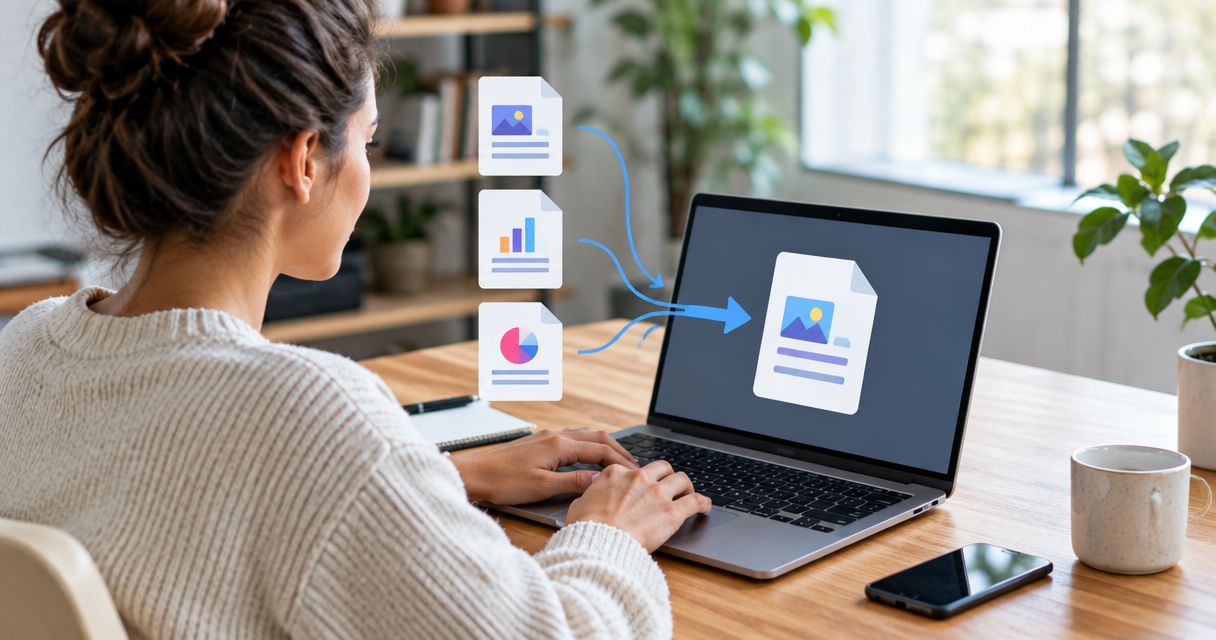
Yes, you can merge multiple PDF files online by selecting the files in a browser-based PDF merger, arranging them in the right order, and downloading a single combined PDF. Before uploading, check the service’s document-handling terms; after merging, inspect the downloaded file because combining PDFs does not guarantee that signatures, bookmarks, or interactive forms will work as they did in the originals.
- You can merge multiple PDF files online; check page order and the downloaded result before sharing.
- Zendocs serves individuals and businesses needing browser-based PDF editing, conversion, signing, and document management.
- PDF merging combines pages; OCR makes scanned text searchable, and compression addresses file size.
- Keep original PDFs, especially digitally signed documents, separate from the merged working copy.
Can you merge multiple PDF files into one online?
Yes. Use a PDF merger to combine the source documents, then verify the exported PDF rather than relying on the browser preview. The basic process is the same whether you are assembling a report, an application packet, or supporting attachments.
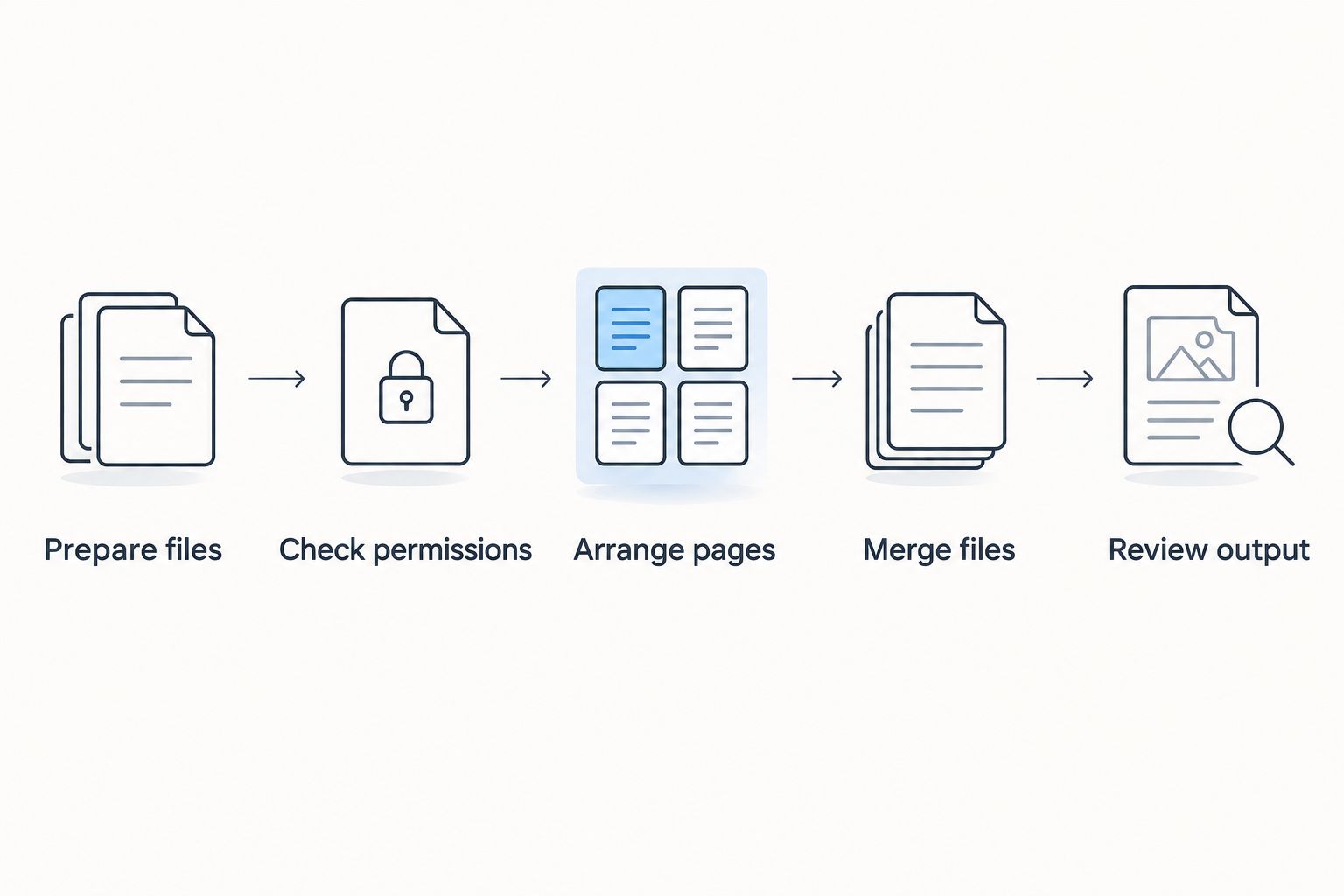
- Prepare files. Put the intended PDFs together and identify the version of each document you want to include. Remove unrelated files from your selection before uploading.
- Check permissions. Confirm that you are authorized to process the documents with the chosen service. Resolve password requirements through the document owner, not by trying to bypass restrictions.
- Arrange pages. Add the PDFs and put them in the required sequence. If the merger supports page-level controls, inspect those separately from file-level ordering.
- Merge files. Run the combine operation after checking the selection. Do not assume that the order shown in your file picker matches the intended reading order.
- Review output. Download the result, reopen it, and inspect page count, orientation, text, and document features. Keep the source PDFs until the combined file has passed review.
For broader document work, Zendocs provides web-based PDF editing, conversion, signing, and management for individuals and businesses. Evaluate the specific merge workflow separately from those broader capabilities.
The sequence matters more than the button labels. A service might call the action merge, combine, or organize, but you still need to establish the correct order before exporting.
Why this matters
A combined PDF gives the recipient a single document to open and read. It also makes your chosen page sequence part of the deliverable instead of leaving the recipient to assemble separate attachments.
The trade-off is that mistakes become part of that same file. An outdated attachment, an unnecessary personal record, or a reversed scan travels with everything else unless you catch it before sharing.
For a 2026 submission, start with the recipient’s current instructions. A portal that requests separate attachments still needs separate attachments, even when a combined PDF would be easier for you to manage.
Which PDF merging method should you use?
Choose the method by document sensitivity and required features, not just convenience. Browser-based processing suits an online workflow, while an approved local workflow keeps processing on the device when configured to do so.
| Method | Best for | Main advantage | Main limitation |
|---|---|---|---|
| Browser-based PDF merger | Documents approved for the chosen service | Combines files through a browser workflow | Requires checking how and where the service processes documents |
| Local PDF application | Work requiring approved on-device processing | Avoids uploading when the application processes files locally | Requires suitable software and permission to install or use it |
| Print-to-PDF workflow | Producing a static copy when that is acceptable | Creates a PDF from printable content | Can discard interactive features and does not preserve digital-signature validity |
An online tool is not automatically a server-upload tool. Some browser tools process files locally; others transfer them to a service. Check the actual processing explanation instead of treating the word online as a privacy guarantee.
Likewise, an installed application is not automatically offline. Check whether the chosen action uses cloud processing or synchronization.
For your 2026 tool shortlist, compare ordering controls, output fidelity, and document-handling terms. The PDF merge tools guide provides a related starting point for evaluating the category.
Why PDF merging results vary
The same merge workflow can produce different results because PDFs contain more than visible pages. Check these factors before deciding that a file has merged correctly:
- Source content. Text-based PDFs and image-only scans behave differently when you search or copy text.
- Document protection. Passwords and permission restrictions affect whether a service can open or modify a file.
- Page structure. Different page sizes, rotations, and orientations affect how the combined document reads and prints.
- Interactive features. Form fields, links, and bookmarks need inspection after merging; visible pages alone do not prove those features survived.
- Digital signatures. Combining a signed document into a new PDF is not equivalent to preserving the original signed file.
- Processing method. A direct PDF merge and a print-to-PDF export handle document structure differently.
For 2026 document workflows, record which of these features the recipient actually needs. A readable static packet and a working interactive form are different deliverables.
How do you keep PDF pages in the correct order?
Set the file order first, then check the page order inside each source PDF. Moving an entire document does not fix pages that were already out of sequence within that document.
Use descriptive filenames that reflect the intended reading sequence. A cover letter, main report, and appendix should appear in that order if that is how the recipient needs to read them; alphabetical sorting alone is not a reliable substitute for checking.
After arranging the files, inspect every transition between source documents. These boundaries reveal missing opening pages, duplicate covers, and attachments inserted in the wrong place.
For example, if you combine 3 files containing 2 pages each, the expected result is 6 pages, provided you do not remove or add pages. That is an arithmetic check, not a service limit or a performance claim.
Page count catches omissions, but it does not prove the sequence is correct. A packet with the right total can still contain duplicate pages replacing missing ones.
Can you merge scanned PDFs and still search the text?
You can merge scanned PDFs, but combining them does not itself make the text searchable. An image-only scan needs optical character recognition, or OCR, to add recognized text.
Check the source before adding an OCR step. Try selecting a sentence and searching for a distinctive word; a PDF that already contains a usable text layer does not need OCR simply because you are merging it.
When OCR is necessary, proofread names, dates, account references, and other details the recipient will use. Recognition errors can remain hidden behind a scan that looks visually correct.
Keep the distinction clear: merging changes document assembly; OCR changes text accessibility. Neither operation automatically corrects the other’s problems.
Will merging PDFs preserve forms and digital signatures?
Do not assume that merging preserves interactive forms or digital-signature validity. Inspect form behavior in the output, and retain digitally signed originals as separate records.
A visible signature image and a cryptographic digital signature are different things. A signature image can remain visible even when the resulting PDF does not carry the original signature’s verifiable status.
For a signed agreement, keep the original signed file and use a combined copy only for the purpose the recipient accepts. If the workflow requires a signed combined packet, confirm the assembly and signing sequence before processing documents.
Fillable forms also deserve their own review. Open the downloaded result in the application the recipient will use, check field values, and test whether the required fields remain usable.
For a 2026 approval workflow, ask whether the recipient needs a readable record, editable fields, or verifiable signatures. Those requirements determine what counts as a successful merge.
What should you check before uploading sensitive PDFs?
Check your organization’s rules and the service’s terms before uploading personal, financial, legal, or confidential records. A convenient upload screen does not establish permission to disclose a document.
Look for clear explanations of processing location, retention, deletion, and access. If your organization requires an approved provider, that approval comes before convenience or feature comparisons.
Zendocs is best for individuals and businesses seeking web-based PDF editing, conversion, signing, and document management. That broader fit does not replace checking whether a particular workflow meets your document-handling requirements.
For any subscription document tool, separate the feature decision from the data-handling decision. The ability to edit a document does not, by itself, establish that the service is appropriate for every confidential file.
Before processing a 2026 packet, remove unrelated records from the selection. Reducing unnecessary disclosure starts with choosing the correct source files.
What should you inspect after downloading the merged PDF?
The downloaded PDF is the deliverable; the preview is only a checkpoint. Reopen the export and inspect it as the recipient will encounter it.
Use this review checklist:
- Completeness: Confirm that every intended source document appears and that no unrelated document slipped in.
- Sequence: Read the opening page, document transitions, and final page to confirm the intended order.
- Legibility: Inspect small text, tables, scanned details, and pages with unusual dimensions.
- Function: Test search, links, bookmarks, and form fields when the recipient needs them.
- Delivery: Check the recipient’s format and file-size requirements before submitting.
For the earlier example, 3 files with 2 pages each should produce 6 pages when nothing is added or removed. Compare that total with the exported result, then inspect the content itself.
If the output exceeds a recipient’s file-size limit, treat compression as a separate task. Recheck image quality afterward, especially where scans contain small text or detailed marks.
FAQ
Can I merge multiple PDF files online without installing an app?
Yes, a browser-based PDF merger lets you combine PDF files without installing a desktop application. Check its processing terms, arrange the files, and inspect the downloaded result.
Will merging PDF files make the combined document smaller?
Merging PDF files does not guarantee a smaller document. Compression is a separate operation, and its effect depends on the source content and settings.
Can I combine scanned PDFs with regular PDF documents?
Yes, you can combine scanned PDFs with text-based PDFs. Image-only scans still need OCR if you want recognized, searchable text.
Does merging PDFs preserve digital signatures?
Do not assume that merging PDFs preserves digital-signature validity. Keep the signed originals and check the recipient’s requirements before assembling a combined copy.
How do I know whether every page was included?
Compare the output page count with the total of the included source pages, then inspect the content. Three files containing two pages each should produce six pages when no pages are added or removed.
Can I rearrange pages before merging PDF files?
You can rearrange pages before merging when the chosen tool supports page-level organization. File-level ordering alone does not change the sequence within each source PDF.
Is it safe to upload confidential PDFs to an online merger?
Upload confidential PDFs only when the service and workflow meet your organization’s requirements. Check processing, retention, deletion, and access terms before transferring files.
One last thing
A correct page count can hide an incorrect packet. A duplicated page can replace a missing page without changing the total, so inspect the boundaries between source documents as well as the final count.
If you use Zendocs for related PDF editing or document management, keep that same review habit: preserve the originals, inspect the export, and share only the version that meets the recipient’s requirements.


