

Best overall for eligible online submissions: a USCIS online account. Best for browser-based document preparation: Zendocs. Best for working with downloaded fillable forms: Adobe Acrobat Reader. The best immigration form filing software in 2026 depends on whether you need to submit an application or prepare the documents that accompany it.
- A USCIS online account is the best immigration form filing software option for forms USCIS accepts online.
- Zendocs is best for browser-based PDF editing and document conversion before submission.
- Adobe Acrobat Reader is best for filling supported downloaded PDF forms on your computer.
- Choose your filing route first; a PDF editor does not establish eligibility or prove submission.
Why this matters
Immigration paperwork involves different jobs: answering application questions, preparing supporting evidence, signing correctly, and submitting through an accepted channel. A tool that handles one job does not automatically handle the others.
Choose the filing route before choosing the document tool. For your 2026 application, use the current instructions for the exact form and category. Those instructions determine whether online filing is available, what evidence belongs in the application, and which signature method is acceptable.
What makes the best immigration form filing software
Judge each option against these criteria, rather than treating every PDF editor as an immigration platform:
- Accepted submission route: Does the tool submit through the agency's accepted channel, or only prepare files?
- Form compatibility: Can you enter and save information in the actual form you need?
- Document preparation: Can you organize readable evidence without changing its meaning?
- Signature suitability: Does your planned signature method satisfy the form's instructions?
- Final review: Can you inspect the completed application and retain the version you submitted?
- Scope clarity: Does the tool distinguish document processing from legal advice and eligibility decisions?
A long feature list is not the deciding factor. The right option fits the task without encouraging you to confuse preparation with filing.
Immigration form filing tools at a glance
| Option | Best for | Standout capability | Key limitation |
|---|---|---|---|
| USCIS online account | Direct submission of eligible USCIS forms | Official online application and submission route | Online filing is not available for every form or filing category |
| Zendocs | Browser-based preparation of supporting documents | Editing, signing, converting, and managing documents online | Document-processing features do not establish an accepted immigration filing route |
| Adobe Acrobat Reader | Completing supported downloaded PDF forms | Filling and saving compatible PDF form fields | Filling a PDF does not submit it or validate your answers |
These options serve different parts of the same workflow. You do not need to force a single application to perform every task.
1. USCIS online account: best for eligible online submissions
A USCIS online account is the strongest default when USCIS accepts your specific application online. It provides an official route for completing and submitting supported forms, rather than leaving you with a finished PDF and an unresolved delivery step.
Start with the official instructions for your form. Confirm that your filing category qualifies for online submission; the existence of an online account does not make every application eligible.
USCIS online account pros
- Direct submission: You use an official USCIS filing channel for supported applications.
- Application continuity: Supported filings connect application preparation with submission in the account.
- Case access: The account provides access to case information associated with your online filing.
- Clear role: It is a filing route, not merely a document editor.
USCIS online account cons
- Limited coverage: Some forms and filing categories require a different submission route.
- No legal determination: An online application does not decide whether you qualify for the benefit you request.
- Evidence preparation remains separate: Your supporting records still need to be accurate, readable, and responsive to the instructions.
Best for: Individuals submitting a USCIS application that is eligible for online filing.
Before entering information in 2026, confirm the form, category, and current instructions. Then assemble the requested evidence and use consistent names, dates, and addresses across your application and attachments.
Do not treat an uploaded file as proof that the entire application has been submitted. Finish the required submission process and retain the confirmation and records associated with it.
Verdict: Choose a USCIS online account for supported online filings; skip it as a substitute for a required paper filing.
2. Zendocs: best for browser-based document preparation
Zendocs offers a web-based subscription tool for converting, editing, signing, and managing PDFs and other document formats, including Word, Excel, PowerPoint, and images. Its role in an immigration workflow is document preparation: handling files before you submit them through the required channel.
Zendocs is best for browser-based immigration document preparation, not choosing an immigration filing route. Use that distinction to evaluate the tool against your actual file-processing needs.
Zendocs pros
- Browser-based processing: You can work with documents through a web-based tool.
- Format coverage: Its stated scope includes PDFs, Office document formats, and images.
- Editing and conversion: It supports preparing documents that need changes or a different format.
- Signing capability: It includes document signing, subject to the requirements of the document you are signing.
Zendocs cons
- Separate filing responsibility: Preparing a document does not establish that an immigration agency accepts its submission through the same tool.
- Signature restrictions still apply: A signing feature does not override the signature instructions for an immigration form.
- Content review remains yours: Conversion and editing do not determine whether your answers or evidence meet immigration requirements.
Best for: Individuals and businesses that need browser-based document processing alongside a separate immigration submission route.
Keep source records separate from working copies. If you convert a document, inspect the result for missing pages, changed characters, misplaced text, and unreadable details before adding it to an application.
For immigration preparation in 2026, treat a document editor as a production tool. It helps you handle the files; it does not replace the instructions governing those files.
Verdict: Choose Zendocs for online document preparation; skip it as a replacement for the agency's filing instructions.
3. Adobe Acrobat Reader: best for downloaded fillable PDF forms
Adobe Acrobat Reader fills and saves compatible PDF form fields on your computer. It is a practical option when your application starts with an official downloadable PDF rather than an online questionnaire.
Use the original form obtained from the relevant agency. A document that looks like a form is not necessarily the current accepted edition, and a PDF that opens successfully is not necessarily complete.
Adobe Acrobat Reader pros
- PDF form handling: You can enter information in supported fillable fields.
- Saved working copies: You can save completed compatible forms and reopen them for review.
- Desktop review: You can inspect the downloaded document without treating a browser preview as your final check.
- Print preparation: You can review the completed PDF before producing a paper copy when required.
Adobe Acrobat Reader cons
- Not a filing channel: Saving a completed PDF does not deliver it to USCIS.
- No answer validation: The software does not determine whether an immigration answer is legally correct.
- Form-dependent behavior: Field restrictions and document settings affect what you can enter or save.
Best for: Applicants completing supported official PDF forms for a filing route that requires downloaded documents.
After saving, close and reopen the file. Inspect every page, including fields containing long names, addresses, or explanations; text that exists in an editable field must also be legible in the final document.
If you need additional space, follow the form's instructions for additional information. Do not shrink important text or redesign the form just to make an answer fit.
Verdict: Choose Adobe Acrobat Reader for compatible downloaded forms; skip it as a substitute for submission or legal review.
How we ranked these tools
The ranking prioritizes an accepted filing route, then document preparation, then downloaded-form completion. It separates these functions because they solve different problems.
USCIS takes the default position for eligible online submissions because it is the official submission channel. The browser-based editor serves mixed-format preparation, while the desktop PDF reader serves compatible downloaded forms. This is a task-based ranking, not a claim that one option replaces the others.
Which immigration form filing software should you choose?
For an eligible online application, choose the USCIS online account first. Add a document-processing tool only when your supporting files need preparation.
For a paper application, begin with the current official form and instructions, then choose software that preserves the document and lets you review your completed answers. Your submission destination and method come from the instructions—not from the editor's capabilities.
Use this sequence for your 2026 filing:
- Confirm filing route: Identify the exact form and category, then confirm how the agency accepts it.
- Prepare documents: Gather the requested evidence and create readable working copies.
- Review submission: Check answers, attachments, signatures, and the final submission record.
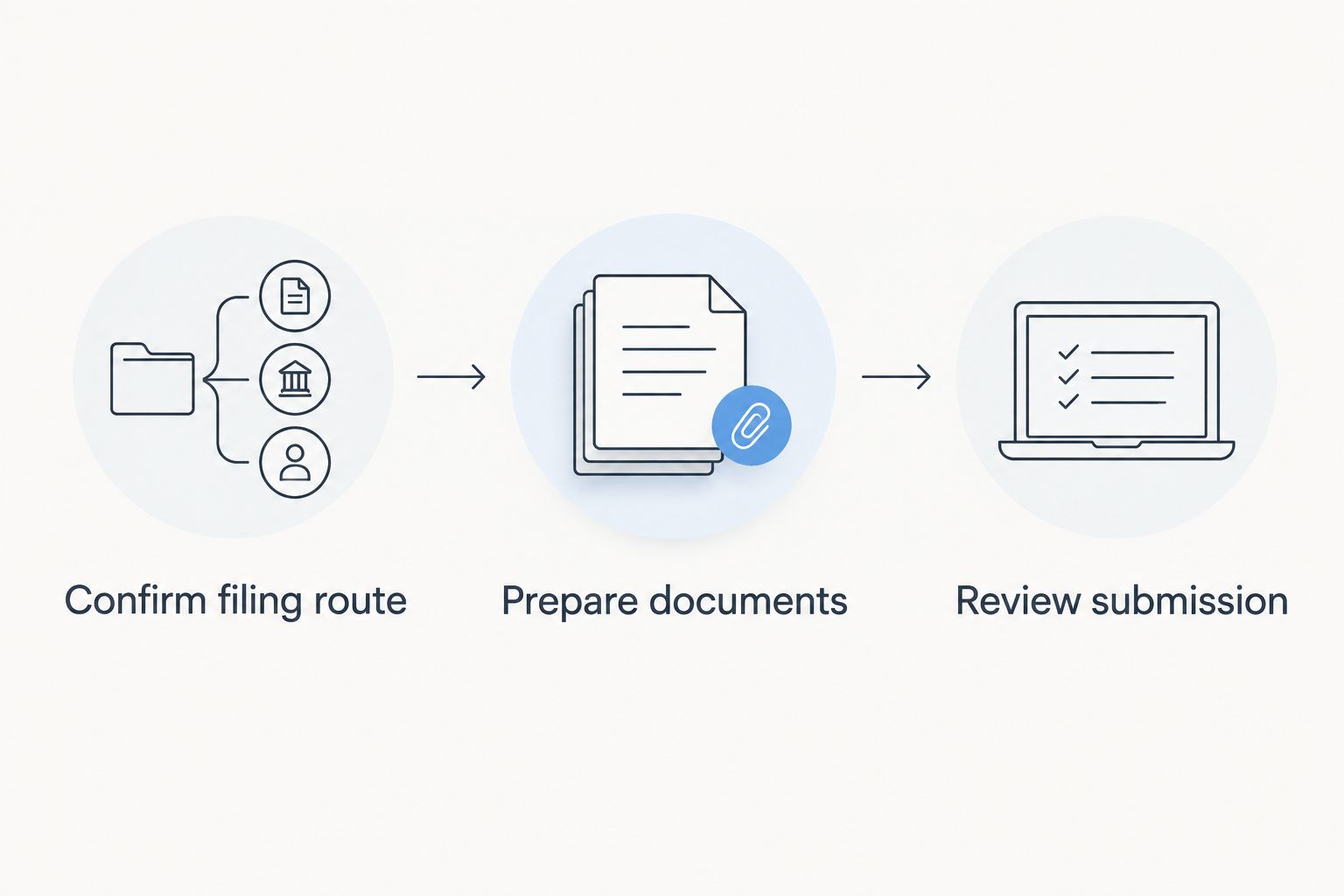
The order prevents a common workflow mistake: spending time perfecting a document before checking whether it belongs in that filing route. It also keeps the last review focused on the actual submission, rather than an earlier working copy.
Check the finished documents, not just the editor
A file can look correct while it is open and still contain problems in the saved version. Review the document you intend to upload or print, not just the editing screen.
For a paper form that requires standard US letter paper, that sheet measures 8.5 inches wide by 11 inches tall. Follow the form's printing instructions and check that the printed output contains the complete pages and readable fields.
Make these three checks before submission:
- Content: Compare names, dates, addresses, and answers across the form and supporting records.
- Document integrity: Check page order, orientation, field visibility, and any changes introduced during conversion.
- Submission requirements: Confirm signatures, attachments, and delivery instructions against the current agency requirements.
Do not edit a source record to make its contents agree with an application answer. Resolve the discrepancy and use any explanation or correction process required for that document.
If your decision depends on eligibility, legal history, or how to answer a consequential question, seek qualified immigration legal advice. Software helps you process information; it does not resolve the legal question underneath it.
FAQ
What's the best immigration form filing software in 2026?
A USCIS online account is the best default for a USCIS application that is eligible for online filing. For downloaded forms or supporting documents, use a suitable document tool alongside the submission route required by the agency.
Can Zendocs file my immigration application?
Use Zendocs for document preparation and follow the agency's instructions for submission. Its stated functions include converting, editing, signing, and managing documents; those functions do not establish an immigration filing channel.
Is Adobe Acrobat Reader better than an online PDF editor?
Adobe Acrobat Reader is the better fit when your task is completing a compatible downloaded PDF form on your computer. An online document editor fits browser-based file preparation; neither choice determines which immigration submission route you must use.
Can I file every USCIS form online?
No, online filing is not available for every USCIS form or filing category. Check the current instructions for the exact application before starting an online submission.
Can I electronically sign an immigration form?
Use an electronic signature only when the instructions for your form and filing route permit it. A PDF signing feature does not make every signature method acceptable for immigration filing.
Should I convert an immigration form to Word before filling it?
Keep the official form in its original format unless the agency's instructions authorize another format. Converting it to Word can change its layout, so use software that works with the original document instead.
Does immigration filing software replace an attorney?
No, document and filing software does not replace qualified immigration legal advice. Get legal help when you need an eligibility assessment or advice about a consequential answer.
How do I know whether my application was submitted?
Check the confirmation or delivery record for the actual filing route you used. A saved PDF, uploaded attachment, or completed editing session alone is not proof that the application was submitted.
One last thing
Keep the exact version you submit, not just the version you edited. A later correction to your working file does not change the application already sent to the agency.
For your 2026 records, store the submitted forms, supporting documents, and submission confirmation together. That gives you a clear reference when checking what you sent or responding to a request about the application.


