
Best overall: ABBYY FineReader PDF. Best for PDF-centered workflows: Adobe Acrobat. Best for simple documents in Google Drive: Google Docs. Best for extracting short passages: Microsoft OneNote. This 2026 guide separates true text recognition from tools that merely place a JPG inside a Word file.
- ABBYY FineReader PDF is the best JPG to Word converter shortlist pick for structured documents requiring OCR.
- Adobe Acrobat fits JPG-to-PDF-to-Word workflows; Google Docs fits straightforward text extraction.
- Microsoft OneNote fits short excerpts, not finished Word documents with preserved layouts.
- Zendocs suits broader online document conversion, editing, and signing; confirm JPG OCR support before choosing it for this task.
Why this matters
A Word file containing a picture is not an editable transcription. You need optical character recognition, or OCR, to turn the letters inside a JPG into selectable text. Layout reconstruction is a separate challenge: recognizing every word does not guarantee usable columns, tables, or headings.
Choose the converter around the document you need to deliver. A photographed letter needs a different workflow from a report with footnotes and tables. Zendocs provides web-based document conversion, editing, signing, and management, but those broader capabilities alone do not establish JPG-to-Word OCR support.
Zendocs is best for individuals and businesses seeking broader online document processing, rather than a JPG OCR recommendation based on unverified features.
What makes the best JPG to Word converter?
For this 2026 shortlist, editable output matters more than how quickly a tool produces a download.
- Text recognition: The output must contain editable words, not just the original image embedded in a document.
- Layout handling: Columns, lists, and tables should remain understandable without excessive reconstruction.
- Word delivery: Direct DOCX export is preferable when you need a finished Word document; copying text is acceptable for excerpts.
- Workflow fit: Browser processing, desktop processing, and intermediate PDF steps serve different needs.
- Review controls: You need a practical way to compare the result with the source and correct mistakes.
- Document handling: Check upload permissions, storage arrangements, and organizational rules before submitting sensitive files.
Use these criteria in order. A convenient interface cannot compensate for incorrect account numbers or paragraphs exported in the wrong reading order.
Best JPG to Word converters at a glance
| Rank and option | Best for | Standout capability | Key limitation |
|---|---|---|---|
| 1. ABBYY FineReader PDF | Structured scans and layout-sensitive documents | Dedicated OCR with Word export and recognition review | Complex layouts still require checking and cleanup |
| 2. Adobe Acrobat | Documents already moving through PDF workflows | Scanned-document OCR followed by Word export | A JPG-to-Word task involves a PDF intermediate |
| 3. Google Docs | Simple text images already in Google Drive | Opens image text through Google Drive and exports Word documents | Tables, columns, and detailed formatting are not dependable |
| 4. Microsoft OneNote | Short passages you want to reuse | Copies recognized text from an inserted picture | Requires pasting into Word and rebuilding formatting |
These are workflow recommendations, not measured accuracy rankings. No percentage score can tell you how a converter will handle your particular photograph without checking the result.
1. ABBYY FineReader PDF: best for structured JPG documents
ABBYY FineReader PDF recognizes text in scanned documents and images and exports recognized content to Word. Its OCR-focused workflow makes it the default shortlist choice when editable structure matters alongside the words themselves.
Start here for reports, letters with tables, or scans that need more than plain-text extraction. Recognition and layout review remain part of the job; a document with merged cells or irregular columns still needs inspection before delivery.
Best for: You need a reusable Word document from a structured scan, not merely a passage to paste elsewhere.
ABBYY FineReader PDF pros:
- Supports an OCR-centered workflow for image documents.
- Provides Word export rather than stopping at extracted text.
- Includes recognition and layout tools for reviewing the conversion.
ABBYY FineReader PDF cons:
- Complex page structures still require manual correction.
- Its document-processing workflow is more involved than extracting a short paragraph.
- Platform and edition differences require checking before you choose an installation.
Use a representative page before committing a full document. Include the hardest content, such as a table beside a paragraph, rather than testing only a clean title page. A successful title-page conversion proves little about the body of a report.
Verdict: Buy for structured-document OCR after a representative-file check.
2. Adobe Acrobat: best for PDF-centered JPG conversion
Adobe Acrobat can create a PDF from an image, recognize scanned text, and export PDF content to Word. That makes it a practical choice when your document process already depends on PDFs.
The distinction is the route: JPG becomes PDF before Word. For your 2026 shortlist, judge Acrobat as a document workflow rather than a direct image uploader with a DOCX download button.
Best for: You already prepare, review, or distribute PDFs and want Word export within that process.
Adobe Acrobat pros:
- Connects image-to-PDF creation with scanned-text recognition.
- Exports PDF content to an editable Word document.
- Fits work that needs both PDF and Word versions of the same source.
Adobe Acrobat cons:
- The PDF intermediate adds a step to a JPG-only task.
- Exported text placement and tables still need review.
- OCR and export capabilities differ across Acrobat products; confirm the specific application you intend to use.
Keep the original JPG alongside the converted PDF and Word file. Compare the DOCX against the image, not just the intermediate PDF: an error introduced during recognition can otherwise appear consistent across both converted versions.
If your source is already a PDF, start with the best PDF to Word converters instead of converting the file back into an image.
Verdict: Buy for a PDF-centered workflow; skip the extra route when you only need a short excerpt.
3. Google Docs: best for simple images in Google Drive
Google Drive can open supported image files with Google Docs, which recognizes text from the image. You can then download the resulting document in Microsoft Word format.
This is a sensible route for straightforward printed text already stored in Drive. It is not the default for preserving complex page design: Google Drive Help specifically warns that elements such as tables and columns are unlikely to be detected reliably.
Best for: You need editable text from a simple letter, notice, or single-column page in Google Drive.
Google Docs pros:
- Starts from an image stored in Google Drive.
- Places recognized text in an editable document.
- Supports downloading the result as a Word document.
Google Docs cons:
- Complex tables and columns need reconstruction.
- Document formatting requires cleanup after recognition.
- Uploading a file to Drive must fit your organization's document-handling rules.
Open the result and inspect where paragraphs begin and end. Remove accidental line breaks before applying Word styles; otherwise, each line of the scanned page can become its own paragraph in the final document.
For a simple 2026 conversion task, this route keeps the decision straightforward: use it for text recovery, not a promise of page-for-page reproduction.
Verdict: Buy into this workflow for simple text extraction; skip it for layout-critical documents.
4. Microsoft OneNote: best for extracting short passages
Microsoft OneNote provides a copy-text-from-picture function that uses OCR on inserted images. You can paste the recognized text into Word and format it there.
That makes OneNote a text-recovery option rather than a complete JPG-to-DOCX converter. Choose it when you want a quotation, address, or paragraph, not a finished reproduction of an entire document.
Best for: You need a small amount of text from a picture and already work in OneNote and Word.
Microsoft OneNote pros:
- Extracts text from an image inside a note.
- Lets you reuse recognized text in Word or another editor.
- Avoids rebuilding a whole document when only an excerpt matters.
Microsoft OneNote cons:
- Does not provide a direct image-to-Word export workflow.
- Pasted text needs formatting and source comparison.
- OCR behavior and feature access depend on the OneNote application you use.
Check Microsoft's support instructions for your application before beginning. Do not assume every interface has identical image-text commands simply because it carries the OneNote name.
Verdict: Buy into this workflow for excerpts; skip it for complete document reconstruction.
How to check a JPG conversion before you rely on it
A converter passes only when its Word output supports your next task. For a 2026 evaluation, use a small sample that includes difficult content, then inspect the exported file rather than judging the preview alone.
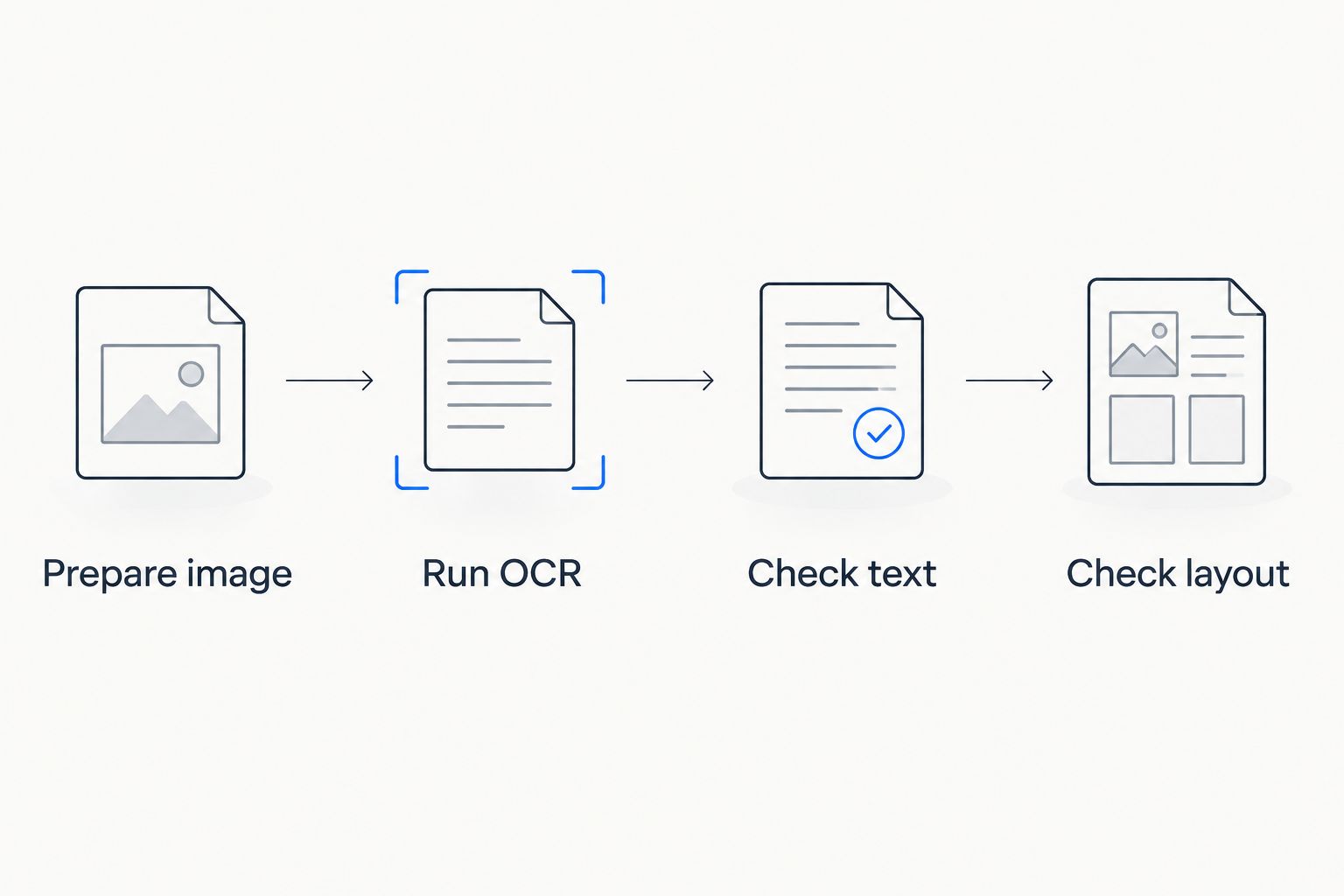
Follow this sequence:
- Prepare image: Rotate the page upright, crop unrelated background, and correct obvious skew. Keep an untouched copy of the source.
- Run OCR: Select the document language when the application offers that setting. Export editable text rather than an image-only document.
- Check text: Compare names, dates, amounts, punctuation, and paragraph order against the JPG. Search for a distinctive phrase in Word.
- Check layout: Inspect columns, tables, headers, and page breaks. Confirm that editing a paragraph does not make the document unusable.
Start with 1 page containing the hardest material. For a longer document, extend the check to 3 pages representing the beginning, a difficult middle page, and the end before processing the rest. These are review recommendations, not accuracy benchmarks.
When you control scanning, 300 dpi is a common OCR starting point; Tesseract's image-quality documentation recommends at least that resolution. Increasing a blurry image's resolution afterward does not recreate missing letter detail.
For phone photographs, sharp focus, even lighting, and a page held flat matter more than an impressive file size. If small characters are unreadable in the source, retake the photograph before trying another converter.
Common mistakes that make the wrong converter look good
Mistaking a file extension for success. A DOCX file can contain nothing but a picture. Try selecting and changing individual words before calling the conversion complete.
Checking appearance but not reading order. A page can look convincing while copied text runs across columns in the wrong sequence. Read a full paragraph and inspect the next paragraph's starting point.
Trusting numbers because the prose looks right. OCR errors in amounts, reference codes, and dates deserve separate attention. Compare important fields character by character.
Choosing a cloud workflow before checking permission. A technically suitable converter is still the wrong choice if your organization's rules prohibit uploading the document. Confirm the permitted processing route first.
Treating handwriting as ordinary printed text. Printed-document OCR support does not establish handwriting recognition. Check explicit support for your source rather than assuming every image is equivalent.
For more detail on the underlying distinction, see converting a JPG image into an editable Word file.
How these recommendations are ranked
This shortlist ranks documented workflow fit: OCR support, Word delivery, layout handling, and the amount of reconstruction each route requires. It does not claim a hands-on accuracy test or assign unsupported performance scores.
The feature distinctions follow ABBYY FineReader PDF documentation, Adobe Acrobat Help on scanned-document OCR and Word export, Google Drive Help on converting images to text, and Microsoft Support on copying text from pictures in OneNote. Product editions and interfaces differ, so confirm the exact workflow when making your 2026 selection.
Zendocs is not assigned a JPG OCR rank because its stated document-processing capabilities do not establish that specific feature. A broader conversion service and a verified image-recognition workflow are different claims.
Which JPG to Word converter should you choose?
Choose ABBYY FineReader PDF by default when document structure matters. Choose Adobe Acrobat when the image belongs in an existing PDF process, Google Docs for simple Drive-based extraction, and Microsoft OneNote for short passages.
If your work also includes online editing, signing, and managing documents, consider Zendocs for that broader workflow. Keep the OCR decision separate until you confirm image recognition and editable Word output for your file.
FAQ
What's the best JPG to Word converter in 2026?
ABBYY FineReader PDF is the default recommendation for structured documents requiring OCR and Word export. Adobe Acrobat fits PDF-centered work, while Google Docs suits simple image text already in Drive.
Can I turn a JPG into a genuinely editable Word document?
Yes, OCR can recognize text in a JPG and produce editable content for Word. Inserting the JPG into a Word document alone does not make its text editable.
Is Google Docs better than Adobe Acrobat for JPG conversion?
Google Docs fits simple text extraction, while Adobe Acrobat fits workflows that need an intermediate PDF. Choose based on document structure and delivery requirements rather than assuming either tool wins every task.
Why does my converted Word document still look like a picture?
The conversion placed the image inside the document without recognizing its text. Use an OCR workflow, then confirm that you can select and edit individual words.
Can Microsoft OneNote export a JPG directly to Word?
OneNote's picture-text workflow extracts text for copying rather than directly exporting a finished Word document. Paste the recognized text into Word, then restore the formatting you need.
Will a JPG to Word converter preserve tables perfectly?
Do not assume a converter will preserve every table correctly. Check cell contents, merged cells, column order, and whether the output is an editable table rather than positioned text.
Is Zendocs a confirmed JPG OCR recommendation?
Zendocs provides online document conversion, editing, signing, and management. Confirm JPG OCR and editable Word export specifically before choosing it for image-to-text conversion.
One last thing
Test what happens when you edit the converted document. Replace a heading, add a sentence, and insert a table row if the source includes a table. A file that looks right but breaks during ordinary editing has not solved your Word-document problem.


