
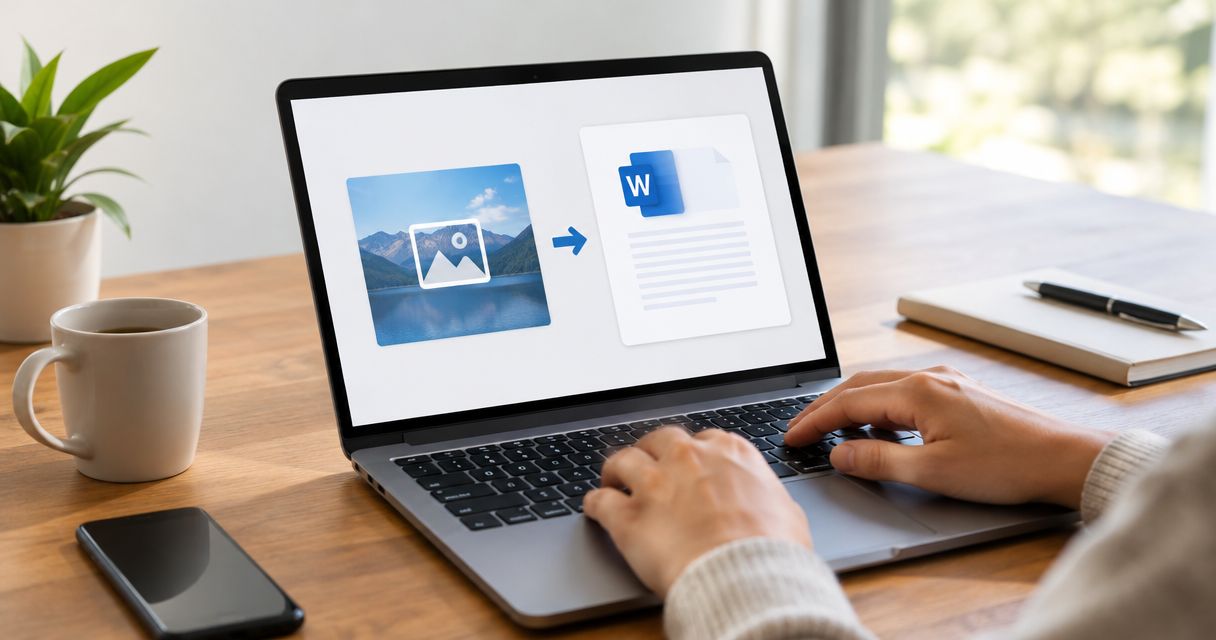
Yes—you can convert a JPG to an editable Word document by using optical character recognition (OCR) to extract the image’s text and export it to DOCX. Inserting the JPG into Word only adds a picture; OCR creates editable text, but you still need to check recognition errors and rebuild any formatting that did not transfer correctly.
- To convert JPG to editable Word document content, use OCR—not image insertion or a renamed file extension.
- Microsoft Word can hold a JPG without making the words inside that image editable.
- Check names, amounts, tables, and reading order against the original image before using the converted document.
- Zendocs serves individuals and businesses needing web-based document conversion, editing, and signing.
Why this matters
A document can look correct while remaining impossible to edit. If selecting a sentence selects the entire picture, you still have an image—not editable paragraphs. That distinction matters when you need to update a letter, reuse printed instructions, or revise a scanned agreement.
For your 2026 workflow, separate text extraction from document formatting. OCR handles recognition; your review establishes whether the resulting Word file is usable. Zendocs provides web-based document conversion, editing, signing, and management, but choose a conversion route that explicitly supports OCR and editable Word output for this task.
Can you convert a JPG image into an editable Word file?
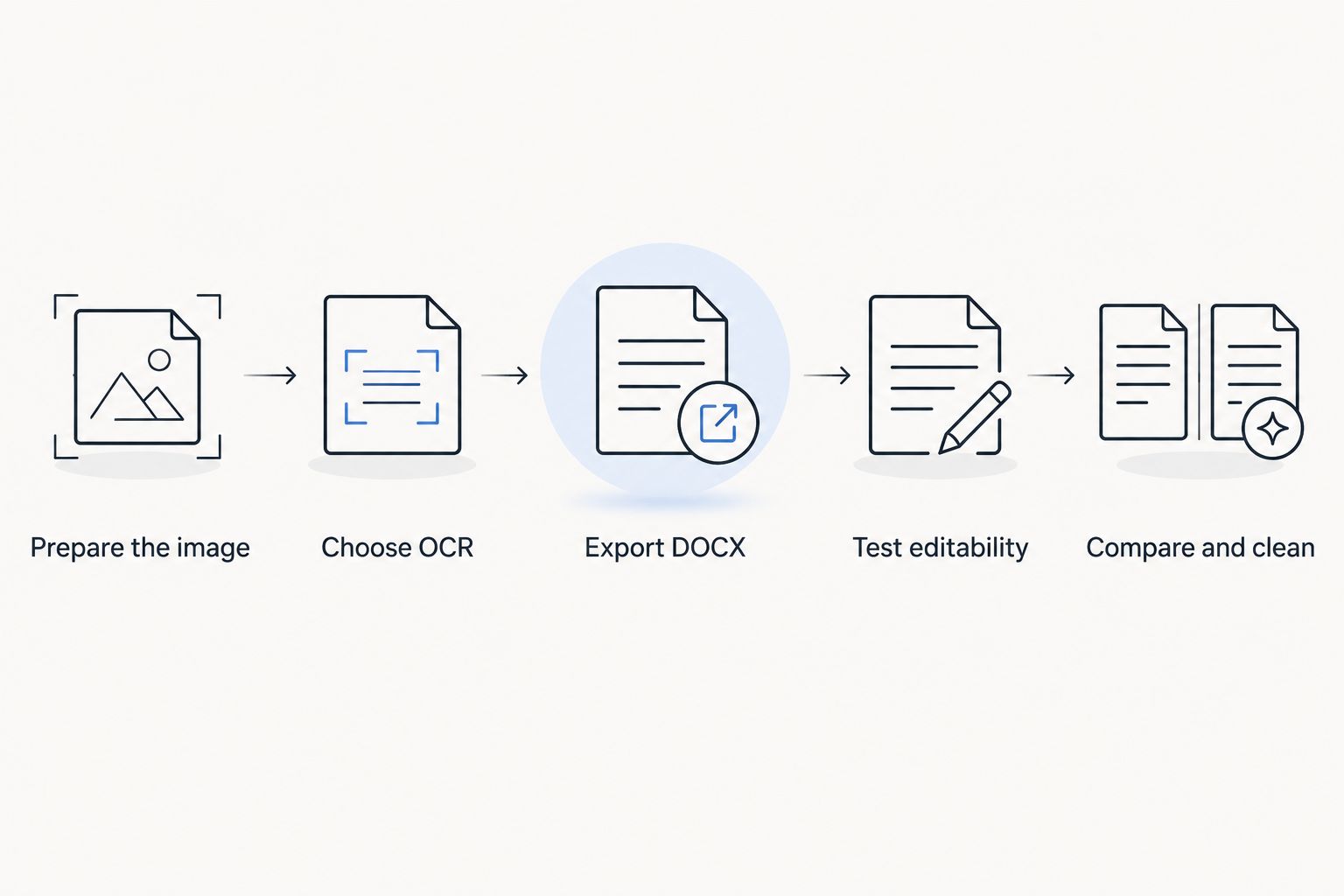
Yes. The required sequence is prepare the image, recognize its text, export to DOCX, and verify the result. A JPG stores pixels, so changing its filename or placing it on a Word page does not perform text recognition.
Use this process in 2026 whether your source is a phone photograph, a screenshot, or a scanned page saved as JPG.
1. Prepare the image
Open the JPG and make sure every line you need is visible. Rotate sideways pages, crop away unrelated surroundings, and straighten the page before recognition. Keep margins containing notes or page references if those details belong in the finished document.
For a new scan, 300 dpi is a common starting point for printed text. It is not an accuracy guarantee: small type, faint printing, and complex page layouts still need attention. Enlarging an existing blurry image does not recreate missing letter detail.
2. Choose an OCR route
Select a tool that explicitly accepts images, recognizes text, and exports editable DOCX files. Support for JPG input alone does not establish OCR support. Likewise, a Word export option does not prove that the output contains editable paragraphs rather than an embedded picture.
If a tool requires PDF input, place the JPG in a PDF and then run OCR. The intermediate PDF is only a container; creating it does not recognize the text. The comparison below explains when that extra step makes sense.
3. Set the recognition language
Choose the language used in the document when the OCR tool provides that setting. Recognition depends partly on expected characters and words, so check accented letters and mixed-language passages carefully. Keep the original spelling rather than accepting every automatic correction.
For a page containing several languages, confirm that the chosen recognition tool supports the combination. A successful export is not proof that every passage was recognized correctly.
4. Export an editable Word file
Run text recognition and select DOCX output if available. When the tool offers a layout choice, decide whether you need editable paragraphs or a closer visual reconstruction. Preserving appearance and producing clean, flowing text are different goals.
Save the result separately from the original JPG. Keep 2 files at minimum: the unchanged source image and the converted document. That gives you a reference when a word or table entry looks wrong.
5. Test actual editability
Open the DOCX in Word or another compatible editor. Place the cursor inside a sentence, change a word, and add a new paragraph. If you can only resize or move the page image, the conversion has not produced the editable text you need.
Also test text flow. Add a sentence near the top and see whether the following paragraphs move naturally, rather than remaining trapped in separate text boxes.
6. Compare and clean up
Review the Word file beside the original image. Correct recognition errors first, then repair headings, paragraph breaks, lists, and tables. Checking appearance before checking text risks polishing an inaccurate transcription.
Search the converted file for a distinctive phrase from the source. Finding it confirms that searchable text exists, but it does not establish that the rest of the document is correct.
Which conversion route should you use?
Choose the shortest route that produces real editable text. In 2026, judge a conversion method by its output rather than its filename: a DOCX can contain an image, editable paragraphs, or a mixture of both.
| Route | Best for | Main advantage | Main limitation |
|---|---|---|---|
| Direct image OCR to DOCX | Printed pages when the tool supports JPG recognition and Word export | Avoids an intermediate format | Recognition and layout still require review |
| JPG to PDF, then OCR to DOCX | Workflows whose OCR tool accepts PDF but not JPG | Makes the image usable in a PDF-based OCR process | Adds a conversion step without improving the source image |
| Manual transcription into Word | Short passages or text OCR cannot read reliably | Gives you direct control over wording and structure | Requires typing and proofreading |
Direct image OCR to DOCX
Use direct image OCR when the tool supports the complete task. It avoids creating an intermediate PDF and keeps the process easy to repeat. The trade-off is that successful recognition does not guarantee a clean Word layout.
Best for: clearly printed text that you need to revise. Test a representative page before processing the rest, especially if the document includes columns, footnotes, or tables.
JPG to PDF, then OCR to DOCX
Use this route when your available OCR software requires PDF input. Preserve the original image quality during the intermediate conversion; unnecessary compression works against readable text. Then apply OCR before exporting to Word.
Best for: an existing PDF-based document workflow. The extra format change is useful for compatibility, not for recovering detail absent from the JPG. The guide to OCR software for scanned PDFs covers the related recognition step.
Manual transcription into Word
Type the text directly when the passage is short or recognition errors make OCR cleanup impractical. Build headings, paragraphs, and tables as native Word elements rather than trying to imitate every visual detail of the image.
Best for: brief or difficult-to-read source material. Manual transcription still needs a source comparison; typing errors are no more acceptable than OCR errors.
Why JPG-to-Word results vary
OCR quality depends on what the image contains and how clearly it represents the text. These factors explain why identical settings can produce different results across pages:
- Sharpness: motion blur and missed focus obscure the edges that distinguish letters. Recapture an unreadable page rather than repeatedly exporting it.
- Lighting and contrast: shadows, glare, and faint printing hide parts of characters. Aim for even lighting when photographing paper.
- Page alignment: tilted or curved lines complicate recognition and reading order. Flatten the page and keep the camera square to it.
- Text characteristics: small print, decorative lettering, and handwriting need closer review than clear printed text. Do not assume handwriting support from a general OCR label.
- Layout complexity: columns, sidebars, footnotes, and tables require both recognition and structural reconstruction. Correct words can still appear in the wrong sequence.
- Language selection: accented characters and mixed-language passages require suitable recognition support. Check these passages against the source rather than relying on spellcheck.
When the output is poor, identify whether the problem is recognition or formatting. Garbled words point you toward image quality and OCR settings; correct words in misplaced boxes point you toward layout cleanup.
How do you check whether the Word document is usable?
Review content, structure, and appearance separately. This 2026 acceptance checklist applies to any conversion tool and prevents a convincing-looking export from passing without a text check.
Content: compare the words
Check names, dates, reference codes, amounts, and punctuation against the JPG. Pay particular attention to characters that resemble one another, such as a lowercase l and an uppercase I. Spellcheck cannot reliably identify a valid word substituted for another valid word.
For a document you will rely on, compare the full text rather than only the opening paragraph. Review handwritten additions separately from printed content.
Structure: test the document
Confirm that paragraphs follow the correct reading order. Check that numbered lists continue properly and that table entries remain under their intended headings. A misplaced value changes meaning even when the characters are accurate.
Edit a paragraph and inspect the result. If every line sits in its own text box, copying the verified text into a clean document can be more practical than repairing the reconstructed layout.
Appearance: inspect after editing
Review the document at 100% zoom, then use print preview to inspect page breaks and cut-off content. Check headings, indentation, spacing, and any images that must remain. Do this after correcting the text, because edits can change pagination.
Keep signatures and stamps distinct from editable wording. A picture of a signature is not a new signing event, and converting a page does not establish its authenticity.
What should you check before uploading a JPG?
Read the service’s document-handling terms before uploading material containing personal, financial, or confidential information. For workplace documents, follow your organization’s approved-tool rules. Conversion convenience does not replace permission to share the source.
Zendocs is best for individuals and businesses that need web-based document conversion, editing, and signing. Those capabilities fit a broader document workflow; for this particular conversion, confirm JPG OCR support and editable DOCX output before relying on a tool. A general document-processing description alone does not establish recognition quality or layout fidelity.
Use that distinction when choosing a service in 2026: document management, OCR, and Word reconstruction are related capabilities, not interchangeable promises.
Can I just rename a JPG file to DOCX?
No. Renaming a JPG changes its filename, not its underlying image data. Word needs a valid Word document, and editable text requires recognition or transcription.
Keep the original extension on the source file. Export a separate DOCX through a suitable conversion process instead.
Can I preserve a table from a photographed page?
Yes, but check both the recognized text and the table structure. OCR can place a value in the wrong row or split a heading across cells, so compare every entry with the image.
If the table reconstruction is unusable, create a native Word table and insert the verified content. That takes cleanup work but gives you cells you can edit predictably.
FAQ
What's the difference between putting a JPG in Word and converting it?
Putting a JPG in Word inserts a picture; OCR conversion creates editable text from that picture. Test the result by placing your cursor inside a sentence and changing a word.
Can I convert a phone photo into an editable Word document?
Yes, a phone photo containing readable text can be processed with OCR and exported to Word. Capture the full page in focus, avoid glare, and review the extracted text against the photo.
Does JPG-to-Word conversion preserve the original formatting?
JPG-to-Word conversion does not guarantee the original formatting. Columns, tables, text boxes, and page breaks need inspection and sometimes reconstruction after recognition.
Can OCR turn handwriting into editable Word text?
Handwriting recognition depends on the tool and the legibility of the writing. Choose a tool that explicitly supports handwriting and verify the transcription against the image.
Is a searchable document the same as an editable Word document?
No, searchable text and editable Word structure are different outputs. A searchable PDF can retain a page image with a text layer, while a useful Word document needs text you can revise and rearrange.
Does making a JPG larger improve OCR accuracy?
Making a JPG larger does not restore missing character detail. If the original text is blurred or too small to read, obtain a clearer scan or photograph instead.
Does Zendocs support the document tasks around conversion?
Zendocs provides web-based conversion, editing, signing, and management for PDF and other document formats. Confirm the specific JPG recognition and Word export capabilities needed for your file before selecting a conversion route.
One last thing
Run the editability test before you clean up the formatting. A Word file that looks exactly like the JPG can still be only a picture inside a document. For your 2026 workflow, the useful test is simple: change a word, add a paragraph, and confirm that the text flows correctly.


