
There is no fixed turnaround time to convert scanned PDF to editable Word: the job includes uploading the scan, recognizing its text, exporting a Word file, and checking the result. A clean, straightforward document needs less correction than a blurred scan with tables or multiple columns. The conversion finishes when the Word file is usable—not merely when the download appears.
- To convert scanned PDF to editable Word, use OCR, then check recognition accuracy and document layout.
- Scan clarity, page count, language, and formatting determine the work required after conversion.
- Zendocs supports online document conversion and editing; confirm scanned-document OCR support before choosing your workflow.
- Test a representative page before processing the full document, especially when tables or columns matter.
How long does it take to turn a scanned PDF into Word?
Turnaround depends on both machine processing and human correction. A converter can produce a downloadable file without producing a document you can comfortably edit. Measure the complete task, including cleanup, rather than treating the export as the finish line.
For your 2026 workflow, separate the job into these stages:
- Inspect the scan. Check whether the pages are sharp, upright, complete, and already contain selectable text.
- Prepare the file. Correct rotation, improve poor source images, and remove pages you do not need.
- Run OCR. Use optical character recognition to turn the scanned page images into text.
- Export to Word. Save an editable document rather than a Word file containing only page images.
- Review the result. Compare the output with the scan and correct text, reading order, tables, and formatting.
Zendocs provides web-based document conversion and editing. For this particular task, confirm that the selected workflow recognizes scanned text rather than simply changing the file format.
Why this matters
A scanned PDF stores a picture of a page. Changing its container does not automatically make the words editable. OCR supplies the recognition step, while the Word export determines how the recognized text and page structure appear in your document.
That distinction affects your deadline. If you need a passage for an email, extracting accurate text is enough; if you need to revise a contract or reproduce a report, you also need dependable structure. Define the usable result before you choose a converter.
For a 2026 document workflow, separate three acceptance checks: editable text, correct content, and usable formatting. Passing one does not prove the document passes the others.
Clean text scans: check recognition before formatting
A sharp, upright scan with ordinary paragraphs gives OCR a clearer source than a faded or distorted page. Start by checking whether you can select an individual word in the original PDF. If you can, the document already contains a text layer, although that layer still needs checking.
If selection captures only the whole page image, use an OCR-enabled workflow. After export, click inside a sentence and change a word. This simple test distinguishes real editable text from a page image placed inside a Word document.
Best for: letters, plain reports, and other documents whose content matters more than exact page appearance.
The advantage is a simpler review: you can concentrate on wording and paragraph order. The limitation is that clear-looking output can still contain recognition mistakes, especially in names, punctuation, or similar-looking characters.
Tables and columns: allow for structural correction
A table introduces relationships that plain text does not have. Each value belongs to a particular row and column; recognizing all the characters is not enough if the converter places a value under the wrong heading.
Multiple columns create a similar problem with reading order. Check whether the export finishes one column before starting the next, rather than joining unrelated lines across the page. Inspect footnotes, sidebars, and captions separately.
Best for: documents you must revise while retaining their organization, provided you can inspect the exported structure.
The benefit of Word output is that you can correct the resulting layout. The drawback is the extra work: reconstructing a table or rearranging text boxes can be more involved than correcting a misspelled word. For a 2026 reporting workflow, make table alignment an explicit acceptance check.
Choose the output that matches the job
Do not request maximum layout preservation by default. The right output depends on what you need to do next, and preserving every visual detail can conflict with easy editing.
| Output approach | Best for | Main benefit | Main limitation |
|---|---|---|---|
| Editable Word with flowing text | Rewriting letters and reports | Paragraphs are easier to revise | Original page breaks and positioning can change |
| Editable Word with retained layout | Revising documents whose appearance matters | Keeps more of the page arrangement | Text boxes and positioned elements can complicate editing |
| Searchable PDF | Finding and copying text while retaining the scan | Preserves the original page image | It is not an editable Word document |
These are output choices, not interchangeable promises. A searchable PDF serves a different purpose from a document you need to rewrite. Likewise, a Word file that closely resembles the scan can still be awkward to edit if each line sits in a separate box.
Before converting, write down your priority: revise the wording, preserve the arrangement, or make the original searchable. That decision prevents you from spending cleanup time on details your next task does not require.
Why scanned PDF conversion time varies
The following factors affect recognition, processing, or correction effort. Check them before you commit to converting the whole document.
- Page count: More pages mean more material to process and review. Do not assume that checking the opening page establishes accuracy throughout the file.
- Image quality: Blur, shadows, faint print, skew, and cropped text make characters harder to distinguish. Improve the source instead of repeatedly converting the same poor image.
- Page structure: Tables, columns, footnotes, and overlapping elements require reading-order and layout checks beyond spelling correction.
- Language and characters: Select the appropriate recognition language when the workflow offers that setting. Accents, symbols, and mixed-language passages deserve specific inspection.
- Transfer and processing: Uploading and downloading are separate from OCR. Connection performance and service processing add to the complete workflow.
- Required accuracy: A rough working draft and a document used for payment instructions demand different levels of review. Match your checks to the consequences of an error.
The most useful estimate comes from a representative trial, not a generic conversion claim. Test the kind of page that makes your document difficult, rather than selecting only its cleanest page.
How do you get an editable Word file with less cleanup?
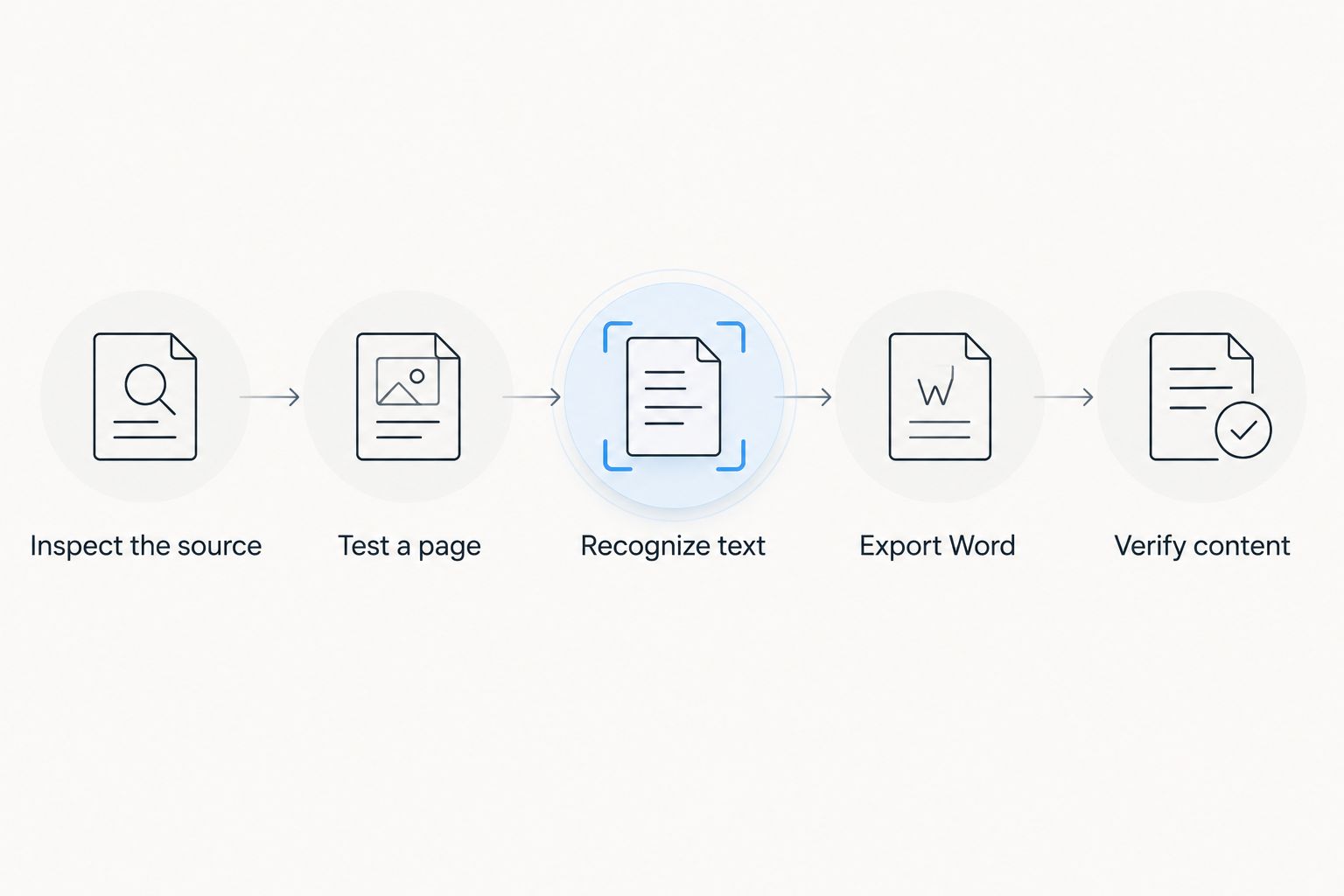
Use this sequence for your 2026 conversion process. It puts source quality and a small trial ahead of full-document processing, so you can catch an unsuitable workflow early.
Inspect the source
Open the PDF at a readable zoom and look for cut-off margins, page rotation, shadows, and unreadable characters. Check a page from the middle as well as the beginning; scan quality can change within the same file.
For printed text, 300 dpi is a common scanning starting point for OCR. It is not an accuracy guarantee: a focused, evenly lit scan matters, and increasing resolution cannot reconstruct characters missing from the original.
Test a page
Start with 1 representative page containing the features you actually need to preserve. If the document mixes ordinary paragraphs and dense tables, test 2 pages covering those different layouts.
Use the same recognition language and output settings you intend to apply to the full file. Keep the original scan unchanged so you can compare it with each result.
Recognize text
Choose a workflow that explicitly supports OCR for scanned PDFs. A general PDF-to-Word label alone does not establish how the service handles image-only pages.
If you are comparing recognition workflows, the guide to OCR software for scanned PDFs addresses that part of the task. Prioritize the ability to recognize your document's language and structure over an export button alone.
Export Word
Choose Word output and inspect how paragraphs behave when you edit them. Add a short phrase inside a paragraph: the surrounding text should respond in a way that suits your editing task.
If every line behaves as an isolated object, reconsider the layout setting or simplify the output. Keeping the original appearance is not helpful when it prevents the revisions you need to make.
Verify content
Compare the output against the scan, paying particular attention to names, dates, amounts, reference codes, and table headings. Use search to locate important terms, but also inspect them visually against the source.
Finish with the document opened in the Word application your recipient will use. A successful download is not a substitute for checking the actual editing experience.
Where Zendocs fits in the workflow
Zendocs is best for individuals and businesses seeking web-based document conversion and editing. Its stated scope also includes signing and managing documents, making it relevant when conversion belongs to a broader document-processing task.
The boundary is specific: general conversion and editing capabilities do not establish scanned-text recognition, language coverage, or layout accuracy. Confirm those requirements for your file before making Zendocs the OCR step in a 2026 workflow. Judge the result by the editable document, not the category label.
Can a scanned PDF become editable without OCR?
An image-only scanned PDF needs text recognition or manual transcription to become editable text. Simply exporting the page image into Word leaves the words inside the image rather than turning them into editable characters.
A PDF with an existing text layer is different. Test selection and copying before deciding whether another recognition pass is necessary.
Does a searchable PDF mean the Word conversion will be accurate?
A searchable PDF does not prove that its text is accurate or that its structure will transfer cleanly to Word. The visible scan can look correct while the underlying recognized text contains mistakes.
Check copied text against the image. Then inspect the Word export separately for paragraph order, tables, and missing content.
Should you convert the whole document at once?
Test a representative section before converting the whole document. That lets you identify unsuitable output settings without reviewing a complete export first.
For documents with mixed layouts, include each important layout in the trial. A clean paragraph page does not show how the same workflow handles a complicated table.
FAQ
How long does it take to convert scanned PDF to editable Word?
There is no fixed turnaround time: uploading, OCR, Word export, and review all contribute to the task. Test a representative page to judge the correction work your document requires.
Why is my converted Word document still a picture?
The conversion retained the scanned page as an image instead of recognizing its text. Use an OCR-enabled workflow, then check whether you can edit an individual word.
What scan resolution should I use for OCR?
300 dpi is a common starting point for scanning printed text for OCR. Sharp focus, correct orientation, and complete page capture still matter; resolution alone does not guarantee accurate recognition.
Can OCR preserve tables in a scanned PDF?
OCR workflows can attempt to reconstruct tables, but you must verify row and column relationships in the Word output. Correctly recognized characters do not establish that each value sits under the right heading.
Is a searchable PDF the same as an editable Word file?
A searchable PDF is not the same as an editable Word file. It can retain the scanned page image with a searchable text layer, while Word output is intended for editing document content.
Should I proofread a scanned PDF after converting it?
Proofread the converted document against the original scan before relying on its contents. Prioritize names, dates, amounts, identifiers, and table alignment because errors in those details can change meaning.
Can I use Zendocs for online document processing?
Zendocs offers web-based document conversion, editing, signing, and management. For an image-only scanned PDF, confirm that the selected workflow includes the OCR and Word export capabilities your task requires.
One last thing
Check a consequential detail before polishing the page. Compare a name, a reference code, or a value under a table heading with the original scan. Those checks reveal problems that attractive formatting can hide.
Keep the scan alongside the editable file until review is complete. Your final deliverable is not just a Word document that opens; it is a document whose contents you can trust and whose structure you can actually edit.


