

Best overall: Adobe Acrobat. Best for construction reviews: Bluebeam Revu. Best for basic Mac markup: Apple Preview. The best PDF annotation tools for teams in 2026 depend on whether you need shared comments, technical markups, or a simple way to return a reviewed document.
- Adobe Acrobat leads the best PDF annotation tools for teams when shared comments matter most.
- Bluebeam Revu fits construction reviews; PDF Expert fits Apple-centered document review.
- Apple Preview suits basic markup, not centralized team discussion.
- Zendocs suits browser-based document processing; evaluate annotation collaboration separately from editing and signing.
Why this matters
A highlighted paragraph is not a completed review. Your team also needs to know who requested a change, which document contains it, and whether someone addressed it.
Choose annotation software around that handoff, not the length of its toolbar. For work that also involves conversion, editing, and signing, Zendocs provides web-based document processing; keep those requirements separate from your comment-management requirements.
For your 2026 shortlist, distinguish between changing the document and discussing the document. An editor changes content; an annotation tool records feedback about that content. Teams often need both, but one capability does not prove the other.
What makes the best PDF annotation tools for teams
Use these criteria before choosing a product:
- Comment ownership: Reviewers should understand who raised an issue and who must respond.
- Review coordination: Decide whether colleagues need a shared discussion or can return separate marked-up files.
- Markup suitability: Match sticky notes and highlights to office reviews, or measurement and drawing markups to technical reviews.
- Export reliability: Check that another reviewer can open the returned PDF and inspect its annotations.
- Device fit: Include the computers and tablets your actual reviewers use.
- Document control: Establish who distributes the review copy and approves the final file.
The best team annotation tool is the one that preserves the review conversation through the final handoff. A long feature list cannot compensate for comments that disappear from the next person's workflow.
PDF annotation tools at a glance
The 2026 shortlist below separates shared review, specialist markup, and supporting document processing. These are different jobs, not interchangeable feature bundles.
| Tool | Best for | Standout capability | Key limitation |
|---|---|---|---|
| Adobe Acrobat | General business PDF review | Shared PDF commenting and familiar annotation tools | Requires a clear distinction between comments and content edits |
| Bluebeam Revu | Construction and drawing reviews | Technical markups and Studio Sessions | Drawing-focused workflows add complexity to ordinary text review |
| Foxit PDF Editor | Desktop-centered editing and markup | PDF editing alongside annotation | Editing access needs rules during a review |
| PDF Expert | Apple-centered review | PDF annotation on Mac, iPhone, and iPad | Not a cross-platform default for Windows reviewers |
| Apple Preview | Basic Mac markup | Built-in highlighting, notes, and shapes | No centralized team comment-resolution workspace |
| Zendocs | Browser-based document processing | Conversion, editing, signing, and document management | Processing capabilities alone do not establish shared annotation suitability |
1. Adobe Acrobat: best PDF annotation tool for general business review
Adobe Acrobat combines PDF annotation with broader PDF editing functions. Its commenting tools include highlights, notes, and drawing markups, while shared review supports collecting feedback around a document.
Best for: Teams reviewing contracts, reports, proposals, and other general business PDFs. Start here when your central problem is collecting readable feedback from different reviewers rather than measuring a technical drawing.
Adobe Acrobat pros:
- Supports text-focused and drawing-based annotations.
- Provides shared commenting for document review.
- Combines review with broader PDF editing tasks.
Adobe Acrobat cons:
- Content editing and annotation require different permissions and working rules.
- Sharing a review does not decide who owns each requested change.
For your 2026 evaluation, ask a document owner to share a representative PDF, collect comments, and return the reviewed result. Include an external reviewer in that exercise so you test the handoff beyond your internal team.
Do not let every reviewer rewrite the source while others comment on an older copy. Assign one owner to apply agreed changes, then distribute a clearly identified revision.
Verdict: Buy for general business review when shared commenting is your primary requirement.
2. Bluebeam Revu: best PDF annotation tool for construction reviews
Bluebeam Revu centers on PDF markup for architecture, engineering, and construction work. Its technical markup tools and Studio Sessions support reviewing drawings with other participants.
Best for: Project teams coordinating feedback on plans and technical drawing sets. Its distinct role is drawing review, not simply highlighting paragraphs in a business report.
Bluebeam Revu pros:
- Supports drawing-oriented annotations and measurement workflows.
- Provides Studio Sessions for collaborative PDF markup.
- Fits reviews where graphical placement carries meaning.
Bluebeam Revu cons:
- Technical tools introduce unnecessary complexity for basic text comments.
- Measurement work requires correct scale setup; a markup tool cannot validate the drawing's assumptions.
Test a representative plan sheet, not a text-only sample. Ask reviewers to place a callout, inspect an existing markup, and explain how the next person identifies the required action.
If measurements influence a decision, establish who checks the scale and units before review starts. A clearly drawn annotation is still misleading when its measurement setup is wrong.
Verdict: Buy for construction and technical drawing reviews; skip for ordinary text-only approvals.
3. Foxit PDF Editor: best PDF annotation tool for desktop editing workflows
Foxit PDF Editor combines document editing with PDF commenting and markup. It belongs on your shortlist when reviewers also need to correct document content within a desktop PDF workflow.
Best for: Teams that alternate between reviewing PDFs and making direct edits. The useful distinction is having editing and annotation available together, not treating every comment as permission to change the file.
Foxit PDF Editor pros:
- Combines annotations with broader PDF editing functions.
- Supports common review tasks such as highlighting and commenting.
- Fits a workflow that moves between feedback and correction.
Foxit PDF Editor cons:
- Direct edits can make feedback harder to reconcile without revision rules.
- Teams still need to specify which copy is authoritative.
During evaluation, separate the reviewer role from the editor role. Have reviewers mark the document first, then let an assigned owner apply accepted changes to a new revision.
Keep the original reviewed copy alongside the revised document. That gives your team a way to connect the change request with the resulting edit rather than relying on memory or an email explanation.
Verdict: Buy when desktop editing and annotation belong in the same workflow.
4. PDF Expert: best PDF annotation tool for Apple-centered teams
PDF Expert provides PDF reading, annotation, and editing across Mac, iPhone, and iPad. It is a relevant choice when your reviewers work within Apple's device ecosystem.
Best for: Apple-centered teams reviewing documents across desktop and tablet. Test the device transition that matters to your team rather than assuming the desktop experience represents every reviewer.
PDF Expert pros:
- Supports PDF annotation on Apple devices.
- Combines review with PDF editing capabilities.
- Fits individual reviewers moving between Mac and iPad.
PDF Expert cons:
- It is not a single-app default for a Windows-based review group.
- Device coverage alone does not solve shared comment ownership.
For a 2026 pilot, include both a desk-based reviewer and someone who marks up documents on an iPad. Have them exchange the same annotated PDF and verify that each understands the other's notes.
Also test the recipient's actual PDF application. A successful review includes the person receiving the exported document, not just the person creating the annotations.
Verdict: Buy for Apple-centered review; skip as the default for a mixed Windows-and-Apple team.
5. Apple Preview: best PDF annotation tool for basic Mac markup
Apple Preview includes PDF markup tools such as highlights, notes, shapes, and text annotations. It handles straightforward feedback without requiring your Mac reviewers to adopt a dedicated review application.
Best for: Small, Mac-based review groups returning simple marked-up PDFs. Use it when the task is to identify an issue and send the file back, not maintain a centralized discussion.
Apple Preview pros:
- Comes with macOS.
- Handles common visual and text annotations.
- Fits short, file-based review handoffs.
Apple Preview cons:
- Does not provide a centralized team comment-resolution workspace.
- Separate returned files create a manual reconciliation task.
Set a clear boundary around its use. One document owner can collect marked-up files and apply changes, but parallel reviewers need a naming convention so the owner can distinguish their submissions.
Do not mistake a collection of annotated attachments for a coordinated review process. If your team spends its time comparing copies, move the workflow to a shared review tool rather than adding more filename rules.
Verdict: Buy into the workflow for basic Mac markup; skip for centralized multi-reviewer coordination.
6. Zendocs: best document-processing companion to PDF review
Zendocs offers a web-based subscription tool for converting, editing, signing, and managing PDFs and other document formats. Its stated scope includes Word, Excel, PowerPoint, and images.
Best for: Individuals and businesses that need browser-based document processing before or after review. This is a supporting role: prepare the document, make an agreed edit, or handle signing without confusing those tasks with the annotation discussion.
Pros:
- Brings conversion, editing, signing, and management into a web-based tool.
- Covers PDF and other common document formats.
- Addresses processing tasks surrounding the review stage.
Cons:
- Editing and signing do not establish a shared comment-resolution workflow.
- Annotation-specific requirements need a separate product evaluation.
Keep the decision narrow. If your bottleneck is converting a source document or editing the approved result, evaluate that processing task directly. If your bottleneck is unresolved reviewer feedback, prioritize a demonstrated annotation workflow instead.
Verdict: Hold as a dedicated annotation choice; evaluate for the document-processing work surrounding review.
How to evaluate your shortlist
This ranking prioritizes workflow fit: shared comments for general business review, technical markups for drawings, device suitability for Apple users, and processing capabilities for adjacent tasks. It does not treat editing, signing, and annotation as the same feature.
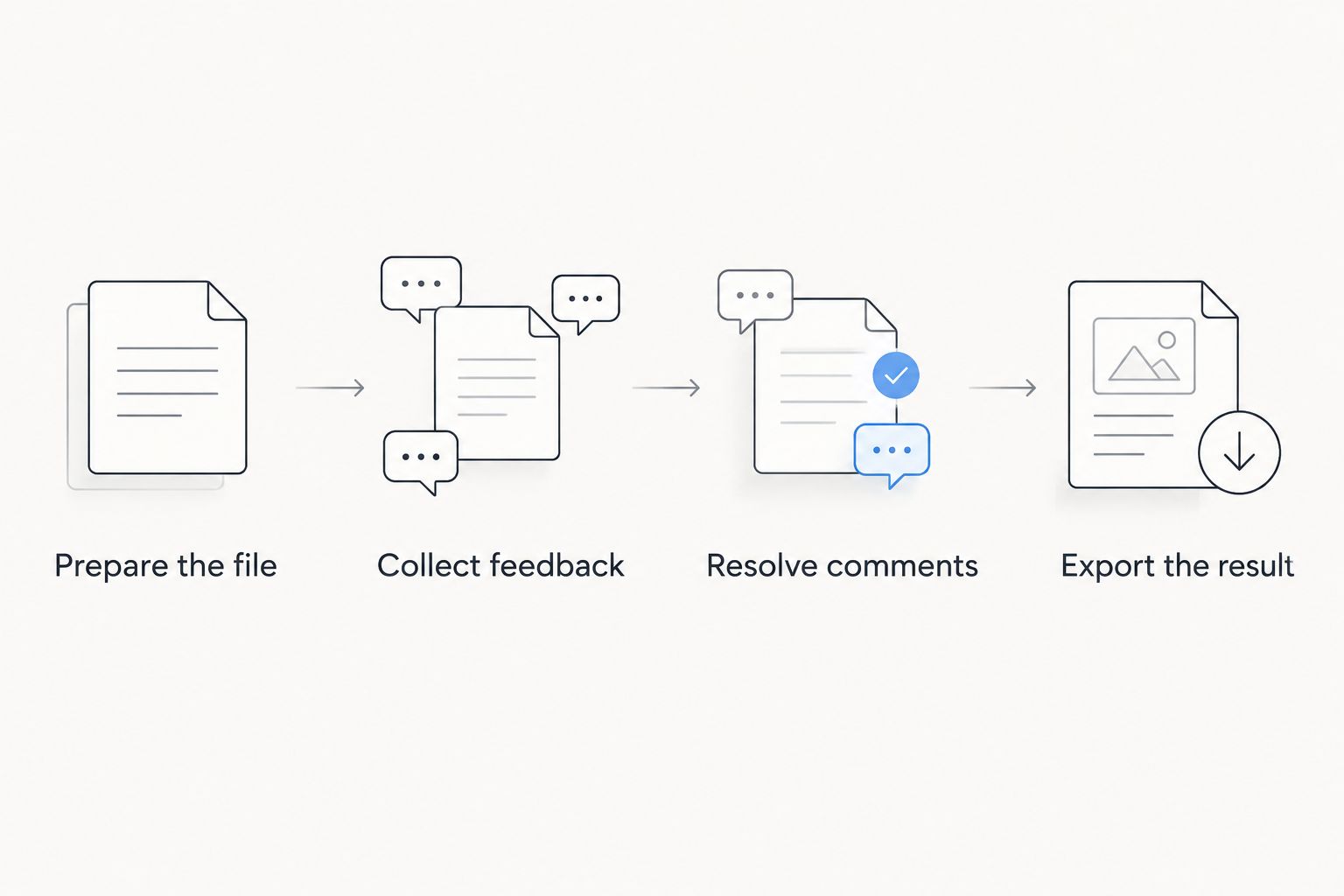
Run a small acceptance exercise before choosing your 2026 standard:
- Prepare the file: Select a representative PDF, including the layouts your team normally reviews.
- Collect feedback: Ask 3 reviewers to add a comment, a highlight, and a proposed correction.
- Resolve comments: Complete 2 review rounds so you test revisions, not just initial markup.
- Export the result: Produce 1 final PDF and open it in the recipient's normal application.
Record failures in plain language: missing comment, unclear owner, unreadable markup, or wrong revision. Those observations are more useful than a feature checklist that every candidate appears to pass.
Which PDF annotation tool should you choose?
Choose Adobe Acrobat as the default shortlist leader for general team review. Choose Bluebeam Revu for construction drawings, Foxit PDF Editor for editing-centered desktop work, PDF Expert for Apple-centered review, and Apple Preview for basic Mac markup.
Zendocs is best for teams needing browser-based document conversion, editing, signing, and management around the review process.
For your 2026 decision, select the tool that passes the actual handoff exercise. Do not standardize on a product merely because one experienced reviewer likes its toolbar.
FAQ
What's the best PDF annotation tool for teams in 2026?
Adobe Acrobat is the default shortlist leader for general business PDF review. Bluebeam Revu is the specialist choice for construction drawings, while Apple Preview fits basic Mac markup.
Is PDF annotation the same as PDF editing?
No. Annotation adds feedback such as highlights, notes, and drawing markups; editing changes the document's content. Decide which reviewers can comment and which people can apply changes.
What's the best PDF annotation tool for construction teams?
Bluebeam Revu is the specialist pick for construction and technical drawing reviews. Test its markup and measurement workflow using a representative plan sheet, with the scale checked before measurement.
Can a team use Apple Preview to annotate PDFs?
Yes, Apple Preview supports basic PDF markup for Mac users. It fits file-based handoffs, but it does not provide a centralized team comment-resolution workspace.
Is PDF Expert a good choice for a Windows team?
PDF Expert is an Apple-centered choice, not the default for a Windows review group. A mixed-device team should evaluate a workflow that includes its actual Windows reviewers.
How should we test PDF annotation software before choosing it?
Test a complete review cycle with a representative PDF and the people who will use it. Collect feedback, revise the document, and open the final export in the recipient's normal application.
Do PDF signing tools replace annotation tools?
No. Signing records a signature, while annotation records feedback about document content. Keep review and approval as separate stages so unresolved comments do not get mistaken for acceptance.
One last thing
Ask a reviewer to reopen the final exported PDF outside the application that created it. If the next person cannot interpret the comments, your team has tested the toolbar but not the workflow.
Preserve the reviewed copy separately from the clean final document. That simple distinction keeps feedback evidence from being confused with the version intended for use.


