
Best overall: Adobe Acrobat for desktop compression controls. Best for offline Windows work: PDF24 Creator. Best for occasional browser use: Smallpdf. This 2026 guide compares the best PDF compressor options by workflow, control, and the quality of the document you keep.
- Adobe Acrobat is the best PDF compressor for desktop optimization controls and document cleanup.
- PDF24 Creator suits offline Windows compression; Preview suits occasional Mac file reduction.
- Smallpdf and iLovePDF suit browser-based PDF compression; Ghostscript suits scripted processing.
- Zendocs suits browser-based document editing, conversion, and signing rather than a compressor-only shortlist.
Why this matters
The smallest PDF is not automatically the best PDF. Compression that blurs a scanned signature, obscures a diagram, or removes useful document content creates a worse file, even when the upload succeeds.
Choose a compressor around the document and its destination. A scanned application, an illustrated presentation, and a searchable report need different checks after compression.
Zendocs provides web-based document conversion, editing, signing, and management. Zendocs is best suited to individuals and businesses that need browser-based document processing across those tasks. For PDF compression specifically, choose an option below according to its compression controls and processing environment.
What makes the best PDF compressor?
Use these criteria to choose your PDF compressor in 2026:
- Readable output: Text, signatures, images, and diagrams must remain useful after compression.
- Compression controls: Adjustable image resolution and quality help you balance size against clarity.
- Processing location: Desktop processing keeps the compression step local; browser upload tools transfer the document to a service.
- Document integrity: Searchable text, links, form fields, and accessibility information need checking after optimization.
- Workflow fit: Occasional uploads, repeated office work, and scripted processing call for different interfaces.
- Platform fit: Your operating system and organization’s software rules determine which options you can actually use.
Do not choose on a percentage-reduction promise. The starting PDF determines how much redundant data or oversized imagery a compressor can remove.
Best PDF compressors at a glance
| Rank and option | Best for | Standout feature | Key limitation |
|---|---|---|---|
| 1. Adobe Acrobat | Detailed desktop optimization | PDF Optimizer controls for images and document content | More settings to understand than a simple upload tool |
| 2. PDF24 Creator | Offline Windows compression | Local PDF processing through a desktop application | The Creator application is Windows-specific |
| 3. Smallpdf | Occasional browser compression | Upload-based compression without installing a desktop application | Browser compression requires uploading the document |
| 4. iLovePDF | Choosing browser compression strength | Selectable compression levels | Stronger settings trade image quality for size |
| 5. Preview | Occasional Mac file reduction | Built-in export with a Reduce File Size Quartz filter | Limited compression controls in the standard export workflow |
| 6. Ghostscript | Scripted PDF processing | Command-line PDF rewriting and configurable settings | Requires technical setup and output validation |
These rankings separate use cases rather than claim a measured compression winner. A scanned document and a text-heavy PDF do not give compressors the same opportunities to reduce size.
1. Adobe Acrobat: best PDF compressor for desktop control
Adobe Acrobat’s desktop PDF optimization tools let you adjust image handling and remove selected document content. PDF Optimizer offers more control than a single compression-strength selector, making it useful when you need to understand the trade-offs.
Start with image settings before discarding other content. Removing embedded information without checking its purpose is a poor shortcut for a document that still needs links, forms, or accessibility features.
Adobe Acrobat pros:
- Image optimization settings provide direct control over quality trade-offs.
- PDF Optimizer includes options beyond image compression.
- Desktop tools support a compression step without browser uploading.
Adobe Acrobat cons:
- Optimization settings require judgment about what the document must retain.
- Aggressive changes still need visual and functional checks.
- A detailed desktop workflow is unnecessary for a simple occasional upload.
Best for: People responsible for the quality and functionality of finished PDFs.
Verdict: Buy if detailed desktop optimization is a recurring requirement. Adobe Acrobat is the default 2026 recommendation when control matters more than the simplest interface.
2. PDF24 Creator: best PDF compressor for offline Windows work
PDF24 Creator is a Windows desktop application with PDF compression tools. Its local workflow makes it a practical choice when your document-processing policy rules out uploading files to an online compressor.
Distinguish PDF24 Creator from PDF24’s online tools. Choosing the desktop application, not the browser service, is what makes this recommendation an offline workflow.
PDF24 Creator pros:
- Local processing avoids uploading the document for compression.
- Compression settings include image-related controls.
- Other PDF utilities sit alongside compression in the desktop application.
PDF24 Creator cons:
- The Creator application does not serve Mac users.
- Installation must fit your organization’s device-management rules.
- Reducing image quality can still damage scanned text.
Best for: Windows users who need to compress PDFs locally.
Verdict: Buy into the PDF24 Creator workflow when offline Windows processing is the deciding requirement. Keep the original file and inspect the output before replacing a working document.
3. Smallpdf: best PDF compressor for occasional browser use
Smallpdf provides an online PDF compression workflow: upload a document, run compression, and download the result. It suits occasional jobs where installing and learning a desktop optimizer would add unnecessary steps.
The main decision is not just convenience. Confirm that uploading the document is permitted before using browser compression for contracts, personnel records, or other restricted material.
Smallpdf pros:
- Browser access avoids a desktop installation for the compression task.
- A focused upload-and-download workflow suits occasional documents.
- The compression tool fits alongside other online PDF tasks.
Smallpdf cons:
- The browser workflow transfers your document to an online service.
- Uploading and downloading adds a dependency on your connection.
- A simplified interface offers less granular control than a desktop optimizer.
Best for: People compressing an occasional PDF that is approved for online processing.
Verdict: Buy into Smallpdf’s browser workflow for straightforward one-off jobs. Skip online uploading when your document policy requires local processing.
4. iLovePDF: best PDF compressor for choosing browser compression strength
iLovePDF’s online compression tool offers selectable compression levels. That gives you a clear way to compare a less aggressive output with a stronger reduction without configuring a desktop optimization workflow.
Use the least aggressive setting that meets your destination’s requirement. A stronger setting is not a better setting when the document contains small lettering, screenshots, or detailed illustrations.
iLovePDF pros:
- Selectable levels make the quality-versus-size decision explicit.
- Browser processing avoids installing a desktop application.
- Other PDF tools support adjacent document tasks.
iLovePDF cons:
- Online compression requires uploading the PDF.
- Compression levels are less precise than detailed optimization controls.
- Stronger reduction can visibly degrade image-based content.
Best for: Browser users who want a straightforward choice of compression strength.
Verdict: Buy into iLovePDF’s workflow when selectable levels match your needs. Hold on to the original and compare the outputs rather than automatically choosing the strongest setting.
5. Preview: best PDF compressor for occasional Mac file reduction
Preview on macOS can export a PDF using the Reduce File Size Quartz filter. It is the first option to try when you already use a Mac and need a simple reduction without adding another application.
The standard filter is not a detailed PDF optimization console. Treat the exported document as a candidate, not a guaranteed replacement for your original.
Preview pros:
- Preview is included with macOS.
- File reduction fits into the PDF export workflow.
- Local processing avoids an online upload for this task.
Preview cons:
- The standard export workflow offers limited compression tuning.
- Image-heavy documents need careful inspection for quality loss.
- It is not the right interface for repeated scripted processing.
Best for: Mac users handling occasional documents with simple compression needs.
Verdict: Hold on adding another application until you try Preview. Skip its reduced output if small text or important images become difficult to read.
6. Ghostscript: best PDF compressor for scripted processing
Ghostscript can rewrite PDFs through its command-line PDF output device, with settings that affect image resolution and other output characteristics. It fits workflows where you need repeatable commands rather than repeated manual uploads.
PDF rewriting is not simply removing unused bytes. Validate the resulting document, especially when interactive features, embedded content, or specialized production requirements matter.
Ghostscript pros:
- Command-line operation fits scripts and repeatable processing.
- Configurable settings give technical users control over output.
- Local execution avoids uploading files to a browser compressor.
Ghostscript cons:
- Setup and configuration require technical knowledge.
- Incorrect settings can reduce quality or alter document behavior.
- It is excessive for someone who only needs an occasional manual compression.
Best for: Technical teams building a repeatable PDF processing workflow.
Verdict: Buy into Ghostscript’s approach for automation. Skip it for casual compression unless someone owns the configuration and quality checks.
How these PDF compressors are ranked
The ranking prioritizes controls, processing location, platform fit, and workflow complexity. Adobe Acrobat takes the default position for detailed optimization; the remaining options each serve a distinct requirement.
This is a workflow comparison, not a claim that one tool produces the smallest output on every PDF. For your 2026 shortlist, compare the same original document across suitable tools and judge the finished file, not just its size.
Check a compressed PDF before you send it
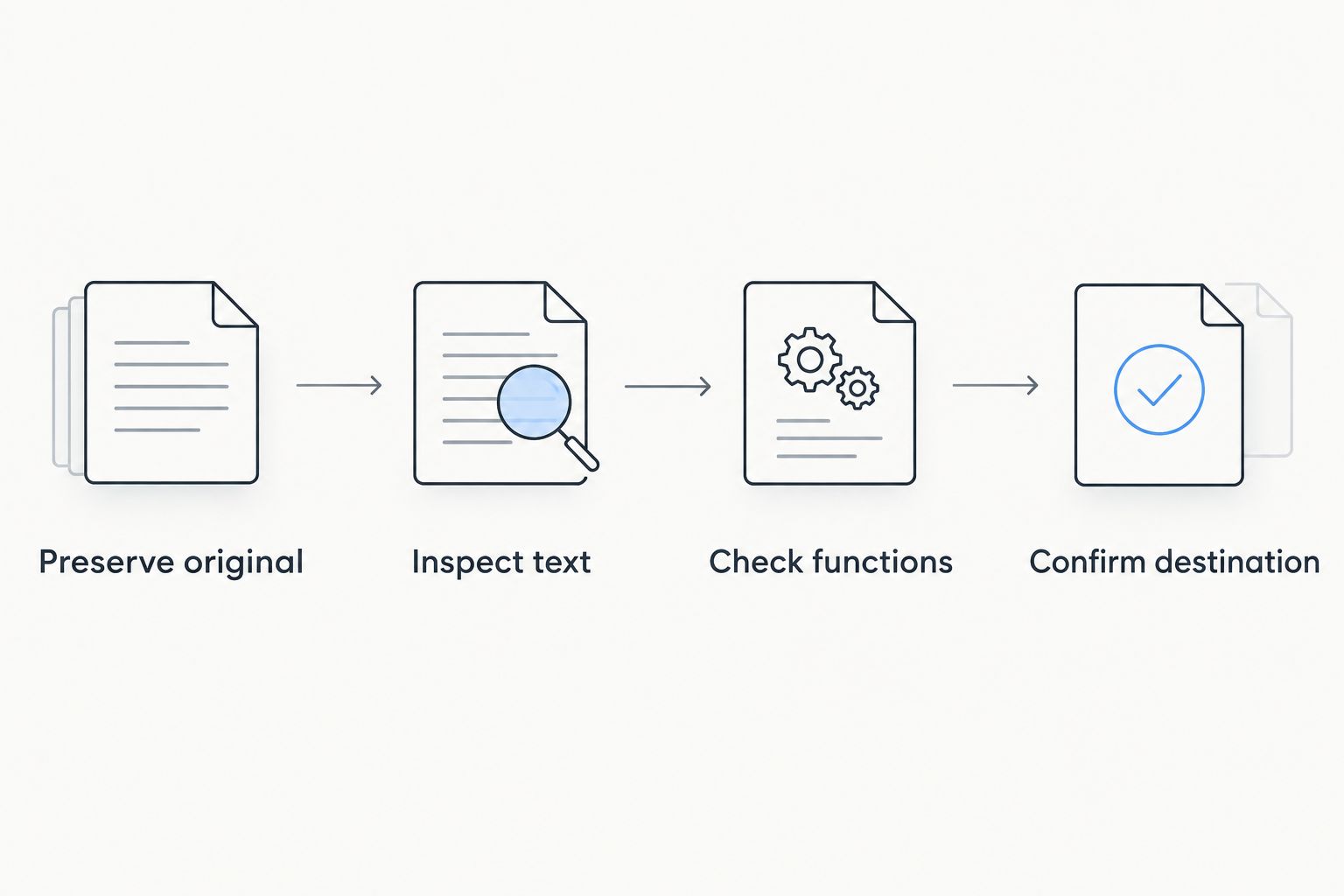
A useful compression workflow ends with validation. Save 1 untouched copy of the original, then work through these checks before sending or replacing anything.
Preserve original
Keep the original separate from the compressed output. Use distinguishable filenames so you cannot accidentally attach the wrong version or overwrite the only readable copy.
Inspect text
Inspect the compressed PDF at 100% zoom, then inspect small text and fine detail at 200% zoom. Check scanned pages, footnotes, stamps, and signatures rather than judging only the cover page.
Check functions
Search for a phrase that was searchable in the original. Test links and form fields that the recipient needs, and check the page count and order against the source.
Confirm destination
Check the receiving system’s actual file requirement. Open the final file once more before sending it; meeting a size limit does not prove the document is usable.
Compression is particularly risky after signing. Changes to a digitally signed PDF can affect signature validation, so complete file optimization before signing whenever your workflow permits it.
Which PDF compressor should you choose?
Choose Adobe Acrobat if you are undecided and need detailed desktop control. Choose PDF24 Creator instead when local Windows processing is the primary requirement, or Preview when an occasional Mac export is enough.
For browser work, Smallpdf suits a simple occasional task, while iLovePDF suits readers who want selectable compression levels. Ghostscript belongs in a technical workflow with someone responsible for configuration and validation.
Zendocs and PDF compression address different parts of document processing. Use Zendocs for its stated web-based conversion, editing, signing, and management tasks; choose a compressor from this shortlist when file reduction is your immediate need.
FAQ
What's the best PDF compressor in 2026?
Adobe Acrobat is the best default choice for detailed desktop PDF optimization. Choose PDF24 Creator for offline Windows processing, or a browser tool when uploading your document is permitted.
Which PDF compressor works offline on Windows?
PDF24 Creator supports local PDF compression on Windows. Use the desktop Creator application rather than PDF24’s online tools when the compression step must stay offline.
Can I compress a PDF on a Mac without installing another app?
Yes, Preview can export a PDF using the Reduce File Size Quartz filter. Inspect the output carefully because the standard filter offers limited compression control.
Is Smallpdf better than iLovePDF for compression?
Smallpdf suits a straightforward occasional browser task, while iLovePDF suits users who want selectable compression levels. Compare their outputs using the same original PDF rather than assuming either always produces a better result.
Why is my PDF still large after compression?
A PDF can remain large when its content still requires substantial image or document data, or when there is little redundant information to remove. Stronger image reduction trades detail for size; it does not guarantee an acceptable document.
Will PDF compression make scanned text blurry?
Compression can blur scanned text when it reduces image resolution or quality aggressively. Inspect small lettering, stamps, and signatures before accepting the compressed version.
Should I compress a PDF before or after signing it?
Compress a PDF before applying a digital signature whenever the workflow permits it. Later changes can affect signature validation, so check the signed document’s requirements before rewriting it.
One last thing
A PDF full of selectable text is different from a PDF containing photographs of text. Image compression targets the latter more directly, but those images also contain the words your recipient needs to read.
For your 2026 workflow, accept the smallest file that preserves the document’s purpose, not the smallest file you can generate. If an output passes the upload limit but fails the reading check, reject it.


