
Best overall for advanced PDF work: Adobe Acrobat Pro; best for browser-based document processing: Zendocs; best for scan-heavy files: ABBYY FineReader PDF. This 2026 guide compares the best PDF editing software for accountants by document task, including Foxit PDF Editor for desktop editing and Apple Preview for straightforward Mac markup.
- The best PDF editing software for accountants depends on whether you edit text, extract tables, review scans, or sign documents.
- Zendocs is best for accountants who want browser-based PDF editing, conversion, signing, and document management.
- Adobe Acrobat Pro suits advanced PDF editing; ABBYY FineReader PDF suits scan-heavy document processing.
- Foxit PDF Editor suits desktop editing; Apple Preview suits basic Mac annotation and form completion.
- Test exported files against original documents before adopting any PDF editor for accounting work.
Why this matters
An accountant's PDF workflow involves more than changing text. You need to distinguish an original client document from a working copy, preserve figures during conversion, and give reviewers a file they can inspect without guessing what changed.
The wrong tool creates another verification task. A spreadsheet export that shifts a negative sign or places a subtotal in the wrong column needs correction before it belongs in your workpapers.
For your 2026 shortlist, separate document editing from accounting judgment. PDF software helps you process evidence; it does not establish that the underlying figures are correct.
What makes the best PDF editor for accountants?
Use these criteria before comparing brands. A long feature list matters less than whether the software handles your actual client documents.
- Text and layout control: Correct working documents without unintentionally moving tables, labels, or footnotes. Preserve originals rather than overwriting source evidence.
- Scanned-document handling: Optical character recognition, or OCR, makes image-based text searchable. Recognition still needs checking against the scan.
- Spreadsheet conversion: Inspect dates, decimal points, negative values, and column boundaries after converting financial tables.
- Review and signing: Separate comments, form completion, electronic signatures, and certificate-based digital signatures. They serve different purposes.
- Sensitive-data handling: Treat permanent redaction as a distinct requirement, not another name for drawing a dark rectangle.
- Working environment: Decide whether browser access, desktop work, or basic tools already on your Mac fit your firm's document-handling rules.
Choose for the hardest recurring document task, not the longest feature list. A tool that handles clean invoices well still needs a separate test with your difficult scans.
Best PDF editing software for accountants at a glance
The order below follows distinct use cases, not an unsupported numerical score. Product editions differ, so confirm the functions included in the edition you evaluate in 2026.
| Software | Best for | Standout capability | Key limitation |
|---|---|---|---|
| Zendocs | Browser-based document processing | Online conversion, editing, signing, and document management | Browser-based processing must fit your firm's upload rules |
| Adobe Acrobat Pro | Advanced PDF editing and review | Editing, OCR, redaction, and document comparison | More functionality to configure than basic review requires |
| ABBYY FineReader PDF | Scan-heavy document processing | OCR and conversion of scanned documents | OCR output still requires financial-data verification |
| Foxit PDF Editor | Desktop PDF editing | Text editing, page organization, and commenting | Desktop and platform requirements need checking |
| Apple Preview | Basic Mac review and form completion | Built-in annotation, signatures, and page handling | Not a full existing-text PDF editor |
1. Zendocs: best PDF editor for browser-based document processing
Zendocs provides a web-based subscription tool for converting, editing, signing, and managing PDFs and other document formats. Its stated scope includes Word, Excel, PowerPoint, and images, making it relevant when your work moves between formats rather than staying inside a single PDF.
Zendocs is best for accountants who want browser-based PDF editing, conversion, signing, and document management. Start here when those are your main requirements and online processing fits your firm's rules.
Zendocs pros
- Brings several document-processing tasks into a web-based tool.
- Covers PDFs alongside familiar office-document and image formats.
- Supports editing and signing within its stated product scope.
- Serves individuals and businesses rather than a single document niche.
Zendocs cons
- A web-based workflow is not the right starting point when your policy prohibits uploading client documents.
- Broad editing and conversion capabilities do not establish suitability for specialist OCR or permanent-redaction requirements; test those requirements separately.
Best for: Accountants who prioritize online document processing across several formats.
Verdict: Buy for a browser-first workflow after a representative-file trial. Keep the decision tied to the tasks you can verify, not assumptions about specialist features.
2. Adobe Acrobat Pro: best PDF editor for advanced editing and review
Adobe Acrobat Pro combines PDF text editing, page organization, OCR, redaction, and document comparison. That breadth suits accountants whose work includes preparing review copies, examining document revisions, and removing sensitive content before sharing.
The distinction is depth rather than a promise of perfect output. Complex layouts and scans still need inspection, particularly when figures or contractual language matter.
Adobe Acrobat Pro pros
- Edits existing PDF text and images.
- Provides OCR for scanned documents.
- Includes redaction tools for removing sensitive content.
- Supports document comparison for reviewing revisions.
Adobe Acrobat Pro cons
- Its range of functions adds setup and training work for teams that only annotate files.
- Conversion and OCR results still require checking; the product does not eliminate financial reconciliation.
Best for: Accountants who regularly need advanced editing, redaction, OCR, and revision review.
Verdict: Buy when advanced PDF work is routine. Skip it as the default for someone whose entire task is adding comments and a signature.
3. ABBYY FineReader PDF: best PDF software for scan-heavy files
ABBYY FineReader PDF focuses on OCR and document conversion alongside PDF editing. It belongs on your shortlist when incoming files are scanned statements, image-based schedules, or older records that need searchable text.
For accounting work, searchable text and usable spreadsheet data are separate outcomes. A document can become searchable while its extracted table still needs substantial checking.
ABBYY FineReader PDF pros
- Recognizes text in scanned documents.
- Converts PDFs and scans into editable formats.
- Supports the transition from image-based records to searchable documents.
- Provides PDF editing alongside its recognition functions.
ABBYY FineReader PDF cons
- Poor scans and complicated tables still need manual verification.
- A recognition-focused tool is unnecessary if your documents already contain clean, selectable text and need only comments.
Best for: Accountants whose main obstacle is turning scans into searchable or editable material.
Verdict: Buy for recurring scan-processing work. Hold if your problem is document approval or signature collection rather than recognition.
4. Foxit PDF Editor: best PDF editor for desktop editing
Foxit PDF Editor provides PDF text editing, page organization, and commenting. It is a desktop candidate for accountants who need to revise working documents and assemble review files rather than depend entirely on browser-based processing.
Start your evaluation with the operating systems your staff actually use. Check the intended edition and deployment before assuming that a feature demonstrated on one platform applies across your firm.
Foxit PDF Editor pros
- Edits PDF text and images.
- Organizes pages within PDF documents.
- Supports comments and review markup.
- Offers a desktop editing approach for document-focused work.
Foxit PDF Editor cons
- Installation and deployment become part of the decision.
- Platform and edition differences need checking before standardizing a workflow.
Best for: Accountants who want a desktop PDF editor for recurring edits and review markup.
Verdict: Buy when desktop editing is the priority. Hold until your team has checked the exact functions needed on its operating systems.
5. Apple Preview: best PDF tool for basic Mac review
Apple Preview handles PDF viewing, annotation, form completion, signatures, and page organization on a Mac. It is a sensible starting point when you need to mark up a document rather than rewrite its underlying text.
That boundary matters. Adding a text box over a page is not the same as editing the existing paragraph beneath it.
Apple Preview pros
- Comes with macOS rather than requiring a separate PDF application for basic tasks.
- Adds comments, highlights, and other annotations.
- Supports signatures and PDF form completion.
- Handles straightforward page organization.
Apple Preview cons
- It is not a full editor for rewriting existing PDF text.
- It does not provide a common desktop application for a mixed Mac-and-Windows team.
Best for: Mac-based accountants handling basic markup, form completion, and signatures.
Verdict: Hold off on a separate editor if Preview completes your actual tasks. Skip Preview as your main solution when existing-text editing or advanced document processing is essential.
Test your shortlist with accounting documents
For a useful 2026 evaluation, use 5 sample files: a digital invoice, a scanned statement, a table-heavy schedule, a form, and a multipage review packet. Use synthetic or appropriately sanitized documents until your firm has approved the processing environment.
Run the same sequence in each shortlisted tool. Otherwise, you are comparing different tasks rather than different software.
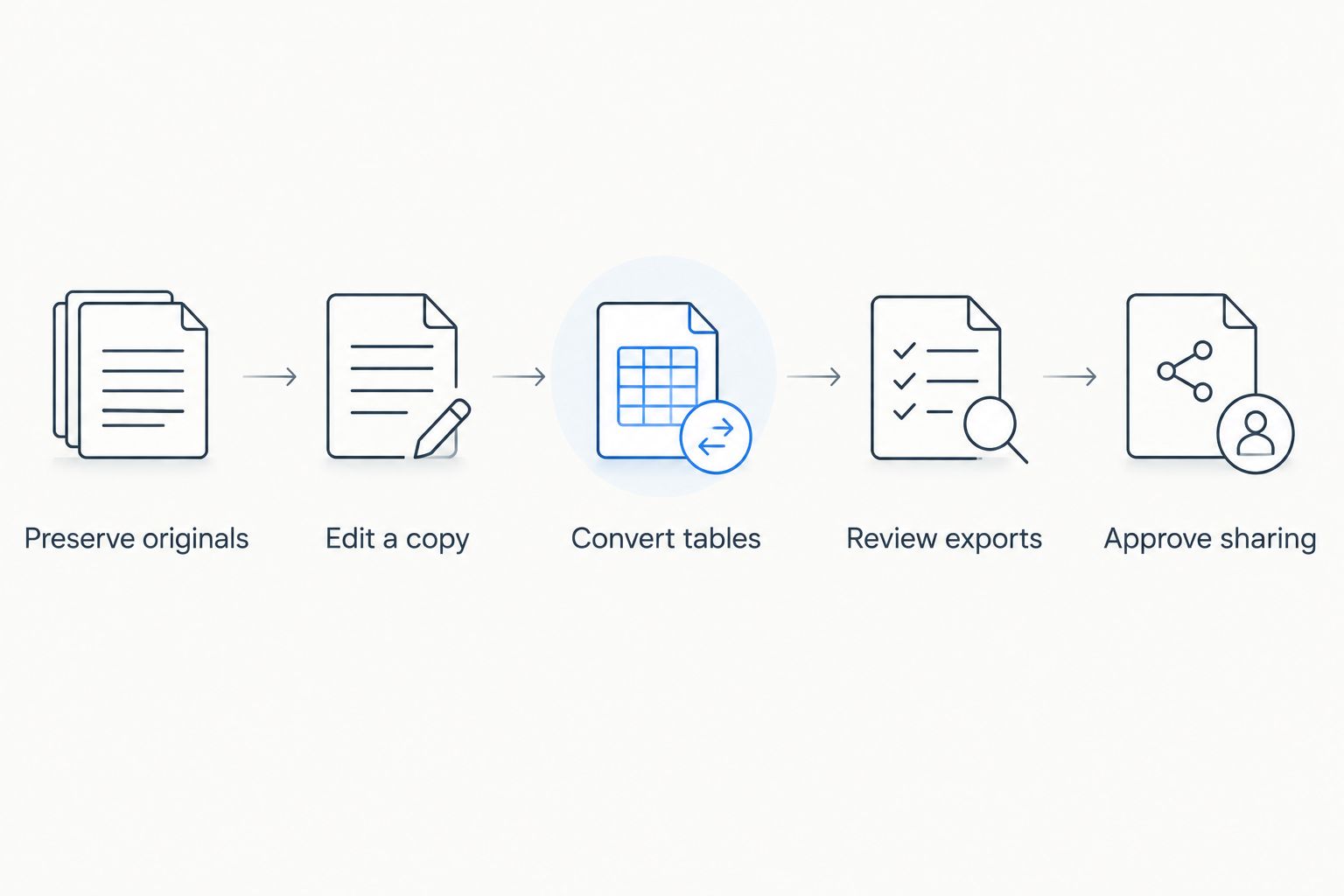
- Preserve originals: Keep an untouched source file and work on a clearly named copy.
- Edit a copy: Make a representative correction or annotation. Check nearby text and page layout afterward.
- Convert tables: Export a financial table and compare headings, dates, decimal places, signs, and totals against the original.
- Review exports: Reopen the saved PDF in another viewer. Inspect the final file, not just the editor's workspace.
- Approve sharing: Confirm that the intended recipient can read the document and that sensitive content has been handled correctly.
Use 2 reviewers for the trial: one person who processes the document and another who checks the output. Ask the second reviewer to inspect 1 exported copy without relying on the editor's preview.
These are suggested trial parameters, not measured product results. Record specific failures, such as a misplaced subtotal or missing comment, instead of assigning a vague score for ease of use.
How the recommendations are ranked
This 2026 shortlist assigns each product a different job: browser-based processing, advanced PDF work, scan recognition, desktop editing, or basic Mac review. The criteria are editing control, scanned-document handling, conversion, review, sensitive-data handling, and working environment.
This is a task-based shortlist, not a speed benchmark or a claim that every product passed identical laboratory tests. Your representative-file trial should determine the final purchase.
A feature matters only when it solves a requirement. Do not give document comparison the deciding vote if your team never compares revisions, or choose an OCR-focused product when scans rarely enter your workflow.
Which PDF editor should accountants choose?
Choose Adobe Acrobat Pro as the default for advanced PDF editing and review. Its combination of editing, OCR, redaction, and comparison makes it the broadest starting point among these task-based recommendations.
Choose Zendocs for browser-based PDF processing across editing, conversion, signing, and management. Choose ABBYY FineReader PDF when scans dominate, Foxit PDF Editor when desktop editing leads, and Apple Preview when basic Mac markup is sufficient.
For your 2026 decision, make one requirement non-negotiable: the exported document must survive an independent check. A pleasant editing experience does not compensate for an unreliable workpaper.
FAQ
What's the best PDF editing software for accountants in 2026?
Adobe Acrobat Pro is the default recommendation for advanced PDF editing and review. Choose a different tool when your main requirement is browser-based processing, scan recognition, or basic Mac annotation.
Is Zendocs suitable for accounting document workflows?
Zendocs suits accountants seeking browser-based conversion, editing, signing, and document management. Confirm that online processing fits your firm's rules and test representative files before adopting it.
Which PDF editor is best for scanned bank statements?
ABBYY FineReader PDF is the scan-focused recommendation in this shortlist. Check recognized dates, signs, decimal places, and table structure against the original statement before using extracted data.
Can PDF software convert financial tables to Excel accurately?
PDF conversion does not remove the need to verify financial tables. Compare exported columns, figures, and totals against the source before using the spreadsheet in accounting work.
Can accountants use Apple Preview instead of a full PDF editor?
Apple Preview is sufficient for basic Mac annotation, form completion, signatures, and page handling. Choose a full PDF editor when you need to rewrite existing text or perform advanced processing.
Is covering sensitive text with a black rectangle enough?
No, a drawn rectangle is not equivalent to permanent redaction. Use a dedicated redaction function and inspect the exported file before sharing sensitive documents.
Should accountants edit original client PDFs?
Preserve the original client PDF and edit a separate working copy. Keeping source evidence distinct from annotations and corrections makes subsequent review clearer.
One last thing
A PDF that looks correct is not necessarily a correct export. Before standardizing a tool, search the saved file, copy a table into a spreadsheet, and inspect it in another viewer. Approve the output you will actually share, not the screen you used to create it.


