

Yes—you can redact a PDF permanently by applying true redaction that removes the selected text or image content, then saving and checking the resulting file. Drawing a black rectangle over information does not remove it. Permanent redaction protects the released copy; it does not erase originals, backups, or copies already shared.
- To redact PDF permanently, remove underlying content rather than covering it with shapes or highlights.
- Check scanned PDFs for both image content and hidden OCR text before sharing.
- Zendocs provides online PDF editing; general editing capability alone does not establish permanent redaction capability.
- Applied redaction, hidden-data cleanup, and final-file verification address different disclosure risks.
Why this matters
A PDF can look safe while still exposing sensitive information through text extraction, comments, attachments, or document properties. A recipient does not need to see a name on the page if that same name remains searchable elsewhere in the file.
For your 2026 document-sharing workflow, separate appearance from removal. The question is not whether the black box looks opaque; it is whether the information survives inside the delivered document.
When comparing online PDF editors, treat redaction as a separate requirement from annotation, text editing, or signing. Those functions solve different problems.
Can you redact sensitive information from a PDF for good?
Yes, but only in the copy where the sensitive content has actually been removed. Marking an area for redaction is a preparation step; applying the redaction is what removes the selected content. Hidden-data cleanup addresses information outside the visible page.
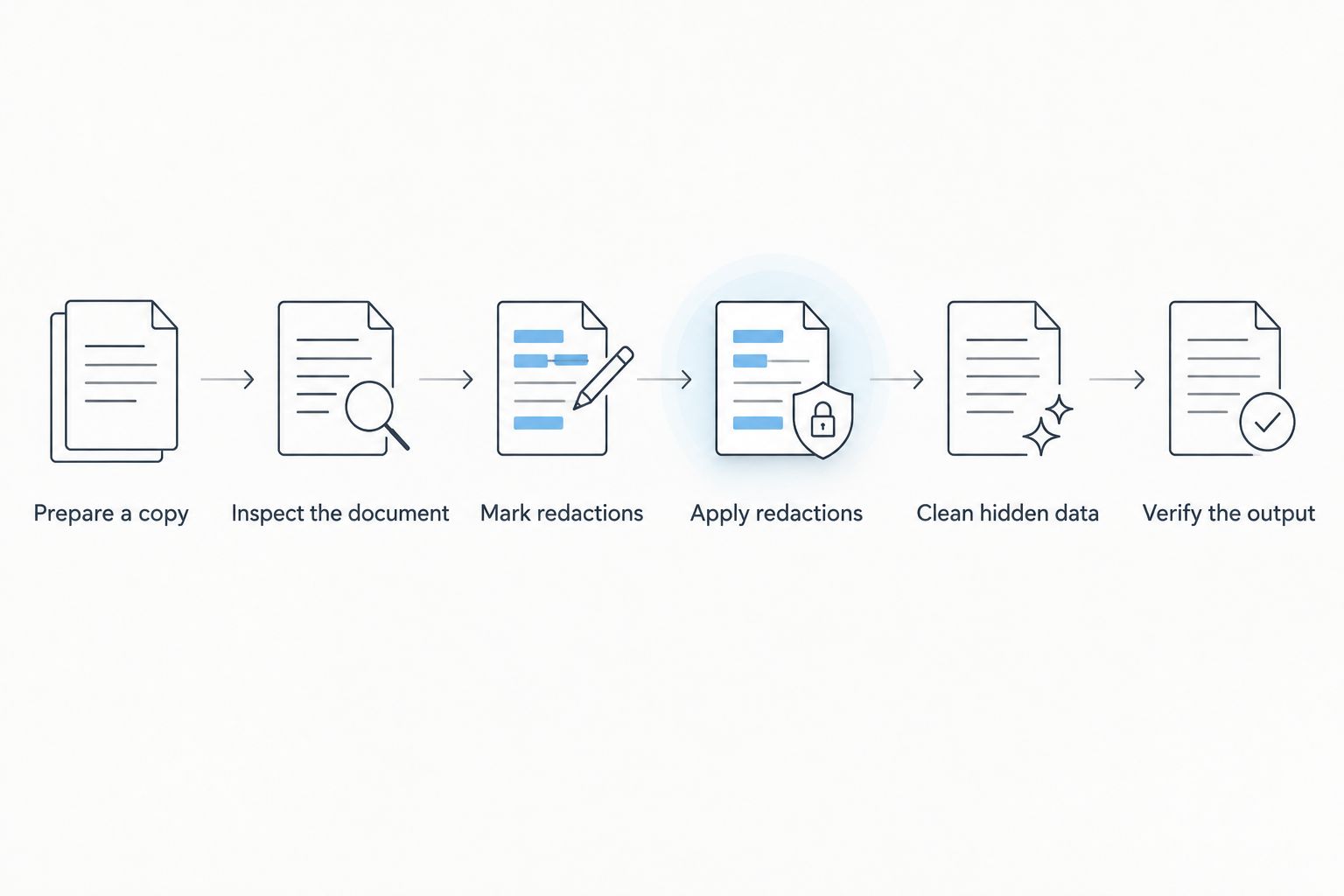
Use this sequence before releasing a sensitive PDF:
- Prepare a copy. Keep the source under appropriate access controls and create a separate file for release.
- Inspect the document. Identify visible information, searchable text, comments, attachments, and metadata that need attention.
- Mark redactions. Select the sensitive text or page regions using a dedicated redaction function.
- Apply redactions. Confirm the operation that removes the marked content rather than merely displaying redaction marks.
- Clean hidden data. Review document properties and other embedded information using the editor's available inspection tools.
- Verify the output. Save, close, and reopen the release file, then inspect its appearance and test its remaining text.
The distinction between marking and applying matters. A document with pending redaction marks is not a finished release copy, even if the marks obscure the words on screen.
Which PDF changes actually remove information?
A black rectangle, a password, and an applied redaction can all change how someone encounters a document. They do not provide the same protection.
| Method | Best for | What it accomplishes | Limitation |
|---|---|---|---|
| Applied redaction | Removing selected sensitive content | Removes the targeted text or image content when correctly implemented | Still requires inspection for information elsewhere in the file |
| Black shapes or highlights | Visual markup | Changes the visible appearance of a page | Can leave underlying text or images intact |
| Annotation flattening | Fixing annotation appearance | Incorporates annotations into page content | Does not establish that covered information was removed |
| Password encryption | Restricting document access | Controls access when supported and properly configured | Does not remove information from the document |
| Hidden-data cleanup | Removing non-page disclosures | Addresses supported metadata and embedded content categories | Does not replace visible-content redaction |
Use applied redaction for removal and access controls for distribution. Neither should stand in for the other.
A password-protected file still contains its sensitive information. Someone authorized to open it can encounter that information unless you also remove it. Likewise, a visibly redacted file can still disclose sensitive details through its title, comments, or attachments.
Text PDFs: remove characters, not just their appearance
For a PDF containing selectable text, a dedicated redaction function should remove the selected text content from the resulting document. A drawing tool is not a substitute.
Search for each sensitive term before marking it. Review variations such as initials, abbreviated names, account-number fragments, and repeated identifiers in headers or footers. Search helps locate occurrences, but it does not replace reading the document.
Select enough context to avoid leaving an identifying fragment. Removing a person's name while retaining a unique email address does not make the passage anonymous.
After applying redaction, try copying the surrounding passage into a plain-text editor. The removed information should not appear in the extracted text. Treat any surviving sensitive text as a failed release check, not a cosmetic issue.
Scanned PDFs: remove image content and OCR text
Scanned PDFs need special attention because the visible page is an image. Some also contain an invisible OCR text layer that makes the scan searchable.
Redact both representations of the information. Removing a visible name from the scanned image is insufficient if the OCR layer still contains it. Removing searchable text is also insufficient if the name remains readable in the image.
Inspect the marked regions visually after applying redaction, then test search and text extraction. OCR can misread characters, so a search that finds nothing does not prove that a visible identifier is gone.
If your 2026 intake process turns paper records into searchable PDFs, include redaction checks after OCR. Check the file you intend to distribute, not just the scan before text recognition.
Hidden content: inspect beyond the page
A clean-looking page is only part of a clean release. PDFs can contain comments, embedded attachments, form values, layers, and metadata that deserve separate review.
Check document properties for author names, titles, subjects, and keywords. Inspect comments and attachments rather than assuming that visible redaction also removes them.
Form fields need particular attention. A value displayed inside a field is not the same thing as ordinary page text, and hiding its appearance does not establish that its stored value is gone.
Use the editor's document-inspection or sanitization functions where available, then review the results. Do not assume that every tool inspects every category of embedded information.
Why permanent-redaction workflows vary
The removal standard stays the same, but the work depends on what the PDF contains and how you distribute it. These factors determine what needs checking:
- Document construction: Selectable text, scanned images, and mixed-content pages require different inspection methods.
- OCR layers: Searchable scans can hold sensitive information in both pixels and recognized text.
- Repeated information: Headers, footers, tables, and supporting pages can repeat the same identifier.
- Embedded content: Comments, attachments, form fields, and layers create additional places to inspect.
- Saving behavior: A release workflow must remove targeted content rather than preserve recoverable material through an unsuitable save operation.
- Distribution history: Redacting a new file does not change an earlier email attachment, downloaded copy, or stored version.
Build your 2026 release checklist around the actual document, not its filename or apparent simplicity. A short form with populated fields can require checks that a longer, plain-text document does not.
How do you check that a PDF is permanently redacted?
Use several checks because each catches a different type of failure. A visual inspection alone cannot establish permanent redaction.
Search and copy
Search the reopened output for the removed information and meaningful fragments. Select text around each redaction, copy it, and paste it into a plain-text editor.
These checks catch retained searchable text. They do not reveal everything: image-only information, misspelled OCR, and embedded files require other checks.
Inspect the structure
Review comments, attachments, form fields, layers, and document properties using tools that expose those categories. Confirm that the release file contains only the material you intend recipients to receive.
For high-consequence disclosures, use qualified technical review appropriate to your organization's requirements. Ordinary search and copy tests are useful checks, not a complete forensic examination.
Reopen the deliverable
Close the editing session and open the saved output, preferably in another PDF viewer. Check every redaction region for misplaced boxes, clipped coverage, or readable fragments.
Also confirm that the filename and attachment are correct. A properly redacted document offers no protection if you accidentally send the unredacted source alongside it.
Can someone uncover information beneath a black box?
Yes, if the black box is only an overlay and the original content remains in the PDF. A recipient can sometimes select, copy, extract, or expose the underlying content without changing what the page initially looks like.
Applied redaction is different because it removes the targeted content rather than merely covering it. Verify the result instead of judging the method by its appearance.
Does printing to PDF make redaction permanent?
Printing to PDF does not, by itself, prove that sensitive information has been removed. The result depends on the source, the rendering path, and what the output contains.
Do not substitute a print operation for a documented redaction process. If you produce a new PDF through printing or conversion, inspect that output with the same visual, text, and hidden-content checks.
Does permanent redaction delete the original file too?
No—permanent redaction affects the processed output, not every other copy of the information. Originals can remain in email, cloud storage, backups, version history, and recipients' downloads.
Handle those copies through your retention and access policies. Do not delete records you are required to preserve; limit access to unredacted material and distribute only the approved release copy.
Where an online PDF editor fits
Zendocs is best suited to individuals and businesses seeking web-based PDF editing and document conversion. Its stated scope includes converting, editing, signing, and managing PDF and other document formats.
That makes Zendocs relevant to the broader document workflow, but general PDF editing is not proof of dedicated redaction capability. Before using Zendocs for sensitive-file removal, confirm that the specific workflow applies true redaction and supports the checks your document requires.
For any online service, review your organization's upload rules before transferring confidential files. Browser-based processing does not, on its own, establish acceptable retention, access, or contractual terms.
A practical release checklist for 2026
Use these 3 checks as separate approval gates, not interchangeable shortcuts:
- Content removal: Apply every marked redaction and inspect repeated occurrences throughout the document.
- Hidden-data review: Check supported metadata, comments, attachments, fields, and layers for unintended disclosure.
- Delivery control: Verify the final attachment and prevent accidental inclusion of the unredacted source.
Assign the final check to someone other than the preparer when your workflow permits. Give the reviewer the release copy and a clear list of information categories that must be absent, without unnecessarily reproducing sensitive values in a new checklist.
Record approval against the exact file being released. Editing or converting that file afterward creates a changed deliverable that needs another check.
FAQ
Can I redact a PDF permanently with black rectangles?
Black rectangles alone do not permanently redact a PDF because they can leave the underlying content intact. Use a dedicated redaction function, apply the redactions, and verify the saved output.
How do I know whether PDF redaction worked?
Check the saved PDF visually, search for removed terms, test text extraction, and inspect hidden content. These checks address different failure modes; sensitive disclosures can require specialist verification.
Can redacted PDF text still appear when I copy and paste?
Text covered by an overlay can still appear when copied if it remains in the PDF. Correctly applied redaction should remove the targeted text from the released file.
Do scanned PDFs need a different redaction check?
Scanned PDFs require checks of the visible image and any OCR text layer. Removing information from only one representation can leave the other exposed.
Is password protection the same as permanent redaction?
Password protection restricts access; permanent redaction removes selected content. A password does not erase sensitive information from the document.
Does redacting a PDF remove its metadata?
Redacting page content does not establish that metadata has been removed. Inspect document properties and use appropriate hidden-data cleanup functions separately.
Can I undo permanent redaction after saving?
Properly removed content cannot be restored from the redacted release copy itself. An original, backup, previous version, or separately shared copy can still contain that information.
One last thing
The final attachment is part of the redaction process. Before sending, open the file from the actual draft message or sharing location—not from your editor's recent-files list—and confirm that it is the approved release copy.
For your 2026 workflow, make that the last action before distribution. A correctly redacted file and a correctly chosen attachment are separate requirements.


