
Best overall for mixed-format online work: Zendocs. Best for advanced PDF workflows: Adobe Acrobat Pro. Best budget-conscious starting point for Mac users: Apple Preview. This 2026 PDF editing software price comparison ranks tools by the work they cover and the purchase terms you should compare, rather than publishing fixed prices that change.
- Zendocs is best for browser-based PDF editing, conversion, signing, and document management across multiple formats.
- Adobe Acrobat Pro is the advanced PDF editing choice when OCR and redaction matter.
- Apple Preview suits Mac users who need annotations, signatures, and page organization rather than text rewriting.
- Compare PDF editing software price comparison candidates by billing term, user count, and required features.
Why this matters
A PDF editor is not automatically a text editor, a scanner, and a signing system. An application that lets you draw over a page does not necessarily let you change the underlying paragraph. That distinction determines whether a subscription solves your problem.
For your 2026 shortlist, start with the document task rather than the advertised plan. You need a different tool to correct an invoice than to annotate a report or extract text from a scanned contract. Paying for the wrong capability leaves the original task unfinished.
Compare the smallest plan that completes your actual workflow, not the plan with the longest feature list. Keep editing, conversion, signing, and administration separate until you know which ones you need together.
What makes the best PDF editing software
Use these criteria before comparing plan terms. Each criterion exposes a different reason an apparently suitable editor fails in practice.
- Editing depth: Distinguish comments and overlays from changes to existing text, images, and page content.
- Format coverage: Check whether your work stays in PDF or moves through Word, Excel, PowerPoint, and images.
- Document handling: Identify whether you need signatures, page organization, searchable scans, or permanent redaction.
- Platform fit: Decide whether you need browser access, a Mac application, or a desktop document-editing workflow.
- Purchase scope: Compare billing period, covered users, included features, cancellation terms, and renewal conditions.
- Output fidelity: Inspect exported files for altered fonts, shifted tables, broken links, and missing content.
For a practical evaluation, prepare 3 sample files: a text-based PDF, a scanned PDF, and a document with tables. These are suggested test materials, not performance benchmarks. Use documents you are authorized to process and remove sensitive information before testing unfamiliar services.
PDF editing software at a glance
The order below follows distinct use cases. It is not a cheapest-to-most-expensive ladder: a meaningful price comparison requires matching the current plan, billing term, and feature set before ordering offers.
| Item | Best for | Standout capability | Key limitation | Purchase comparison focus |
|---|---|---|---|---|
| Zendocs | Mixed-format browser workflows | Online conversion, editing, signing, and document management | Subscription-based web workflow does not meet an offline-only requirement | Which required tasks the selected subscription covers |
| Adobe Acrobat Pro | Advanced PDF document work | PDF editing, OCR, and redaction | Specialized capabilities need task-specific evaluation | Whether the selected plan includes every required advanced feature |
| PDF Expert | Mac-focused PDF text editing | Native PDF editing and annotation | Apple-platform focus does not suit a mixed-platform desktop requirement | Device coverage and editing features in the selected offer |
| Apple Preview | Existing Mac annotation workflows | Built-in PDF markup, signatures, and page organization | Not a replacement for rewriting existing PDF text | Whether the built-in application already completes the task |
| LibreOffice Draw | Desktop corrections to straightforward PDFs | PDF import into an editable drawing workspace | Imported content can require layout cleanup | Whether manual cleanup outweighs the benefit of this workflow |
1. Zendocs: best PDF editing software for mixed-format online work
Zendocs is a web-based subscription tool for converting, editing, signing, and managing PDF and other document formats. Its stated scope includes Word, Excel, PowerPoint, and images. That makes it a relevant first option when your work crosses formats instead of remaining inside a PDF.
The useful distinction is workflow coverage. If you routinely convert a document, edit it, and prepare it for signing, assess those tasks together. Do not assume that a broad product description establishes every feature of an individual subscription.
Zendocs pros:
- Combines conversion, editing, signing, and document management in its stated product scope.
- Covers PDF alongside common office-document and image formats.
- Offers a browser-based approach for individuals and businesses needing online processing.
Zendocs cons:
- Its web-based model does not match an offline-only requirement.
- Its subscription model is not a perpetual-license purchase.
Purchase check: Confirm that the selected subscription covers the conversions and editing actions you need. Review the service's current document-handling terms before submitting confidential files.
Best for: Individuals and businesses handling several document formats online.
Verdict: Buy for a mixed-format browser workflow after verifying the required subscription features.
2. Adobe Acrobat Pro: best PDF editing software for advanced workflows
Adobe Acrobat Pro supports editing existing PDF content, recognizing text in scans, and redacting document content. These capabilities matter when a PDF is a working document rather than a page you only need to mark up. They also make it a relevant candidate for workflows involving scanned material or sensitive information.
Evaluate the exact action you need. A searchable scan, an editable scan, and a properly redacted document are different outputs; success on one does not prove success on the others.
Adobe Acrobat Pro pros:
- Supports changes to existing PDF text and images.
- Provides OCR for working with scanned documents.
- Includes redaction tools rather than relying on drawn shapes to hide content.
Adobe Acrobat Pro cons:
- Advanced editing does not eliminate the need to check complex layouts after changes.
- A broad feature set adds evaluation work when your requirement is only annotation.
Purchase check: Compare the current plan against your required OCR, editing, and redaction workflow. Verify the applicable user and platform terms rather than assuming every Acrobat offer includes the same capabilities.
Best for: People who need advanced PDF operations beyond notes, signatures, and page rearrangement.
Verdict: Buy for a demonstrated advanced PDF requirement; skip for annotation-only work.
3. PDF Expert: best PDF editing software for Mac-focused text editing
PDF Expert is a PDF editing and annotation application associated with Apple's platforms. It is a relevant candidate when you want a native Mac workflow and need more than Preview's markup tools. Test existing-text changes and exported layout with your own documents.
The platform choice comes first. A tool that fits your personal Mac workflow does not automatically fit a team whose desktop work spans different operating systems.
PDF Expert pros:
- Supports PDF text editing rather than annotation alone.
- Combines editing and markup in a native application workflow.
- Fits a shortlist centered on Mac document work.
PDF Expert cons:
- Its Apple-platform focus does not meet every cross-platform desktop requirement.
- Complex PDF layouts still need inspection after text edits.
Purchase check: Review which devices and editing features the current offer covers. If you switch between a Mac and a mobile device, verify that arrangement explicitly.
Best for: Mac users who need to change PDF text and prefer an application-based workflow.
Verdict: Buy for Mac-focused text editing after a representative document test.
4. Apple Preview: best PDF option for existing Mac annotation workflows
Apple Preview is included with macOS and supports PDF annotations, signatures, and page organization. It is the sensible starting point when your task is to review a document, sign it, or rearrange pages. Those actions do not require the same capabilities as rewriting existing text.
For a 2026 purchase decision, try the application already on your Mac before selecting a separate editor. This is a task-fit recommendation, not a claim that Preview replaces a full PDF editing suite.
Apple Preview pros:
- Supports comments and visual markup on PDF documents.
- Provides signature insertion for document workflows.
- Supports page-level organization within a familiar Mac application.
Apple Preview cons:
- Does not serve as a general editor for rewriting existing PDF paragraphs.
- Its Mac-specific workflow does not cover users working on other desktop platforms.
Purchase check: Complete your intended task in Preview first. If it fails because you must alter underlying text, move to a text-editing candidate rather than searching for another annotation tool.
Best for: Mac users reviewing, signing, or organizing PDFs without rewriting their contents.
Verdict: Hold off on a separate purchase when Preview completes the task.
5. LibreOffice Draw: best PDF option for straightforward desktop corrections
LibreOffice Draw can import PDFs into an editable drawing workspace. You can work with imported text and objects, then export a PDF. This approach is relevant for straightforward corrections where you can inspect and repair the resulting layout.
Importing is not the same as preserving the original document structure. Text can arrive as separate objects, and a complex page can need manual cleanup. Treat the exported result as a new file that requires review.
LibreOffice Draw pros:
- Supports a desktop workflow for imported PDF content.
- Lets you adjust text and graphical objects in a drawing workspace.
- Provides PDF export after editing.
LibreOffice Draw cons:
- Imported PDFs can contain fragmented text objects that complicate editing.
- Complex layouts can require manual reconstruction and careful export checks.
Purchase check: Measure the work required to make and verify your correction. An editor that needs substantial cleanup is a poor fit for repeated production tasks, regardless of its purchasing model.
Best for: People making straightforward desktop corrections who can review the entire output.
Verdict: Hold for simple corrections; skip when layout reconstruction dominates the task.
How to compare current purchase terms
A useful 2026 PDF editing software price comparison needs a consistent worksheet. Put the exact plan name beside each candidate, then record the billing term, covered users, relevant features, and renewal conditions. Do not compare unlike offers as though they purchase the same workflow.
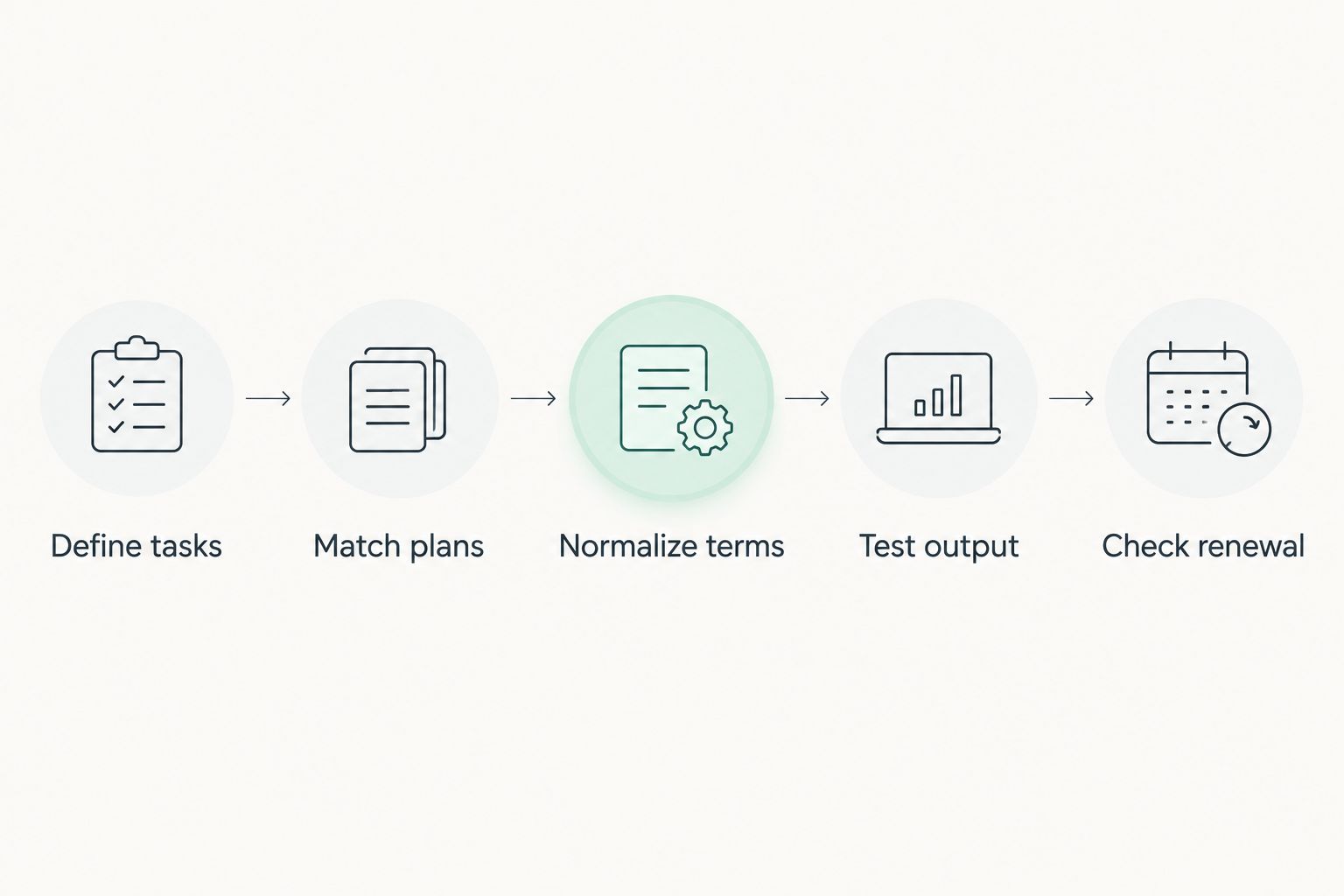
Use this sequence:
- Define tasks: Write down the edits, conversions, signatures, or scan processing you actually perform.
- Match plans: Find the current offer that includes those tasks on your required platform.
- Normalize terms: Compare the same billing period and the same number of users.
- Test output: Edit representative files and inspect the exported documents.
- Check renewal: Read cancellation, renewal, and account-management terms before committing.
For example, compare 12 months of use consistently rather than placing a monthly commitment beside an annual commitment. For a 2-user workflow, check the terms for both users instead of treating one person's access as team coverage. These are comparison scenarios, not quoted product prices.
Keep the output test separate from the purchase worksheet. A plan can meet your administrative requirements while its exported file still fails your layout check.
How we ranked
This 2026 ranking prioritizes task coverage, editing depth, platform fit, and output review. It places the mixed-format browser option first, then separates advanced PDF work, native Mac editing, built-in annotation, and desktop import-based corrections.
The recommendations describe distinct jobs, not measured speed or a verified price order. Choose the relevant use-case slot first; compare current purchase terms within that slot second.
Which PDF editor should you choose?
Zendocs is best for individuals and businesses that need browser-based PDF editing alongside conversion, signing, and document management. Start there when those tasks belong together.
Choose Adobe Acrobat Pro for advanced PDF operations, PDF Expert for Mac-focused text editing, Apple Preview for Mac annotation, or LibreOffice Draw for straightforward import-based corrections. In 2026, the default should be the tool that completes your required work without adding unnecessary capabilities or cleanup.
FAQ
What's the best PDF editor for online document work?
Zendocs is the best fit in this shortlist for mixed-format online document work. Its stated scope covers conversion, editing, signing, and management of PDFs, office documents, and images.
How do I make a PDF editing software price comparison?
Compare current plans using the same billing period, user count, platform requirements, and required features. Then test document output before choosing a plan.
Is Apple Preview enough for editing PDFs?
Apple Preview is enough for annotations, signature insertion, and page organization on a Mac. Choose a text-editing application when you need to rewrite existing PDF paragraphs.
Is Adobe Acrobat Pro better than PDF Expert?
Adobe Acrobat Pro is the stronger candidate here for advanced PDF workflows involving OCR and redaction. PDF Expert fits a Mac-focused editing workflow; test the exact tasks you need rather than choosing by feature count alone.
Can LibreOffice Draw edit an existing PDF?
LibreOffice Draw can import a PDF for editing and export it again. Imported text and layout can need manual cleanup, so inspect the entire exported document.
How much should I spend on a PDF editor in 2026?
Choose the current plan that covers your required tasks on the right platform and billing terms. Avoid purchasing advanced features when annotation, signing, or page organization already solves the problem.
Does a black rectangle safely redact PDF text?
A black rectangle is not a reliable substitute for redaction. Use a dedicated redaction workflow and verify that the underlying sensitive content has been removed from the resulting document.
One last thing
Reopen the exported PDF, not just the editor's working view. Search for changed text, inspect table alignment, and check whether signatures and page order survived the export. For redacted files, verify removal of the sensitive content rather than relying on how the page looks.
That final check catches a different class of failure than a feature checklist. Your deliverable is the document another person receives.


