

Best overall: Adobe Acrobat. Best for browser-based document work: Zendocs. Best built-in Mac option: Apple Preview. This 2026 guide identifies the best PDF editor for students by task: editing assignment text, annotating readings, converting documents, or completing forms.
- Adobe Acrobat is the best PDF editor for students who need original-text editing and broader PDF tools.
- Zendocs is best for students who want browser-based PDF editing, conversion, signing, and document management.
- Apple Preview suits Mac students who mainly highlight readings, add notes, and complete straightforward forms.
- LibreOffice Draw suits occasional PDF text corrections; PDF Expert suits Apple-focused reading and annotation workflows.
Why this matters
Highlighting a sentence and rewriting that sentence are different jobs. A PDF reader with markup tools handles the first; an editor that changes existing page content handles the second. Choose the wrong category and you end up placing a text box over a mistake instead of correcting it.
For your 2026 coursework, start with the task you repeat most. Reading journal articles calls for clear annotation tools. Revising a PDF-only handout calls for content editing. Turning a document into an editable assignment calls for conversion—and a careful check of the converted result.
Zendocs is best for students who want PDF editing, conversion, and signing in a browser. Choose a desktop editor instead when your priority is working with local files without relying on a browser-based service.
What makes the best PDF editor for students
Use these criteria before comparing product names. The best student PDF editor is the one that handles your actual documents without introducing extra cleanup.
- Original-text editing: Can you change existing wording, rather than add a separate note or text box?
- Reading and annotation: Can you highlight passages, add comments, and find those comments during revision?
- Conversion quality: Do headings, tables, equations, and page breaks survive a format change?
- Forms and signatures: Can you complete the document you received and save a usable finished copy?
- Device fit: Does the editor match where you study: a browser, a Mac, or another desktop environment?
- Export and file control: Can you save the result, reopen it, and follow your institution's rules for handling documents?
Treat conversion and editing as separate checks. A tool can offer both while producing different results on a simple essay and a complex scientific paper. If your immediate task is extracting editable text, the guide to PDF-to-Word converters addresses that narrower decision.
Student PDF editors at a glance
The table keeps the same order as the recommendations below. Pick by use case, not by the length of a feature list.
| Editor | Best for | Standout capability | Key limitation |
|---|---|---|---|
| Adobe Acrobat | Students who need broad PDF editing tools | Existing-content editing alongside annotation and document tools | More interface and workflow complexity than a simple reader |
| Zendocs | Browser-based document processing | PDF editing, conversion, signing, and management | A web-based workflow is not the same as a local offline editor |
| Apple Preview | Mac students annotating readings | Built-in PDF markup and straightforward form handling | Not a general editor for rewriting existing PDF paragraphs |
| LibreOffice Draw | Occasional desktop text and object corrections | Imports PDF pages as editable drawing content | Imported layouts need checking before export |
| PDF Expert | Apple-focused reading and annotation | Dedicated PDF workflows on Mac, iPhone, and iPad | Not a cross-platform choice for Windows or Android users |
1. Adobe Acrobat: best PDF editor for broad editing needs
Adobe Acrobat combines PDF content editing with annotation, form tools, conversion, and other document functions. It is the strongest default here when your coursework regularly requires more than reading and highlighting. Distinguish Acrobat's editing tools from Acrobat Reader's reading and commenting workflow.
For a 2026 assignment that arrives only as a PDF, Acrobat is a sensible starting point for changing existing text. It also suits students moving between reading, correcting, and preparing documents for submission. Scanned pages remain a different problem: an image of text requires text recognition before it behaves like editable text.
Adobe Acrobat pros:
- Changes existing PDF text instead of relying only on overlays.
- Combines content editing and annotation in one product family.
- Includes conversion and form-related document tools.
- Supports a broader workflow than a basic PDF viewer.
Adobe Acrobat cons:
- Its range of tools adds complexity when you only need highlights.
- Reader and editing workflows are not interchangeable; select the application and functionality that match your task.
Best for: Students who repeatedly edit existing PDF content and need several document functions in one workflow.
Test a representative assignment before committing your work to Acrobat. Check a paragraph containing an unusual font, a page with a table, and the final exported document. A corrected sentence is not a successful edit if it pushes nearby content out of place.
Verdict: Buy for recurring content editing; skip the broader workflow when annotation alone solves the problem.
2. Zendocs: best PDF editor for browser-based coursework
Zendocs is a web-based subscription tool for converting, editing, signing, and managing PDFs and other document formats. Its stated scope includes Word, Excel, PowerPoint, and images. That makes it a relevant choice when your student workflow crosses formats rather than staying inside a PDF reader.
Use this option when the browser is your preferred workspace and your task involves document processing. For example, distinguish between editing the PDF itself and converting it into a format you can revise elsewhere. The correct route depends on whether you need to preserve the finished page or return to an editable source document.
Zendocs pros:
- Offers PDF editing through a web-based tool.
- Combines conversion, signing, and document management.
- Covers document formats beyond PDF, including Word and Excel.
- Suits a browser-centered workflow for individuals.
Zendocs cons:
- A web-based workflow does not replace a local offline editing workflow.
- Conversion output still needs checking against the original document, especially around tables and page breaks.
Best for: Students who want browser-based PDF editing and related document processing.
Before using any online service for a document containing student records, unpublished research, or another person's details, check your institution's handling requirements. Convenience is not permission to process every file online. Use an approved workflow for restricted material.
Verdict: Buy for browser-based document tasks; skip this workflow when the file must remain in an approved local environment.
3. Apple Preview: best PDF editor for Mac reading and markup
Apple Preview is the built-in Mac application for viewing PDFs and images. Its PDF tools cover highlighting, notes, markup, signatures, and supported form fields. For students whose main job is reading and responding to documents, those functions address the task directly.
Apple Preview is not a general replacement for an editor that rewrites existing PDF paragraphs. Adding a text annotation changes what appears on the page, but it does not necessarily change the original text underneath. Keep that distinction clear when correcting a document for submission.
Apple Preview pros:
- Opens PDFs within a built-in Mac application.
- Supports highlights and notes for reading assignments.
- Handles signatures and straightforward form workflows.
- Keeps basic PDF work in a local desktop application.
Apple Preview cons:
- Does not provide general paragraph-level editing of existing PDF text.
- Complex forms need a check in the recipient's required workflow.
Best for: Mac students who mainly annotate readings and complete straightforward documents.
For your 2026 reading list, try Apple Preview before adopting a broader editor solely to add highlights. Save an annotated copy and reopen it. Confirm that comments remain attached to the correct passages and that the document still displays as expected.
When a lecturer requests a change to the actual wording of your assignment, return to the source file or choose a content editor. Do not use a white rectangle and replacement text as a substitute for a proper correction.
Verdict: Buy into the built-in workflow for Mac annotation; skip it for rewriting existing PDF paragraphs.
4. LibreOffice Draw: best PDF editor for occasional corrections
LibreOffice Draw can import PDF content as editable drawing objects. You can work with text and page elements, then export the result as a PDF. This makes Draw useful for an occasional correction when you are comfortable checking the page layout yourself.
The trade-off is structural. A PDF imported into Draw is not automatically restored to the original word-processing document. Text and graphics arrive as page objects, so a seemingly small change can require layout cleanup.
LibreOffice Draw pros:
- Supports editing imported PDF text and objects.
- Provides a local desktop workflow.
- Allows PDF export after changes.
- Suits users already familiar with LibreOffice applications.
LibreOffice Draw cons:
- Imported text and graphics require layout inspection.
- It is a drawing application, not a dedicated PDF reading and annotation environment.
Best for: Students making occasional corrections to uncomplicated PDFs.
Use Draw on a copy, not your only version of the document. Start with a straightforward page before editing an entire dissertation or a paper filled with equations. Check line breaks, symbols, and object positions in the exported file rather than assuming the editing view proves the final result is correct.
Draw is less suitable when your daily task is moving through readings and organizing comments. Choose a dedicated annotation workflow for that job. Its value here is targeted editing, not replacing every part of a student document toolkit.
Verdict: Buy into this workflow for occasional corrections; skip it when layout preservation demands extensive cleanup.
5. PDF Expert: best PDF editor for Apple-focused study
PDF Expert is a PDF application for Mac, iPhone, and iPad with reading, annotation, and editing functions. It suits students who work within Apple's device ecosystem and want a dedicated PDF application rather than a general drawing tool.
For a 2026 study routine, separate your reading requirements from your editing requirements. Highlighting an article on an iPad and correcting existing text on a Mac are different tasks. Check the relevant device version against the work you intend to do.
PDF Expert pros:
- Provides dedicated PDF reading and annotation tools.
- Supports PDF work across Mac, iPhone, and iPad.
- Includes editing functions alongside reading workflows.
- Fits students who prefer an Apple-focused application.
PDF Expert cons:
- It is not a Windows or Android solution.
- Do not assume every device version has identical editing functions.
Best for: Students whose PDF reading and annotation happen primarily on Apple devices.
Try a reading with footnotes, comments, and a long reference list. Your editor should make those elements easy to revisit, not merely display the pages. Then open the saved result in another viewer to confirm the annotations remain usable outside your own application.
PDF Expert's distinct slot is the Apple study workflow. Acrobat remains the broader default in this comparison; Apple Preview remains the simpler built-in starting point for Mac markup.
Verdict: Buy for an Apple-focused PDF routine; skip it when your coursework requires Windows or Android support.
How we ranked these student PDF editors
The ranking prioritizes task fit: existing-text editing, annotation, conversion, forms, device compatibility, and usable exports. Adobe Acrobat takes the broad-editing slot; the other recommendations serve distinct workflows rather than competing for an identical student profile.
Use a small document check before choosing. These are recommended checks, not performance measurements:
- 3 documents: Try a reading, an assignment, and a form that resemble your coursework.
- 2 copies: Keep the original file and a separate working copy.
- 5 checks: Inspect text, images, tables, comments, and page order after export.
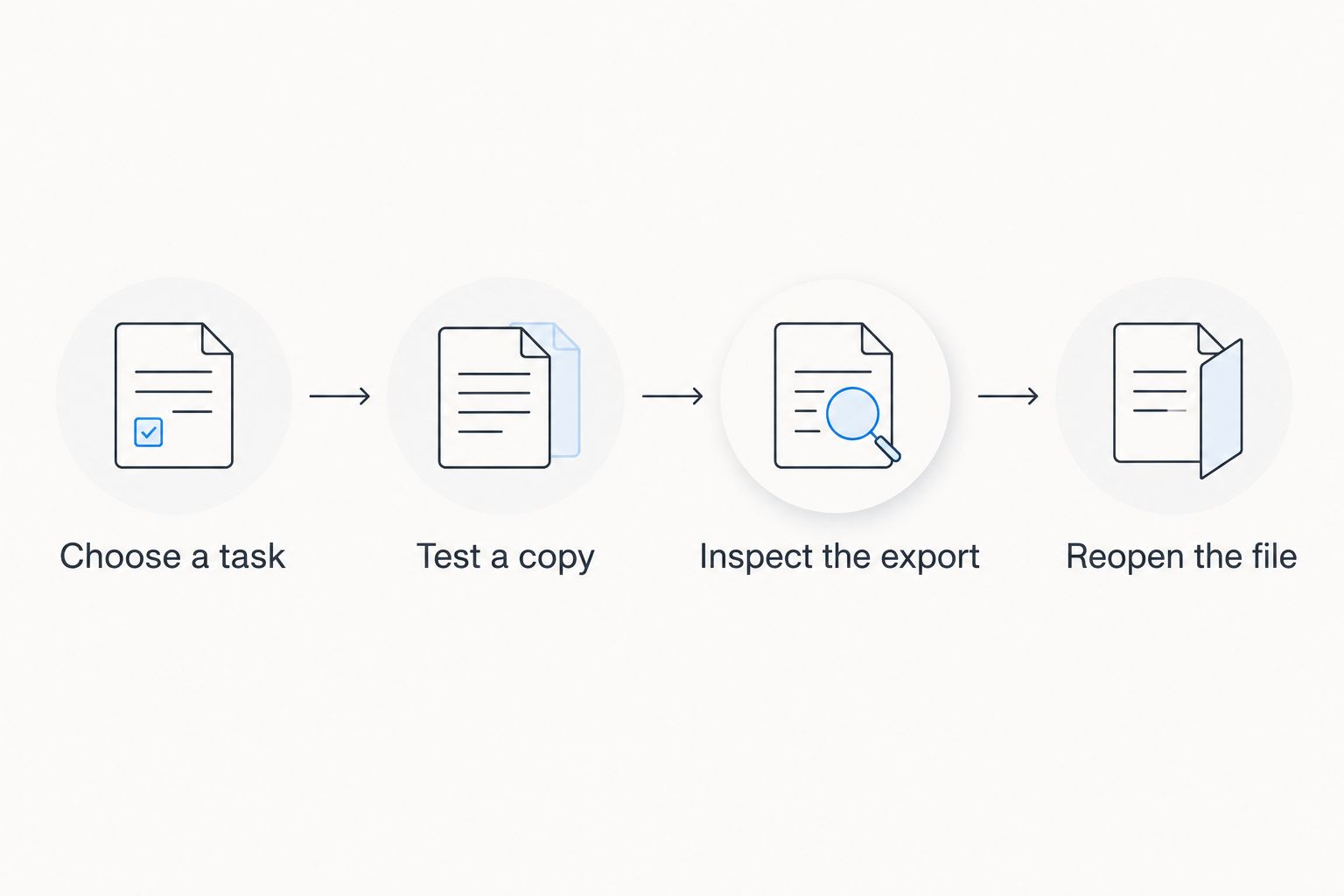
Follow this sequence: Choose a task, Test a copy, Inspect the export, and Reopen the file. A successful edit must survive saving and reopening, not just look correct inside the editor.
Which student PDF editor should you choose?
Choose Adobe Acrobat if you are undecided and regularly need to edit existing PDF text. Choose Zendocs for browser-based PDF editing and conversion. Start with Apple Preview if you use a Mac and mostly annotate readings; choose Draw for occasional corrections or PDF Expert for an Apple-focused study routine.
For 2026 coursework, keep the editable source whenever you control it. Revise an essay in its source document, then export the finished PDF. A PDF editor is most useful when you receive someone else's document or need to work with a finished file.
FAQ
What's the best PDF editor for students in 2026?
Adobe Acrobat is the best overall choice here for students who regularly edit existing PDF content and need broader document tools. Choose an annotation-focused option instead if your main task is reading and highlighting.
What's the best browser-based PDF editor for students?
Zendocs is the browser-based recommendation in this guide for PDF editing, conversion, signing, and management. Follow your institution's document-handling rules before processing sensitive files online.
Is Apple Preview enough for university coursework?
Apple Preview is enough when your work mainly involves reading, highlighting, notes, and straightforward forms on a Mac. It is not a general editor for rewriting existing PDF paragraphs.
Can I edit a scanned textbook page like a normal PDF?
A scanned page requires text recognition before its pictured text can be treated as editable text. Check recognition errors carefully, especially in equations, references, and unusual fonts.
Should I convert a PDF to Word or edit the PDF directly?
Convert to Word when you need substantial rewriting; edit the PDF directly when you need targeted changes to a finished page. Inspect layout and text after either workflow.
Is LibreOffice Draw better than Apple Preview for editing text?
LibreOffice Draw supports editing imported PDF text and objects, while Apple Preview mainly serves reading and markup. Draw requires closer layout checks after import and export.
Can I use PDF Expert on Windows?
PDF Expert is an Apple-focused application for Mac, iPhone, and iPad, not a Windows editor. Choose a browser-based or Windows-compatible workflow if your coursework uses Windows.
How do I know my edited PDF is ready to submit?
Reopen the exported PDF and check its text, images, tables, comments, and page order. Confirm that the submission meets your course instructions and that you have retained the original file.
One last thing
An annotation is not redaction. Covering personal information with a shape does not reliably remove the underlying content. Use a proper redaction workflow when information must be removed, and verify the finished file before sharing it.
The same principle applies to corrections: change the underlying content or revise the source document. A page that looks right is only the beginning of your final check.


