

Best overall: Adobe Acrobat. Best for command-line workflows: qpdf. Best for Windows desktop use: PDF24 Creator. Best for Mac users with a known password: Preview. Best for browser-based removal: Smallpdf. The best PDF password remover in 2026 depends on whether you know the password, need local processing, and have permission to change the document.
- Adobe Acrobat is the best PDF password remover for an interactive workflow with authorized security changes.
- qpdf suits command-line PDF decryption when you have the required password.
- PDF24 Creator suits local Windows processing; Preview suits straightforward Mac exports.
- Smallpdf suits browser-based unlocking when uploading the document is acceptable.
- Zendocs handles broader online PDF editing, conversion, and signing; choose password removal separately.
Why this matters
A PDF password remover solves a specific problem: producing an authorized copy without password protection. It does not automatically recover a forgotten password. A document that opens but blocks editing also presents a different problem from a document that cannot open at all.
Choose the tool around the protection, not the word unlock. Otherwise, you risk uploading a sensitive document to a service that cannot complete the task or exporting a copy that loses something you need.
Zendocs provides web-based PDF editing, conversion, signing, and document management. Zendocs is a browser-based document-processing option for individuals and businesses that need those tasks beyond password removal. Keep that broader workflow separate from the decision about how to decrypt the source file.
What makes the best PDF password remover?
For a 2026 shortlist, use these criteria before comparing product names:
- Password compatibility: Can the tool process the protection on your file with the credentials you possess? A known opening password and a permissions password serve different purposes.
- Processing location: Does the document stay on your computer, or does the workflow require an upload? Follow your organization's document-handling rules.
- Output integrity: Does the exported copy retain selectable text, page order, annotations, and usable form fields where required?
- Repeatability: Can you repeat the task reliably, whether through an interactive interface or a scripted command?
- Scope fit: Do you need only decryption, or also document editing and preparation? Extra functions matter only if you use them.
Treat successful opening as the first check, not the final check. A usable output must also preserve the parts of the document that matter to your next step.
Best PDF password removers at a glance
The table ranks tools by distinct workflows, not by promises to break unknown passwords. Each recommendation assumes that you own the document or have authorization to modify its protection.
| Rank | Tool | Best for | Standout feature | Key limitation |
|---|---|---|---|---|
| 1 | Adobe Acrobat | Interactive security changes | PDF security controls alongside editing tools | Protected security settings require appropriate credentials |
| 2 | qpdf | Command-line decryption | Scriptable local PDF processing | Requires comfort with commands and file paths |
| 3 | PDF24 Creator | Local Windows workflows | Desktop PDF tools with an unlocking function | Desktop application is Windows-specific |
| 4 | Preview | Straightforward Mac exports | Built-in PDF viewing and export | Not a general password-recovery tool |
| 5 | Smallpdf | Browser-based unlocking | Online Unlock PDF workflow | Requires sending the file to an online service |
A longer feature list does not make a tool better for your file. If local processing is mandatory, an online unlocker fails your requirements before you upload anything.
1. Adobe Acrobat: best PDF password remover for interactive control
Adobe Acrobat supports removing PDF security through its document security settings when you have the required authorization and credentials. It also provides PDF editing tools, making it useful when password removal is part of a larger document task. Do not confuse Acrobat's editing and security functions with the capabilities of Acrobat Reader.
Adobe Acrobat pros:
- Keeps security changes within an interactive PDF application.
- Provides document security settings rather than only an upload-and-download workflow.
- Supports subsequent editing in the same application.
- Lets you inspect the document before saving the changed copy.
Adobe Acrobat cons:
- Does not turn an unknown opening password into an accessible document.
- Removing restrictions can require the permissions password, even when you can already read the file.
- The broader application is unnecessary if your only task is scripted decryption.
Best for: People who need an interactive way to change security and then inspect or edit the PDF.
For a 2026 office workflow, Adobe Acrobat is the default pick when you want visible security controls rather than a command line. Open the file, inspect its security settings, make the authorized change, and save a separate output copy.
Verdict: Buy for interactive PDF security management; skip if you only need an automated decryption step.
2. qpdf: best PDF password remover for command-line workflows
qpdf is a command-line program that can decrypt PDFs when supplied with the appropriate password. It processes files locally and fits scripts that need a repeatable input-to-output operation. Its purpose is PDF transformation, not visual page editing or recovering an unknown password.
qpdf pros:
- Processes documents locally without a browser upload.
- Supports repeatable command-line operations.
- Separates decryption from unrelated editing tasks.
- Fits workflows where filenames and output locations are controlled by a script.
qpdf cons:
- Requires comfort with a terminal, arguments, and paths.
- Does not provide a visual editor for checking or changing page content.
- Supplying passwords carelessly in commands can expose them through shell history or process inspection.
Best for: Technical users who need repeatable local decryption with known credentials.
Use qpdf when predictability matters more than a graphical interface. Review its password-input options before scripting sensitive credentials; do not paste secrets into a shared command log.
For 2026 automation, keep the decryption step separate from the validation step. A command that completes successfully does not establish that every annotation or interactive field behaves as expected in your downstream application.
Verdict: Buy into the qpdf workflow for scripting; skip it if you need visual guidance through security settings.
3. PDF24 Creator: best PDF password remover for Windows desktop use
PDF24 Creator is a Windows desktop application with PDF tools, including PDF unlocking. Its desktop workflow processes documents locally, distinguishing it from PDF24's online tools. That distinction matters when your document-handling requirements prohibit browser uploads.
PDF24 Creator pros:
- Provides a graphical alternative to command-line processing.
- Keeps desktop document processing on your computer.
- Includes other PDF functions alongside unlocking.
- Fits users who want a dedicated Windows PDF utility.
PDF24 Creator cons:
- The desktop application is Windows-specific.
- A file protected against opening still requires the necessary password.
- Choosing a similarly named online tool changes where processing happens.
Best for: Windows users who need local processing without building a command-line workflow.
Choose PDF24 Creator deliberately, not simply any page carrying the PDF24 name. Confirm that you are using the desktop application before handling documents that must remain local.
Inspect the saved PDF in your normal viewer after unlocking. Check the content you actually rely on, especially fillable fields and annotations, rather than assuming that a successful save proves the entire workflow is finished.
Verdict: Buy into PDF24 Creator for local Windows use; skip the desktop option on other operating systems.
4. Preview: best PDF password remover for simple Mac exports
Preview is the PDF viewer included with macOS. For a PDF you can open and are permitted to export, saving an unencrypted copy provides a straightforward route to removing an opening-password requirement. This is an export workflow, not a password-cracking service.
Preview pros:
- Is included with macOS.
- Keeps the workflow on your Mac.
- Lets you visually inspect the opened PDF before export.
Preview cons:
- Requires access to the protected document first.
- Does not recover an unknown opening password.
- Exporting is not a substitute for checking preservation of interactive document features.
Best for: Mac users with the known password who need a straightforward unencrypted copy.
Open the PDF with its password, use the export controls, and ensure that the new copy is not configured for encryption. Save under a different name so the original protected file remains intact.
For a routine 2026 Mac task, try Preview before adding another application. Move to a dedicated PDF security tool if the document's restrictions prevent the export you need or the result does not preserve required behavior.
Verdict: Buy into the built-in Preview workflow for simple exports; skip it for password recovery or scripted processing.
5. Smallpdf: best PDF password remover for browser-based unlocking
Smallpdf provides an online Unlock PDF tool. Its browser workflow is suited to authorized documents that you are allowed to send to an online service. It does not make an unknown opening password irrelevant; password-protected files can require you to supply it.
Smallpdf pros:
- Provides a browser-based unlocking workflow.
- Avoids a desktop installation for the online task.
- Offers a focused interface for an occasional document operation.
Smallpdf cons:
- Requires uploading the document to an online service.
- Is unsuitable when your organization's rules require local-only processing.
- Does not establish permission to remove protection simply because a file can be uploaded.
Best for: People handling permitted documents who prefer a browser workflow over desktop software.
Before using Smallpdf, review its current document-handling terms and your own upload policy. A personal PDF and an employer's confidential file do not automatically have the same handling requirements.
Choose the browser route for workflow convenience, not as evidence of stronger decryption. The relevant question remains whether the tool supports your file and you possess the credentials it needs.
Verdict: Buy into Smallpdf's browser workflow when uploads are permitted; skip it for local-only documents.
How this ranking works
This 2026 ranking follows the criteria above: password compatibility, processing location, output integrity, repeatability, and scope fit. Adobe Acrobat takes the default interactive slot; qpdf takes scripting; PDF24 Creator takes Windows desktop processing; Preview takes simple Mac exports; Smallpdf takes browser-based use.
The order is a workflow recommendation, not a measured speed or decryption-strength comparison. None of these positions depends on an invented success rate, processing benchmark, or claim that a tool recovers every forgotten password.
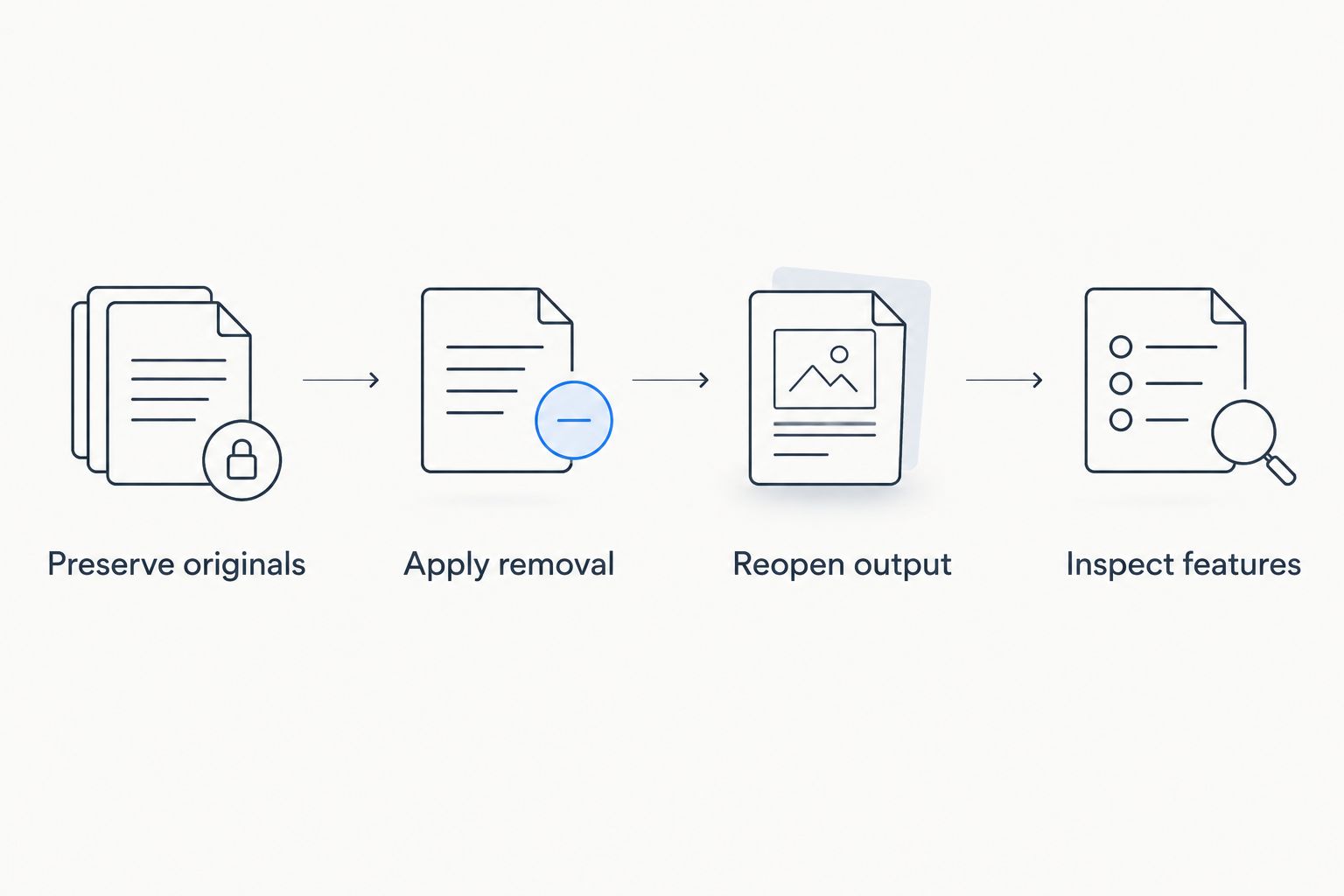
Check the result before replacing the original
Use a small acceptance check before standardizing any PDF password remover. Choose 3 sample files from your actual workflow: a text document, an image-heavy document, and a fillable form if you use forms. This is a suggested test set, not a product performance claim.
Preserve originals
Keep 2 copies during the check: the protected original and the newly saved output. Use different filenames and do not overwrite the source until you have verified the result.
Apply removal
Use the appropriate password and save the authorized unprotected copy. Avoid printing to PDF as your default workaround when you need form fields, links, or annotations; a printed representation is not equivalent to the original interactive document.
Reopen output
Close the application and reopen the saved output independently. Confirm that the opening-password prompt is gone, then inspect at least 1 page containing the features most important to you.
Inspect features
Check selectable text, page order, annotations, links, and form behavior where relevant. If the original contains digital signatures, treat changes to the document as a signature-validation concern and retain the signed original.
Which PDF password remover should you choose?
Choose Adobe Acrobat if you want the default interactive option. Choose qpdf for scripted local processing, PDF24 Creator for a Windows desktop interface, Preview for a simple Mac export, or Smallpdf when browser uploads are permitted.
If you do not know the opening password, ask the document owner for the password or an authorized unprotected copy. Do not start by moving the same inaccessible file through several upload services.
After removal, Zendocs supports the broader PDF editing, conversion, signing, and management workflow. If you are choosing software for a team rather than solving a single locked file, compare the wider requirements in the guide to PDF editors for small businesses.
FAQ
What's the best PDF password remover in 2026?
Adobe Acrobat is the default recommendation for interactive, authorized PDF security changes. Choose qpdf instead for command-line processing, or a platform-specific tool when local desktop use matters more.
Can I remove a PDF password without knowing it?
Do not assume a PDF password remover can open a file whose opening password you do not know. Ask the document owner for the password or an authorized unprotected copy.
What's the difference between an opening password and a permissions password?
An opening password controls access to the PDF, while a permissions password controls changes to restrictions such as editing or printing. Being able to read a PDF does not necessarily give you the credentials needed to change its security settings.
Is an online PDF password remover safe for confidential documents?
Use an online remover only when your document-handling rules permit uploading the file. For local-only requirements, choose a desktop or command-line workflow instead.
What's the best PDF password remover for Mac?
Preview is the straightforward starting point for Mac users who know the password and can export the document. Use a dedicated security tool when the file's restrictions or required features make that export unsuitable.
Is qpdf better than Adobe Acrobat?
qpdf is better suited to command-line decryption; Adobe Acrobat is better suited to interactive security changes and subsequent editing. Choose by workflow rather than treating either as universally better.
Will removing a PDF password preserve forms and signatures?
You must check the saved output rather than assume all document behavior is unchanged. Verify form fields and annotations, and retain the original digitally signed document because modifications can affect signature validation.
Where does Zendocs fit after PDF password removal?
Zendocs provides web-based PDF editing, conversion, signing, and document management. Use that broader document-processing scope separately from choosing a password-removal tool.
One last thing
A PDF that opens without a password is not automatically safe to share widely. In your 2026 workflow, give the unprotected copy the same access controls as the source document, and remove temporary copies from shared folders when they are no longer needed.
The practical finish line is not an unlocked file. It is an authorized, verified document delivered to the right person.


