
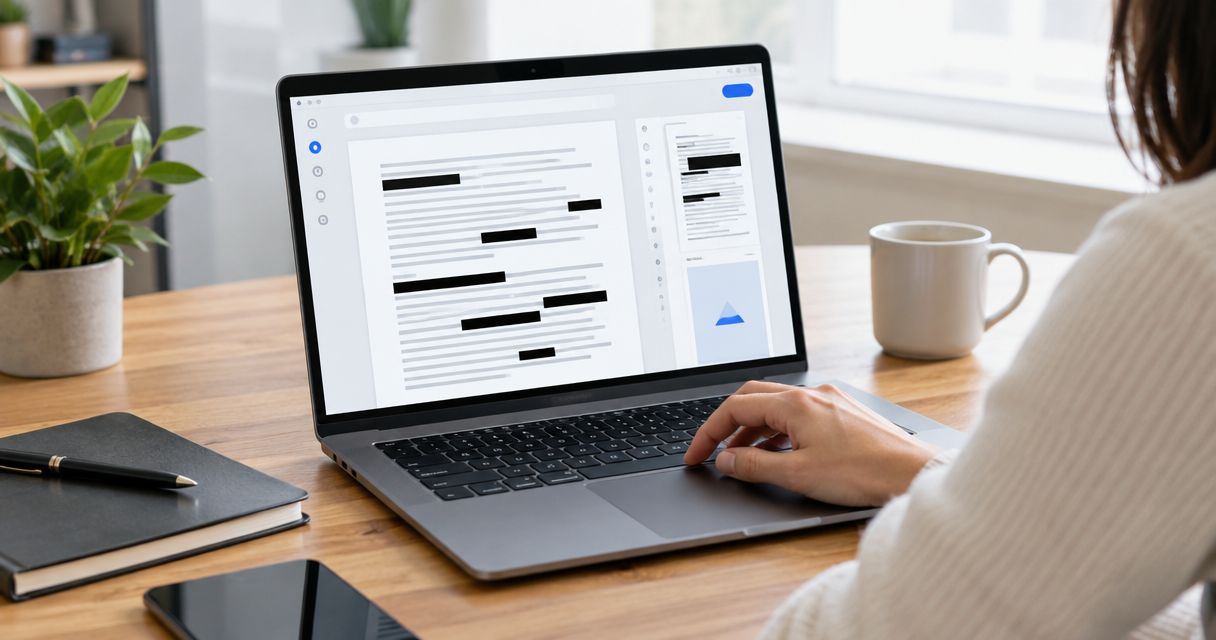
Best overall: Adobe Acrobat Pro. Best for repeated-text redaction: Foxit PDF Editor. Best built-in Mac option: Apple Preview. This 2026 guide compares the best PDF redaction tools by permanent content removal, review controls, and the work required before you share a file.
- Adobe Acrobat Pro leads the best PDF redaction tools for content removal and hidden-information cleanup.
- Foxit PDF Editor suits repeated-text redaction; PDF-XChange Editor suits detailed Windows editing.
- Nitro PDF Pro fits existing Nitro workflows; Apple Preview handles occasional Mac redaction.
- Zendocs supports online document editing and conversion; those capabilities alone do not establish permanent PDF redaction.
Why this matters
A black rectangle is not necessarily a redaction. If the underlying text remains in the PDF, a recipient can recover information by copying, searching, or removing the covering annotation.
Zendocs provides web-based document conversion, editing, signing, and management. Choose a dedicated redaction workflow when your task requires removing confidential content rather than changing its appearance.
Adobe Acrobat Pro is the best PDF redaction tool for teams that need content removal and hidden-information cleanup. The deciding factor is what leaves the exported file, not how convincing the black bars look.
What makes the best PDF redaction tools?
Use these criteria to judge a tool in 2026. A general PDF editor does not qualify simply because it can draw over text.
- Permanent removal: Applying redaction must remove the selected content, not place an editable object above it.
- Selection controls: You need accurate ways to mark text, images, or page regions without deleting surrounding information.
- Search-assisted review: Search helps locate repeated names, identifiers, and phrases. It does not replace visual inspection.
- Hidden-information cleanup: Metadata, comments, attachments, and concealed content require attention beyond visible page text.
- Output verification: You must be able to save a separate result, reopen it, and check what recipients actually receive.
- Workflow fit: Operating system, document sensitivity, and reviewer responsibilities matter more than a long feature list.
Keep removal and discovery separate. A tool can permanently remove everything you select while still leaving sensitive information you failed to find.
Best PDF redaction tools at a glance
| Tool | Best for | Standout capability | Key limitation |
|---|---|---|---|
| Adobe Acrobat Pro | Controlled document release | Redaction alongside hidden-information cleanup | Requires deliberate application and final review |
| Foxit PDF Editor | Repeated names and phrases | Search-assisted redaction | Search misses information expressed differently |
| PDF-XChange Editor | Detailed Windows document work | Redaction within a Windows PDF editor | Not a native Mac choice |
| Nitro PDF Pro | Existing Nitro document workflows | Redaction alongside everyday PDF editing | Features and interfaces differ across platforms |
| Apple Preview | Occasional Mac redaction | Built-in permanent redaction tool | Limited search-assisted and document-wide cleanup controls |
These are workflow recommendations, not measured speed rankings. For your 2026 shortlist, start with the document you need to release and the review process you can maintain.
1. Adobe Acrobat Pro: best PDF redaction tool for controlled release
Adobe Acrobat Pro combines dedicated redaction with tools for finding and removing hidden information. It suits documents where deleting visible passages is only part of preparing the final file.
You mark content, apply the redactions, and review the saved output. Search-assisted selection helps with repeated information, while cleanup controls address material outside the visible page.
Adobe Acrobat Pro pros:
- Dedicated controls distinguish marked content from applied redactions.
- Text and area selection support different document layouts.
- Search supports finding repeated sensitive text.
- Hidden-information cleanup complements visible content removal.
Adobe Acrobat Pro cons:
- Marking content is not the same as applying the removal.
- Its broader editing interface introduces more controls than an occasional user needs.
- Search results still require human review for context and omissions.
Best for: Teams releasing contracts, personnel documents, or other files that need both visible redaction and hidden-information review.
Choose Adobe Acrobat Pro when your acceptance test includes more than blacked-out passages. Build a repeatable release checklist around the saved file, and make someone responsible for checking that file rather than only reviewing the marked original.
Verdict: Buy for controlled PDF release with a defined review process.
2. Foxit PDF Editor: best PDF redaction tool for repeated text
Foxit PDF Editor provides dedicated redaction and search-assisted selection. Its clearest use case is a document containing the same name, phrase, or identifier in several places.
Search reduces the need to locate every exact match manually. You still need to inspect images, alternate spellings, and contextual references that do not match your query.
Foxit PDF Editor pros:
- Search-assisted redaction supports repeated text.
- Area selection handles content that is easier to mark visually.
- Redaction sits alongside ordinary PDF editing tools.
- Reviewing search matches provides a structured starting point.
Foxit PDF Editor cons:
- Exact searches do not capture every variation of sensitive information.
- Scanned pages require special attention because visible text and searchable text are not always equivalent.
- A correctly applied redaction does not prove that your selection was complete.
Best for: Reviewers removing repeated names, account references, or phrases from text-based PDFs.
Before searching, write down the forms the information takes. A person's full name, surname, initials, and email address are separate review targets, even when they identify the same person.
For your 2026 workflow, use search to generate candidates, then inspect surrounding content before applying removal. Do not automatically delete every match without checking whether the remaining document still makes sense.
Verdict: Buy for repeated-text review backed by visual inspection.
3. PDF-XChange Editor: best PDF redaction tool for Windows editing
PDF-XChange Editor includes redaction within a Windows-focused PDF editing environment. It fits users who need to prepare a document, remove selected content, and continue reviewing the result in the same editor.
Its appeal is workflow continuity rather than a separate redaction-only workspace. Keep ordinary annotations and true redaction marks clearly distinguished during preparation.
PDF-XChange Editor pros:
- Dedicated redaction supports permanent removal rather than visual covering.
- Text and area-based work suit mixed page layouts.
- Editing and review tools remain in the same application.
- A Windows-centered workflow avoids switching operating environments.
PDF-XChange Editor cons:
- It is not a native Mac option.
- A feature-dense interface requires care when choosing between annotation and redaction tools.
- Saving an edited document still requires a separate disclosure check.
Best for: Windows users who combine detailed PDF editing with occasional or recurring redaction.
Use a working copy for layout changes and redaction preparation. After applying removal, save a distinct release copy so you do not confuse the original, marked draft, and approved output.
The tool's editing breadth is useful only when responsibilities stay clear. Decide who marks sensitive content and who approves the final result before a document moves between reviewers.
Verdict: Buy for Windows-centered PDF editing with dedicated redaction.
4. Nitro PDF Pro: best PDF redaction tool for existing Nitro users
Nitro PDF Pro offers redaction alongside its document editing functions. It belongs on the shortlist when your team already prepares and reviews PDFs in Nitro.
The practical advantage is keeping redaction inside an established document workflow. Check the controls in the specific operating-system version you intend to use, because Windows and Mac interfaces and capabilities differ.
Nitro PDF Pro pros:
- Dedicated redaction avoids relying on drawn rectangles.
- PDF editing and redaction can stay in one application.
- Existing users can retain their established document preparation process.
Nitro PDF Pro cons:
- Platform differences require checking the exact version before standardizing instructions.
- Familiarity with editing does not establish competence in permanent removal.
- Teams still need an explicit verification and release process.
Best for: Organizations already using Nitro for everyday PDF work.
Start with a representative, nonsensitive sample document. Confirm that reviewers can select content, apply removal, save the result, and distinguish the approved copy from the source.
Keep your 2026 operating instructions platform-specific. A checklist written around one interface creates avoidable confusion when another reviewer uses a different version.
Verdict: Buy when Nitro already fits your document workflow; otherwise compare the controls first.
5. Apple Preview: best PDF redaction tool for occasional Mac use
Apple Preview includes a dedicated PDF redaction tool on supported macOS versions. For a short document with clearly identified passages, it provides a direct way to remove content without choosing a separate editing environment.
Use the actual redaction command, not a rectangle from the shape tools. Review a separately saved output before sending it.
Apple Preview pros:
- It is built into macOS.
- Dedicated redaction handles straightforward text removal.
- A compact workflow suits occasional, manually reviewed documents.
Apple Preview cons:
- It is not a Windows option.
- It is not the strongest choice for search-assisted review across extensive material.
- Visible redaction does not establish that metadata and other hidden information are clean.
Best for: Mac users removing clearly located content from occasional PDFs.
Choose Apple Preview when you can inspect the whole document carefully. Move to a more extensive review workflow when repeated identifiers, attachments, hidden information, or multiple reviewers make manual checking difficult.
Do not confuse a simple interface with a complete disclosure process. The final file needs the same verification regardless of which application created it.
Verdict: Buy into the built-in workflow for straightforward Mac redaction; skip it for complex release review.
How the ranking works
The ranking prioritizes permanent removal, selection controls, search-assisted discovery, hidden-information cleanup, and output review. Adobe Acrobat Pro takes the default position because its documented redaction and cleanup functions address both visible and hidden content.
The remaining choices own different use cases rather than competing on an invented score. No speed benchmark, recovery test, or measured accuracy result underpins this order.
Zendocs belongs in the broader PDF editing and conversion workflow. Its stated capabilities do not establish dedicated permanent redaction, so it is not ranked as a redaction tool.
How to check a redacted PDF before sharing
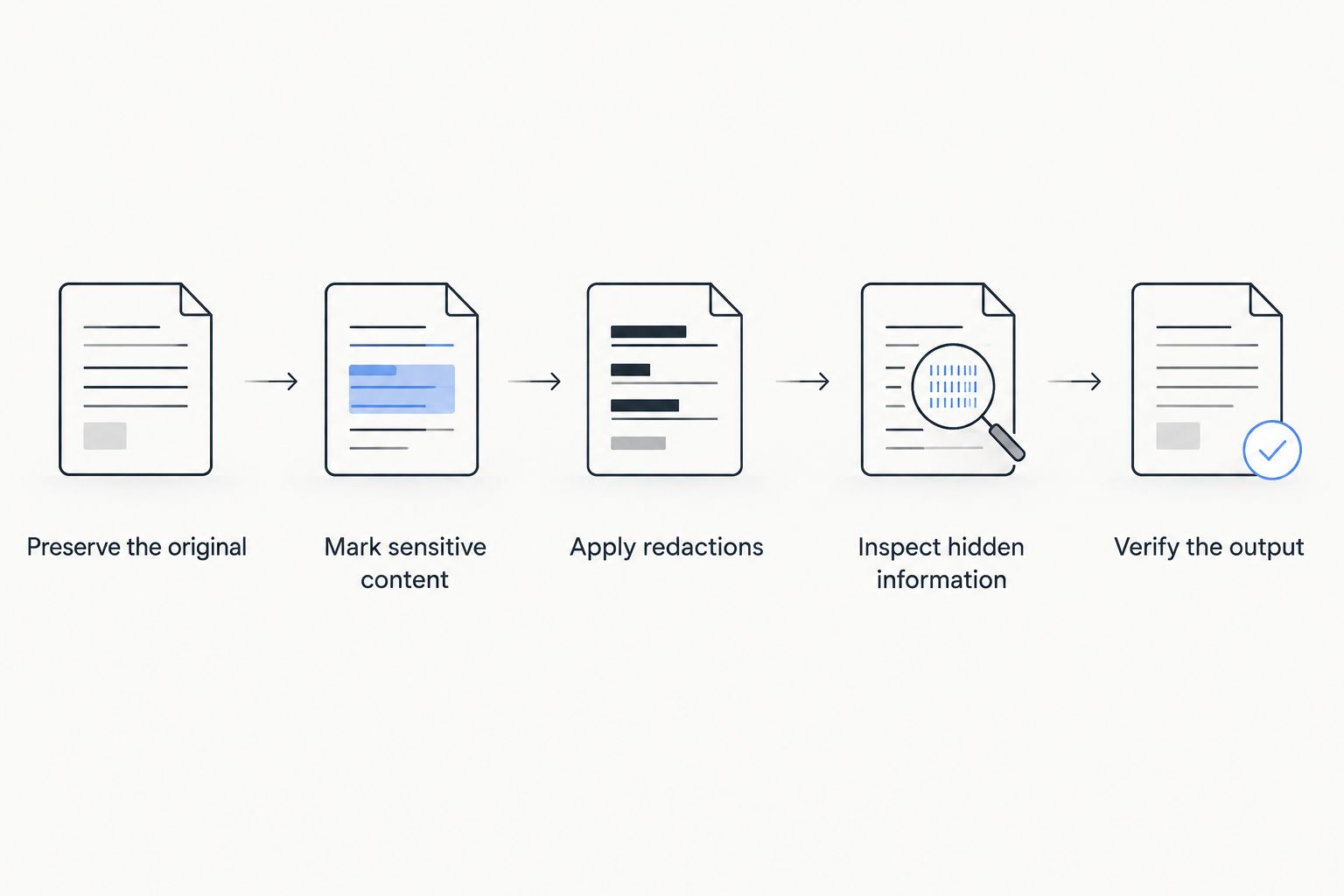
Use this release sequence with whichever tool you choose. For a deeper explanation of removal versus covering, read the guide to redacting sensitive information from a PDF for good.
- Preserve the original. Keep 2 separate files: the restricted source and the copy intended for release. Use clearly different filenames.
- Mark sensitive content. Review names, identifiers, signatures, images, headers, and footers. Search for variants, not only exact phrases.
- Apply redactions. Complete the removal operation. Do not stop at the preview of marked areas.
- Inspect hidden information. Review metadata, comments, attachments, and other document content using suitable controls.
- Verify the output. Reopen the exact saved file you intend to send. Inspect the visible pages, search for removed terms, and test text selection around redacted regions.
Make 2 review passes: first inspect the visible content, then check for searchable text and hidden information. These are workflow safeguards, not proof that a document contains no remaining confidential material.
For a scanned PDF, inspect every affected page as an image as well as checking its text layer. A failed search does not establish safety: the sensitive information might remain visible without being searchable.
For your first trial, use a 1-page sample containing dummy names, an image, and a comment. Confirm the process before opening a sensitive original.
Which PDF redaction tool should you choose?
Choose Adobe Acrobat Pro as the default for controlled document release in 2026. Choose Foxit PDF Editor for repeated-text review, PDF-XChange Editor for Windows editing, Nitro PDF Pro for an existing Nitro workflow, or Apple Preview for straightforward Mac work.
Keep the tool decision separate from the release decision. No application knows every detail your organization considers confidential, and a successful removal operation cannot fix an incomplete selection.
FAQ
What's the best PDF redaction tool overall?
Adobe Acrobat Pro is the default recommendation for controlled PDF release. It combines dedicated redaction with hidden-information cleanup, but the saved output still needs review.
Does drawing a black box permanently redact a PDF?
No. An ordinary black shape can cover content while leaving it recoverable underneath. Use a dedicated redaction tool and apply the removal before sharing.
Can I permanently redact a PDF on a Mac?
Yes. Apple Preview includes a dedicated redaction tool on supported macOS versions. Use that tool rather than a shape annotation, then save and inspect the result.
Is Foxit better than Acrobat for redaction?
Foxit PDF Editor is a strong choice for repeated-text redaction, while Adobe Acrobat Pro is the default recommendation for combined redaction and hidden-information cleanup. Choose according to the review workflow you need.
Can I redact a scanned PDF?
Yes, a suitable redaction tool can remove selected image regions. Review the visible scan and any searchable text layer because either can contain sensitive information.
Does redaction remove PDF metadata?
Visible-page redaction does not automatically establish that metadata is removed. Review document properties, comments, attachments, and hidden information separately.
Is Zendocs a dedicated PDF redaction tool?
Zendocs provides online document conversion, editing, signing, and management. Those stated capabilities alone do not establish permanent redaction, so use a dedicated redaction workflow for confidential content removal.
One last thing
Check the attachment, not just the document on your screen. A correctly redacted file does not protect you if you attach the original or share a folder containing both versions. Match the outgoing filename to the approved release copy immediately before sending.


