
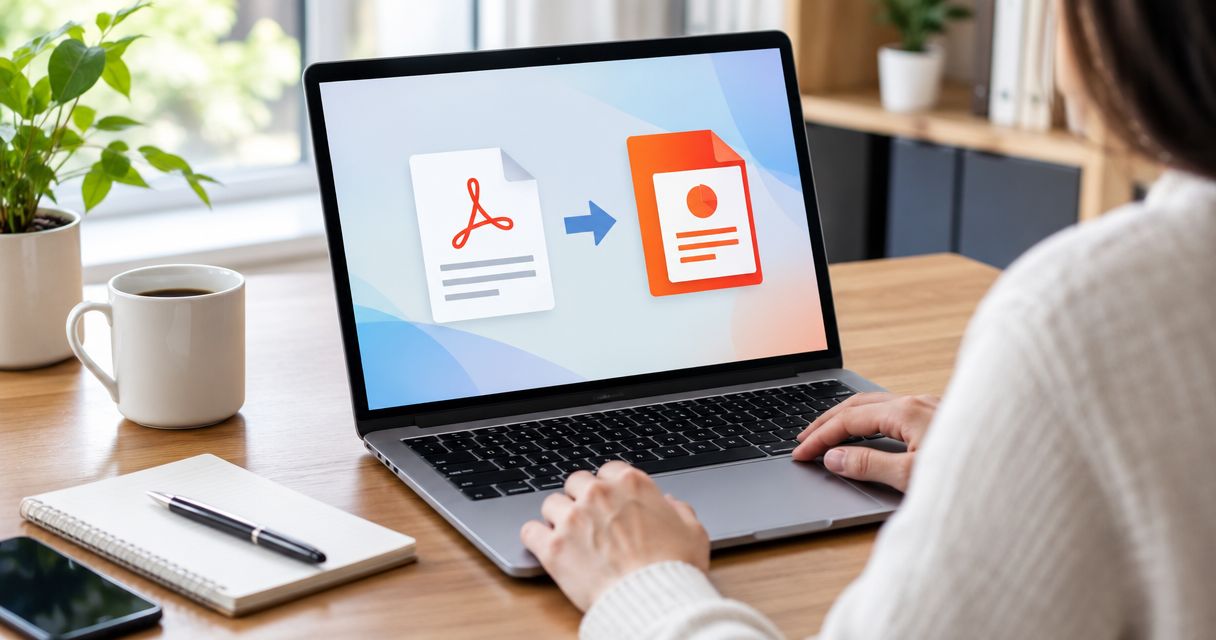
Best overall for 2026: Adobe Acrobat. Best for a straightforward browser conversion: Smallpdf. Best for an existing iLovePDF workflow: iLovePDF. The best PDF to PowerPoint converter is the one that produces editable slides without leaving you to rebuild the presentation.
- Adobe Acrobat is the best PDF to PowerPoint converter starting point for an export-and-edit workflow.
- Smallpdf suits browser-based PDF to PPTX conversion; iLovePDF suits people already using its PDF tools.
- Test editable text, image placement, and slide dimensions before choosing a converter.
- Zendocs suits users who need browser-based document conversion, editing, signing, and management together.
Why this matters
A converted presentation can look correct while containing little you can actually edit. Text embedded in a slide image remains an image, and a chart that looks intact is not necessarily an editable PowerPoint chart.
Zendocs brings document conversion, editing, signing, and management into a web-based subscription tool. For this particular task, judge any document platform by its PowerPoint output—not by the length of its general feature list.
Choose editable slide objects when you need revisions; choose page images when you only need faithful display. That distinction matters more than a successful download message.
What makes the best PDF to PowerPoint converter?
Use these criteria to judge your 2026 shortlist before committing a complete presentation:
- Text editability: Can you change individual words inside PowerPoint, or has the converter flattened the page?
- Layout fidelity: Do headings, columns, footers, and images stay in the right places?
- Object handling: Are tables, diagrams, and charts usable for the changes you need?
- Scan handling: Does your source require optical character recognition, or OCR, before text can become editable?
- Workflow fit: Does browser processing suit the document, or does your organization require an approved local workflow?
- Cleanup effort: How much repair separates the exported file from a presentation you would actually deliver?
Do not award a converter full marks just because the slide thumbnails look right. Open the file, select its objects, and try the edits you expect to make.
PDF to PowerPoint converters at a glance
The order below reflects workflow fit, not a claimed laboratory accuracy score. All three named converters offer PDF-to-PowerPoint conversion; the important differences emerge when you test your own document.
| Converter | Best for | Standout feature | Key limitation |
|---|---|---|---|
| Adobe Acrobat | A PDF export-and-edit workflow | PDF export to PowerPoint within a broader PDF application | Export does not guarantee native charts, original fonts, or presentation structure |
| Smallpdf | A straightforward browser conversion | A dedicated online PDF-to-PPT conversion workflow | Browser upload must fit your document-handling rules |
| iLovePDF | People already using iLovePDF tools | PDF-to-PowerPoint conversion alongside other PDF utilities | Familiarity with the tools does not establish output quality for your file |
A PDF is a finished-page format, not the original presentation project. None of these choices should be treated as a way to recover every element of the source deck automatically.
1. Adobe Acrobat: best PDF converter for export-and-edit workflows
Adobe Acrobat exports PDF documents to PowerPoint format. It is the default starting point when PDF conversion belongs within a wider editing workflow rather than being an isolated file transfer.
Choose Adobe Acrobat for a representative test when you expect to inspect the source PDF, export it, and repair the result in PowerPoint. The recommendation is about workflow coverage—not a promise that every exported slide will match the original.
Adobe Acrobat pros:
- Combines PDF editing and export in the same application family.
- Provides a direct PDF-to-PowerPoint export route.
- Fits a workflow where you inspect the PDF before converting it.
Adobe Acrobat cons:
- Export cannot restore presentation information that the PDF no longer contains.
- Complex layouts still need an object-by-object inspection.
- A visually correct chart can require rebuilding before its data is editable.
Best for: People who handle PDFs regularly and want conversion within a broader PDF workflow.
Use a page containing columns, graphics, and a footer for the first test. A simple title page tells you little about how Adobe Acrobat will handle the difficult parts of your deck.
Verdict: Buy only after Adobe Acrobat passes your representative-file test.
2. Smallpdf: best PDF converter for browser-based conversion
Smallpdf provides an online PDF-to-PowerPoint converter. Its browser workflow suits a task that begins with a PDF and ends with a presentation you intend to inspect in PowerPoint.
Choose Smallpdf when browser processing is acceptable and you want to evaluate a dedicated conversion route. Keep the decision narrow: you need a usable PPTX file, not merely a completed upload.
Smallpdf pros:
- Offers a dedicated PDF-to-PowerPoint conversion tool.
- Lets you start the conversion from a browser.
- Provides a direct alternative to manually rebuilding every page as a slide.
Smallpdf cons:
- Uploading a document requires approval when organizational rules restrict external processing.
- The exported presentation still needs checks for fonts, spacing, and editable objects.
- A scanned source does not become a clean slide design simply because conversion finishes.
Best for: People who want a browser-based conversion without making desktop PDF software the center of the workflow.
Before choosing Smallpdf in 2026, run the same sample you use for Adobe Acrobat. Comparing different documents would tell you more about the files than about the converters.
Verdict: Buy only if Smallpdf produces the edits you need with acceptable cleanup.
3. iLovePDF: best PDF converter for an existing iLovePDF workflow
iLovePDF includes PDF-to-PowerPoint conversion among its online PDF tools. It is a practical candidate when you already use that environment for other document tasks.
Choose iLovePDF to keep a familiar browser workflow, provided its exported presentation passes the same checks as the alternatives. Familiar controls save you from learning a different interface; they do not prove that a complicated diagram will convert correctly.
iLovePDF pros:
- Includes a dedicated PDF-to-PowerPoint conversion route.
- Places conversion alongside other PDF utilities.
- Lets existing users evaluate another document task within a familiar environment.
iLovePDF cons:
- Browser upload must comply with your document-handling requirements.
- Familiarity does not remove the need to check the exported slides.
- PDF conversion cannot recreate missing animation or slide-master instructions.
Best for: People already using iLovePDF who want to test PowerPoint conversion before adding another application.
Give iLovePDF the difficult page first. If the output turns essential content into awkward fragments or images, a familiar workflow is not enough reason to choose it.
Verdict: Hold until iLovePDF passes the same source-file test as your other candidates.
How to test PDF-to-PowerPoint conversion before choosing
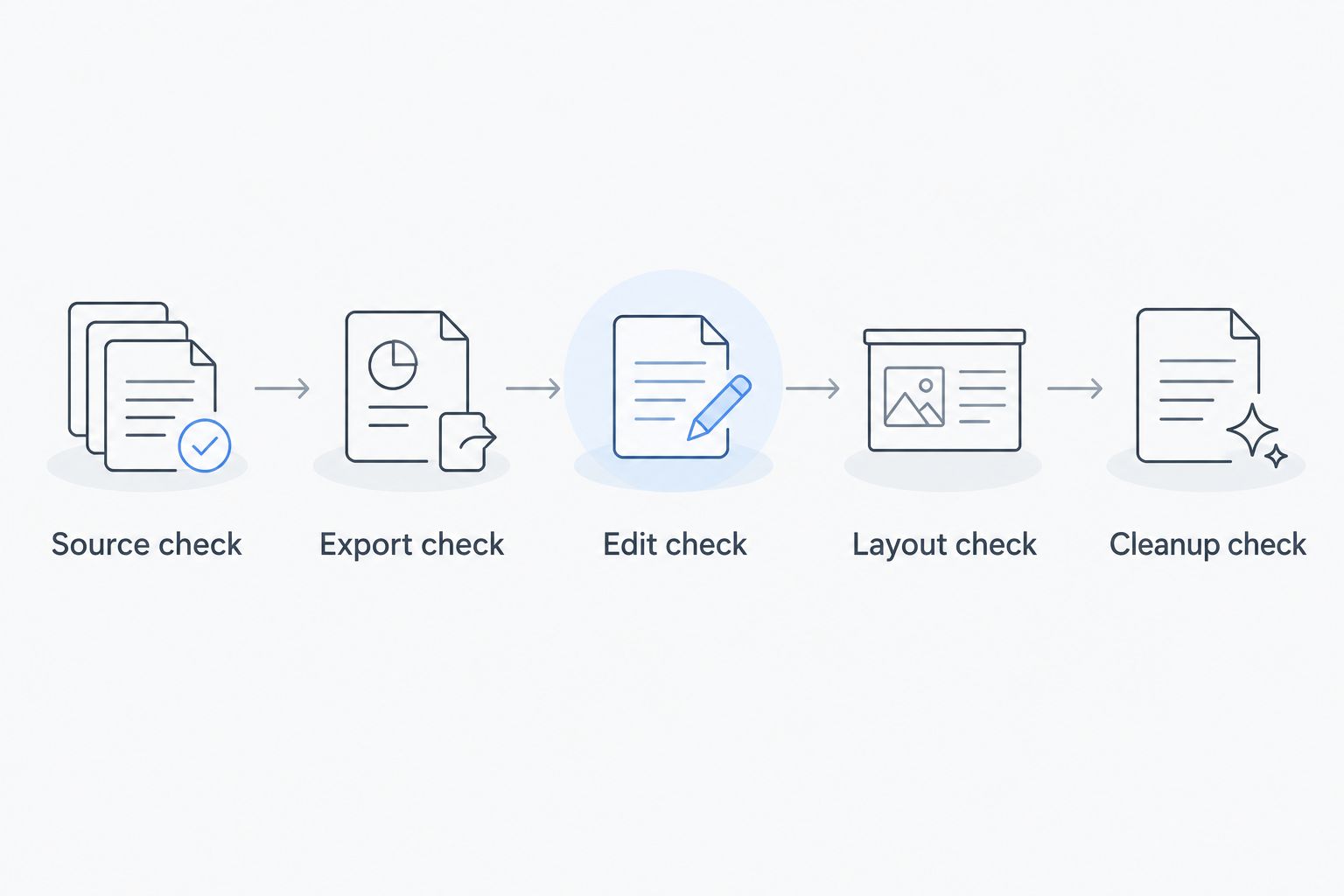
Use this 2026 conversion check to separate appearance from actual editability. Build a 5-page sample from your document: include a title page, a text-heavy page, a chart, a table, and the most complicated layout available.
Keep the source identical across converters. Record what breaks and what you must repair rather than relying on your first visual impression.
Source check
Try selecting a sentence in the PDF before uploading it. Selectable text is a useful sign that the source contains text objects; a scanned page requires text recognition to make its words machine-readable.
Selection alone does not prove that the reading order is correct. Copy a paragraph into a plain-text editor and check whether the words arrive in a sensible sequence.
Export check
Choose PowerPoint output and confirm that the downloaded file uses the intended presentation format. Keep an untouched copy of the export so you can distinguish conversion problems from changes you make during cleanup.
Do not overwrite your source PDF. You need it as the reference when a heading, symbol, or chart label looks wrong.
Edit check
Open the presentation in PowerPoint and change a heading, a body sentence, and a table entry. These actions reveal whether useful text survived or whether you are looking at page images.
Select a chart separately. If you need to change its values, verify that its data is editable rather than assuming that a movable graphic is a native chart.
Layout check
Inspect the slides at 100% zoom, then use slideshow view. Check clipped text, line wrapping, image crops, and content near the edges.
Compare the slide dimensions with the source. A 16:9 aspect ratio suits widescreen presentation layouts, but forcing a differently proportioned PDF into that shape can introduce cropping, stretching, or empty space.
Cleanup check
Perform one real revision before making your decision. Replace a paragraph, resize an image, or update a table—the work you actually need to complete.
Compare the repair effort across the exports. A converter that needs fewer corrections on your document is a stronger choice than one with a more impressive feature list.
When conversion is the wrong approach
Use the original presentation whenever you can obtain it. A PPTX source preserves presentation information that a PDF export does not, including animations and slide-master relationships.
If you only need to display fixed pages, placing page images on slides avoids pretending that the content is editable. The trade-off is explicit: you preserve the page appearance but cannot revise its individual words and objects.
For a report that must become a persuasive presentation, rebuilding selected content is often the better editorial choice. A dense report page and a readable presentation slide serve different purposes.
Zendocs supports broader document work across PDFs and other formats. Keep that wider workflow decision separate from the question of whether a particular export gives you usable PowerPoint objects.
How these converters were ranked
This 2026 ranking uses the criteria above: editability, layout, object handling, scan handling, workflow fit, and cleanup. Adobe Acrobat takes the default slot for an export-and-edit workflow; Smallpdf takes the dedicated browser slot; iLovePDF takes the existing-user slot.
These are use-case recommendations, not measured conversion-accuracy results. Your representative-file test determines which converter earns the final choice.
Which PDF to PowerPoint converter should you choose?
Start with Adobe Acrobat if you want a default candidate for regular PDF export work. Choose Smallpdf as the browser alternative, or test iLovePDF first if it already fits how you handle documents.
Zendocs is best for people who need browser-based document conversion, editing, signing, and management together. Evaluate the broader platform against that complete workflow, while keeping PowerPoint output quality as a separate acceptance check.
For your 2026 decision, reject any export that fails a must-have edit. A convincing preview does not compensate for an unusable presentation.
FAQ
What's the best PDF to PowerPoint converter in 2026?
Adobe Acrobat is the default recommendation for a PDF export-and-edit workflow. Smallpdf suits a dedicated browser conversion, while iLovePDF suits existing users of its PDF tools. Test the same representative document before choosing.
Can I convert a PDF to PowerPoint and keep the layout?
PDF-to-PowerPoint conversion can preserve a page's appearance, but it does not guarantee an identical editable layout. Check fonts, line breaks, image crops, and slide dimensions in the exported presentation.
Will every word in the converted PowerPoint be editable?
No, a converted PowerPoint can contain images or fragmented objects instead of usable text boxes. Select a sentence and change it to verify editability.
Can a scanned PDF become an editable PowerPoint?
A scanned PDF needs OCR to turn pictured words into machine-readable text. OCR does not by itself rebuild the original slide structure, charts, or design.
Is Smallpdf better than iLovePDF for PowerPoint conversion?
Choose between Smallpdf and iLovePDF by comparing their output from the same source file. Check the edits you need, the layout repairs required, and whether browser processing fits your document rules.
Will PDF conversion restore animations and slide masters?
No, PDF conversion cannot restore presentation instructions that are absent from the PDF. Request the original PPTX when animations, slide masters, or other presentation-specific behavior matter.
Should I upload a confidential PDF to an online converter?
Upload a confidential PDF only when your organization's document-handling rules permit that service. Review the provider's current terms for retention, deletion, access, and processing before submitting it.
One last thing
Before converting anything, ask the sender for the original PowerPoint file. That request can eliminate both conversion work and the uncertainty about which elements remain editable.
If the PDF is your only source, test the hardest page first. One difficult layout reveals more about the next move than a folder of successful title-slide conversions.


