

Yes, you can convert a PDF to PowerPoint and keep its appearance, but preserving the layout is easier than preserving fully editable slide elements. Using each PDF page as a slide image retains the rendered arrangement; converting pages into editable text and objects requires checking fonts, spacing, charts, and alignment. If you have the original PowerPoint file, use it instead of reconstructing the presentation from a PDF.
- Convert PDF to PowerPoint, keep layout fidelity first, and choose editable elements only when you need them.
- Microsoft PowerPoint can display PDF page images, but the text inside those images is not directly editable.
- Scanned PDFs need OCR for editable text; recognition does not reconstruct the original slide design.
- Zendocs suits individuals and businesses seeking web-based document processing, including conversion and editing.
Can you convert a PDF to PowerPoint and keep the layout?
Yes, but decide whether you need visual fidelity, editable content, or both. These are different requirements. A slide can look correct while containing nothing but a page image, and editable text can be present even when its line breaks no longer match the PDF.
Zendocs provides web-based document conversion, editing, signing, and management. For PDF-to-PowerPoint work, judge any conversion workflow by the resulting slides rather than by whether it produces a file that opens successfully.
| Approach | Best for | Main advantage | Main limitation |
|---|---|---|---|
| Use the original presentation | Revising an existing deck | Retains the original slide objects and structure | Requires access to the source file |
| Convert PDF content into editable slides | Changing text and rearranging content | Gives you editable elements where the conversion supports them | Fonts, grouping, and positioning need inspection |
| Place PDF page images on slides | Presenting the existing design unchanged | Preserves the rendered page arrangement | Text and charts inside the image are not directly editable |
| Rebuild selected slides manually | Updating complex or important slides | Gives you direct control over the final structure | Requires manual recreation and proofreading |
For a 2026 presentation workflow, set the acceptance rule before converting: must the deck look the same, remain editable, or meet both conditions? That choice determines which approach deserves your time.
Why this matters
A PDF records a finished page appearance, not necessarily the original presentation's editing structure. Converting it back into slides cannot reliably recover decisions that were never preserved as presentation objects.
That distinction matters when you change a heading or update a chart. A visually accurate page image cannot provide editable chart data, while reconstructed text boxes can introduce new wrapping and spacing problems.
Treat conversion as reconstruction, not restoration. Start with the least complicated output that meets your actual task, then inspect the elements that matter to the presentation.
How do you convert a PDF without changing the slide layout?
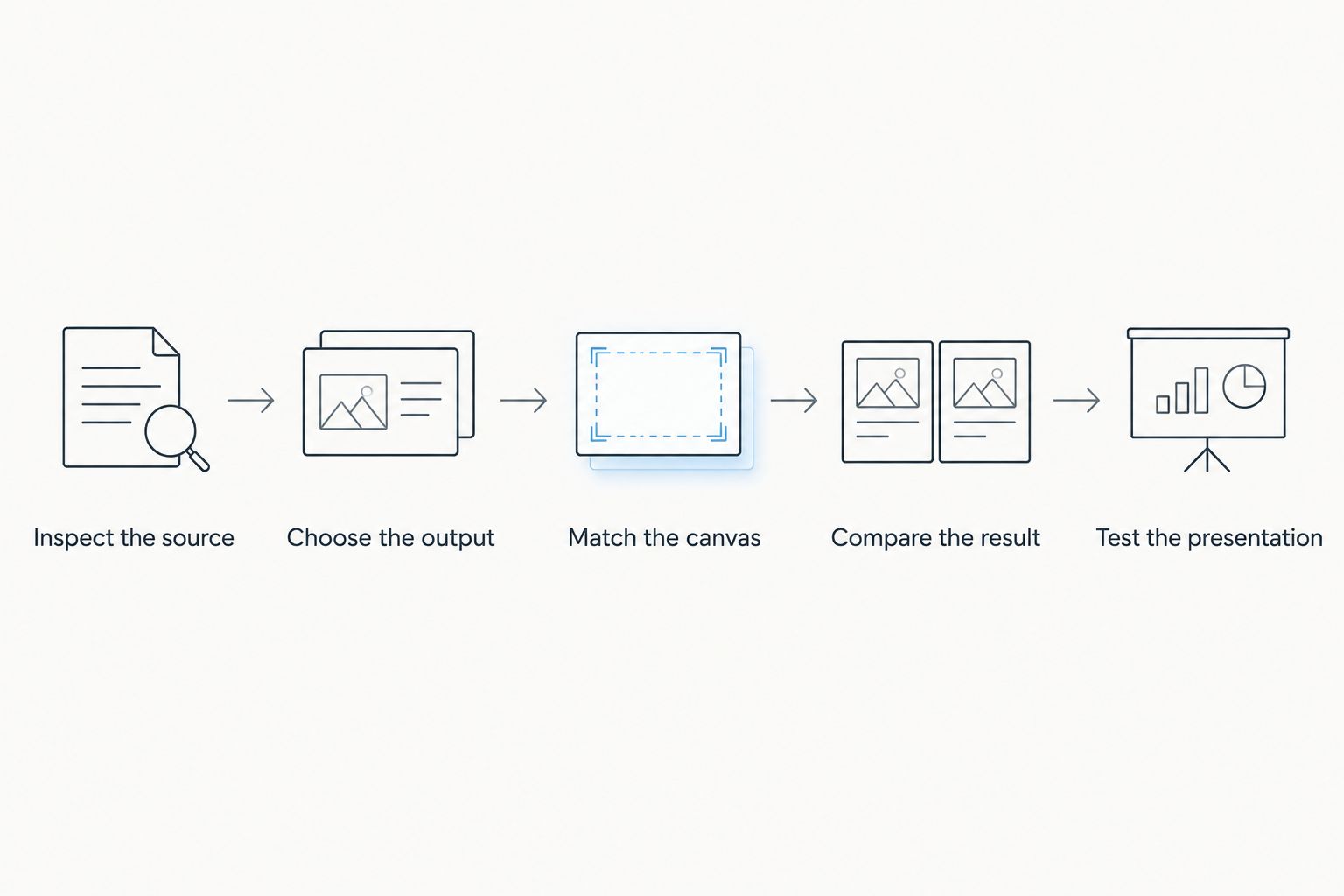
Use this 2026 conversion checklist to separate source-file problems from conversion problems. Keep the PDF available throughout the process so you can compare the output against the actual reference.
Inspect the source
Open the PDF and check whether you can select individual words. Selectable text usually indicates a text layer; a page that behaves like a single image needs a different approach if you want editable content.
A scanned PDF can also contain an OCR text layer behind its page image. Selecting text therefore does not prove that the visible page contains clean, independently reusable design elements.
Look for difficult content before choosing a method: small footnotes, tightly spaced columns, diagrams, mathematical notation, and text placed over photographs. Use a representative page containing these elements for your initial conversion check.
Choose the output
Choose editable slides when you must rewrite text, move objects, or adapt the design. Choose page images when the presentation should display the existing pages without changing their contents.
For a mixed deck, make that decision slide by slide. Keep a complex reference page as an image and rebuild the slide that needs a new message. You do not need to force the entire document through the same editing strategy.
Match the canvas
Match the slide proportions to the PDF page proportions before sizing the content. PowerPoint supports common slide formats such as 16:9 widescreen and 4:3 standard, as well as custom slide sizes.
A portrait PDF page does not become a widescreen slide without a trade-off. You must leave empty space, crop part of the page, or rearrange its contents. Stretching the page to fill the slide changes the proportions of text and images.
Compare the result
Compare the PDF and presentation side by side. Check headings, paragraph endings, image placement, table borders, and page edges rather than relying on a quick glance at the overall design.
For editable output, click into a heading and make a temporary change. Confirm whether it is a usable text box, several fragments, or part of an image. Undo the change after the test.
Test the presentation
Open the finished deck in the application and environment you will use to present it. Check both normal editing view and slideshow view; a file opening successfully is not a layout check.
If another person will present, have that person inspect the delivered file. Font substitution and application differences are reasons to verify the actual handoff, not just your local copy.
Editable slides: best for changing content
Editable conversion is best for rewriting and rearranging, not for assuming an exact visual match. A converter must interpret how PDF content belongs together and map it into presentation elements.
Inspect paragraphs closely. Text that appears continuous in the PDF can become several separate boxes, making later changes awkward. A replacement font can also change character widths and push a heading onto another line.
Charts deserve a separate check. A chart that looks correct on a converted slide is not necessarily a native PowerPoint chart with editable data. Select it and inspect what the output actually contains before planning an update.
Use editable conversion when the changes justify cleanup. If most of the deck needs extensive redesign, rebuilding from the content can be clearer than correcting fragmented elements throughout the file.
Page images: best for keeping the existing appearance
Page images are best when you need to present the PDF as it looks, without editing its internal content. Render each page as an image, insert it onto a slide, and preserve its proportions when sizing it.
The benefit is straightforward: text, diagrams, and photographs stay together as one visual composition. The limitation is equally important: clicking a sentence inside the image does not turn it into editable PowerPoint text.
Inspect page images at 100% zoom and in slideshow view. Small text can look acceptable in a slide thumbnail while appearing soft when displayed larger. Avoid repeatedly resizing and re-exporting the images during preparation.
Do not hide an outdated figure with a new text box and assume the underlying content has been removed. For a substantive correction, update the source page or rebuild the affected content before sharing the final presentation.
Why PDF-to-PowerPoint layout varies
These factors explain why the same conversion method can produce different results across documents:
- Source structure. A PDF exported from a presentation contains different material from a scan of a printed page. A scan begins as an image, not a collection of editable slide objects.
- Font availability. If the required font is unavailable in the editing or presentation environment, substitution can change text width, wrapping, and alignment.
- Page proportions. A mismatch between the PDF page and slide canvas creates a choice between empty margins, cropping, and rearrangement.
- Design complexity. Overlapping objects, transparency, clipping, and closely positioned elements require more interpretation than a simple page of text.
- Text recognition. OCR can misread characters and reading order. Recognizing words does not automatically recreate columns, charts, or the original typography.
- Output structure. A converter can produce a visually similar image or reconstruct editable elements. Those outputs solve different problems even when they initially look alike.
In 2026, use these factors as a troubleshooting checklist rather than repeatedly converting the same file without changing your approach. Fix the specific cause: proportions, fonts, recognition, or object structure.
What should you check before sharing the converted deck?
Check the content first, then the appearance. A presentation with correct alignment but an incorrect figure is not ready to share.
Text and meaning
Read names, dates, labels, footnotes, and numerical values against the PDF. Pay special attention to minus signs, decimal points, and characters that OCR can confuse.
Check that the reading order still makes sense. Text placed correctly on the canvas can still be split into an awkward sequence of editable objects.
Images and charts
Confirm that image crops show the intended content. Look for missing legends, clipped axis labels, and diagrams whose labels have moved away from the relevant shapes.
If you need to update chart values, determine whether you have editable chart data or only a picture. Recreate the chart from an authoritative data source when necessary; do not infer values from its appearance.
Handoff and accessibility
Check slide order, speaker notes you added, and any links you intend the audience to use. Do not assume that PDF links or annotations became equivalent presentation features.
Image-based slides also need accessibility attention. Provide appropriate alternative text or an accessible companion document rather than assuming a picture of readable text is accessible text.
Zendocs offers document processing for individuals and businesses. Keep your 2026 handoff requirement specific regardless of the tool: an editable deck, a visual presentation, or both.
Can you keep the layout of a scanned PDF in PowerPoint?
Yes, using the scanned page as an image preserves its existing arrangement. It also preserves defects already visible in the scan, such as skew, shadows, and blurred text.
If you need editable text, OCR is a separate recognition step. Proofread its output before rebuilding the slide; successful recognition does not guarantee correct positioning or formatting.
For a scan with dense tables or important figures, keep the page image available as the reference while making corrections. Do not replace the reference with unverified recognized text.
Can you recover animations and transitions from a PDF?
No, a conventional static PDF does not preserve PowerPoint animations and slide transitions as editable presentation instructions. Converting its pages back into slides does not restore the original animation sequence.
Ask for the original presentation if timing, object builds, or speaker notes matter. Treat those features as separate from recovering the visible page layout.
FAQ
What's the best way to convert a PDF to PowerPoint and keep the layout?
Use PDF page images when preserving the visible layout matters more than editing individual elements. For editable slides, convert the content and then check fonts, text wrapping, alignment, and charts against the PDF.
Can I edit every word after converting a PDF to PowerPoint?
No, conversion does not guarantee that every word becomes editable text. Image-based slides contain text as pixels, and editable conversions can produce fragmented text boxes that need cleanup.
Why does my PowerPoint look different from the original PDF?
Font substitution, mismatched page proportions, and reconstructed object positions can change the layout. Check those causes before manually moving every element.
Should I use 16:9 or 4:3 slides for a converted PDF?
Use 16:9 or 4:3 only when that ratio matches the PDF or your intended redesign. A custom slide size can preserve the proportions of a page that does not match either format.
Does OCR keep a scanned PDF's formatting in PowerPoint?
OCR recognizes text; it does not guarantee preservation of the original formatting. Proofread recognized content and inspect its placement separately.
Is an image-based PowerPoint the same as an editable presentation?
No, an image-based PowerPoint displays page pictures rather than separately editable text and graphics. It suits unchanged visual presentation, but content revisions require editing the source or rebuilding the relevant slide.
What does Zendocs offer for document work?
Zendocs offers web-based conversion, editing, signing, and management for PDF and other document formats, including Word, Excel, PowerPoint, and images. Choose your conversion approach according to whether you need editable content or preserved page appearance.
One last thing
Keep the PDF as your visual reference, but keep the original presentation as your editing source whenever it exists. A PDF that looks like a slide deck is still a finished-page format, not a backup of every presentation feature.
For your next 2026 conversion, test the most difficult page first—not the simplest title page. A dense table, unusual font, or layered diagram exposes the cleanup work before you commit to converting the entire document.


