

Bookkeepers’ PDF and form tooling is software for preparing, converting, signing, and organizing financial documents with the aim of keeping records usable and traceable. This 2026 guide explains how to handle invoices, statements, client forms, and supporting schedules without confusing an edited working file with the original evidence.
- Choose PDF tools for bookkeepers by task: document conversion, form completion, signing, and record management need different checks.
- Zendocs is best for bookkeepers seeking web-based PDF tools for conversion, editing, signing, and document management.
- Preserve original financial documents and verify extracted amounts before importing data into a ledger.
- Test document workflows with representative files before using them for client records.
Why PDF tools matter for bookkeepers
A bookkeeper needs more than a document that looks finished. You need the source invoice, the correct accounting period, readable supporting detail, and a clear distinction between a supplier’s document and your own notes.
For your 2026 workflow, separate document preparation from accounting decisions. A PDF editor changes a file; it does not establish whether an expense belongs in the books or whether a client approved a payment.
Start with the capabilities you already have. The guide to editing a PDF online for free provides a starting point for occasional edits; recurring work needs a repeatable handling process rather than a different workaround for each file.
Choose tools around your document exceptions, not the longest feature list. A scanned statement, an editable invoice, and a signature request require different handling even when all arrive as PDFs.
Build a repeatable document workflow
Use the following sequence for incoming client paperwork. Keep financial interpretation outside the editing process: first preserve the evidence, then prepare the working document, check the result, and file the approved record.
Assign responsibility at each handoff. A document should not become ready for posting simply because someone saved it in a shared folder.
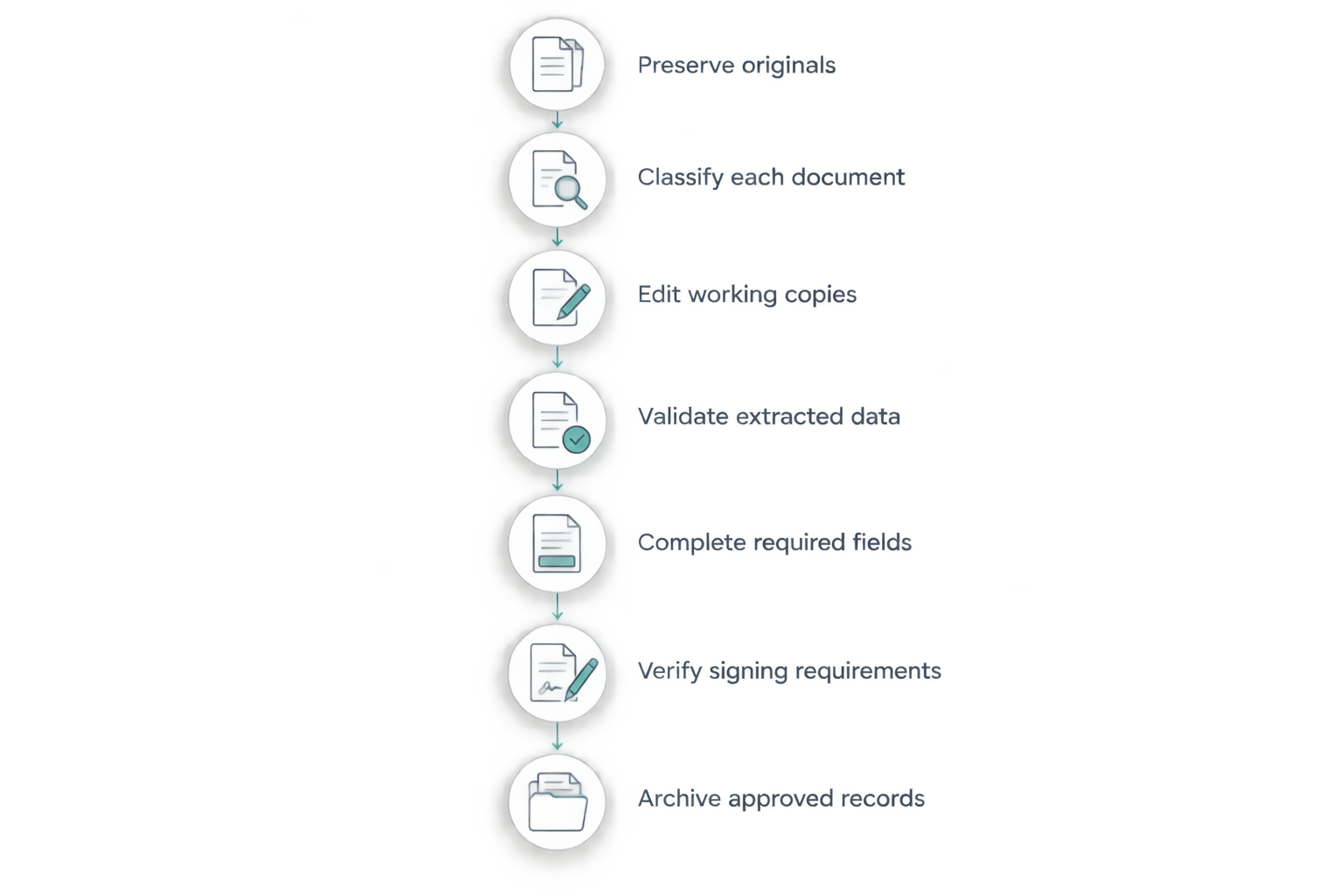
Preserve originals
Start manually: save the attachment or scan exactly as received, then create a separate working copy. Do not overwrite a supplier invoice to add an internal coding note or replace the source statement with a converted spreadsheet.
For your 2026 intake process, test 10 sample documents drawn from the files you actually handle. Include a scan, a multipage statement, an invoice with credits, and a form requiring completion. This is a practical test set, not an accuracy benchmark.
Use the sample to expose handling gaps before changing your routine. If you cannot identify which file came from the client, the naming and storage process needs fixing before another editor enters the workflow.
- Keep the received attachment unchanged in a source location.
- Give working copies a clear status in the filename.
- Record the sender, client, and relevant accounting period.
- Exclude real account details from informal tool demonstrations.
Classify each document
Open the file in your existing viewer and check what it contains. Selectable text indicates a text-based document; a page that behaves like a photograph needs different handling if you want searchable or editable text.
Next, identify the task. Reading a statement does not require conversion. Extracting transaction rows does. Completing an existing form differs from creating new fields, and adding a visible signature differs from collecting a recipient’s approval.
Give every incoming document 3 document states: received, under review, or approved. These are suggested workflow labels, not software requirements. Define who can move a file between them so an unfinished conversion never becomes the final record by accident.
- Separate text-based PDFs from image-only scans.
- Identify whether the task is reading, editing, extraction, completion, or signing.
- Flag missing pages and unreadable amounts before processing.
- Assign an owner for unresolved document questions.
Edit working copies
For an occasional correction to your own document, begin with the source application when you have it. Correct a spreadsheet or letter there and export a fresh PDF rather than repairing the exported version repeatedly.
Zendocs provides web-based PDF tools for conversion, editing, signing, and document management. That makes it an option when you want those tasks in a browser-based subscription tool rather than handling each task through a separate manual process.
The limitation is scope: document processing is not bookkeeping validation. Check the output against the original, and assess any required security controls before uploading client information. Do not assume a feature such as transaction import or approval routing exists because a product edits PDFs.
- Correct your own source documents before exporting them again.
- Keep internal annotations distinguishable from supplier content.
- Check page breaks, totals, and footnotes after editing.
- Save the edited file separately from the received original.
Validate extracted data
For a short statement, manual entry into a spreadsheet is a useful baseline. When repeated transcription becomes the task you want to replace, test conversion on representative files and compare the output with that baseline.
Use 2 independent checks before accepting extracted figures: compare the relevant totals and inspect the row structure. A matching total does not prove that dates, descriptions, or individual amounts landed in the correct columns.
For image-only documents, optical character recognition turns page images into machine-readable text. Treat that text as a draft extraction. A searchable document is easier to find, but searchability does not establish that every digit was recognized correctly.
- Compare opening and closing balances where the source provides them.
- Inspect negative amounts, credits, decimal points, and parentheses.
- Check that repeated page headers did not become transaction rows.
- Confirm dates and descriptions stayed attached to their amounts.
- Review merged cells before using spreadsheet formulas.
Complete required fields
Begin by checking whether the PDF already contains interactive fields. If your existing viewer supports them, complete the form there and reopen the saved copy to confirm the entries remain visible.
When the form needs additional text or a different preparation method, use an editor on a working copy. Keep administrative completion separate from the client’s responsibility to confirm factual statements and provide any required signature.
For a vendor W-9, for example, the bookkeeping task includes tracking whether the requested document was received and is readable. Do not infer that typing information into a PDF establishes that the information is correct or that the vendor approved it.
- Obtain the required form from the appropriate issuing source.
- Check names and identifiers against the information supplied.
- Leave unknown fields unresolved rather than guessing.
- Reopen the saved document to inspect all completed fields.
- Track outstanding client or vendor actions separately.
Verify signing requirements
Start by asking the recipient what the document requires. A payment authorization, an engagement document, and an internal review note do not automatically need the same signing process.
If an existing process meets the recipient’s requirements, keep it. When you need a dedicated electronic-signing workflow, evaluate signer identification, evidence of completion, and the final downloadable record before choosing a tool. Do not equate a pasted signature image with every other kind of electronic signature.
Test the complete handoff using a non-sensitive sample document. Check what the signer receives, what you receive afterward, and whether the completed record contains the evidence your organization requires. A successful test ends with a usable record, not just a signature displayed on screen.
- Confirm who must sign and in what order.
- Check recipient requirements before sending the document.
- Review the final text before requesting signatures.
- Save the completed document and accompanying evidence.
Archive approved records
Use folders and a shared naming convention first. A document-management tool can support the process, but it cannot resolve an unclear filing policy or decide which client entity owns a record.
For your 2026 filing convention, use a consistent pattern such as client, document type, accounting period, and status. Set retention and access rules with the person responsible for your organization’s legal, tax, and contractual obligations; there is no single retention period suitable for every document.
Keep the archive connected to the bookkeeping work through a document reference your team understands. Another authorized person should be able to locate the supporting file without searching your inbox or asking which attachment was final.
- Separate source files, working documents, and approved records.
- Use client and entity names consistently.
- Link accounting entries to supporting document references.
- Restrict access according to each person’s responsibilities.
- Test retrieval and backups under your organization’s procedures.
Compare PDF workflow options for bookkeepers
Choose your 2026 setup by the task that needs improvement. These options serve different purposes; a browser viewer and a signing workflow are not interchangeable simply because both open PDFs.
The table compares scope and limitations rather than unverified performance claims. For any option, test the actual files and controls you need before using confidential client records.
| Option | Best for | Practical advantage | Key limitation |
|---|---|---|---|
| Existing PDF viewer and manual folders | Occasional reading and basic form completion | Starts with tools already available to your team | Editing and form capabilities depend on the viewer; filing remains manual |
| Zendocs | Bookkeepers seeking web-based conversion, editing, signing, and document management | Brings the stated document-processing tasks into a subscription tool | Does not replace accounting judgment; assess required controls and output quality |
| Dedicated OCR and extraction software | Repeated work with scanned statements or receipts | Converts page images into searchable or extractable text | Recognized figures and table structure still require review |
| Dedicated electronic-signature software | Workflows centered on recipient signing | Focuses evaluation on signing and completion evidence | Does not resolve source-document accuracy or accounting classification |
| Document-management software | Teams organizing access, retrieval, and record handling | Supports a structured approach to stored documents | Does not automatically make converted data accurate |
Zendocs is best for bookkeepers seeking web-based PDF tools for conversion, editing, signing, and document management. Choose a narrower option when your unresolved requirement is specifically extraction, signing evidence, or archive control, and verify that requirement directly.
Before committing, run the same sample files through each shortlisted approach. Record what needed correction, what the reviewer could verify, and whether the final file remained usable outside the tool. A repeatable acceptance test is more useful than comparing feature names alone.
Common mistakes bookkeepers make
Editing the evidence instead of the working copy
Changing a supplier’s invoice to add a cost code makes it harder to distinguish received content from internal processing. Preserve the source and put your notes in a separate working copy or accounting record.
Treating conversion as reconciliation
A spreadsheet that opens successfully has passed a file-format test, not an accounting check. Compare the extracted rows with the statement and investigate differences before posting or importing them.
Sending forms before resolving ownership
A form can look complete while still needing the client’s confirmation or an authorized person’s signature. Assign those responsibilities before sending it, and track incomplete actions outside the PDF itself.
Hiding confidential data with a visual cover
A rectangle placed over text is not the same as verified redaction. Use a process designed to remove sensitive content, then check the resulting file before sharing it; do not assume that invisible text is gone.
Buying document tools to fix an undefined process
A new subscription does not establish who approves an invoice or where the final record belongs. Define the handoff first, then choose software that supports it. Otherwise, you move the same uncertainty into another interface.
FAQ
What are the best PDF tools for bookkeepers?
The best PDF tools for bookkeepers match the work: editing for corrections, conversion for format changes, OCR for scans, and signing tools for recipient approval. Zendocs suits bookkeepers seeking web-based conversion, editing, signing, and document management; test your specific files and requirements before choosing.
Can I handle bookkeeping PDFs without a paid PDF editor?
You can handle reading and some form-completion tasks with an existing viewer if it supports the required functions. Test saving and reopening the completed file, and use another method when the task requires capabilities your viewer lacks.
Can I convert a bank statement PDF into a spreadsheet?
PDF-to-spreadsheet conversion can extract statement data, but you must check the output against the source. Review balances, transaction rows, dates, negative amounts, and page breaks before using the data.
Do scanned receipts need OCR?
Scanned receipts need OCR when you want machine-readable text rather than only a page image. OCR supports searching and extraction, but recognized amounts and other important fields still need verification.
Should I edit a supplier invoice to add bookkeeping notes?
Keep the received supplier invoice unchanged and add bookkeeping notes to a separate working copy or accounting record. This preserves the distinction between the source document and your internal processing.
Can a PDF tool replace bookkeeping software?
A PDF tool handles documents; it does not replace bookkeeping software or accounting judgment. Use document tools to prepare supporting records, then validate classification, posting, and reconciliation through your accounting process.
What should I check before uploading client financial documents?
Check whether the service meets your organization's requirements for access, storage, deletion, and handling of confidential information. Obtain any required authorization and test the workflow with non-sensitive files first.
One last thing
For your 2026 tool evaluation, make retrieval the final test. Ask another authorized team member to find the source statement, identify the approved working file, and explain how the extracted figures were checked.
If that person needs your inbox or your memory, the workflow is unfinished. The most useful PDF process leaves a record someone else can verify. Improve that handoff before adding another conversion feature or another place to store documents.


