

Yes, you can convert a PDF to Excel while retaining table structure and some visual formatting, but an exact match is not guaranteed. Text-based PDFs with clear tables are better starting points than scans, and you still need to check cell alignment, number formats, and totals before using the workbook.
- PDF to Excel conversion can preserve table structure, but you must verify values and cell types.
- Scanned PDFs need OCR; searchable text alone does not guarantee correctly reconstructed spreadsheet tables.
- Zendocs fits individuals and businesses seeking web-based document processing, not a presumed guarantee of identical formatting.
- For analysis, prioritize accurate rows, columns, and numbers over matching the PDF’s appearance.
Can you convert a PDF to Excel without losing formatting?
You can preserve useful formatting, but you cannot assume the converted workbook will reproduce every detail. A PDF describes a fixed page; an Excel workbook organizes information into cells. Conversion has to reconstruct those cells from the page’s contents and positions.
Use this sequence for a PDF to Excel task in 2026:
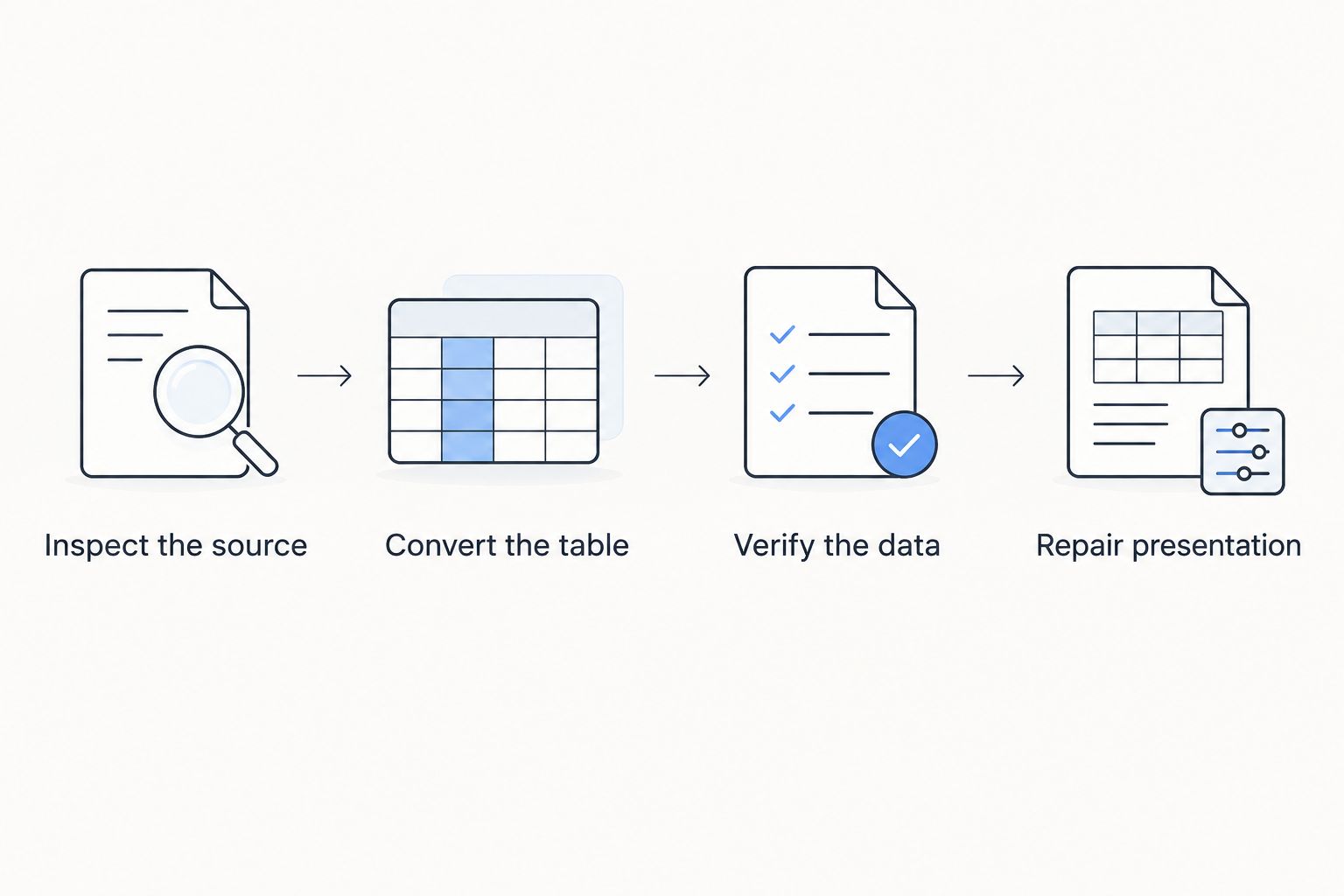
- Inspect the source. Check whether you can select individual words and whether the table has consistent columns.
- Choose the extraction method. Use text extraction for a text-based PDF; use optical character recognition, or OCR, for scanned pages.
- Convert the table. Export to an editable workbook rather than inserting a picture of the page.
- Check the workbook. Compare headings, row alignment, numeric values, and totals against the original.
- Repair presentation last. Adjust widths, borders, fonts, and page layout after confirming the data.
The PDF to Excel converter guide is the next step if you need to compare conversion approaches. Judge the result on your own document, not on a preview of an unrelated sample.
Why this matters
A workbook can look right while containing unusable data. An amount stored as text will not behave like a numeric cell, and a displaced value can end up beneath the wrong heading without looking obviously broken.
For your 2026 workflow, define success before converting: do you need a faithful-looking document, a sortable dataset, or both? An editable spreadsheet and a visual replica are different deliverables. Keeping the original PDF alongside the workbook gives you a reference when those goals conflict.
Which PDF types preserve formatting best?
The source document determines what the conversion process has to reconstruct. Selectable text helps, but it does not prove that the PDF contains a usable table structure.
| PDF source | Best for | Main advantage | Main limitation | What to check first |
|---|---|---|---|---|
| Text-based PDF with a simple table | Extracting rows for sorting and calculations | Characters are available without OCR | Cell boundaries still need reconstruction | Column alignment and numeric cell types |
| Scanned PDF | Recovering information from paper records | OCR can turn page images into extractable text | Recognition errors add another validation task | Digits, decimal marks, and minus signs |
| Complex report with nested headings | Recovering selected tables | Relevant data can be separated from surrounding content | Multi-level headings and merged areas complicate extraction | Header placement and row relationships |
Text-based PDFs: check structure, not just selectable text
A PDF exported from a document or spreadsheet application can contain actual text. That removes the need to recognize characters from an image, but it does not restore the original spreadsheet’s cell definitions.
Try selecting text across a row. If selection jumps between unrelated areas, treat the table structure as something to verify carefully after export. Use a simple table as your first conversion check, then inspect sections with different layouts separately.
Scanned PDFs: OCR comes before spreadsheet cleanup
A scanned page contains an image of the table rather than ordinary text characters. OCR identifies those characters; table extraction then attempts to place the recognized content into cells.
A searchable PDF is therefore not the same as a validated spreadsheet. Review ambiguous characters, faint decimal points, and negative values against the image. If the scan is skewed or cropped, correct the source image when possible rather than repeatedly repairing the exported workbook.
Complex reports: separate data from page decoration
Reports can contain repeated headings, notes, subtotals, and tables split across pages. Those elements serve a reader looking at a page, but they do not necessarily belong in the middle of a sortable dataset.
Extract a relevant table separately when your conversion method supports that choice. Keep explanatory notes, but distinguish them from records so that sorting does not detach a note from the information it explains.
Why PDF to Excel formatting varies
These source characteristics explain why the same conversion method produces different results:
- Text or image content. Text-based files allow character extraction; scans require recognition before the data can be organized.
- Table boundaries. Consistent spacing and clear column relationships give extraction a more interpretable layout than scattered text blocks.
- Merged headings. A heading spanning several columns does not map neatly to a flat table with a separate name for each field.
- Page breaks. A table continued across pages can acquire repeated headings, gaps, or separate worksheet sections.
- Number conventions. Decimal separators, thousands separators, date order, and currency symbols affect how values should be interpreted.
- Image quality. Blur, skew, shadows, and clipped edges make scanned characters harder to recognize accurately.
Treat formatting problems according to their cause. A misread digit needs source verification; an overly wide column needs presentation cleanup. Fixing the appearance does not repair an incorrect value.
How do you check a converted Excel workbook?
Use the same validation sequence for each 2026 conversion. Keep the PDF visible while reviewing the workbook, and save an untouched export before making corrections.
Inspect the source
Identify the table’s headings, where its records begin and end, and whether it continues across pages. Note any subtotals or footnotes that should remain separate from ordinary rows.
If you have access to the original spreadsheet, request it instead of reconstructing it from the PDF. The original workbook is the better source for formulas, sheet structure, and editable formatting.
Convert the table
Choose an Excel workbook output when you need cell formatting and worksheets. A CSV file stores delimited values, not workbook formatting, so it is not an equivalent output for this task.
Do not mistake a page image placed inside a worksheet for converted data. You should be able to select individual cells and inspect their contents in Excel’s formula bar.
Verify the data
Compare the first and last records, page transitions, and rows with unusual layouts. Then check amounts, dates, identifiers, and totals against the PDF.
Spot checks help locate errors, but they do not establish that every cell is correct. Where the workbook supports financial, operational, or reporting decisions, reconcile the relevant records and totals before relying on it.
Repair presentation
After validating the contents, adjust column widths, text wrapping, alignment, borders, and print settings. Keep headings readable without merging cells inside the working data table.
If you need both analysis and a presentation copy, keep them separate. A clean data worksheet can support sorting and formulas while a presentation worksheet handles page-oriented layout.
Which formatting problems should you fix first?
Fix errors that change meaning before errors that change appearance. A misplaced decimal matters more than a missing border, even when the border is easier to notice.
Numbers stored as text
Inspect whether amounts are numeric values or strings that merely look like numbers. Spaces, currency symbols, and imported punctuation can interfere with interpretation.
Convert only fields that should be numeric. Account references, postal codes, and other identifiers often need text handling, even when they contain digits.
Dates interpreted in the wrong order
An ambiguous date can represent different calendar dates under different regional settings. Confirm the source convention before applying a date format or allowing automatic conversion.
For a 2026 report, compare the actual day, month, and year rather than accepting a familiar-looking display. Changing the cell’s appearance does not prove that the underlying date is correct.
Wrapped descriptions split across rows
A description that wraps onto another printed line can become a separate spreadsheet row. Check whether the associated amount and reference still belong to the same record.
Rejoin text only after confirming the record boundary. Joining rows based on appearance alone can combine separate transactions.
Repeated headings inside the dataset
Page headings can appear between records after conversion. Remove those repetitions from the working table while preserving the actual field names at the top.
Check for subtotals before deleting anything. A subtotal is not a duplicate heading, and including it alongside its underlying records can double-count an amount.
What spreadsheet limits matter after conversion?
Microsoft’s published Excel specifications set a worksheet limit of 1,048,576 rows and 16,384 columns. These are Excel worksheet limits, not measures of how much data a particular converter accepts or how accurately it extracts it.
Excel also uses 15 significant digits of numeric precision. Long identifiers should therefore be treated as text when preserving every digit matters; they are labels, not quantities to calculate.
For your 2026 checks, confirm the underlying cell content before applying formatting. A number format cannot recover digits already changed during numeric interpretation, and a visual leading zero is not always the same as preserving the original identifier as text.
Does PDF to Excel conversion restore formulas?
PDF to Excel conversion does not reliably restore the original formulas. A PDF generally presents the displayed result rather than the workbook calculation that produced it.
Rebuild required calculations from verified cells, then compare their results with the PDF. A matching total is useful evidence, but it does not prove that every row or formula is correct.
Is OCR enough to preserve scanned table formatting?
OCR alone is not enough to preserve scanned table formatting. Recognizing characters and assigning them to the correct spreadsheet cells are separate tasks.
Check row boundaries and column placement after recognition. A correctly recognized amount in the wrong column is still an incorrect conversion.
Should you preserve the PDF layout or make the data sortable?
Choose sortable data when your goal is analysis, and preserve the PDF as the visual reference. Repeated page headings, decorative blank rows, and merged cells can obstruct filtering and calculations.
For a presentation deliverable, restore visual details after validating the working table. Do not sacrifice clear record boundaries merely to reproduce a printed page.
Where a browser-based document tool fits
Zendocs is best for individuals and businesses that want web-based document processing. Its stated scope includes converting, editing, signing, and managing PDF and other document formats.
You can review Zendocs when choosing that broader document workflow. The fit is online processing across document tasks; the limitation is that the stated scope does not establish exact PDF to Excel formatting retention, OCR behavior, or formula recovery. Assess those requirements against your actual file before depending on the output.
FAQ
Can I convert PDF to Excel and keep the same formatting?
You can retain table structure and some formatting, but an identical result is not guaranteed. Check cell alignment, number formats, headings, and totals against the PDF.
Why does my PDF table end up in the wrong Excel columns?
PDF table extraction reconstructs cells from page content and positioning. Irregular spacing, merged headings, and wrapped text can disrupt that reconstruction.
Can I convert a scanned PDF into editable Excel cells?
A scanned PDF requires OCR to recognize its text before that content can be organized into editable cells. Verify recognized characters and their row and column positions separately.
Will my formulas survive PDF to Excel conversion?
Do not expect PDF to Excel conversion to restore original formulas. A PDF generally retains displayed results rather than the calculations behind them.
Why are my account numbers changing after conversion?
Excel uses 15 significant digits of numeric precision, so long numeric identifiers need text handling. Leading zeros also require attention because identifiers should not automatically be treated as quantities.
Is CSV a good choice when I need to keep PDF formatting?
CSV is not suitable for preserving workbook formatting. It stores delimited values rather than fonts, borders, merged cells, or multiple worksheets.
Is Zendocs suitable for online document processing?
Zendocs serves individuals and businesses needing web-based document conversion, editing, signing, and management. Validate PDF to Excel output against your source rather than assuming exact formatting retention.
One last thing
A matching total can hide offsetting errors. An overstated value and an understated value can cancel each other out, leaving the total unchanged while individual records remain wrong.
For every important 2026 conversion, check both the overall result and the records that produce it. Keep the original PDF and the untouched export so you can trace a correction back to its source.


