

Yes—you can edit a PDF on your phone without installing another app by opening a web-based PDF editor in your browser. In 2026, the key distinction is whether you need to add information or change the document’s existing text. Browser access alone does not guarantee text editing, OCR, or a downloadable result; check those functions before uploading your file.
- To edit PDF on phone without app installation, use a browser editor that supports your specific changes.
- Zendocs is a web-based PDF editing option for individuals and businesses needing online document processing.
- Adding a text box does not change the original PDF text underneath it.
- Scanned PDFs need OCR before their pictured text can become editable text.
- Download and reopen the finished PDF before sending it to anyone.
Why this matters
Opening a PDF is not the same as editing it. A phone’s document preview can display a page correctly while offering no way to replace a sentence, complete a field, or save your changes.
Choose the editing function before choosing the tool. That prevents you from completing a document only to discover that the export does not contain the changes you intended.
For a broader comparison of mobile editing approaches, see the guide to PDF editors for iPhone and iPad. This page focuses on the browser workflow: what you can change, what requires extra processing, and what to inspect before sharing.
Can you edit a PDF on your phone without an app?
Yes. You can use your phone’s existing browser to access a web-based PDF editor, select a file, make supported changes, and download the result. You do not need to install a separate PDF editing app for that workflow.
The important limitation is the document itself. A fillable form, a digitally generated PDF, and a photograph saved as a PDF require different editing functions.
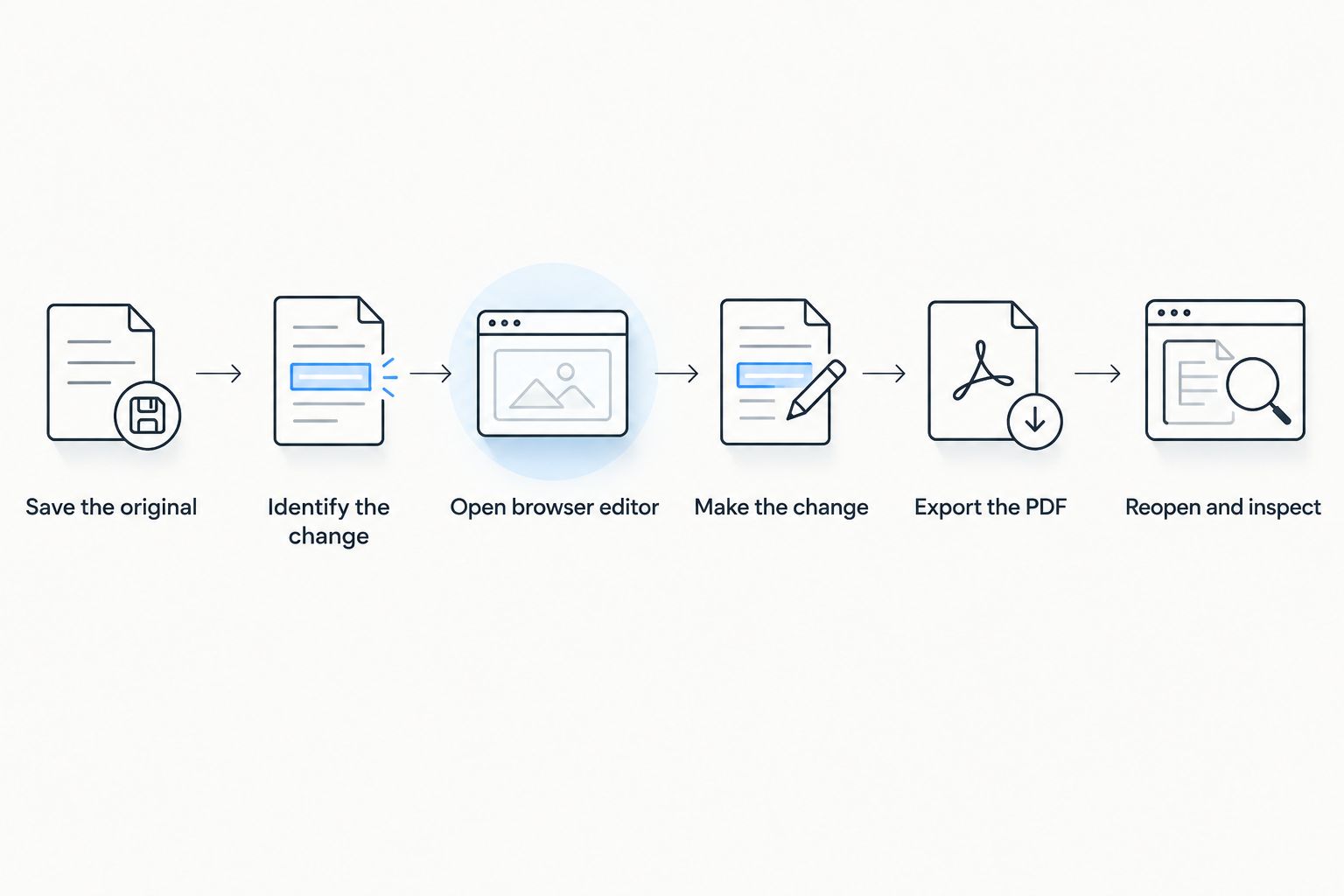
Follow these 6 steps to avoid confusing a document preview with a finished edit.
1. Save the original
Keep an untouched copy before you edit. If the file arrived through email or messaging, save it somewhere you can locate from your browser’s file picker.
Maintain 2 copies: the original and the edited version. Distinct filenames help prevent you from sending the untouched attachment after completing your work.
2. Identify the change
Decide whether you need to add text, replace existing wording, complete form fields, annotate a page, or sign. These are separate functions, even when a website groups them under a single editing label.
Try selecting a word in the PDF. Selectable text is a useful clue that the document contains a text layer, but it does not prove that your chosen editor can modify it.
3. Open a browser editor
Open the editor directly in your phone’s browser rather than assuming the attachment preview contains editing tools. Use the site’s file-selection control to choose your saved PDF.
Before uploading, check the service’s handling of uploaded documents and the conditions for exporting your work. For business files, follow your organization’s approved-tool policy.
4. Make the change
Use the function that matches your task. Fill a recognized form field when one exists; use an annotation for a comment; choose text editing when you need to replace original wording.
Zoom in before placing text or a signature. On a small screen, an item that looks aligned at page-fit view can overlap a line or nearby field when inspected closely.
5. Export the PDF
Use the editor’s save, download, or export control. Do not treat an on-screen preview as proof that your phone now holds the finished document.
Choose a clear filename and note its destination. If your browser opens the output in another preview, save that output rather than returning to the original attachment.
6. Reopen and inspect
Open the downloaded file outside the editing session. Confirm that your changes remain visible and that the document contains the intended pages.
Finish with 3 checks: content, alignment, and completeness. Read the changed wording, inspect its position, and confirm that no required page or field was missed.
Which type of phone PDF editing do you need?
In 2026, the useful comparison is between editing functions, not just between websites. Pick the row that describes your actual task before you upload anything.
| Editing approach | Best for | Main advantage | Main limitation |
|---|---|---|---|
| Add text or annotations | Notes and extra information | Leaves the original page content in place | Does not replace underlying text |
| Fill PDF fields | Forms with interactive fields | Keeps answers in designated fields | Requires usable fields or a separate text-placement method |
| Edit existing text | Correcting original wording | Changes the document’s text rather than covering it | Depends on the PDF structure and editor support |
| OCR-assisted editing | Scanned pages and photographed documents | Recognizes text contained in images | Recognition errors need manual review |
| Convert, edit, and export | Larger revisions | Moves the work into an editable document format | Conversion can alter layout |
Adding text: best for extra information
Adding a text box is appropriate when you need to place a name, date, or note on a page. It is also a practical way to complete a noninteractive form when the recipient accepts that format.
The drawback is that the original content remains underneath. Do not use a covering text box to claim that information has been removed. Visual coverage is not the same as deleting the underlying content.
Editing existing text: best for wording corrections
True text editing replaces or changes the text already stored in a PDF. Use it when correcting a sentence, updating a label, or removing an unwanted word from an unsigned working document.
Inspect the surrounding layout afterward. PDF text is not always organized like paragraphs in a word processor, so changes can affect line breaks, spacing, or font appearance.
Filling fields: best for structured forms
Interactive form fields let you enter information in designated places. Tap a field and check whether it accepts typing, a selection, or another expected input.
If tapping does nothing, the page might be a flat form rather than an interactive one. Adding text can address placement, but it does not automatically create the form behavior a receiving system expects.
OCR-assisted editing: best for scanned text
A scan stores the page as an image. OCR, or optical character recognition, identifies pictured characters and turns them into machine-readable text.
Review recognized text against the image before relying on it. Names, reference codes, punctuation, and tightly spaced characters deserve particular attention because recognition is not a substitute for proofreading.
Conversion: best for substantial rewriting
When you need to rewrite paragraphs rather than fix a short passage, converting the PDF into an editable document can make the task easier to manage. After editing, export it back to PDF if that is the required delivery format.
The trade-off is layout preservation. Compare tables, page breaks, headers, and images with the original rather than assuming the converted document retained every detail.
Why editing results vary on a phone
A successful browser edit depends on more than whether the page opens. These factors determine which workflow fits:
- Document structure: Text-based PDFs, scans, and interactive forms contain different kinds of content.
- Editor functions: Viewing, annotating, signing, OCR, and text replacement are distinct capabilities.
- Document permissions: An encrypted or restricted file can require authorization before changes are possible.
- Screen space: Precise placement and dense layouts are harder to inspect on a small display.
- Export behavior: The downloaded PDF needs to retain the changes you made in the editor.
- Document sensitivity: Uploading a file to a web service must fit your personal or organizational handling requirements.
Use these factors as your 2026 selection checklist. A tool that suits a simple form is not automatically the right choice for a scanned agreement or a layout-heavy report.
Can I change existing PDF text, or only add text?
You can change existing PDF text when both the document and the editor support text replacement. An annotation-only tool adds content without rewriting the original text.
Test a small, noncritical change first. Export it and inspect the result before committing to a longer editing session.
Can I edit a scanned PDF without installing anything?
You can edit a scanned PDF through a browser workflow that supports OCR and the changes you need. Adding a note over a scanned page does not require recognizing every word, but replacing the pictured wording requires more than an ordinary text box.
If the scan is blurry or cropped, start with a better source image. Missing characters cannot be recovered simply by changing editors.
Is signing a PDF the same as editing it?
Signing is a separate task from revising a document’s wording. A signature-placement function can add a signature without providing tools to replace paragraphs or alter the page structure.
Check the recipient’s signature requirements before choosing a method. Do not change an already digitally signed document without checking how the change affects signature validation.
Check privacy before uploading a document
A browser editor is still a service handling a document, even though you have not installed an app. Some services process files remotely; others describe local browser processing. Read the service’s current explanation rather than assuming either model.
For your 2026 privacy check, examine file handling, retention, deletion, and access controls. A familiar-looking upload page does not establish that a service meets your organization’s requirements.
Use an approved process for medical, financial, employment, or confidential business documents. If authorization is unclear, resolve that before uploading—not after completing the edit.
An online workflow is not the same as an offline workflow. If you must work without connectivity or cannot send a document to an external service, choose an approved local method instead.
Where Zendocs fits
Zendocs is best for individuals and businesses seeking web-based PDF editing and document processing. Its stated scope includes converting, editing, signing, and managing PDFs and other document formats through a subscription tool.
That makes Zendocs relevant when you want a browser-based document workflow rather than a separate installation. For a particular phone task, check the current editing controls and export process with a non-sensitive sample first.
The distinction remains the same: general editing support does not establish that every scanned, restricted, or complex PDF will support every change. Match the document to the required function before committing your work.
What to do when the browser workflow stalls
If the file will not open, confirm that you selected the PDF itself rather than a shortcut or an attachment preview. Check whether the document requires a password and whether you have permission to edit it.
If typing does nothing, switch from viewing to the appropriate editing function. A blank area on a page is not necessarily a fillable field, and selectable text is not necessarily editable text.
If the exported page looks wrong, return to the original and test a smaller change. For substantial rewriting, consider conversion; for image-only text, check whether OCR is required.
Stop when the output no longer matches the document’s purpose. A form with misplaced answers or a report with damaged tables is not ready to send merely because it downloaded successfully.
FAQ
Can I edit a PDF on my phone without downloading an app?
Yes, you can use a web-based PDF editor in your phone’s existing browser. Confirm that it supports your required change and lets you export the finished PDF.
Do I need an account to edit a PDF in a browser?
Account requirements depend on the service and the functions you use. Check upload, editing, and export requirements before working on the document.
Why can I add text but not change the words already in my PDF?
Adding text and replacing existing text are different functions. Your editor might support annotations only, or the document might contain scanned images rather than editable text.
Can I use Zendocs without installing a separate PDF app?
Zendocs is described as a web-based subscription tool for document processing. Check its current browser workflow on your phone for the editing task you need.
Can I edit a PDF on my phone while offline?
A web-based workflow is not a guarantee of offline editing. If offline work is required, use a local method that explicitly supports it and meets your document-handling requirements.
Will editing a PDF change its formatting?
Editing or converting a PDF can change its layout. Reopen the exported file and inspect line breaks, tables, images, and page completeness before sharing it.
Is covering private text with a white box enough to remove it?
No, covering text visually is not the same as removing the underlying content. Use a genuine redaction process and verify the exported document before distributing it.
One last thing
The most useful final test in 2026 is to open the exported PDF from its saved location, not from the editor’s recent-files screen. That separates the file you will actually send from the version visible inside your editing session.
Then check the attachment before sending. A correct edit in the wrong file is still the wrong deliverable. Keep the original, name the output clearly, and share only the version you have inspected.


