

Yes, you can fill out a PDF form without printing by typing into existing form fields or placing text over a non-fillable page, then saving the completed PDF. A scanned form needs text overlays or form-field preparation, and you must follow the recipient’s signature and submission instructions before sending it.
- To fill out PDF form without printing, use existing fields or add text over the page.
- Scanned PDFs need text overlays or form preparation; searchable text alone does not create fillable fields.
- Zendocs suits individuals and businesses seeking browser-based PDF editing, signing, and document management.
- Save, close, and reopen the completed PDF before submitting it; follow the recipient’s signature requirements.
Can you fill out a PDF form without printing it?
Yes. The right method depends on whether the PDF contains interactive fields, a flat digital page, or a scanned image. You do not need to turn every document into a fillable template just to complete it yourself.
For a 2026 paperless workflow, start with the file rather than choosing software first. Open it, select an answer area, and see whether a cursor appears inside a field. If you need help choosing an editor, compare the functions covered in this PDF form filler software guide.
| Form type | Best for | How to complete it | Advantage | Limitation |
|---|---|---|---|---|
| Interactive PDF | Typing into an existing form | Select fields, enter answers, and save | Fields guide where answers belong | Some viewers do not support every form feature |
| Flat digital PDF | Completing a form without interactive fields | Place text and marks over the page | Keeps the existing page layout | You must position each answer yourself |
| Scanned PDF | Completing a photographed or scanned paper form | Add text overlays; use OCR if searchable text is also needed | Avoids printing the scanned page | Skewed or blurry pages make placement harder |
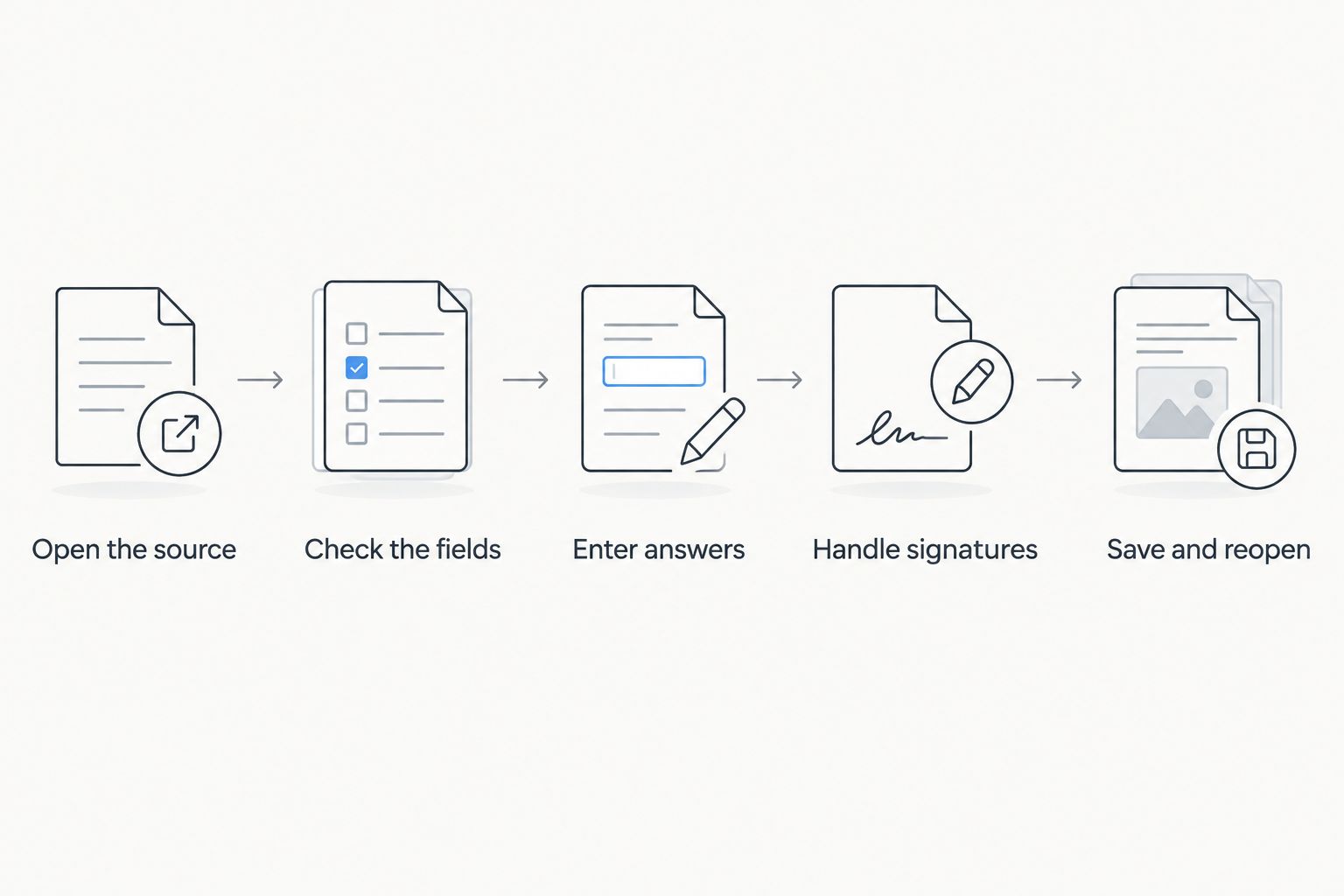
Complete the form in this order
- Open the source. Download the PDF from the sender or issuing organization. Keep an untouched copy so you can restart without losing the original.
- Check the fields. Select a blank answer area. Test a checkbox and a multiline field if the form includes them.
- Enter answers. Type into working fields. If there are no fields, use an editor’s text-placement function and align answers with the printed prompts.
- Handle signatures. Read the form’s instructions before adding a signature. Typing a name into an ordinary text box is not a substitute for a required signing process.
- Save and reopen. Save a completed copy, close it, and open that saved file again. Check every page before sending it through the required channel.
These steps separate completing the document from submitting it. A PDF that looks finished in an editor is not necessarily the file you have saved or the submission the recipient requires.
Why this matters
Paperless completion removes the print, handwriting, and rescan stages. It also lets you correct an answer before sending the document rather than crossing it out on paper.
The main risk is confusing appearance with function. A box drawn on a page is not necessarily a fillable field, and a signature image is not necessarily the signature method the recipient accepts. In 2026, check those requirements before entering sensitive information or completing a lengthy application.
Interactive forms: type into existing fields
Existing fields are the simplest route when the form already supports them. Select a field, enter an answer, and use the keyboard or pointer to move through the document. Follow any visible formatting instructions for dates, names, and identification details.
Check longer answers carefully. A field can display text while selected but hide part of it when you move away, depending on its settings and the viewer. Review the visible result rather than assuming everything you typed will appear to the recipient.
- Best for: Forms distributed with working text fields, checkboxes, and selection lists.
- Advantage: You do not need to position each answer manually.
- Limitation: Viewer compatibility and field restrictions can interfere with completion.
If a field will not accept an answer, first confirm that you are using the expected format. Do not immediately cover the field with another text box: that can leave the underlying field empty when the recipient processes the form data.
Flat PDFs: place text over the page
A flat PDF can contain readable text and clearly drawn answer boxes without containing interactive fields. Use text placement when you need to complete that page without rebuilding the form.
Choose a readable size, align answers with the relevant prompts, and keep text clear of instructions and borders. For checkboxes, use a consistent mark that clearly identifies the intended choice without obscuring nearby options.
- Best for: Individual completion of a non-fillable document.
- Advantage: You retain the original page as the background.
- Limitation: Text overlays do not turn the document into a reusable interactive form.
Avoid changing the wording of the original questions. Your task is to supply answers, not to revise the issuer’s document. If an answer does not fit, follow the form’s attachment instructions instead of shrinking the text until it becomes difficult to read.
Scanned PDFs: add answers without recreating the page
A scanned PDF contains an image of the original document. You can place text over that image without first converting the entire document into editable text.
OCR makes recognized text searchable or extractable; OCR alone does not create form fields. That distinction matters when an editor recognizes the printed questions but still does not let you select their answer areas.
- Best for: Paper forms supplied as scans or photographs.
- Advantage: You can complete the existing page digitally.
- Limitation: Blurry text, angled pages, and dark backgrounds reduce readability.
For a 2026 submission, start with the clearest source available from the issuer. If the scan cuts off instructions or answer areas, request a complete copy rather than guessing what belongs in the missing space.
Why the completion method varies
The file’s structure and the recipient’s requirements determine the correct approach. Check these factors before committing to an editor or changing the document:
- Field structure: Interactive fields accept answers directly; flat pages require text placement or field creation.
- Scan quality: Skewed, blurred, or cropped pages make answers harder to align and review.
- File permissions: Editing restrictions can prevent changes. Request an authorized editable copy rather than bypassing the issuer’s controls.
- Viewer support: A PDF viewer and a PDF editor do not necessarily offer the same form functions.
- Signature instructions: The recipient determines whether an electronic signature, a designated signing process, or a handwritten original is required.
- Submission format: A recipient can require a particular portal, attachment format, or original interactive file.
Do not flatten, convert, or otherwise restructure a form merely because the option exists. Keep its original structure unless a specific problem or submission instruction requires a change.
Where an online PDF editor fits
Zendocs is best for individuals and businesses seeking browser-based PDF editing, signing, and document management. Its stated scope also includes converting Word, Excel, PowerPoint, images, and other document formats.
That makes Zendocs relevant when your document work extends beyond answering a single form. For the form in front of you, confirm that the required editing and signing functions match the file and the recipient’s instructions before proceeding.
The advantage of a web-based workflow is access through a browser. The trade-off is that you need to evaluate the service’s data-handling terms before uploading confidential documents; do not assume an online editor is appropriate for every record.
A subscription document tool also serves a different need from opening one already-fillable attachment. Choose based on the work you actually need to complete, not on a longer feature list.
How do you sign a PDF without printing it?
You can sign a PDF electronically when the recipient accepts that method. Use the document’s designated signature field or the signing process specified by the recipient, then save the completed document.
An electronic signature and a certificate-based digital signature are not interchangeable terms. A digital signature uses cryptographic mechanisms to support verification of the signer and document integrity; a visible handwritten-style mark alone does not provide those properties.
Before signing, finish the answers and review all attachments. Changes after signing can affect signature validation, so follow the signing workflow rather than adding edits afterward.
Can you fill out a PDF form on your phone?
Yes, you can complete a PDF on your phone with a viewer or editor that supports the functions your file needs. Existing fields require form support; a flat page requires text placement.
For a 2026 mobile workflow, inspect the whole page after zooming in to enter answers. A name that looks aligned at high magnification can overlap another field when you view the page at normal size.
Save the completed PDF as a file rather than relying on a screenshot. A screenshot changes the document into an image and does not preserve interactive fields or signature-validation features.
How do you check that a completed PDF saved correctly?
Use 3 checks: confirm the answers, confirm the document’s integrity, and confirm the submission requirements. Perform them on the saved copy, not only on the open editing session.
Check answers
Read each answer beside its question. Look for clipped text, unchecked required boxes, accidental marks, and blank required fields. If the form specifies how to handle an inapplicable question, follow that instruction rather than inventing your own notation.
Check integrity
Confirm that every expected page is present and that instructions remain readable. Inspect any signature indicators using a viewer that supports the signature type. A visible signature mark alone does not establish that a certificate-based signature validates.
Check submission
Confirm the destination, required attachments, and accepted file format. Keep the completed file and any submission confirmation separately; saving a PDF does not prove that the recipient received it.
For your 2026 records, use a filename that distinguishes the completed copy from the blank original. Avoid putting sensitive identification details in filenames when those names will appear in emails or shared folders.
FAQ
Can I fill out a PDF form without printing or scanning it?
Yes, you can fill out a PDF form without printing or scanning by typing into existing fields or placing text over a flat page. Save the completed PDF and reopen it to confirm that your answers remain visible.
Why can't I type into the boxes on my PDF form?
The boxes can be part of the page artwork rather than interactive fields. Use text placement for a flat form, or check viewer compatibility and permissions if the document is supposed to be fillable.
Do I need OCR to fill out a scanned PDF?
No, you do not need OCR merely to place answers over a scanned PDF. OCR recognizes printed text, but it does not by itself create interactive form fields.
Can I use Zendocs for online document work?
Zendocs is a web-based subscription tool for document conversion, editing, signing, and management. Confirm that its functions match your particular PDF and the recipient’s requirements before uploading the file.
Can I email a completed PDF instead of mailing it?
You can email a completed PDF when the recipient accepts email submissions. Follow the recipient’s delivery instructions and security requirements, especially for documents containing sensitive information.
Should I flatten a PDF before sending it?
Flatten a PDF only when the recipient’s instructions or your specific workflow call for it. Flattening incorporates annotations or field appearances into page content and can remove interactivity needed for further processing.
Does typing my name count as signing the form?
Typing your name is not automatically sufficient for every form. Follow the recipient’s signature instructions, including any requirement for a designated electronic-signing process or handwritten original.
One last thing
Keep the blank original and the completed PDF as separate files. That simple habit gives you a clean starting point if the recipient requests a correction and prevents you from accidentally reusing someone else’s saved answers.
Before sending, open the exact attachment you intend to submit. The meaningful final check is not whether you completed the form on screen; it is whether the saved document contains the right answers in the right places.


