
Yes, you can password protect a PDF for free using a local tool such as Apple Preview or LibreOffice, provided you set a password that is required to open the file. A restriction on editing or printing is not the same protection, and an online service introduces a separate decision about uploading your document. This 2026 guide explains which method to choose and how to check the saved PDF before sharing it.
- Apple Preview is a practical password protect PDF free option for Mac users who want to keep files local.
- LibreOffice supports password-protected PDF export; check the exported layout before sharing.
- An opening password protects access; editing and printing restrictions do not provide the same barrier.
- Test the saved PDF without its password, then send the password through a separate channel.
Why this matters
A PDF that opens without a password is not protected against unauthorized reading by a PDF opening password. Disabling copying, editing, or printing addresses different actions. Start with the question that matters: should someone holding the file be able to read it?
Finish your changes before adding protection. If the document still needs work, the guide to editing a PDF for free online covers that separate task. Encrypt the final copy rather than assuming an earlier protection setting will survive conversion or export.
Can you password protect a PDF for free?
Yes. Apple Preview and LibreOffice provide local routes to a password-protected PDF without requiring a paid PDF-editor subscription. Choose the route that fits your device and document, then test the actual output rather than trusting a checked box.
For a 2026 workflow, the main distinction is where processing happens and whether the resulting PDF requires a password to open.
| Method | Best for | Main advantage | Main limitation |
|---|---|---|---|
| Apple Preview | Mac users protecting an existing PDF | Provides a local workflow using a built-in Mac application | Not a Windows workflow; menu wording varies by macOS version |
| LibreOffice | Desktop users who also need PDF export from documents | Provides password settings during PDF export | Opening an existing PDF for editing can change its layout |
| Browser-based PDF protection service | Users who need a browser workflow | Avoids installing a desktop editor | Requires checking whether processing is local or involves uploading the file |
An online tool advertising password protection still needs scrutiny. Check that it offers an opening password, explains its file-handling practices, and lets you download a usable protected copy.
Choose local processing when you do not want to upload the document. Local processing avoids that upload, but it does not make an unmanaged or compromised computer safe.
Apple Preview: best for an existing PDF on a Mac
Apple Preview is the simplest place to start when you already use a Mac and need to protect an existing PDF. Apple's Preview User Guide documents password protection and permissions for PDFs; the controls available on your Mac depend on its macOS version.
Use this sequence:
- Open the PDF in Preview. Check the document, not just its filename, so you protect the intended version.
- Choose File, then Export. Use the PDF format and select a different filename for the protected copy.
- Open the password controls. Look for Permissions or the option to require a password to open the document, depending on your version.
- Set the opening password. Do not stop after restricting printing or changes.
- Save and close the exported file. Reopen that saved copy and confirm that it requests the password.
Best for: Mac users protecting a finished PDF without uploading it. Preview keeps this task within a local application. Its limitation is platform scope: these instructions do not describe a Windows feature or a browser tool.
Keep the unprotected working copy in an appropriately restricted location. Creating an encrypted export does not remove the original, its backups, or copies already shared with other people.
LibreOffice: best for password-protected PDF export
LibreOffice provides PDF password settings through its export controls. LibreOffice Help distinguishes the password needed to open a PDF from permissions controlling actions such as changes and printing.
Open your document, choose the PDF export command, and inspect the Security settings. Set the password required to open the exported PDF, complete the export, and test the resulting file independently.
Best for: desktop users exporting a document to a protected PDF. This route fits a workflow where you are already working with an editable source document and need the final output in PDF format.
The main caution concerns existing PDFs. LibreOffice Draw can open PDFs for editing, but importing and exporting a complex document can alter fonts, spacing, or page elements. Compare the output with the original, especially when the file contains forms, tables, or carefully positioned text.
For your 2026 workflow, keep protection testing and appearance testing separate. A file can require the right password and still contain a broken layout. Neither check substitutes for the other.
Browser-based tools: best when installation is not practical
A browser-based tool is an option when you cannot install software or need to work from a device without a suitable local application. The browser interface alone does not tell you where processing happens: a service can upload documents to its servers or process them on your device.
Before using one, establish these points:
- Processing location: Does the service explain whether your document leaves the device?
- Opening protection: Does the exported PDF require a password before displaying its contents?
- File handling: What do the published terms say about retention and deletion?
- Export access: Can you download the protected output under the conditions presented?
- Document suitability: Does your organization's policy permit that service for this file?
Best for: users who need browser access and have confirmed the service fits their document-handling requirements. Convenience is the advantage; reliance on the service's processing and account conditions is the trade-off.
Do not upload a real confidential document merely to discover how the tool works. Use a sample PDF first. A successful sample export establishes the workflow, not the service's suitability for every kind of sensitive information.
Why PDF password protection varies
The word protected covers several different controls. Your result depends on what you set, what you export, and how the recipient opens the file.
- Password purpose: An opening password blocks reading without the password. Permissions settings address activities such as editing or printing.
- Reader behavior: PDF applications differ in how they enforce permissions restrictions. Do not treat those restrictions as a confidentiality barrier.
- Password strength: A predictable password weakens the protection provided by encryption. Avoid names, birthdays, and reused credentials.
- Export settings: Converting or exporting the document creates a new output that needs its own verification.
- Existing copies: Protecting a new PDF does not protect an unencrypted original or an earlier attachment.
- Sharing method: Sending the password beside the document gives anyone accessing that message both items.
These distinctions remain relevant in 2026 regardless of the application you choose. Judge the saved file by its behavior, not by a lock icon or a filename containing the word secure.
How do you check that a PDF is actually protected?
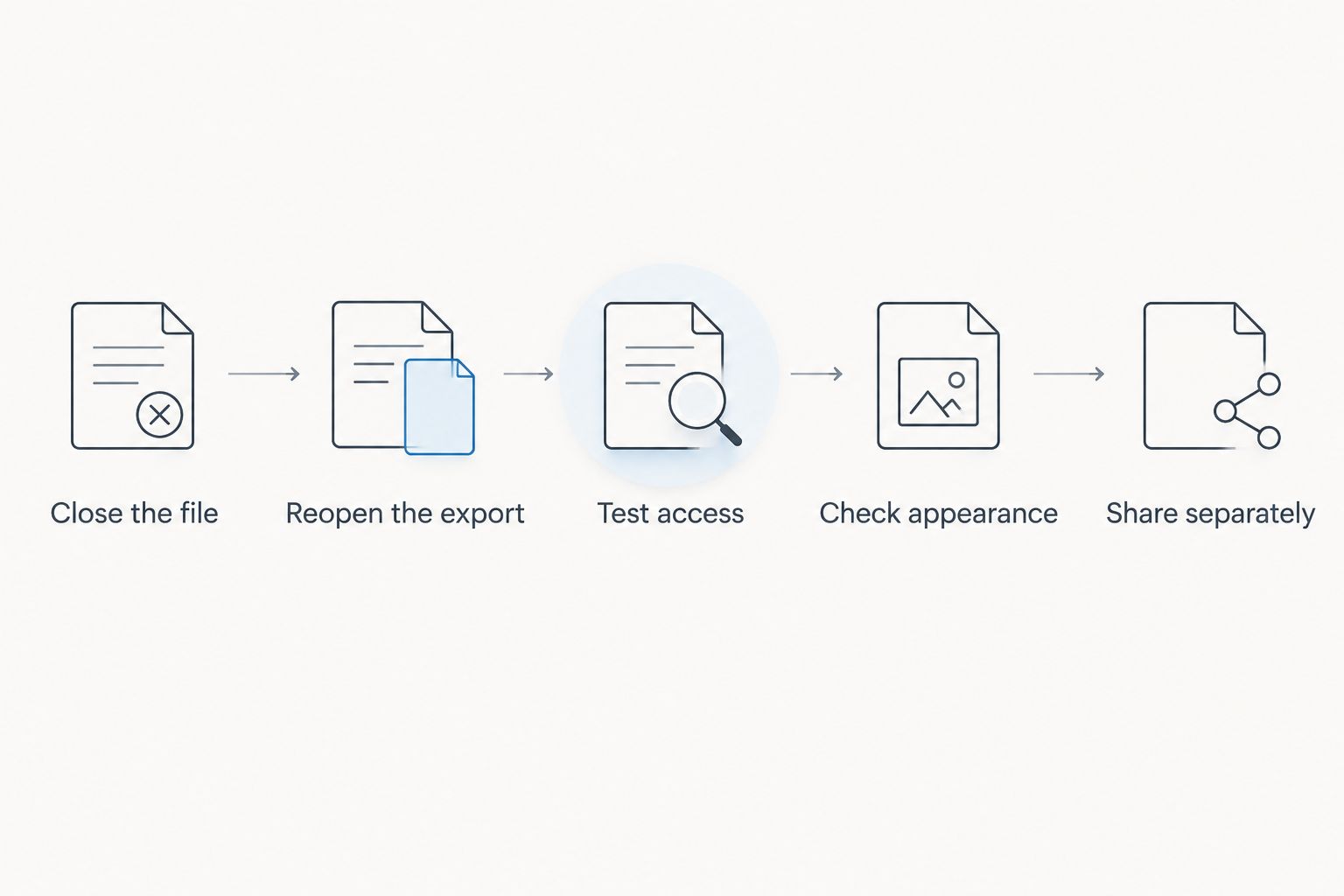
Perform 2 checks: access and appearance. Access testing confirms that the file requests the opening password; appearance testing confirms that protection and export have not damaged the document.
- Close the file. End the current viewing session before testing the saved output.
- Reopen the export. Select the protected copy from its saved location, not the original or an old attachment.
- Test access. Confirm that you cannot view the contents without entering the opening password. If possible, repeat this in another PDF reader.
- Check appearance. After entering the password, inspect every page, including form fields, images, tables, and page breaks.
- Share separately. Send the document and its password through different communication channels.
Use a 1-page sample PDF when learning an unfamiliar tool. Once you understand the controls, repeat the process with the intended document and check the entire output. A successful practice file does not prove that a later export inherited the same settings.
Use 2 separate communication channels for delivery when practical, such as email for the document and a verified messaging conversation for the password. This reduces the risk of exposing both in the same message; it does not prevent an authorized recipient from sharing them.
Can you stop someone from editing a PDF without locking it?
Yes, PDF permissions can restrict editing while allowing the document to open. That is a different goal from keeping its contents confidential, and enforcement depends on the reader software.
If your requirement is that only the intended recipient can read the document, use an opening password. If your requirement is approval or evidence of changes, password protection alone does not establish who approved the content.
Does password protection remove confidential information?
No. Password protection controls access to a file; it does not redact its contents. Once an authorized recipient opens the document, the information remains there to read.
Remove information you should not disclose before encryption. Drawing a black rectangle over text is not a substitute for proper redaction because the underlying content can remain in the PDF.
Where Zendocs fits in the document workflow
Zendocs provides web-based conversion, editing, signing, and management of PDFs and other document formats. Zendocs is for individuals and businesses that need web-based document processing.
Use Zendocs when those tasks are the requirement, rather than assuming that every document platform includes the same security controls. Confirm the current password-protection functionality before choosing it for this specific job.
The distinction matters: a web-based subscription tool serves an ongoing processing workflow, while this page addresses a single protection task. Zendocs belongs in that broader evaluation, not as an unverified claim that the free password-protection requirement is covered.
FAQ
Can I password protect a PDF for free without uploading it?
Yes. Apple Preview on a Mac and LibreOffice PDF export provide local routes to password-protected PDFs. Set an opening password and test the saved output before sharing.
What's the easiest way to password protect a PDF on a Mac?
Start with Apple Preview and use its PDF export password controls. Enable the requirement for a password to open the file, rather than relying only on editing restrictions.
Can I password protect a PDF on Windows without a paid PDF editor?
Yes, LibreOffice provides password settings during PDF export. If you import an existing PDF, check the exported layout because editing and re-exporting can change its appearance.
Is an editing password the same as an opening password?
No. An opening password is required to view the document, while permissions settings control actions such as editing or printing. Permissions restrictions are not a substitute for confidentiality.
Is an online PDF password tool safe for confidential files?
An online tool needs to meet your document-handling requirements before you upload confidential files. Check processing location, published retention terms, and your organization's policy; choose local processing when uploading is not permitted.
Can someone still share my password-protected PDF?
Yes. A recipient who has the PDF and password can share both. Password protection does not provide continuing control over an authorized recipient's actions.
Can I use Zendocs for more than password protection?
Zendocs provides web-based document conversion, editing, signing, and management. Confirm its current security features separately before relying on it for a password-protection requirement.
One last thing
The unprotected original is often the file that needs your attention next. Encrypting an export leaves earlier copies unchanged, including attachments and files in shared folders.
Make this your final 2026 check: confirm which copy you are sharing, where the original remains, and who can access it. A password on the right file is useful; a password on a duplicate does not secure everything else.


